
A membership sets what a member buys at your club: the price, how often they pay, how long it runs and whether it is for sale online. You start from a template that already fills in almost everything, and then only change what needs to be different.
Which template should you pick?
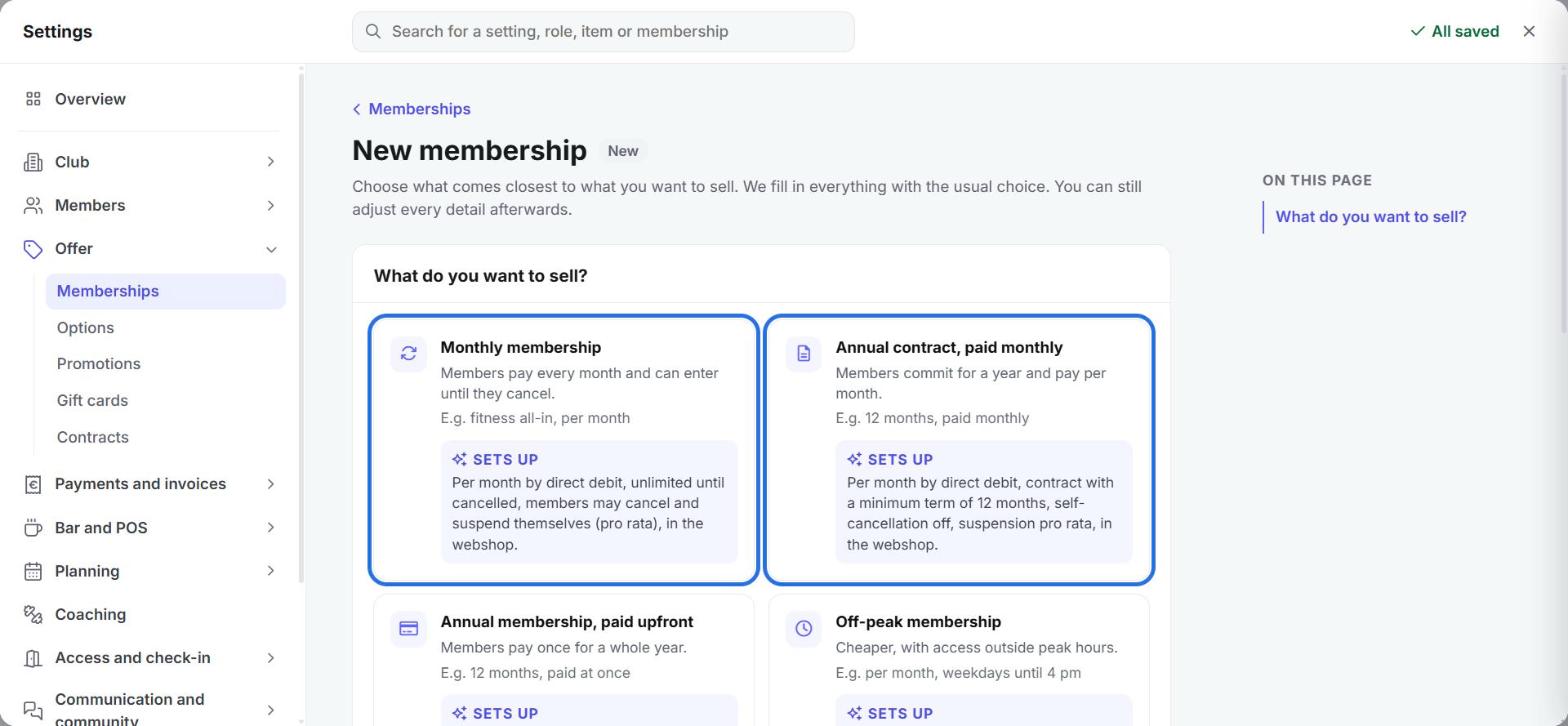
For a recurring membership you will usually pick one of these two:
- Monthly membership: the member pays every month by direct debit and stays a member until they cancel.
- Annual contract, paid monthly: the member signs up for 12 months and pays per month by direct debit.
Selling something else, such as a turn card, a day pass or a trial period? Then pick the template with that name. The difference between a subscription, a turn card and a cost is explained in Membership types and turn cards.
Create the membership
- In the menu on the left, click Settings.
- Click Offer and then Memberships.
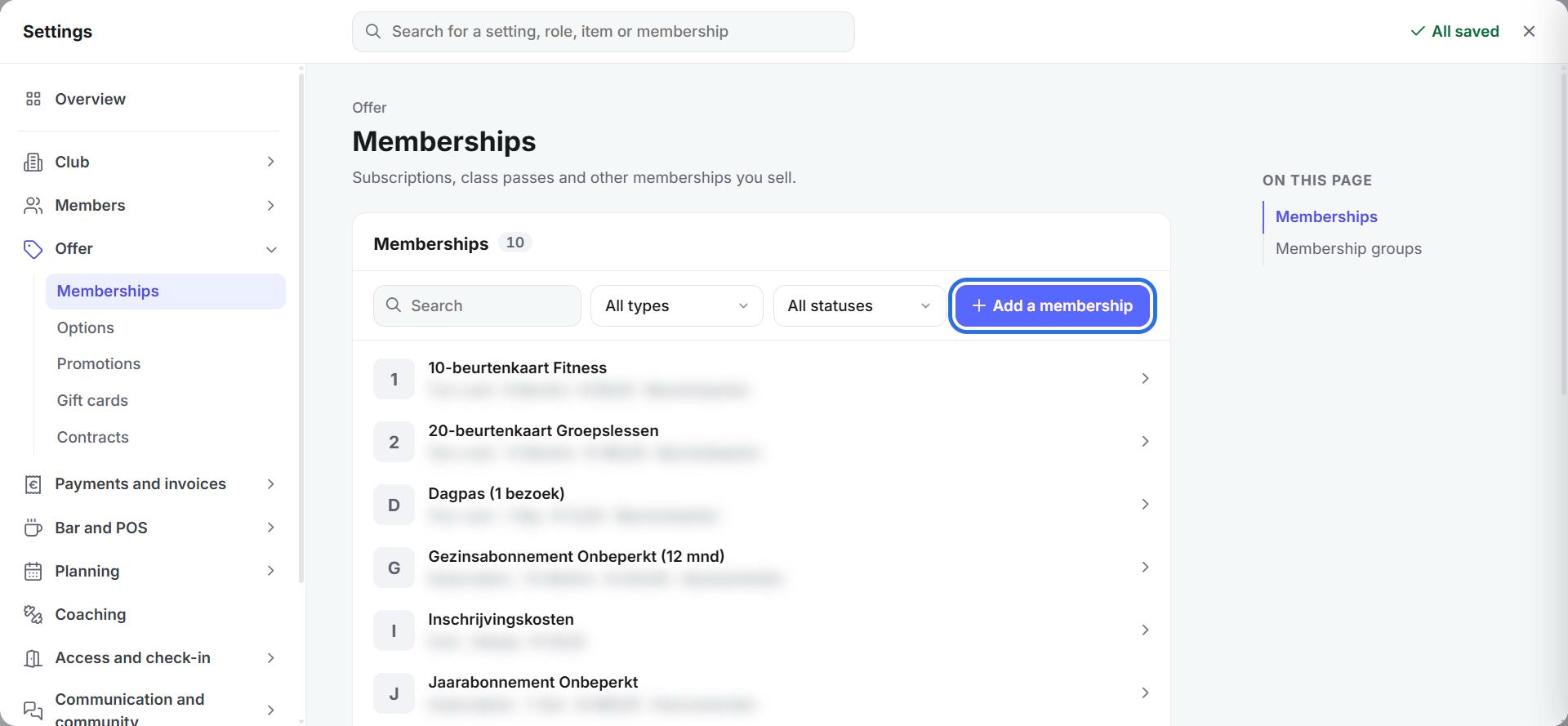
- Click Add a membership.
- Under What do you want to sell?, click the template you want to use. Picked the wrong one? Click Other template.
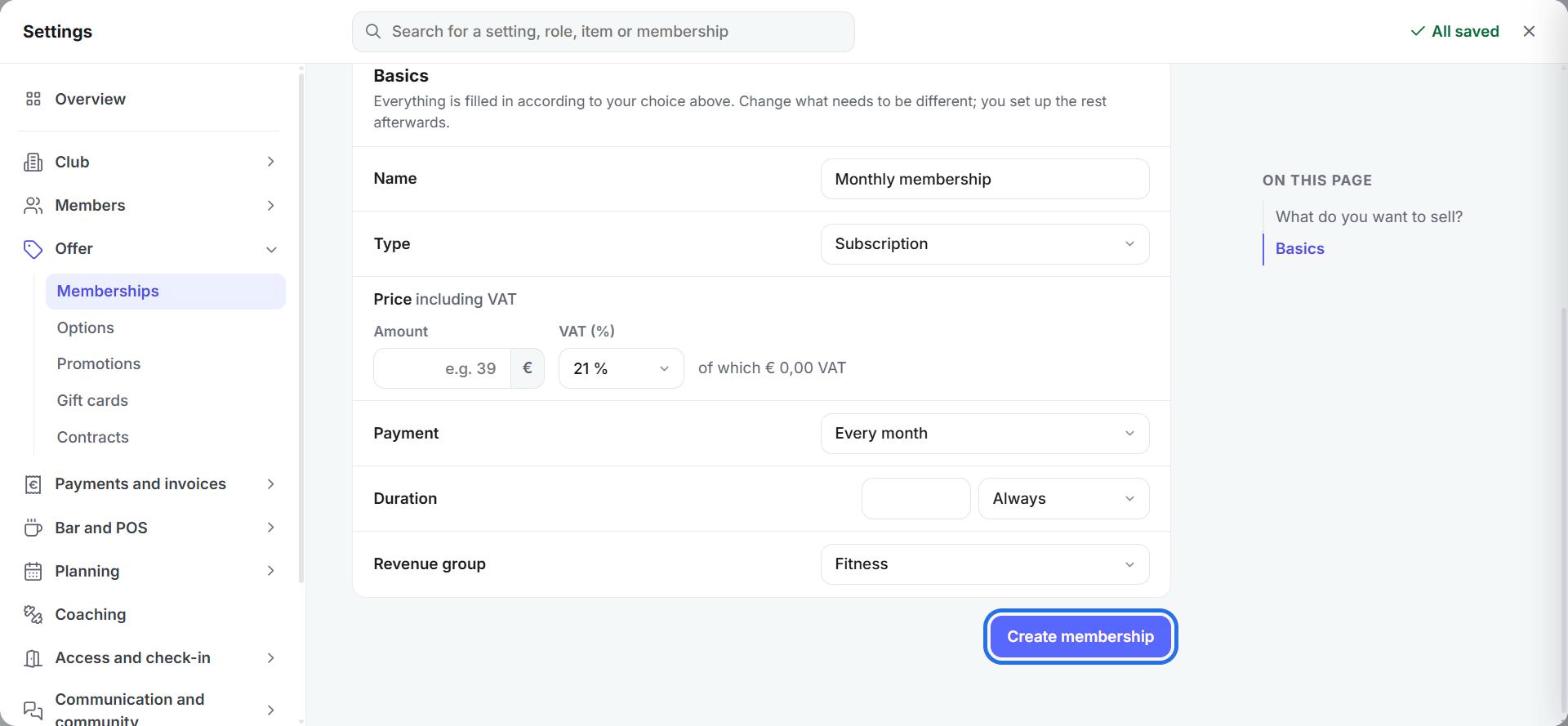
- Enter the name of the membership under Name.
- Under Price, enter the amount including VAT and choose the VAT rate.
- Check Payment, Duration and Revenue group.
- Click Create membership.
The membership now opens. Under In short you can read in one sentence what the member buys, so you can quickly see whether everything is right. Anything you change from here on is saved straight away.
Paying by direct debit
For a recurring membership, it is best to have the member sign the SEPA mandate right away as well.
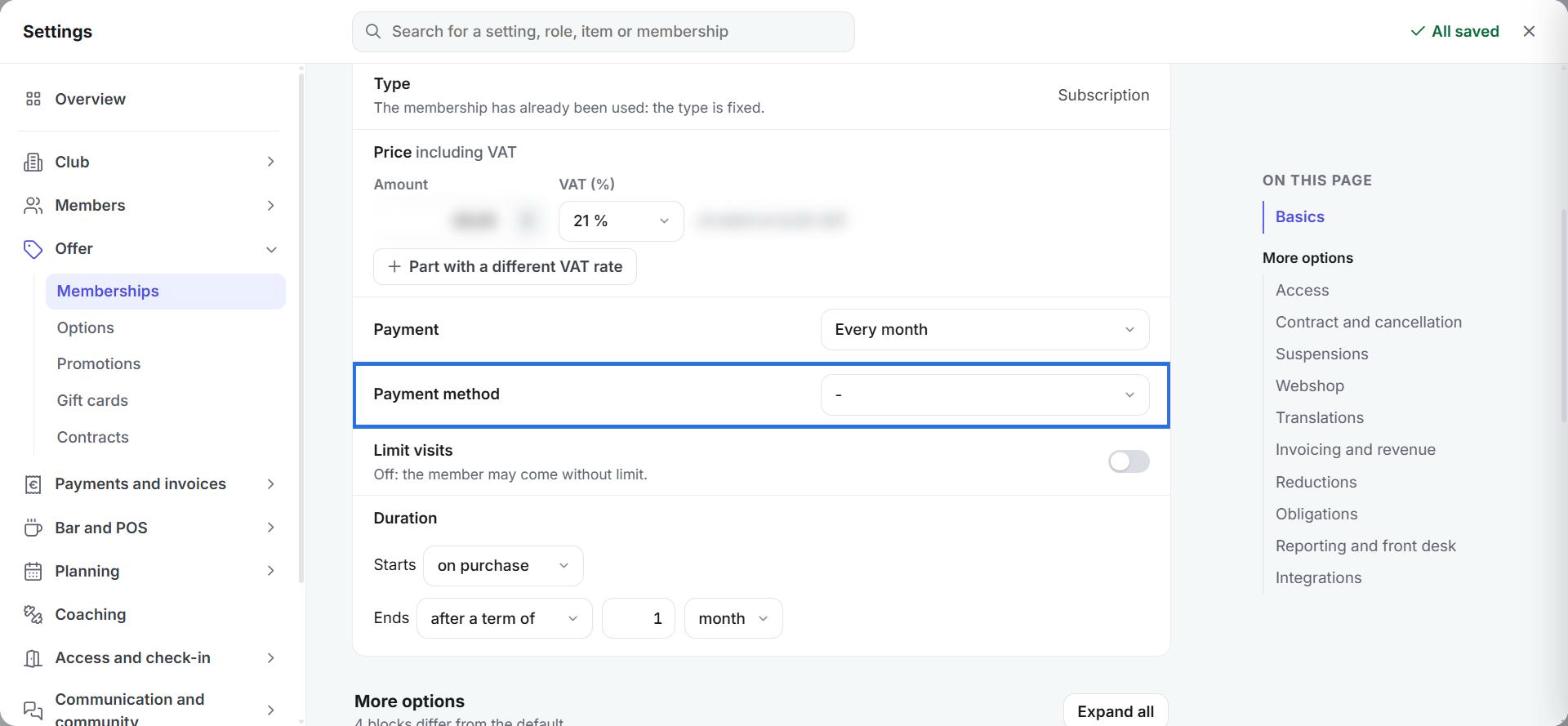
- Under Basics > Payment method, choose your direct debit payment method.
- Open Contract and cancellation and under Contract, choose the contract the member signs when buying. It contains your terms and the SEPA mandate.
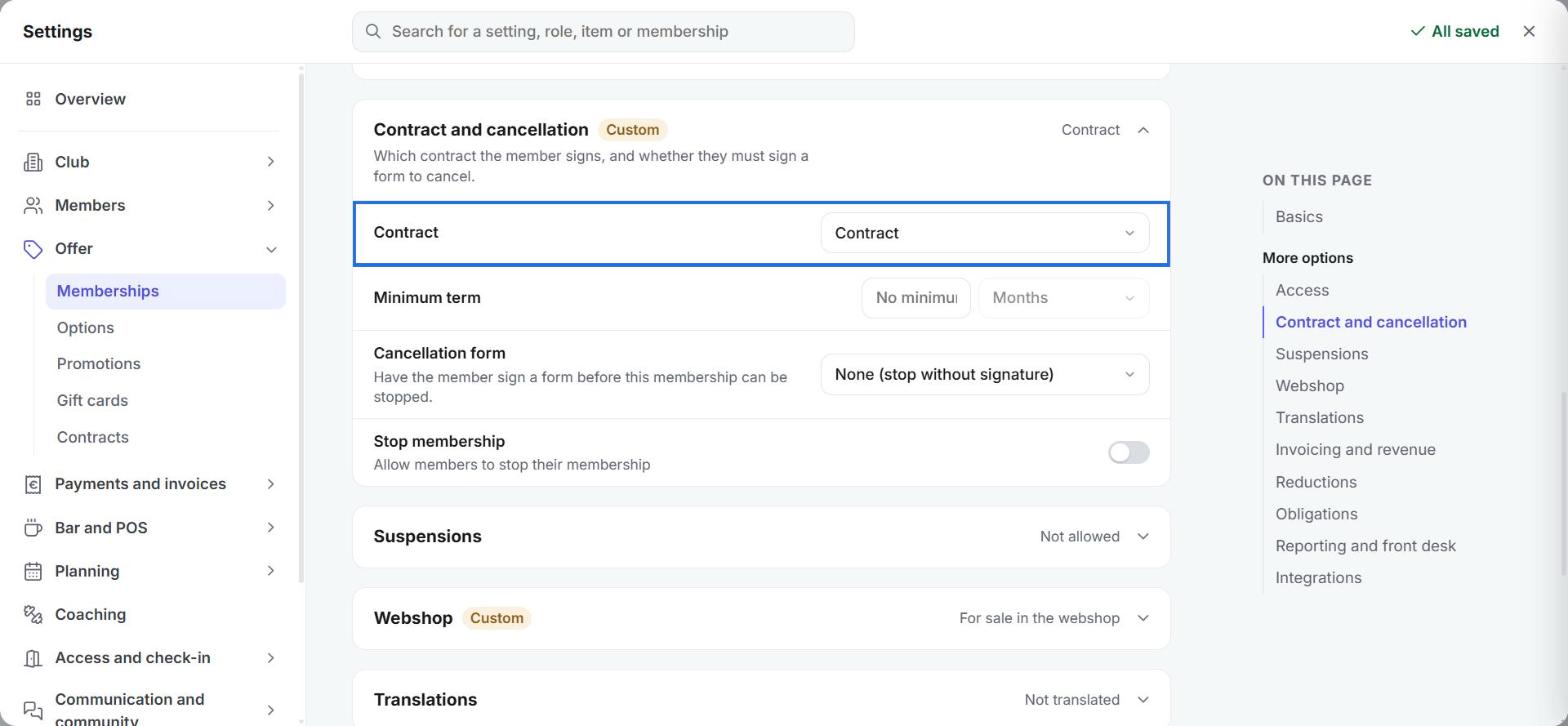
- Under Minimum term, enter how long the member has to stay at least, for example 12 months for an annual contract.
How to prepare a contract and have members sign it digitally is explained in Digital contracts.
Further settings
Under More options you will find the other settings, grouped in blocks. Click Expand all to see them all.
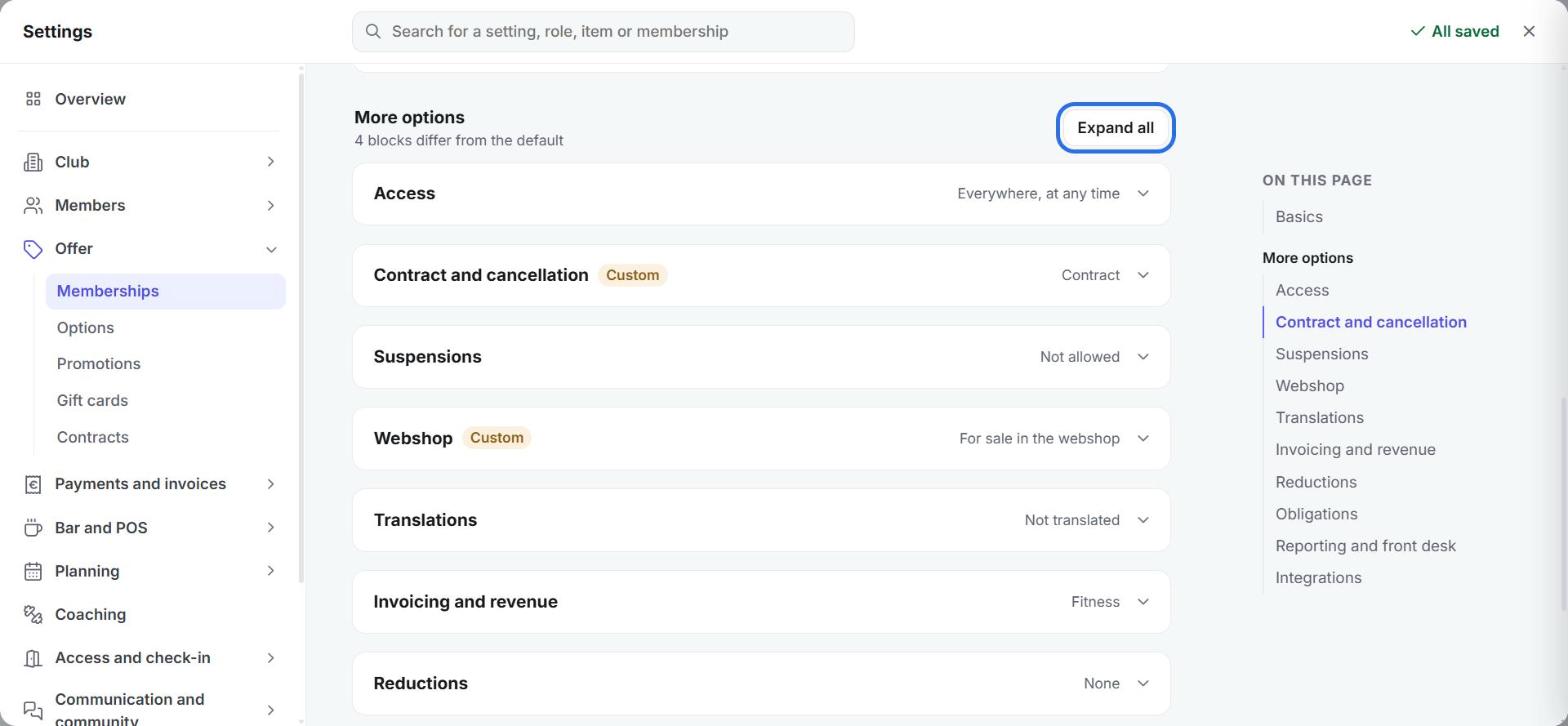
- In Access you choose through which Check-in points and at what times the member may enter. If you leave this empty, the member can enter everywhere, at any time. Should members with this membership also be able to book classes? You set that up on the calendar and the activity: see Memberships provide access to activity reservations and How do I set a maximum number of reservations per week for a membership?
- In Contract and cancellation, turn on Stop membership if members may stop their membership themselves. In Suspensions, turn on Suspend membership if they may put it on hold for a while. Under On a suspension you choose what then happens to the paid period. Read more in How do I allow members to pause or cancel their own membership? and Add a suspension to a member.
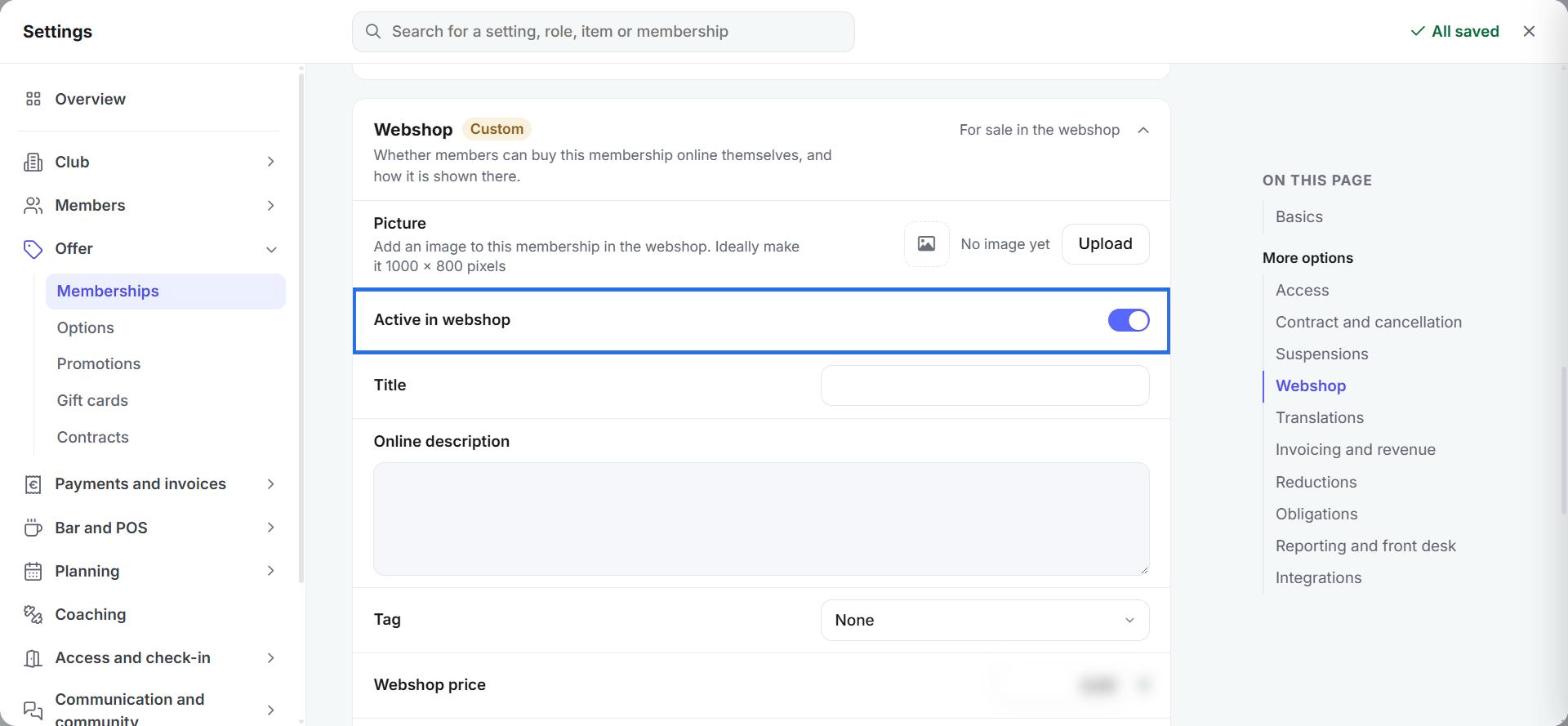
- In Webshop, turn on Active in webshop to sell the membership online. There you can also set a Title, an Online description, a Picture and a separate Webshop price. With Can only be bought 1 time, each member can buy it only once, for example a trial class. Setting up the webshop itself is explained in Setting up your webshop.
- In Invoicing and revenue, turn on Pro rata if the first month should be calculated proportionally. If a member starts on the 20th, they only pay for the remaining days of that first month. More about this in What is pro rata?
- In Reductions, link a status to the membership with Add status. A member with that status then gets the discount automatically, at the front desk and in the webshop. How to create statuses is explained in How can I give my members discounts?
- In Obligations you choose costs that are charged automatically along with it, such as a registration fee. You first create such a cost as a separate membership with the One-off fee template.
- In Reporting and front desk, use Counts as to choose whether members with this membership count as active members in your figures. A trial period, for example, you would not count.
Changing or copying a membership
In Memberships, click the membership to open it and change what you need. Once the membership has been sold, you can no longer change its type.
Want to create a similar membership? Click the three dots at the top right and choose Duplicate.
No longer selling a membership? Set it to inactive as described in How do I deactivate a membership?
Next step
How to sell the membership to a member is explained in Sell a membership to an existing member.