In this guide, you'll learn how to create a 12-month recurring membership (with automatic renewal) for a member in Clubplanner.
Dit type abonnement wordt automatisch verlengd en heeft een vaste contractduur van 12 maanden.
Step 1 – Go to the “Settings - Memberships” tab
- Open Settings, then select “Memberships.”
- Here you can view your existing memberships and add a new one.
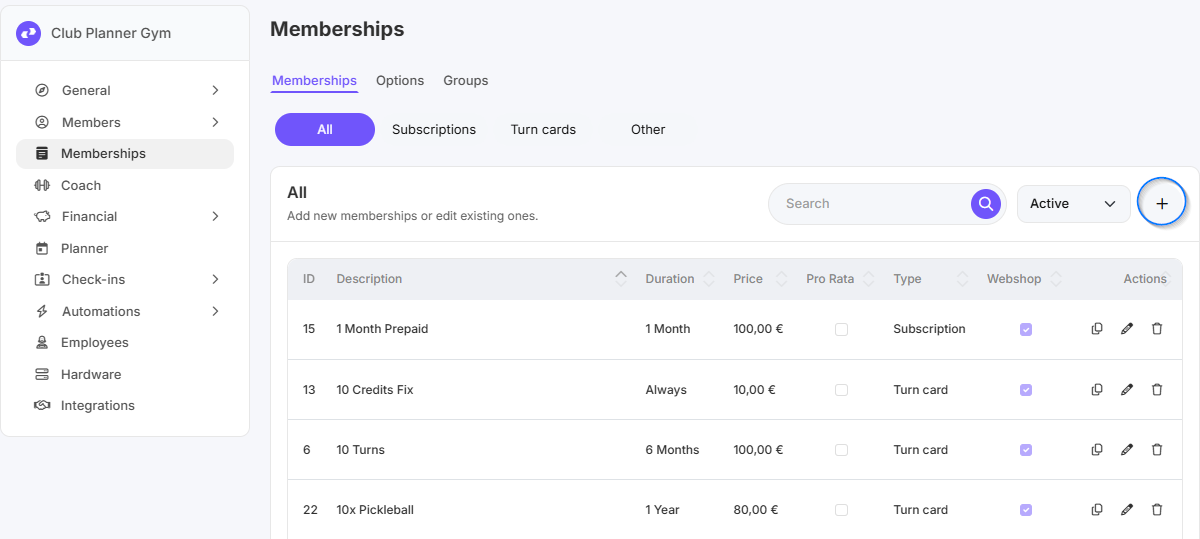
Step 2 – Click on “Add Membership”
- Click the “Add Membership” button to create a new subscription.
Step 3 – General and financial provisions regarding new membership
- Give the membership:
- name
-
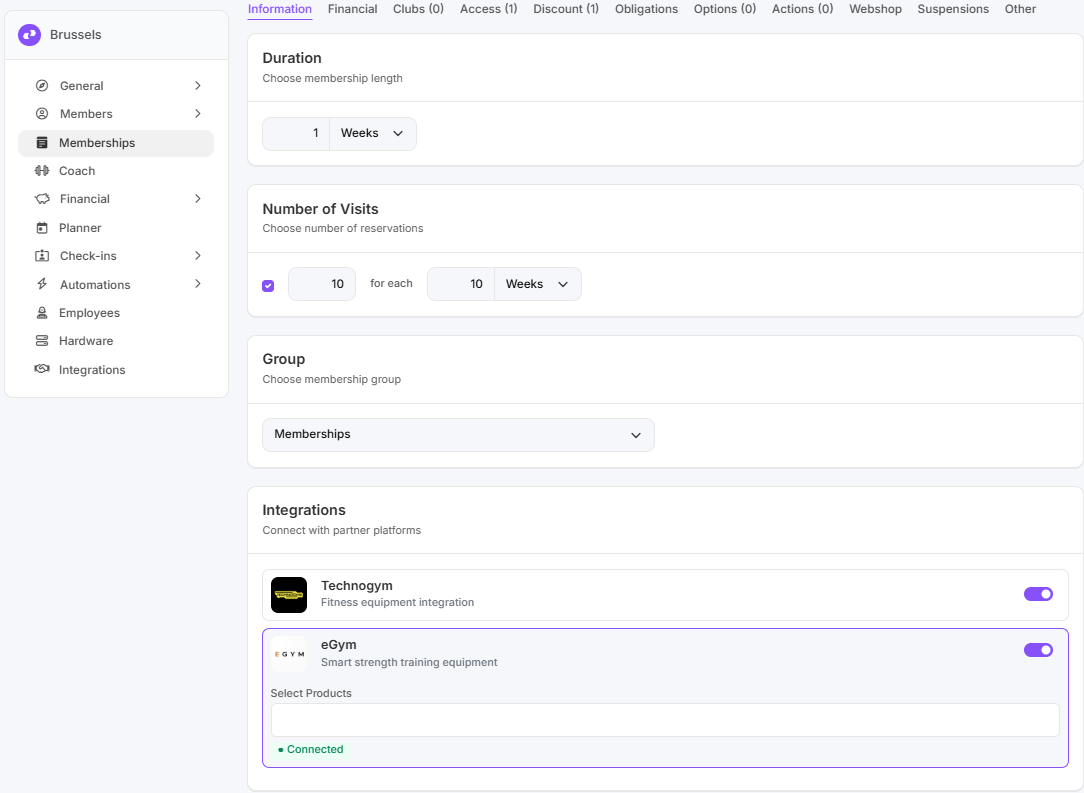
duration (term).
“Always” means that the membership continues indefinitely until it is canceled by the member or a staff member. - Limit on the number of visits or sessions (for session cards)
- link with partners such as Technogym and/or eGym (if activated and you work with one of these partners, the data of members with this subscription will be forwarded to the partner’s software platform, provided the integration has been set up correctly)
- price (per period)
- payment frequency (e.g., monthly)
-
Payment plan (to be filled in only for recurring subscriptions via direct debit)
- Select whether this subscription uses the “pro-rata” system*. Learn more about pro-rata types.
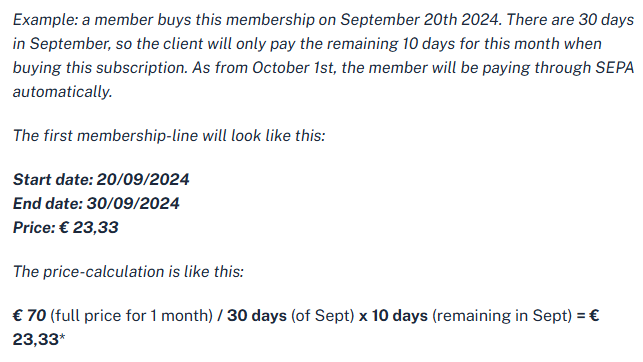
*Prorata automatically calculates the number of days remaining in this month and recalculates the exact amount the member must pay for their first month.
-
Example:
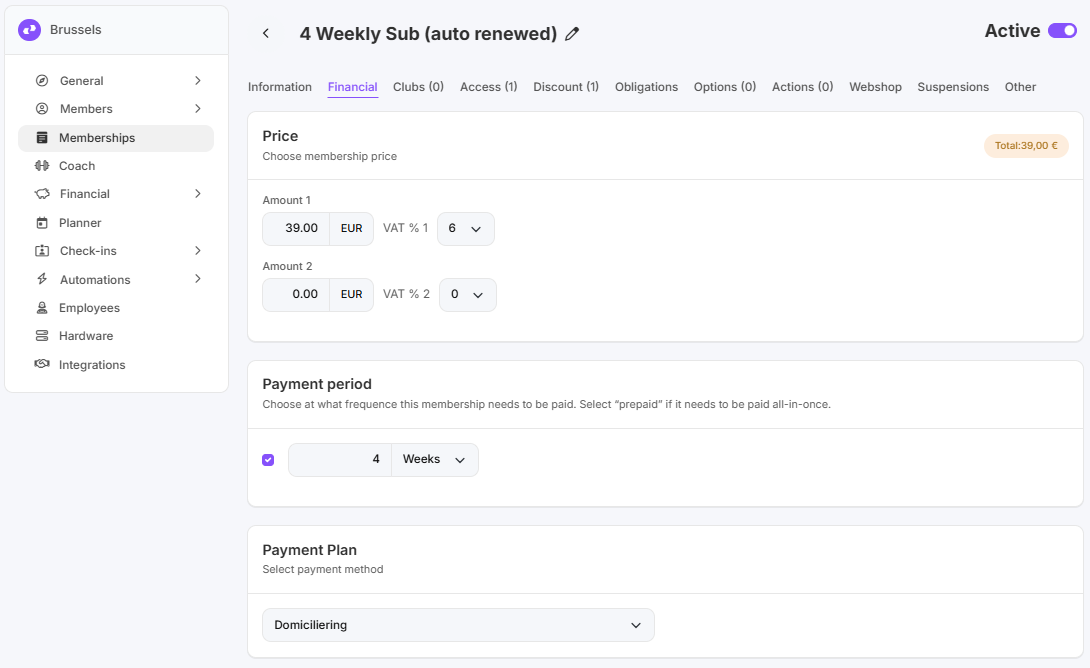
- Add a contract template to the subscription. This contract template is signed upon purchase of this subscription and includes the terms and conditions, pricing details, and the SEPA direct debit mandate. This ensures that both the club and the member are legally obligated to comply with the general terms and conditions (including payment terms).
Step 4 – Discounts, options, obligations, and promotions
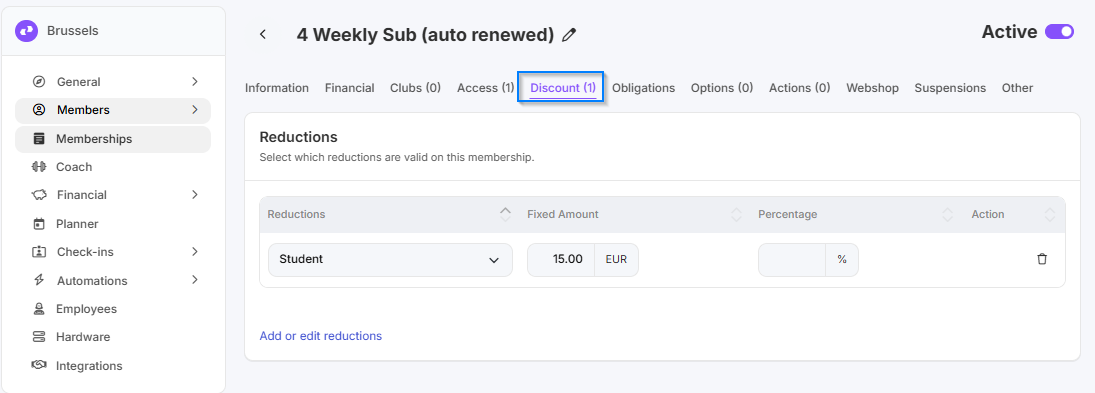
- Select whether any discounts apply to this subscription. Discounts are based on “Status.” An employee can manually assign this status to a member. Once the status is linked to the member, and that status qualifies for a discount on this subscription, the discount will be automatically applied when purchasing this subscription (both online and in-store).
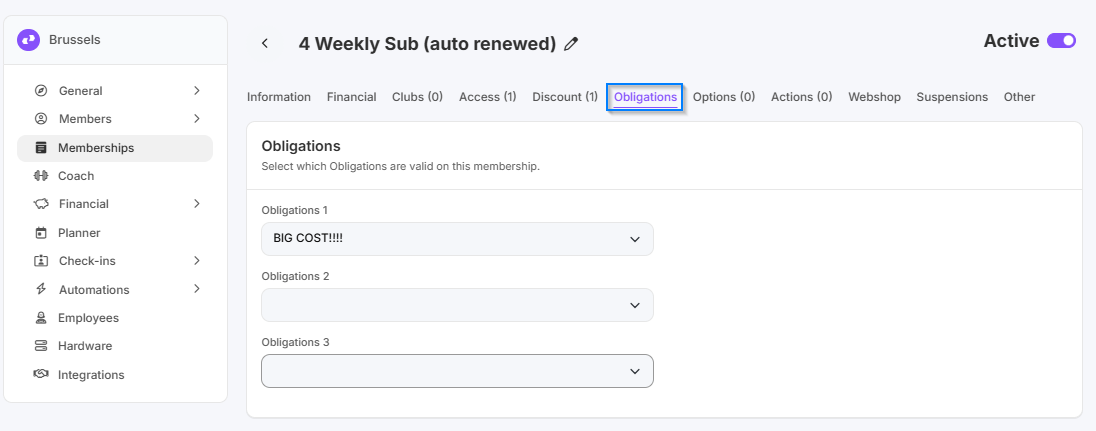
- Select whether there are any mandatory fees (up to 3) associated with the subscription. A mandatory fee is a required charge that must be paid when purchasing this subscription (e.g., an administrative fee). You can create a new fee via Settings - Memberships - Other.
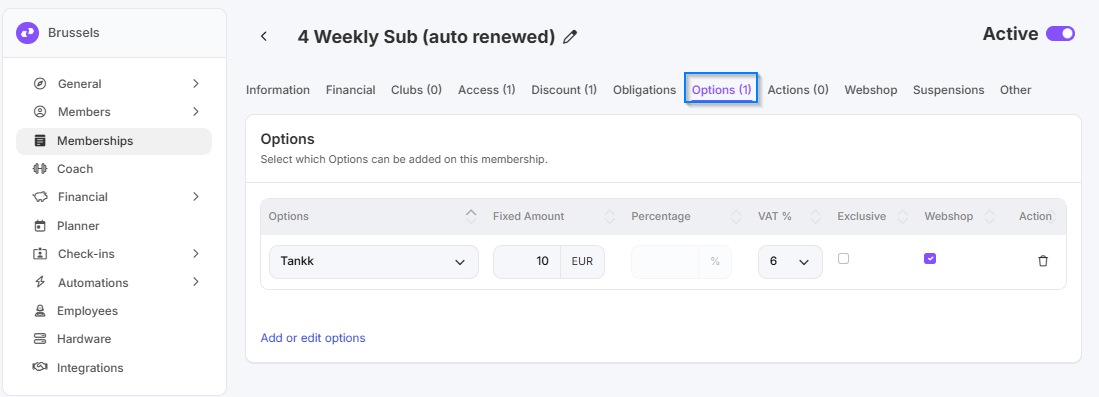
- Select whether this subscription includes any options. Options are optional add-ons (e.g., group classes, towel, sauna use...) that provide access to certain extras. New options can be added in Settings - Memberships - Options
-
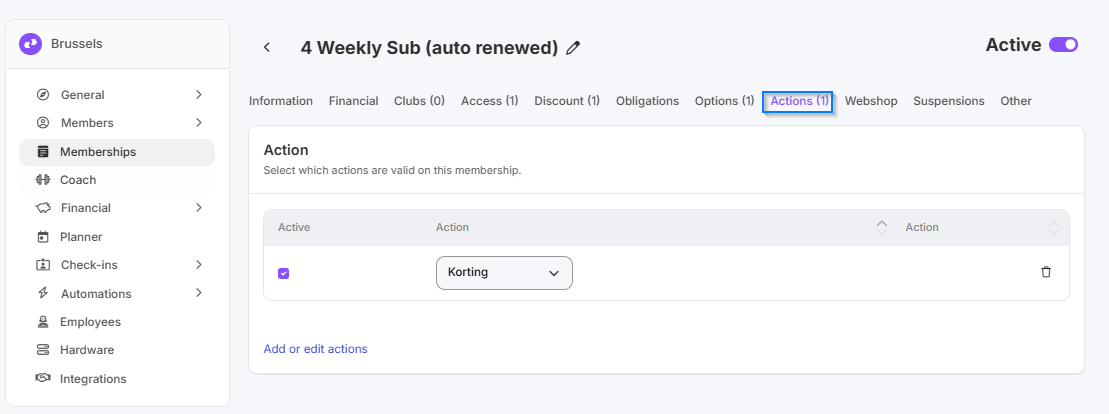
Actions: Select whether there are any promotions available for this subscription. If a promotion is active and linked to this subscription, members will receive a discount using the promo code in the online store or at physical retail locations.
Step 5 – Webshop (online sales)
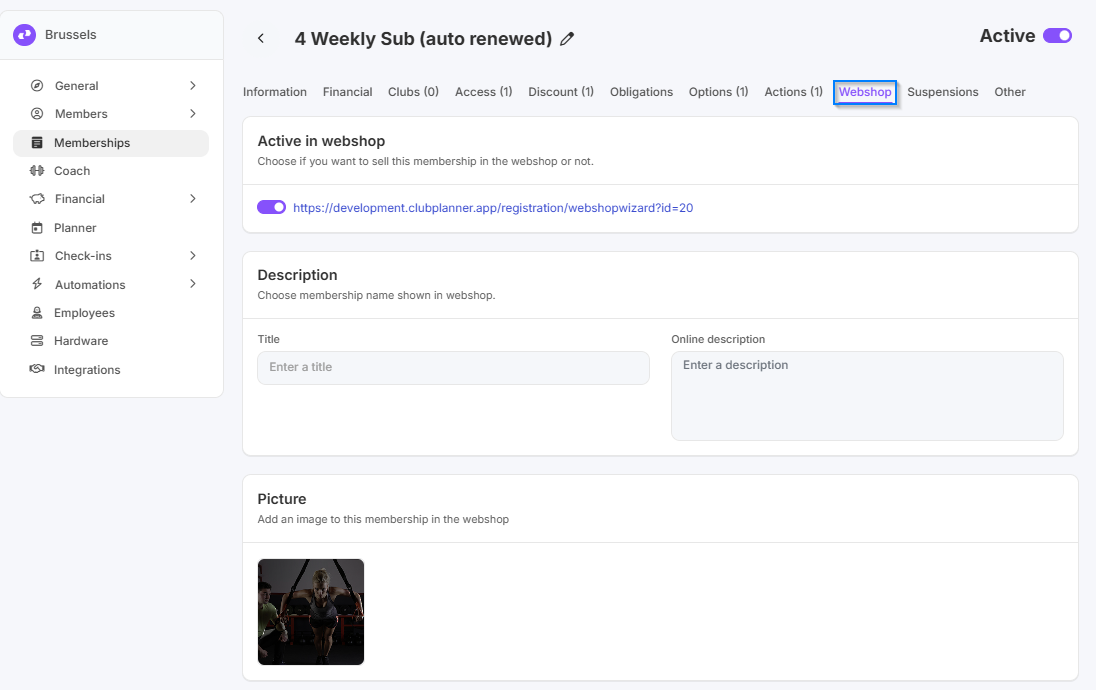
- Choose whether or not you want to sell the subscription online in the webshop. Toggle the switch if you want to sell the subscription online. You’ll immediately see the link (URL) to this specific subscription.
- Online you can :
- set a separate price
- set a title
- add additional information
- set an image
- If this subscription is, for example, a trial lesson (1-session pass), you can also choose to set this subscription to “can only be purchased once.” This means that the subscription can only be purchased once per customer (this is verified based on the email address)
-
Tags: You can assign specific tags to the subscription for marketing purposes.
Step 6 – Suspensions and other options
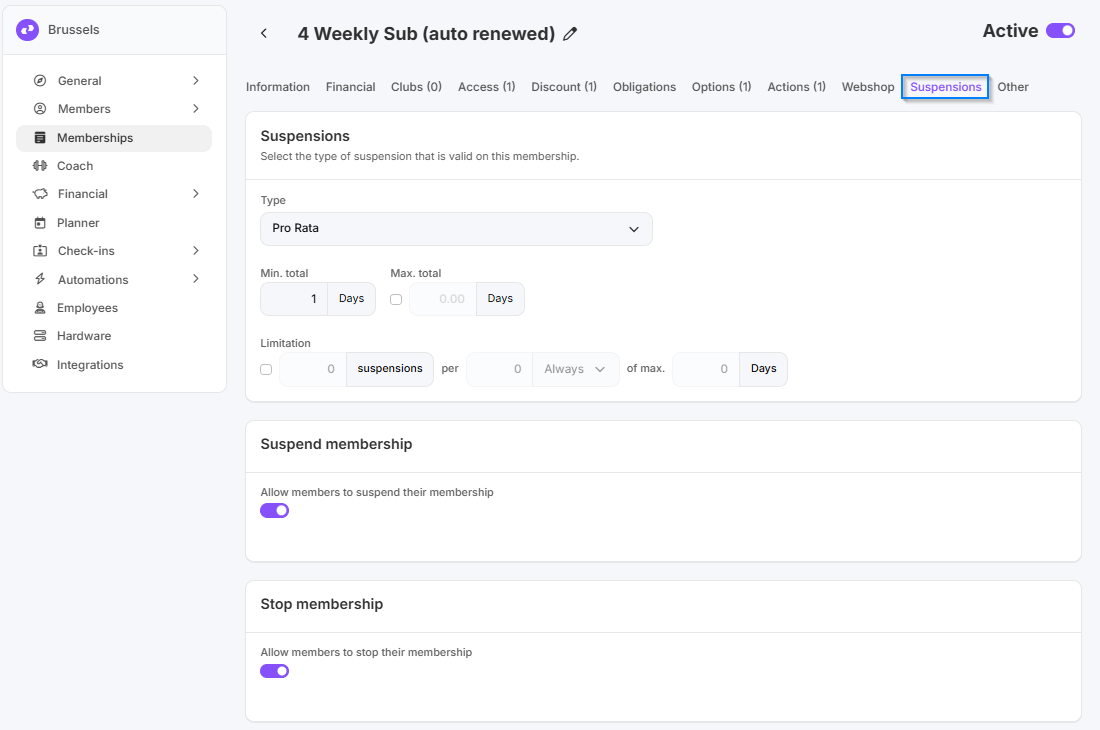
- Select the type of suspension for this subscription. Learn more about suspension types.
- Select whether members can freeze (temporarily pause) this subscription and the freeze conditions.
- Select whether members can cancel this subscription themselves via the app.
- Other: If applicable, select a fixed start date for this subscription (mainly used for presales) and whether members who purchase this subscription are considered “active members.”