In this guide, you'll learn how to upgrade an active membership in Clubplanner.
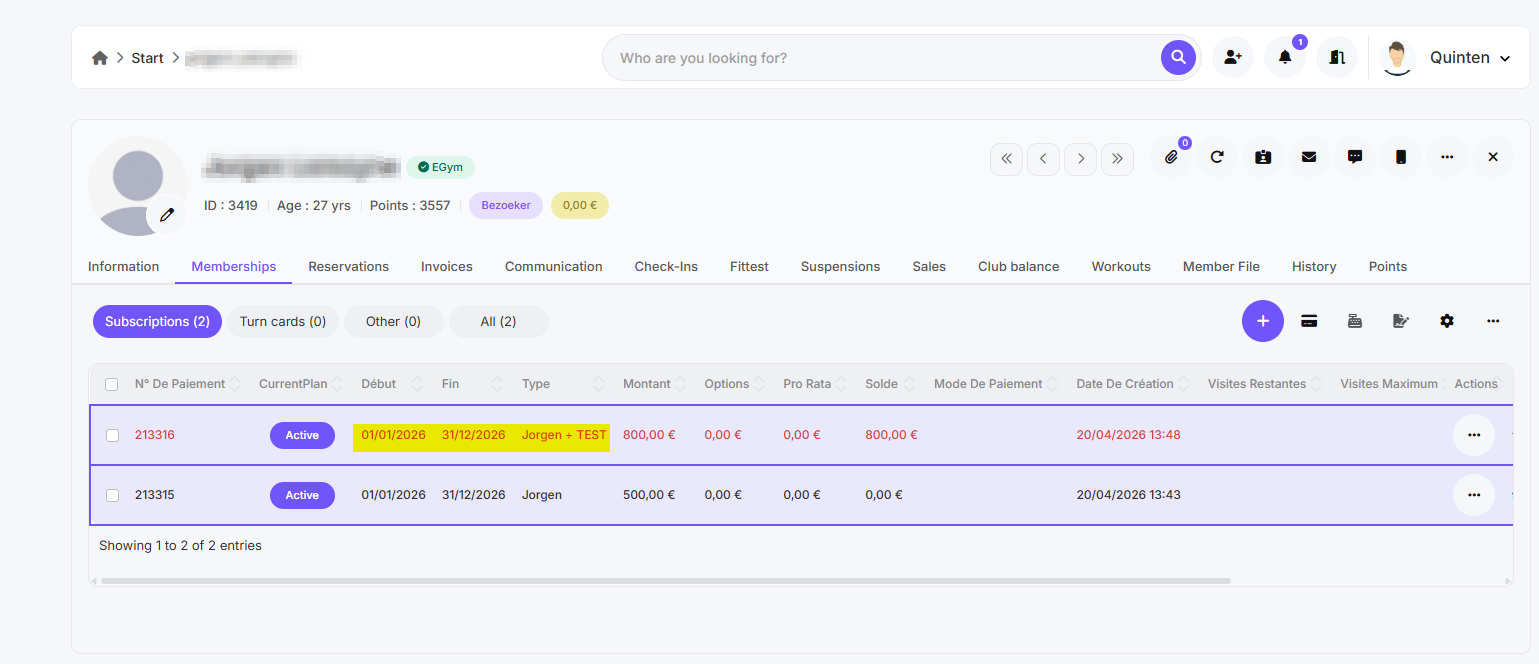
Step 1 - Add the new membership to the member profile
- Go to Members
- Search for the member in question
- Open the member profile
-
Add a new membership
- Use the same start and end dates as the already paid subscription
- Example: 01/01/2026 – 12/31/2026
Step 2 - Link an amount already paid
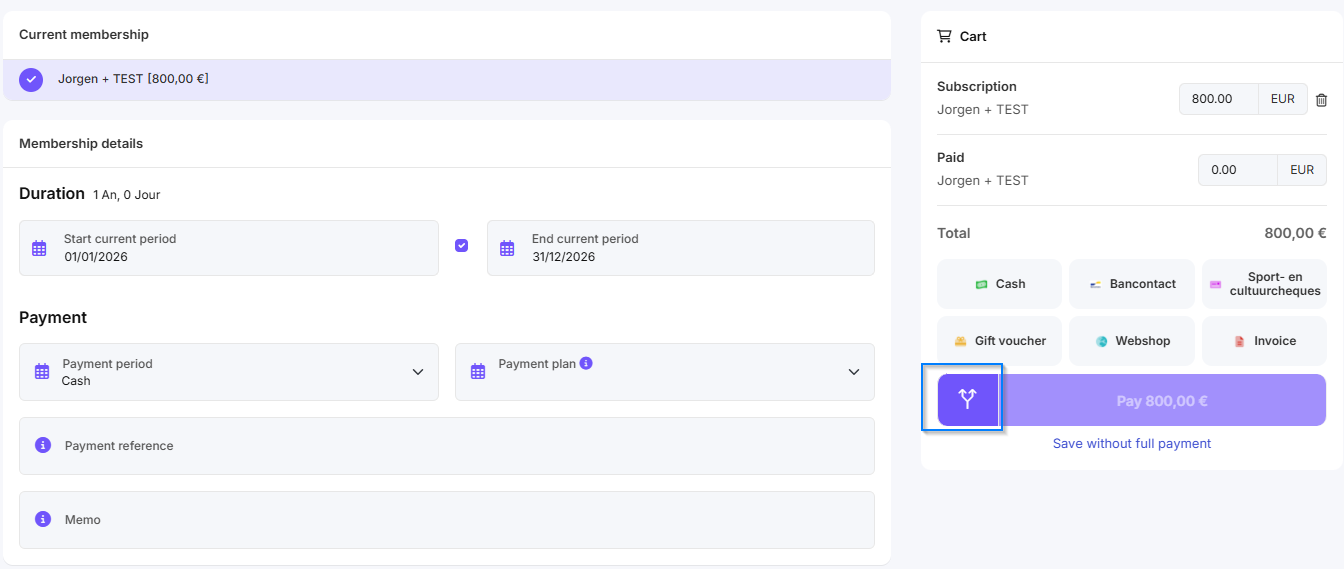
- Double-click on the newly added membership
- Click on "Splits payment"
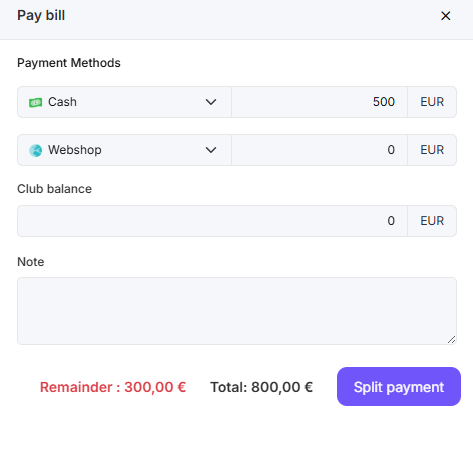
- Enter the amount already paid under the appropriate payment method
- Click "Split payment" again
Result:
There remains an outstanding balance that the member can still pay (at the club or via the app, if available)
Step 3 - Change the payment date
- Go to Financial
- Click on Sales
- Select the correct payment line
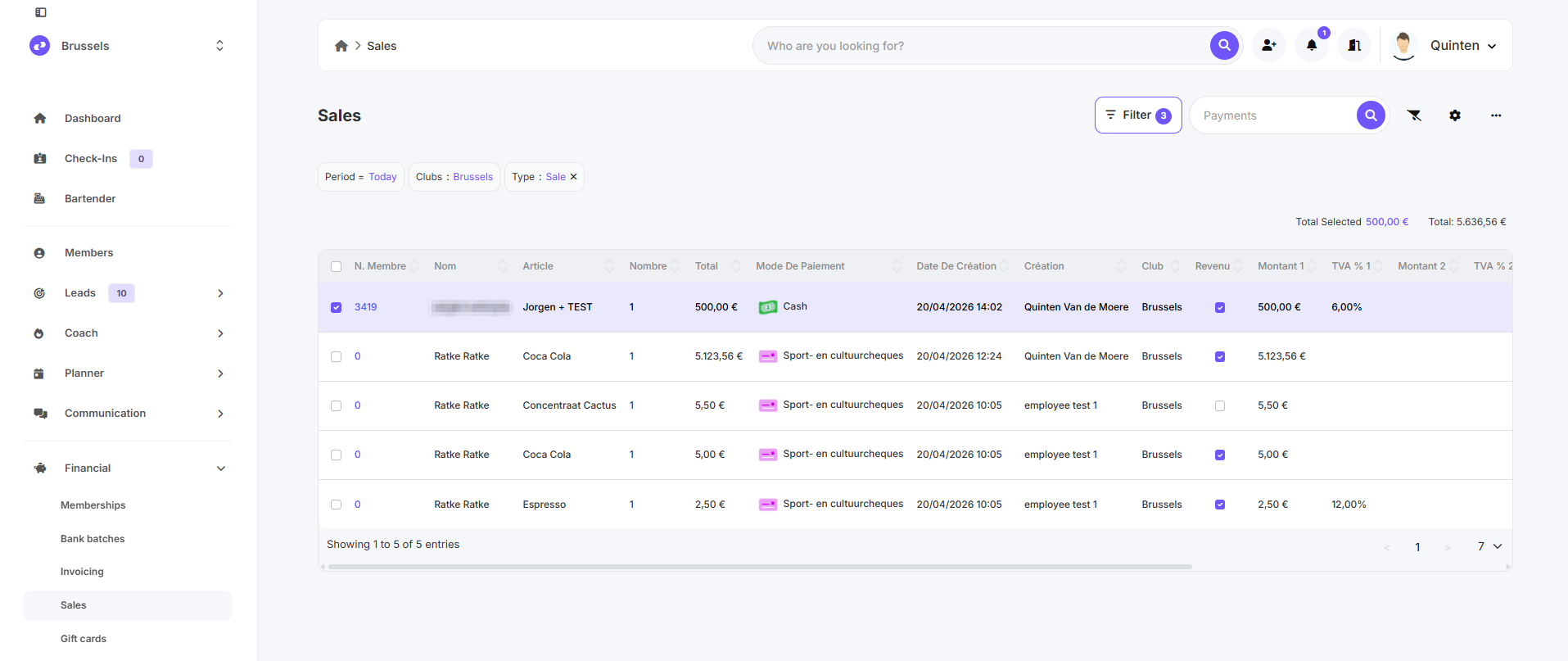
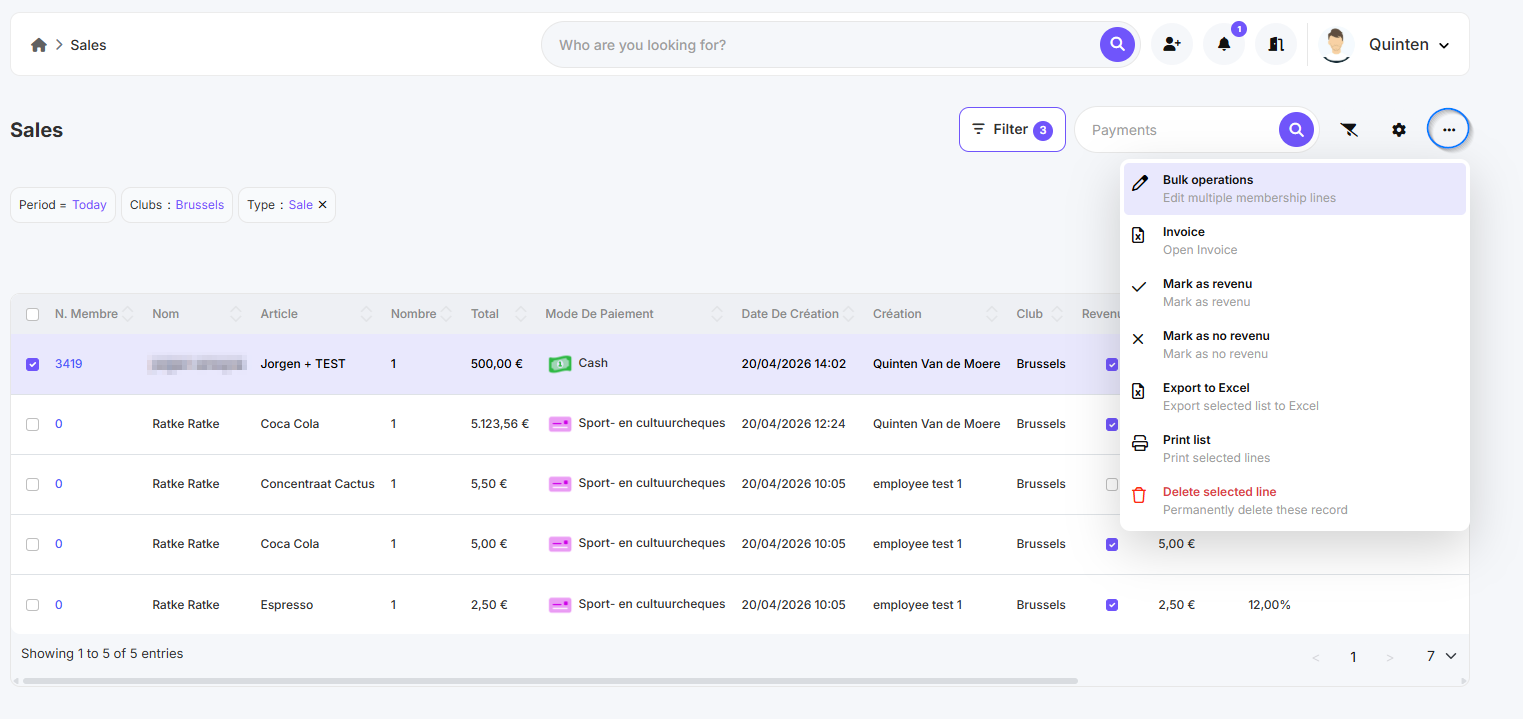
- Click the three dots in the top-right corner
- Select "Bulk Actions"
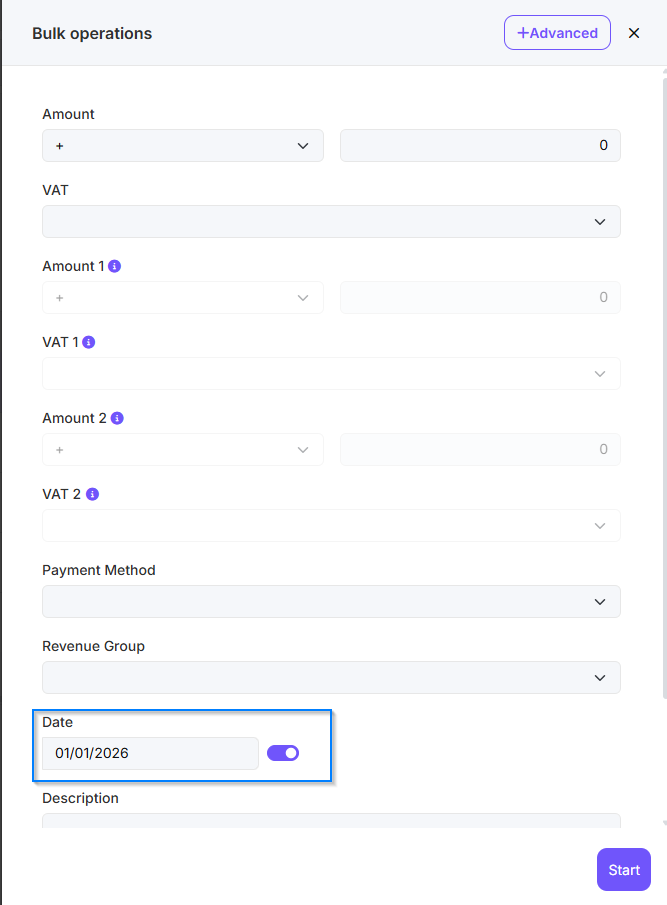
- Check the Date box
-
Set the date to the original payment date
- Usually = the subscription start date
- Click Start
Step 4 - Delete an incorrect membership
- Go to Members
- Find the member and open their profile
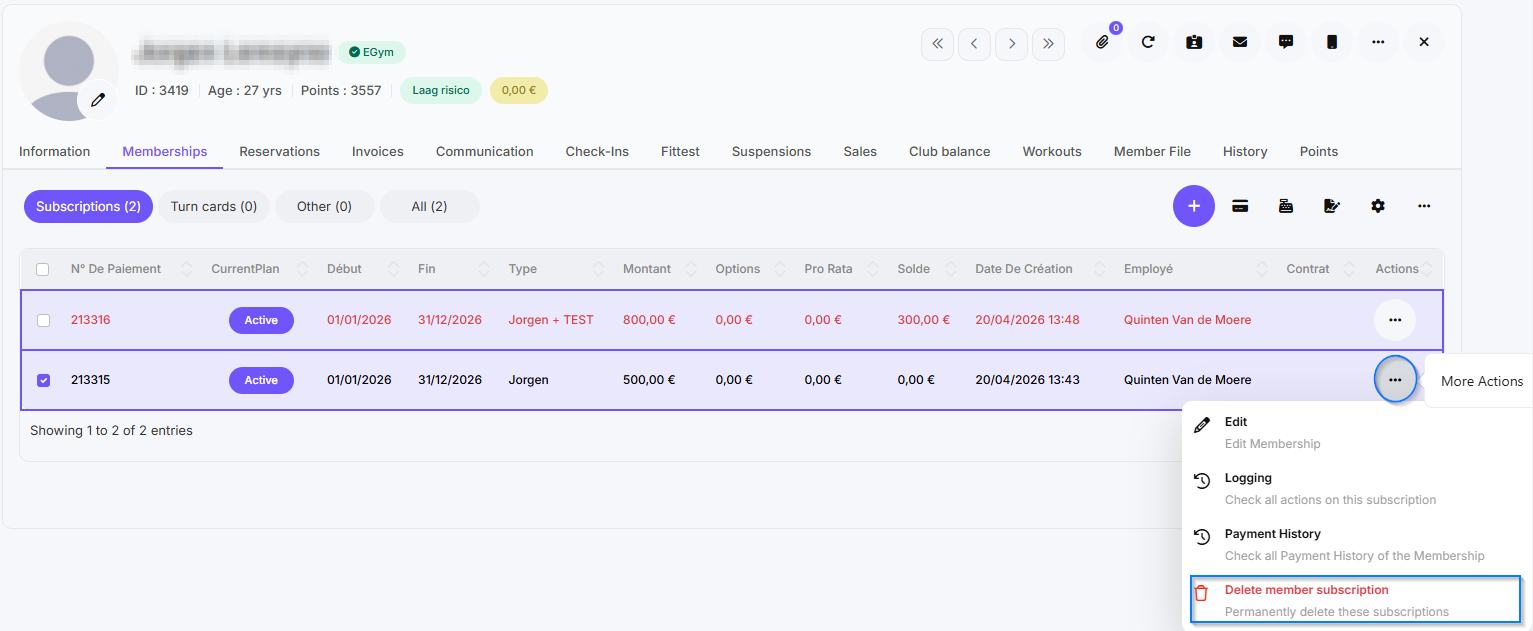
- Select the incorrect membership
- Click the three dots
- Select Delete member subscription
How to avoid duplicate memberships
Bulk editing for multiple memberships
- Go to Financial
- Click on Memberships
- Use filters to find the right subscriptions
- Select the desired subscription lines
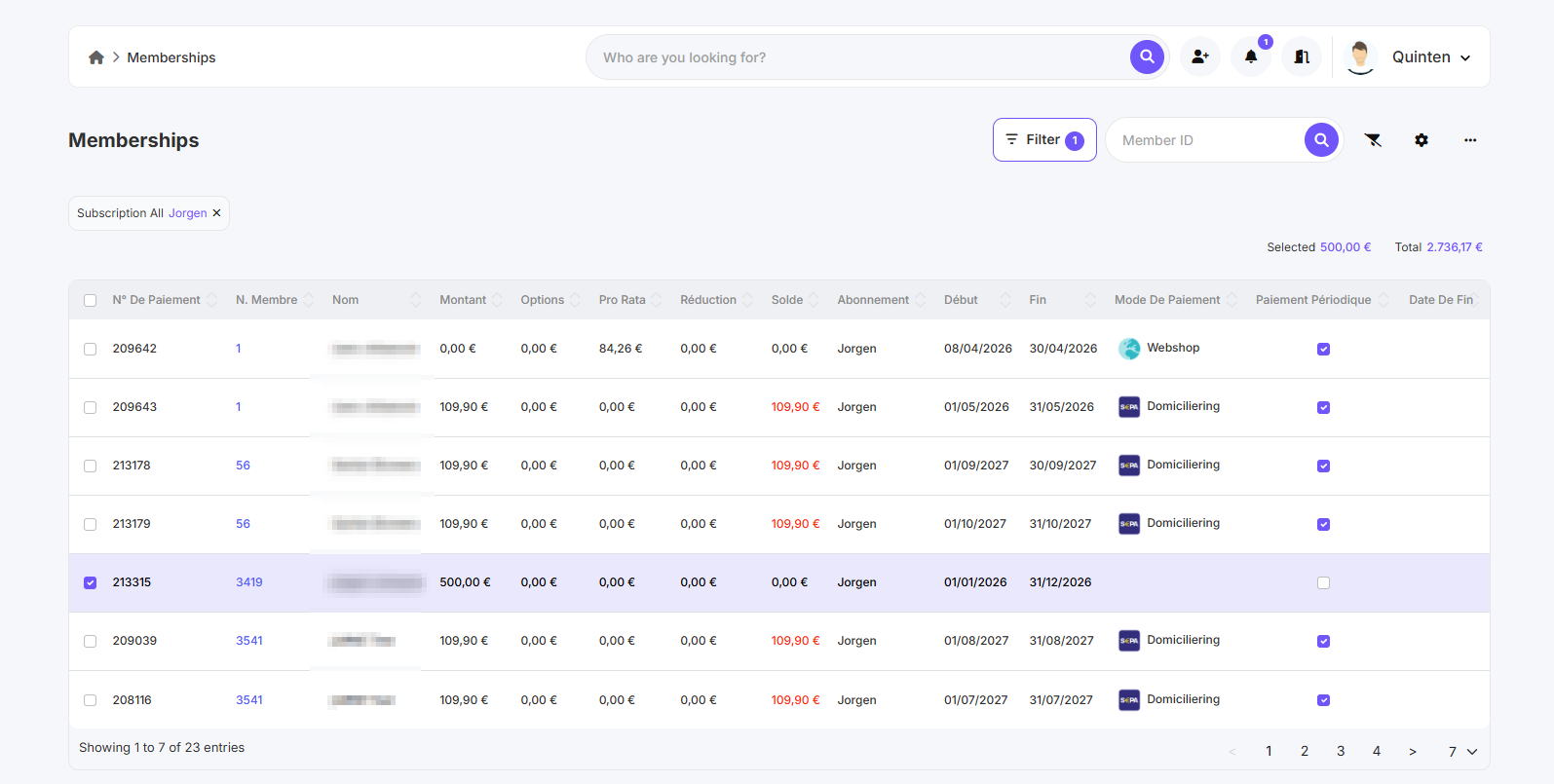
- Click the three dots in the top-right corner
- Select Bulk Actions
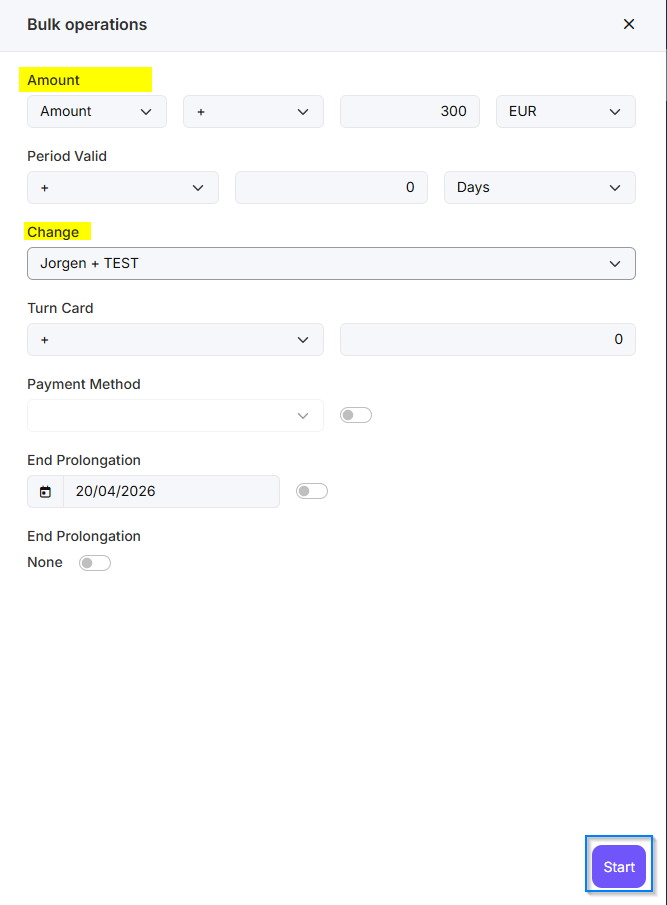
- Enter the following filters:
•Amount: + the amount by which the subscription is more expensive
•Change: the membership to which the subscription should be changed - Click Start