
This guide shows you where to set the general rules for booking and cancelling: who is allowed to book, how many reservations a member may hold at once, and what happens when a member cancels. These rules apply to your whole club. If one calendar needs different rules, you set those on the calendar itself.
Where to find these settings
Steps
- Go to Settings.
- Click Planner in the left-hand column.
- Open the Policy tab.
You will see two blocks: Reservation policy and Cancellation policy.
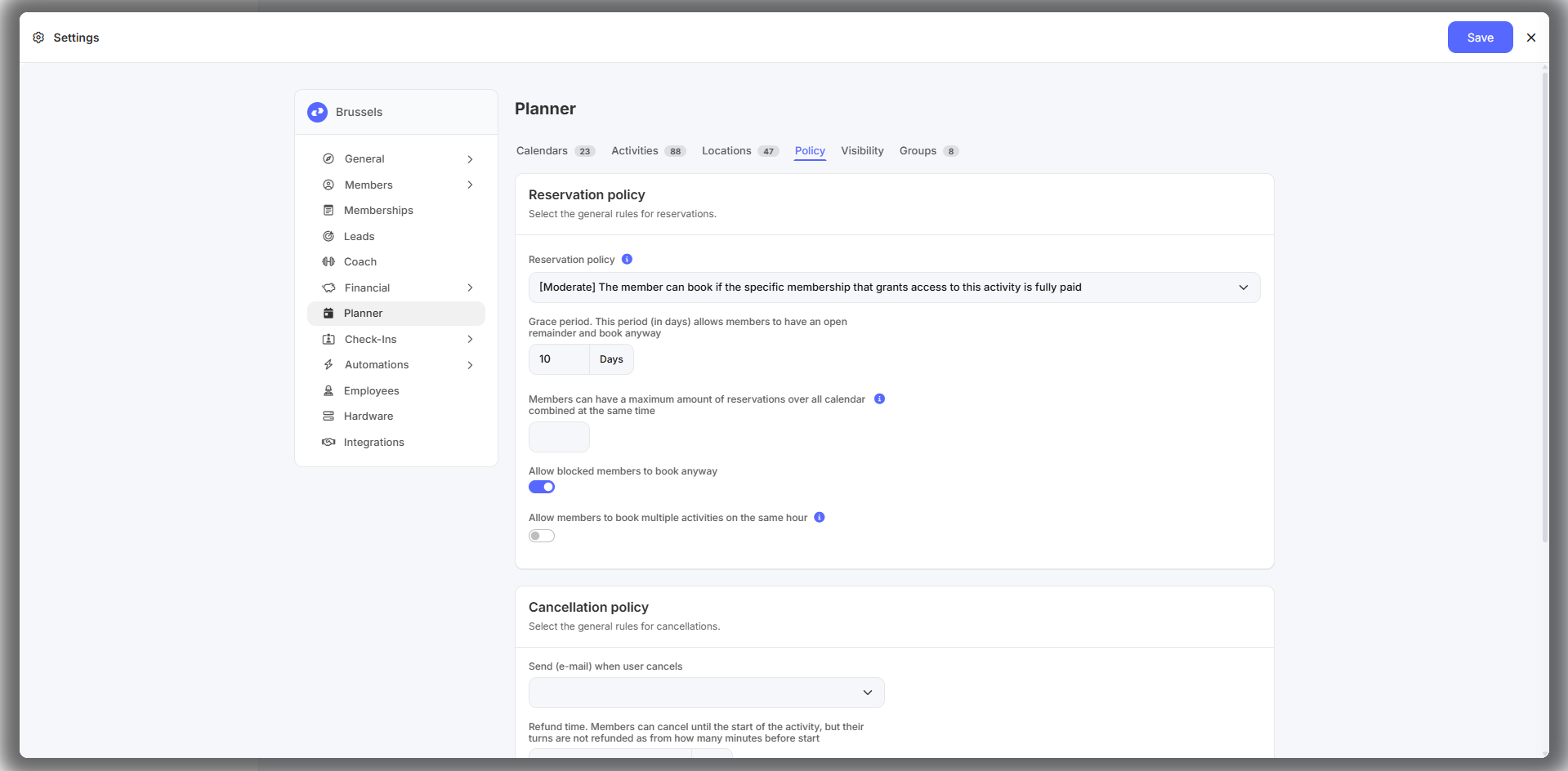
Reservation policy: who may book?
The reservation policy decides how strict Club Planner is before a member can book. Choose one of four levels:
- Free — the member can book without any membership.
- Relaxed — the member can book if they have a membership, paid or not.
- Moderate — the member can book if the specific membership that grants access to this activity is fully paid.
- Strict — the member can book if all memberships on their account are fully paid, with no remainders.
💡 Tip: start with Relaxed if you are just getting going. Only move to Moderate or Strict once your follow-up on open balances is reliable — otherwise members are turned away at the door unexpectedly.
The remaining reservation rules
Grace period
- Enter a number of days under Grace period. Within that window a member with an open remainder may still book. Set it to 0 to apply your chosen policy immediately.
Maximum simultaneous reservations
- Enter how many reservations a member may hold at the same time, across all calendars combined. This stops one member booking out a whole week.
Blocked members
- Tick Allow blocked members to book anyway if a block should not prevent booking. Leave it off when you use the point system.
Multiple activities in the same hour
- Tick Allow members to book multiple activities on the same hour on or off. Off means one activity per time slot per member — the setting most clubs are looking for when members double-book.
Cancellation policy
Steps
- Scroll down in the same tab to Cancellation policy.
- Under Send (e-mail) when user cancels, choose the e-mail template the member receives after cancelling.
- Turn on Send an SMS if a member moving automatically from the waiting list to the reservation list should get a text message as well as the e-mail.
⚠️ Important: the cancellation window — how long before the start a member may still cancel — is not set here but on the calendar itself. Each calendar has its own settings for booking, payment, cancellation and visibility. Go to Settings → Planner → Calendars and open the calendar concerned.
Result
Your club-wide booking and cancellation rules are in place. Members who do not meet the conditions get the right message as they book, and anyone who cancels automatically receives the confirmation you chose.
For per-calendar rules, see Overview of calendar and reservation settings. To set a weekly maximum per membership, see How do I set a maximum number of reservations per week for a membership?. For the point system: How do I punish members?