
With WhatsApp you message members on the channel they already use every day. You connect your club's number once in the web platform, after which you can send messages from the member profile, and the reactivation agent uses WhatsApp to win back former members. You need the Settings right to connect the number, and the right to send SMS to send messages.
What to know before you start
Use a number that is not yet in the WhatsApp app. If it is, delete that account first, otherwise Meta (the company behind WhatsApp) refuses the number. Your club's landline works too, as long as you can answer Meta's call directly.
You can only send a member a free-form message during the 24 hours after that member last messaged you. Outside that window WhatsApp refuses your message. A first message to someone who has not been in touch recently can only go out through an approved template. Club Planner manages those templates for you, and today the reactivation agent is the one that uses them. Only message members who gave their consent.
Connecting your WhatsApp number
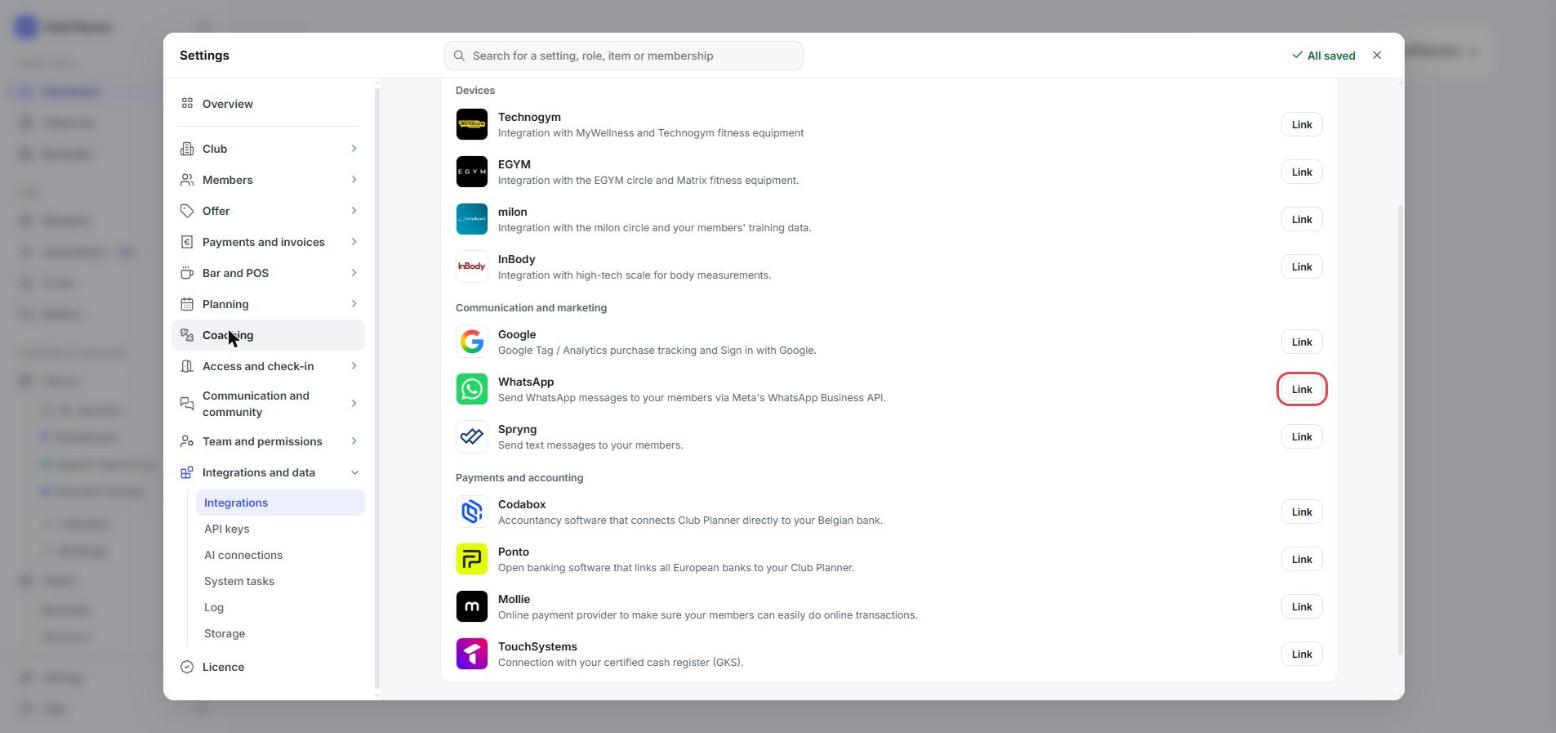
- Go to Settings > Integrations and data > Integrations.
- Next to WhatsApp, click Link.
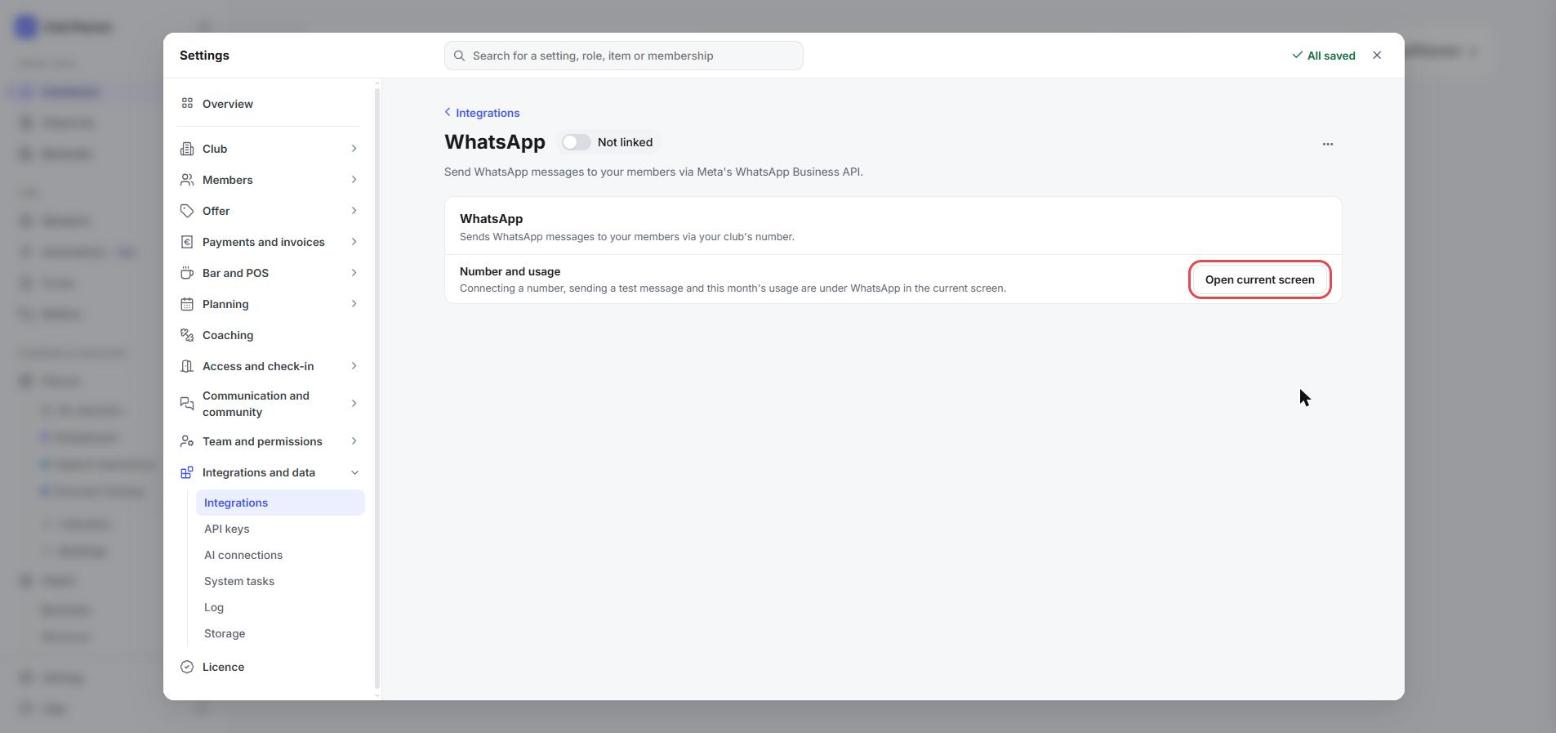
- Next to Number and usage, click Open current screen.
- On the tile with the WhatsApp logo, click Settings.
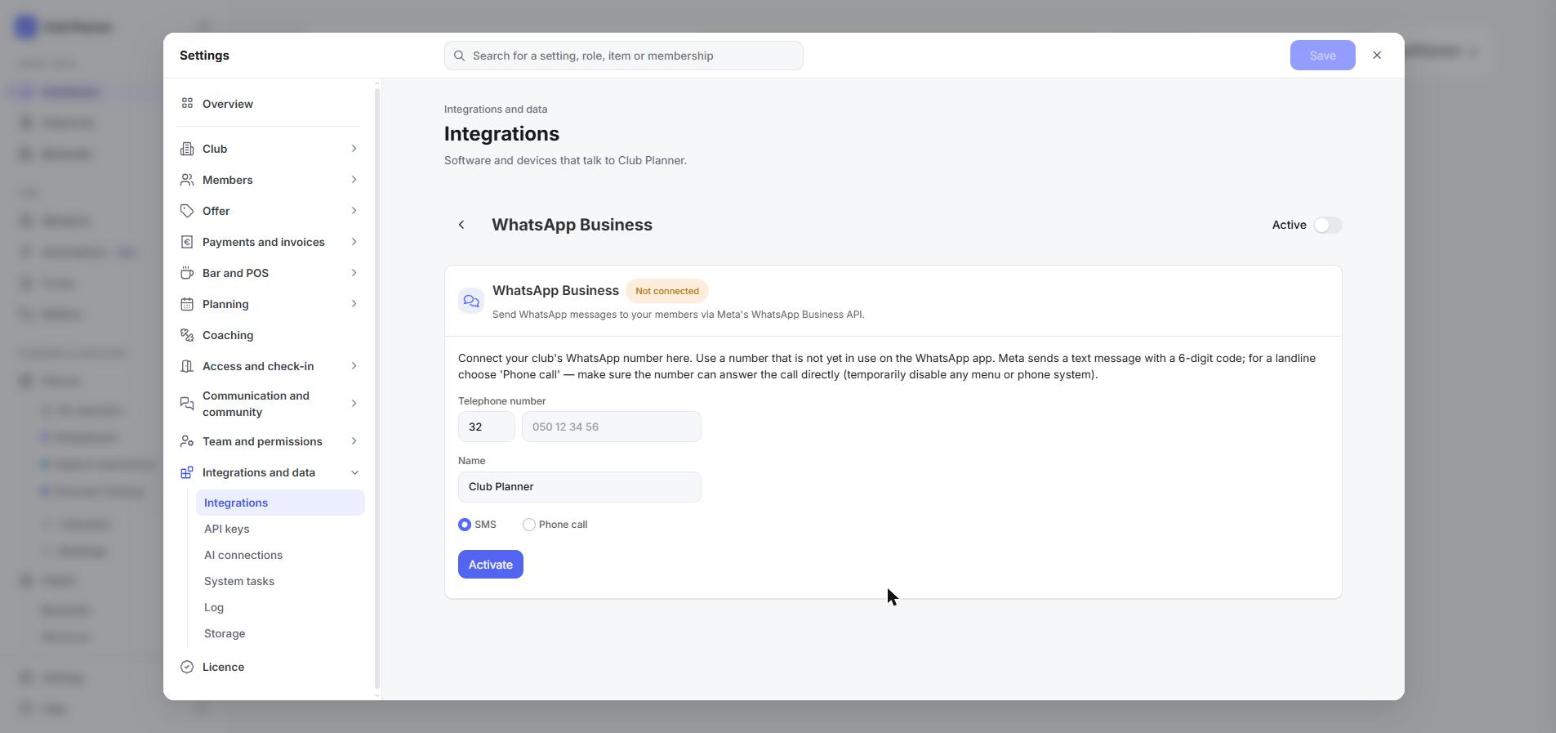
- Under Telephone number, check the country code and enter your club's number.
- Under Name, change the name members see on your messages if needed. By default this is your club's name.
- Choose how you want to receive the code: SMS or Phone call. For a landline, choose Phone call, and first switch off any menu or phone system temporarily.
- Click Activate. Meta sends you a 6-digit code.
- Enter the code and click Activate. If the code did not arrive, click Resend code. Cancel lets you start over.
You now see the message that your WhatsApp number is connected. Check at the top right that the Active switch is on and click Save. Only then do the WhatsApp buttons appear in the web platform.
If Meta refuses the number, a message lists the most common causes: the number is already in the WhatsApp app, or it is not a valid number for WhatsApp Business.
Testing your connection
- Send a WhatsApp message yourself from your mobile phone to your club's number.
- Open the WhatsApp screen as when connecting, up to Settings on the WhatsApp tile.
- Enter your mobile number under Mobile Nbr and click Send test message.
The test message is a free-form message, so it only arrives within 24 hours of you messaging the club yourself. If you run the test without doing that first, WhatsApp refuses the message. That does not mean the connection is broken.
Sending a message
When WhatsApp is active, a WhatsApp icon appears at the top of the member profile with the tooltip Send WhatsApp message. To send a message:
- Open the member profile and click the WhatsApp icon.
- Check the number under To.
- Write your text under Message and click Send.
You find the same icon in the member list, the staff list, the reservations list and on a lead's screen. Select the people you want to write to there first.
If WhatsApp refuses a message, it stays in the Outbox together with the reason for the refusal.
Reactivation agent
The reactivation agent contacts former members and answers their replies. Under Settings > Members > Reactivation agent, you choose how it does that under Channel:
With Automatic it uses WhatsApp if your club has a connected number and SMS otherwise. If you choose WhatsApp or SMS, it uses only that channel.
There you also see whether WhatsApp connected applies and how the WhatsApp templates stand. Meta has to approve the opening message first, and Club Planner submits those templates for you. The agent only contacts former members who signed up for the newsletter, and a colleague can take over a conversation at any time.
Checking usage and messages
At the bottom of the WhatsApp Business settings screen you find Usage this month. You pay per conversation, not per message. All messages with one member within 24 hours count as one conversation. If you send more than one marketing template in the same conversation, each extra template counts as a new conversation. Incoming messages you do not answer are free.
Do you want to cap what automations and the reactivation agent spend? In Automations, click the Messaging settings icon and enter a Monthly limit under Monthly messaging budget (0 = no budget). If you switch on Stop paid messages when the limit is reached, no paid messages go out once you hit the limit.
Under Messages you see your latest messages with Date, Telephone number, Status and, for a failed message, the reason. An arrow pointing up and to the right is a message you sent, an arrow pointing down and to the left is a message from a member.
Disconnecting your number
On the WhatsApp Business screen, click Disconnect next to your number and confirm. The number is removed at Meta and members can no longer reach your club via WhatsApp until you connect a number again. The agent then uses SMS.