
This guide will teach you step by step how to delete incorrect contracts, choose or customize the right contract template, and easily have your members sign a new contract digitally.
Step 1 - Delete incorrect contract
- Go to “Members” and open the member file.
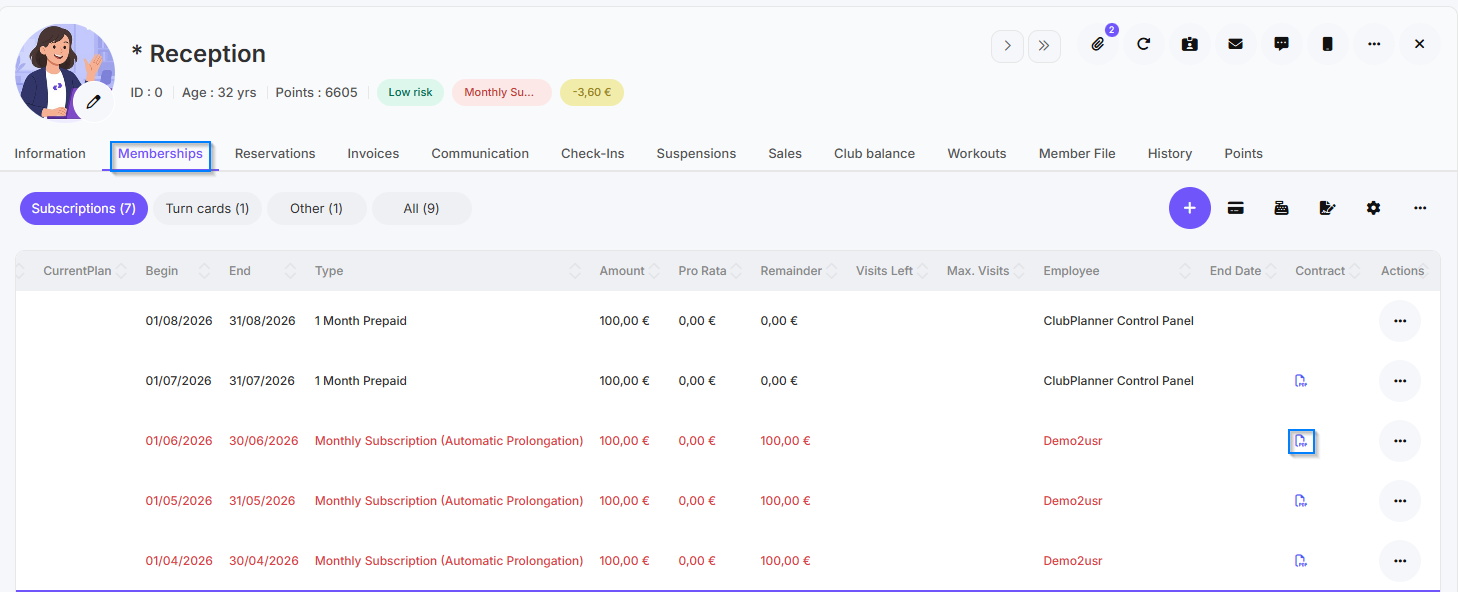
- Navigate to the “Memberships” tab.
- In the “Contract” column, click on “PDF.”
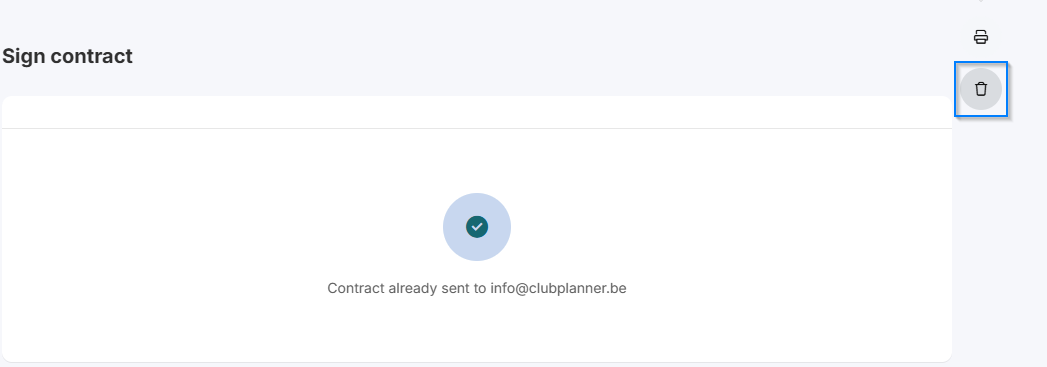
- Click on Delete contract to delete the incorrectly signed contract.
Step 2 - Select contract template
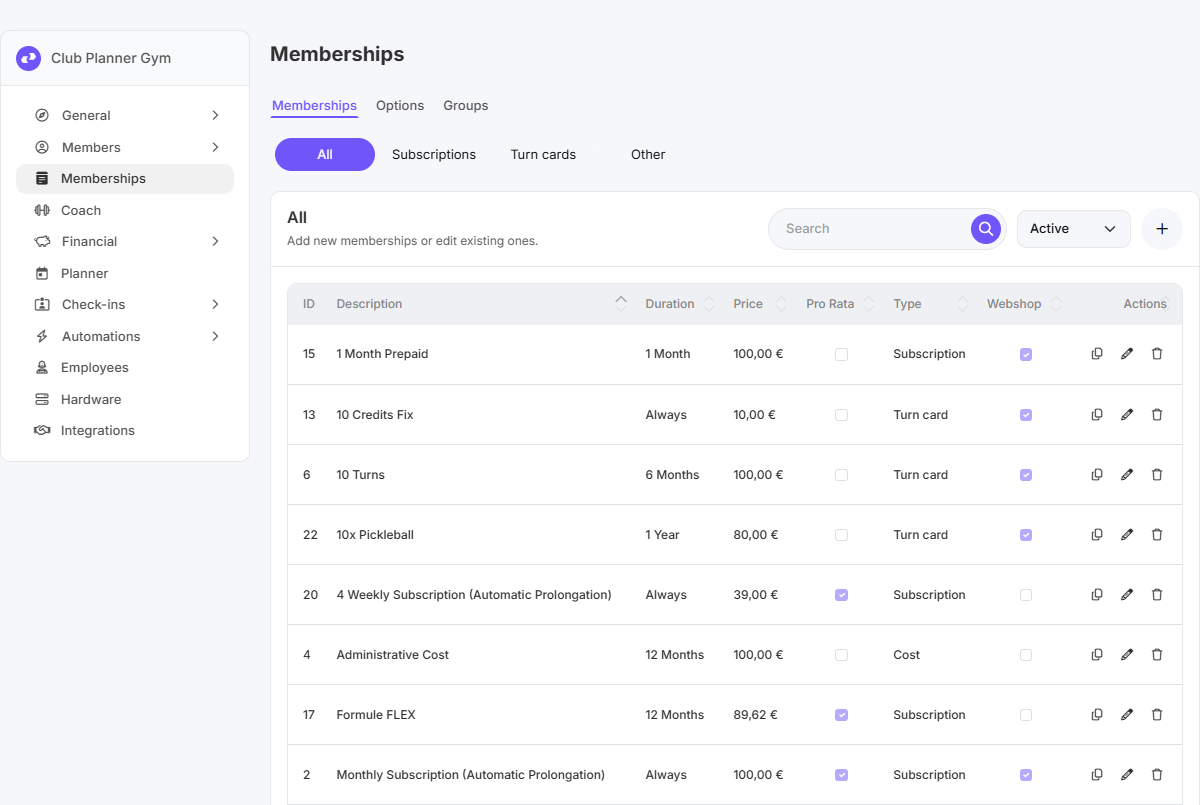
- Go to “Settings” → “Membership.”
- Double-click on the membership for which the customer needs to sign a contract.
- Go to the Financial tab and scroll all the way down.
- Under Contract, select the appropriate contract template.

Step 3 - Customize contract template (optional)
Please note: This is only necessary if you want to change the template. If not, proceed to step 4.
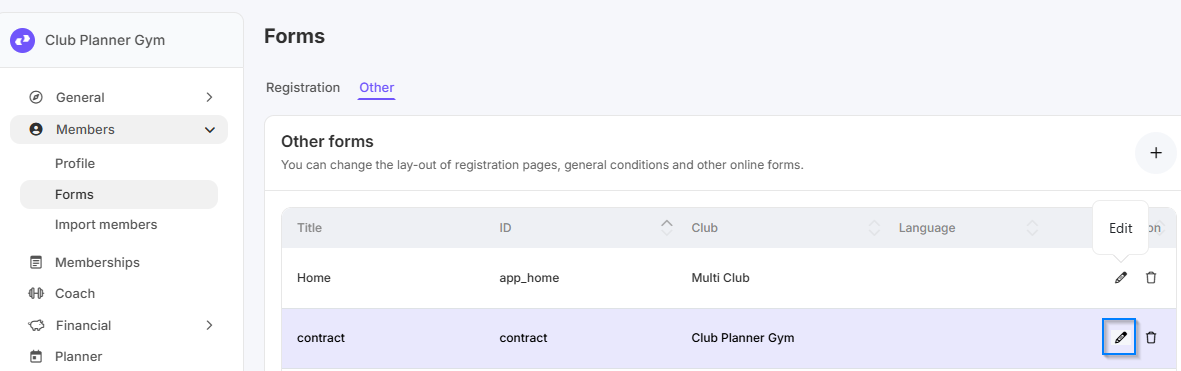
- Go to “Settings” → “Members” → “Forms” → “Other.”
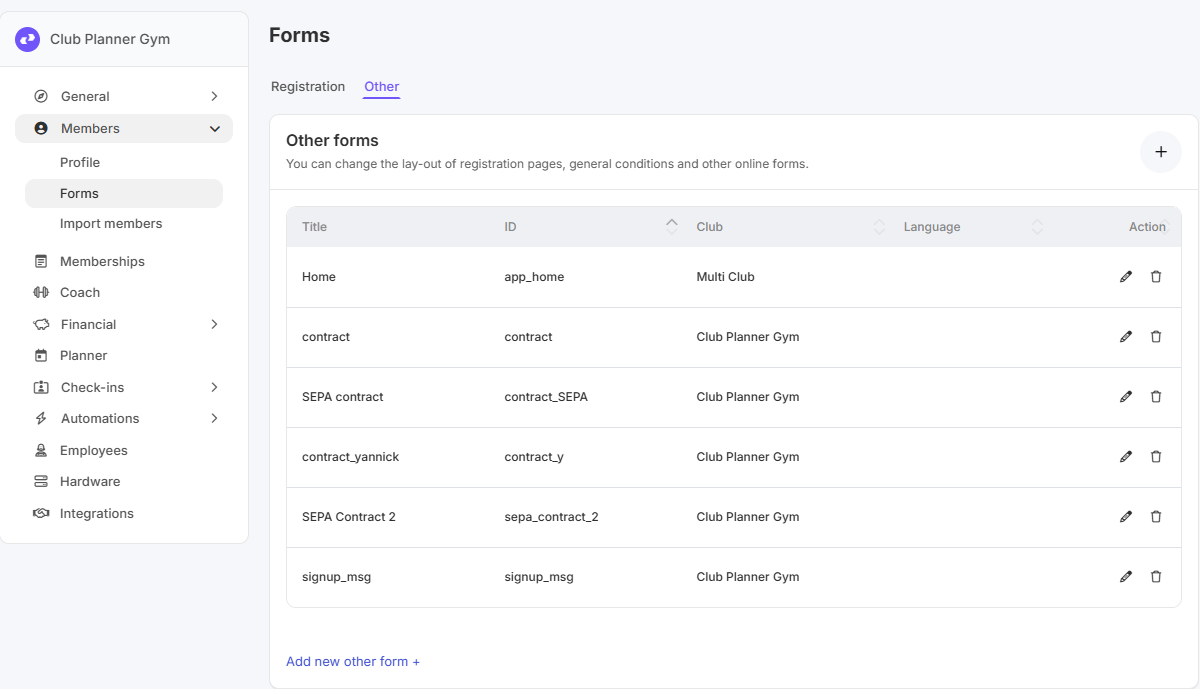
- Click Edit next to the contract template you want to change.
- Customize the template and save the changes.
Step 4 - Have a new contract signed
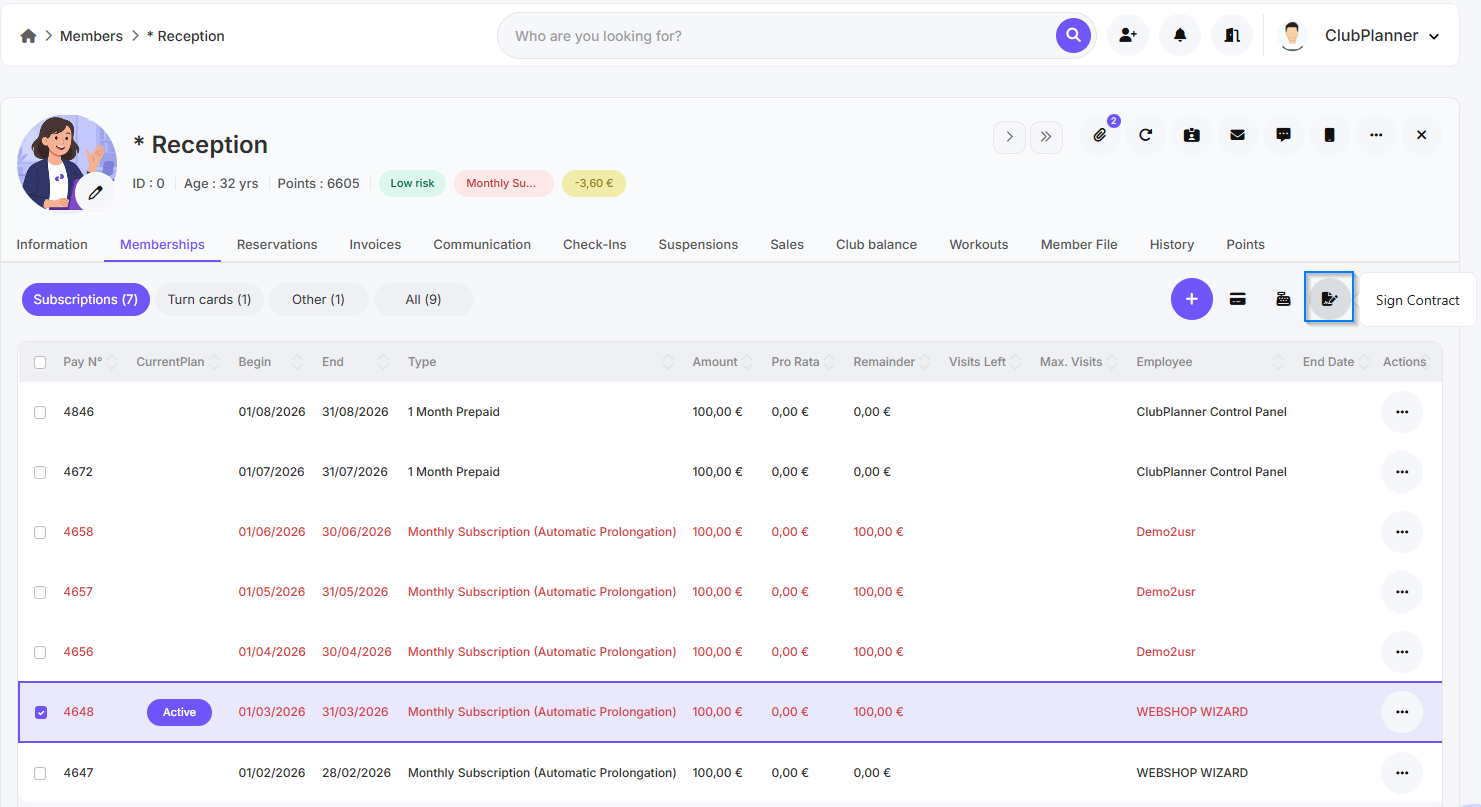
- Go to “Members” and open the customer’s member file.
- Navigate to the “Memberships” tab.
- Select the subscription line for which the contract is to be signed.
-
Click on “Sign contract” to have the new contract signed.
For more information about digitally signing contracts, please refer to the manual digital contracts.