
Schritt 1 - Fehlerhaften Vertrag löschen
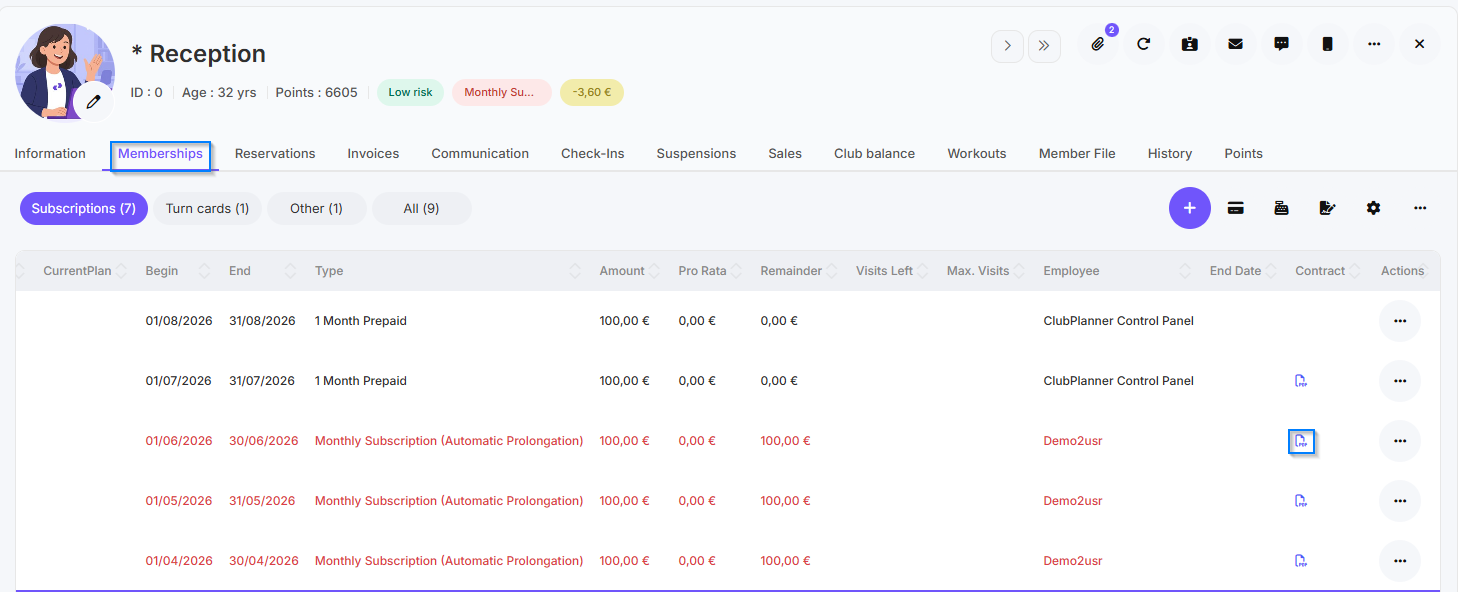
- Gehen Sie zu 'Mitglieder' und öffnen Sie die Mitgliederkartei
- Navigieren Sie zum Reiter 'Mitgliedschaften'.
- Klicken Sie in der Spalte 'Vertrag' auf 'PDF'.
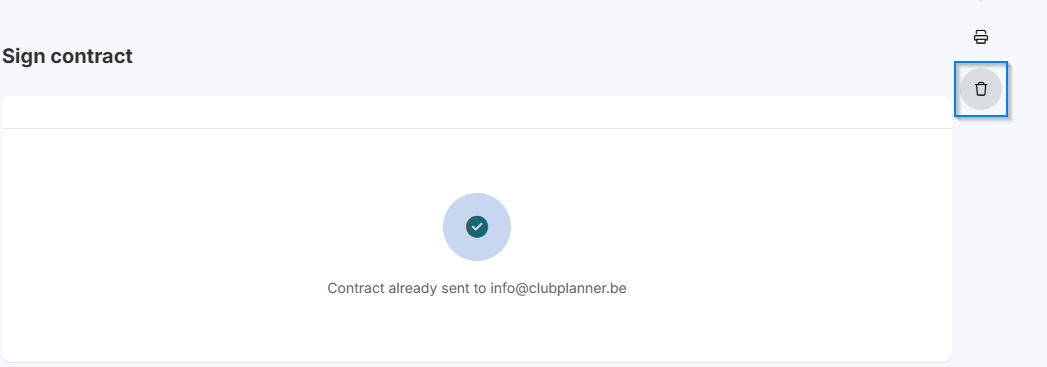
- Klicken Sie auf Vertrag löschen, um den fehlerhaft unterzeichneten Vertrag zu löschen.
Schritt 2 - Vertragvorlage auswählen
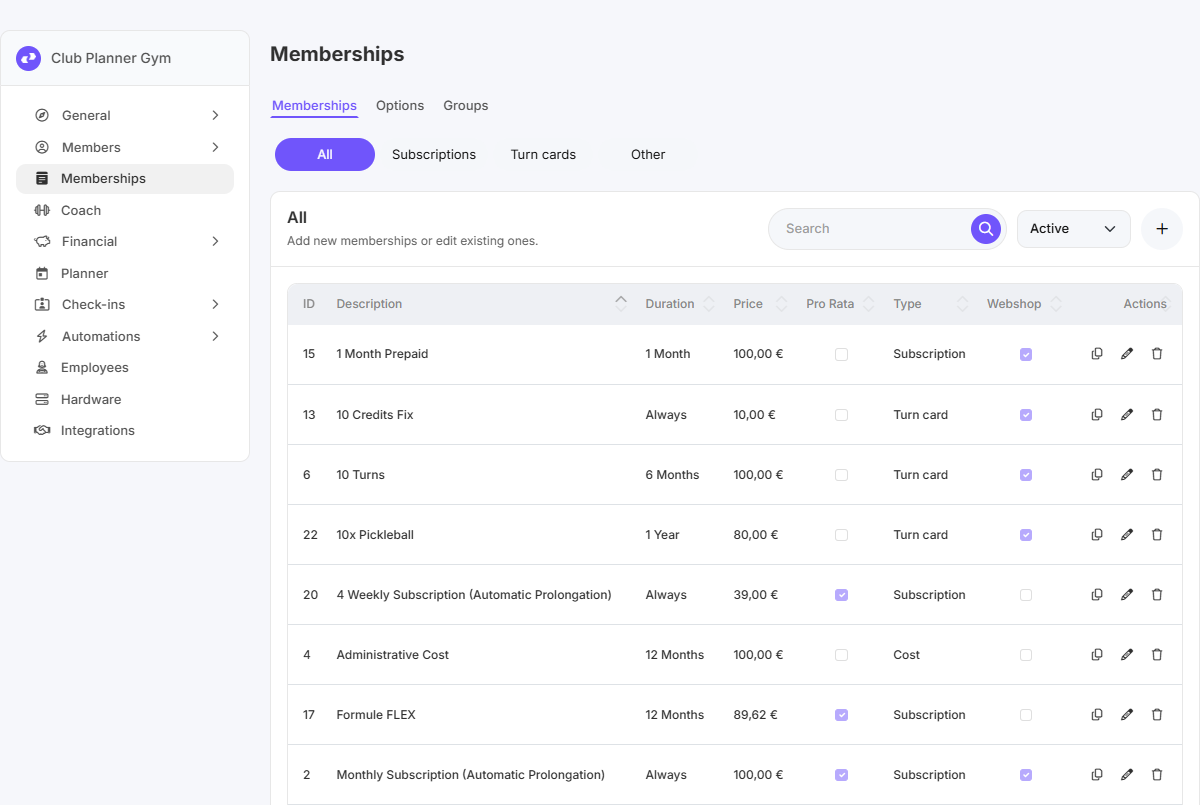
- Gehen Sie zu 'Einstellungen' → 'Mitgliedschaft'.
- Doppelklicken Sie auf die Mitgliedschaft, für die der Kunde einen Vertrag unterzeichnen muss.
- Gehen Sie zum Reiter Finanziell und scrollen Sie ganz nach unten.
- Wählen Sie unter Vertrag die richtige Vertragvorlage aus.

Schritt 3 - Vertragvorlage anpassen (optional)
Beachten Sie: Dies ist nur erforderlich, wenn Sie die Vorlage ändern möchten. Wenn nicht, fahren Sie mit Schritt 4 fort.
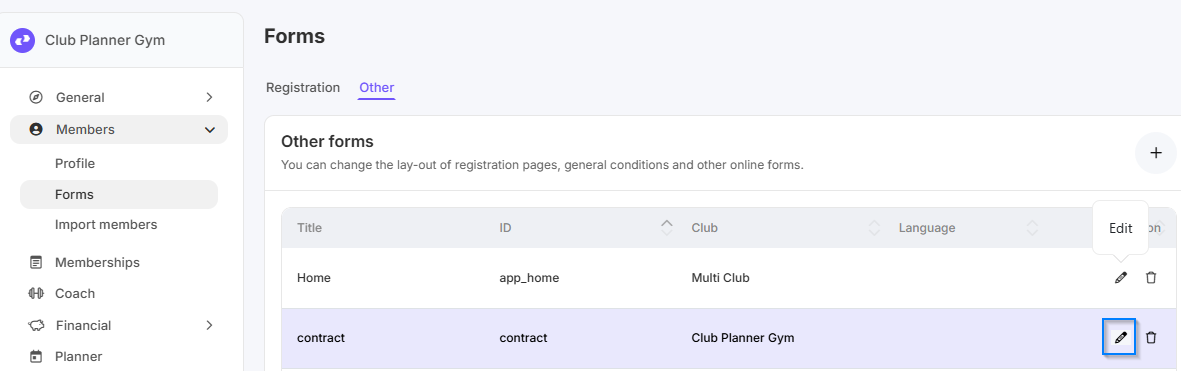
- Gehen Sie zu 'Einstellungen' → 'Mitglieder' → 'Formulare' → 'Sonstiges'.
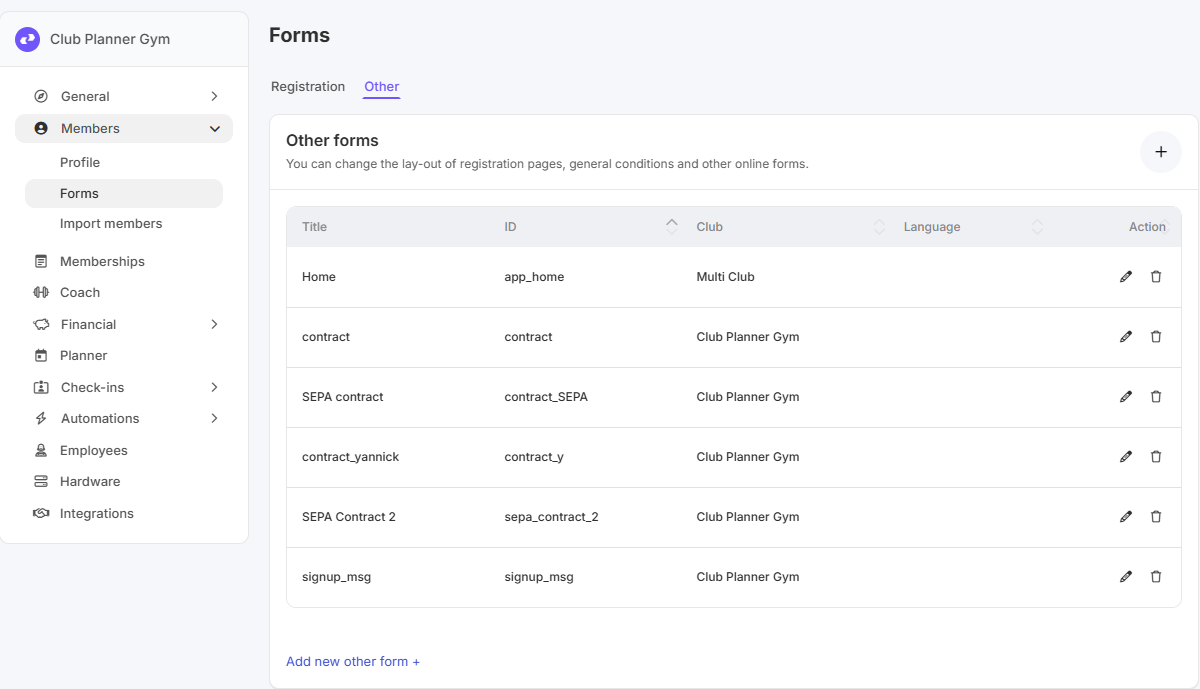
- Klicken Sie auf Edit bei der Vertragvorlage, die Sie ändern möchten.
- Passen Sie die Vorlage an und speichern Sie die Änderungen.
Schritt 4 - Neuen Vertrag unterzeichnen lassen
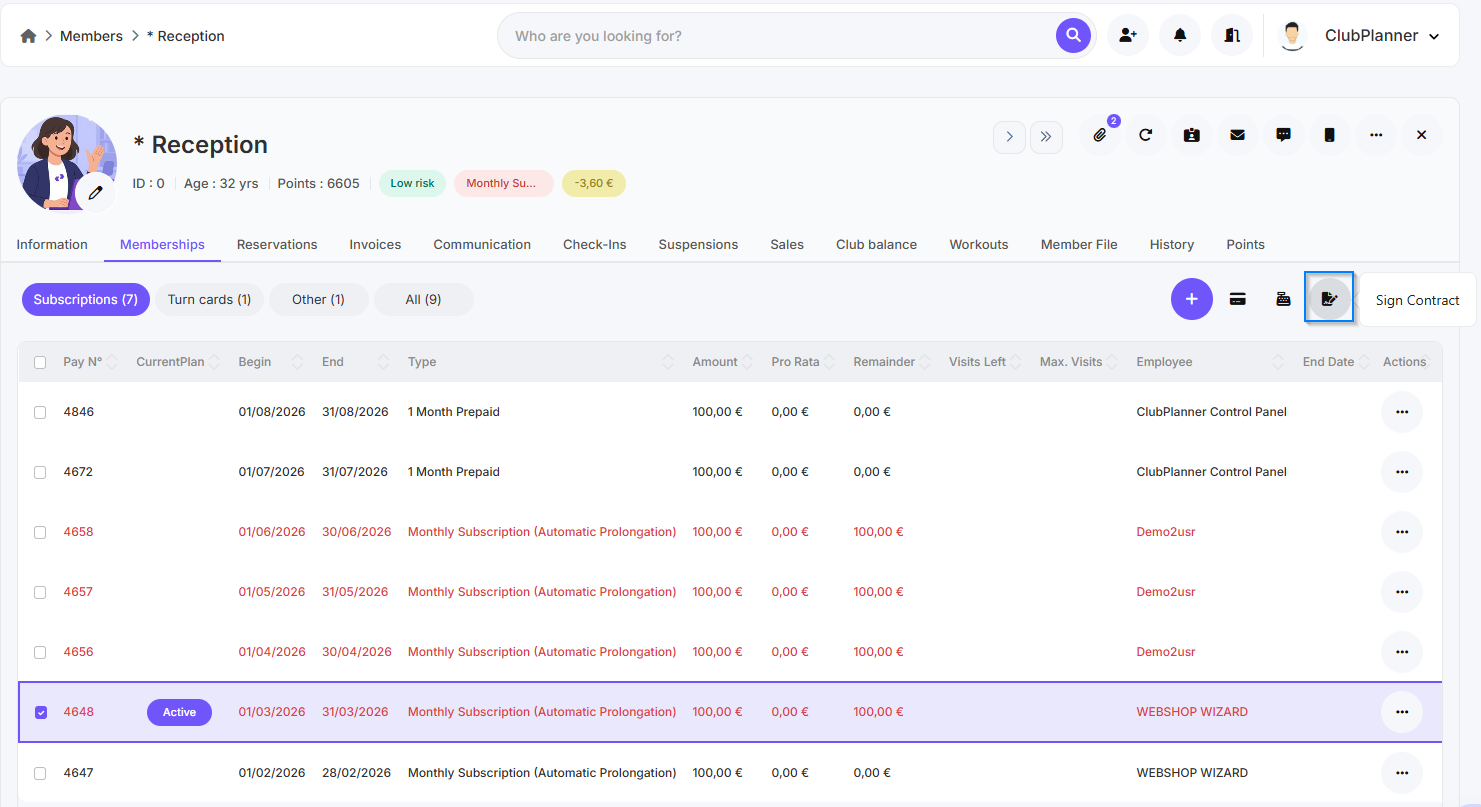
- Gehen Sie zu 'Mitglieder' und öffnen Sie die Mitgliederkartei des Kunden.
- Navigieren Sie zum Reiter 'Mitgliedschaften'.
- Wählen Sie die Abonnementzeile aus, für die der Vertrag unterzeichnet werden muss.
-
Klicken Sie auf 'Sign contract', um den neuen Vertrag unterzeichnen zu lassen.
Weitere Informationen zum digitalen Unterzeichnen von Verträgen finden Sie in der Anleitung digitale Verträge.