
In this guide, you'll learn how to:
- Create an invoice for a member in Club Planner, starting with a subscription line.
- And send this invoice/credit note by email.
Step 1 – Open the member’s profile
Go to the members list and click on the member for whom you want to create an invoice.
Step 2 – Go to the “Memberships” tab
In the member’s profile, click on the memberships tab.
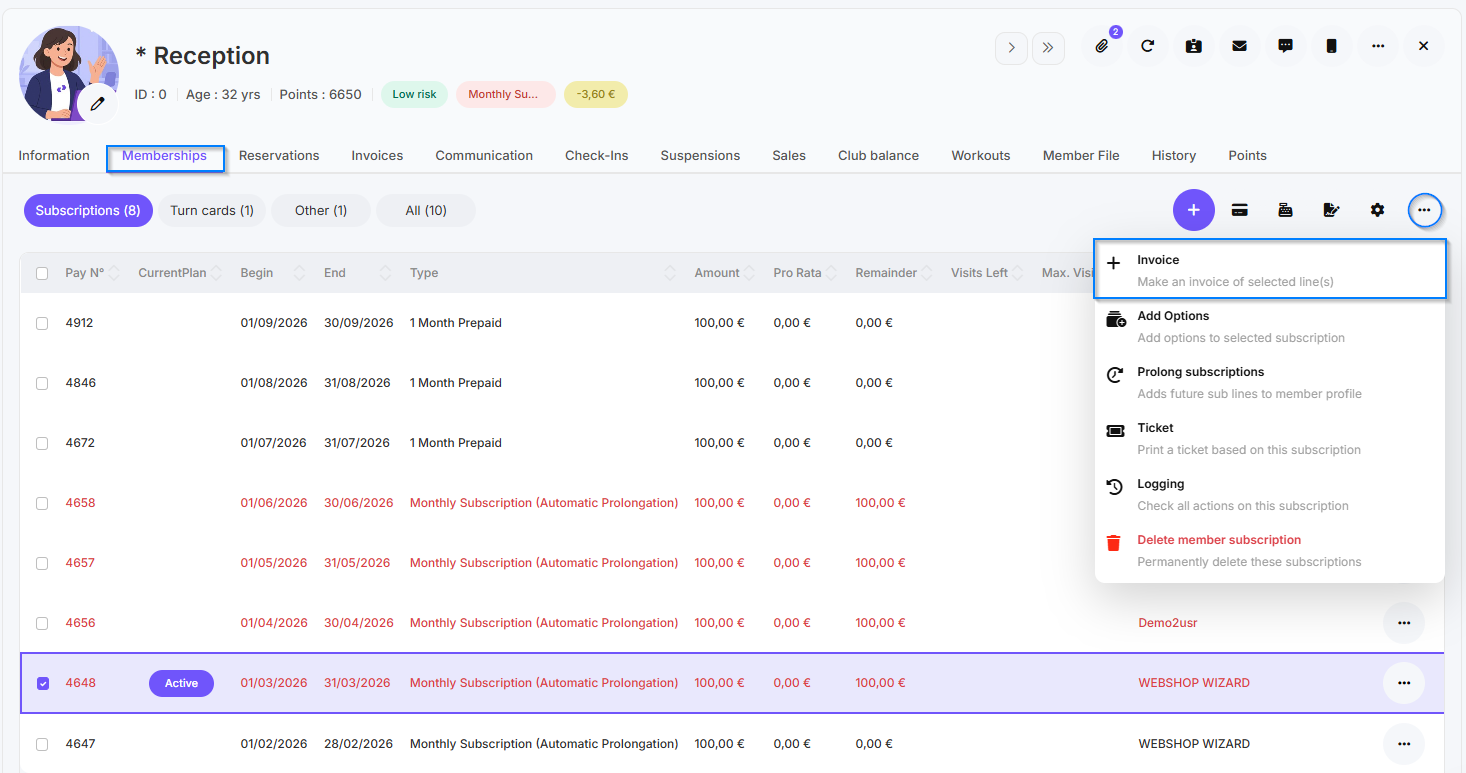
Select the membership (or multiple membership lines) for which you want to create an invoice.
Step 3 – Click “Add Invoice”
Click 'more actions' and then select 'Add Invoice' to create a new invoice based on the selected membership.
Step 4 – Add items
Select any additional products or services you’d like to include on the invoice.
Enter the quantities and prices as needed.
Step 5 – Save the invoice
Review all the details carefully.
Click 'Save' to create the invoice — an invoice number will be automatically generated (based on the previous invoice).
Step 6 – Send the invoice via email or Peppol
-
How to send invoices via Peppol (mandatory for B2B from January 1, 2026)
1. Open the invoice you want to send via Peppol.
2. Click on 'Send to Peppol' to send the invoice.
More information about registering with Peppol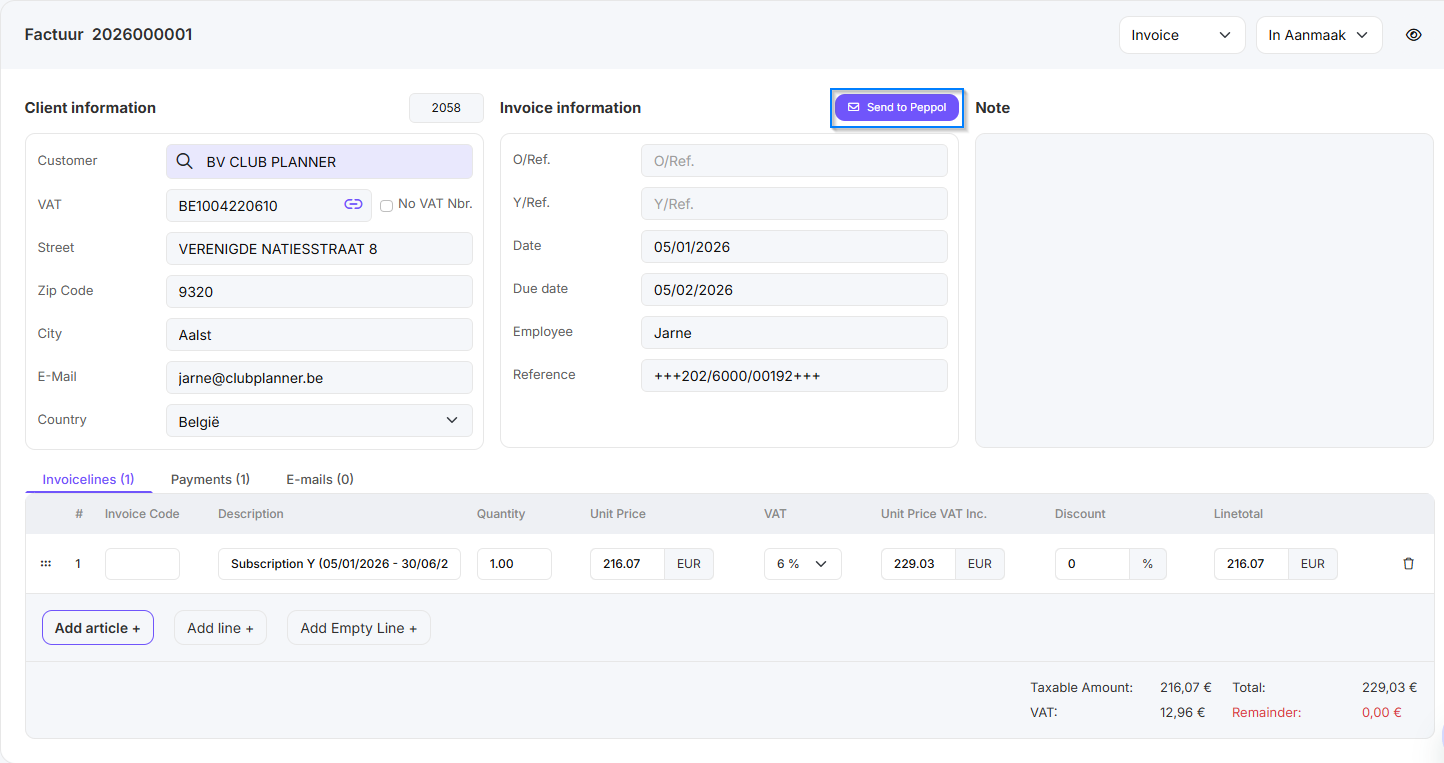
-
Hoe kan ik controleren of leden geregistreerd zijn bij Peppol
1. Via this link you can enter the member's VAT number to check whether it is effectively registered on the Peppol network.
2. Is the website not returning any results? Then ask the end customer whether the VAT number matches the number with which they are registered on Peppol. -
How to send invoices via Mail
1. Open the invoice you want to send via email.
2. At the top, click on the ‘Email’ icon.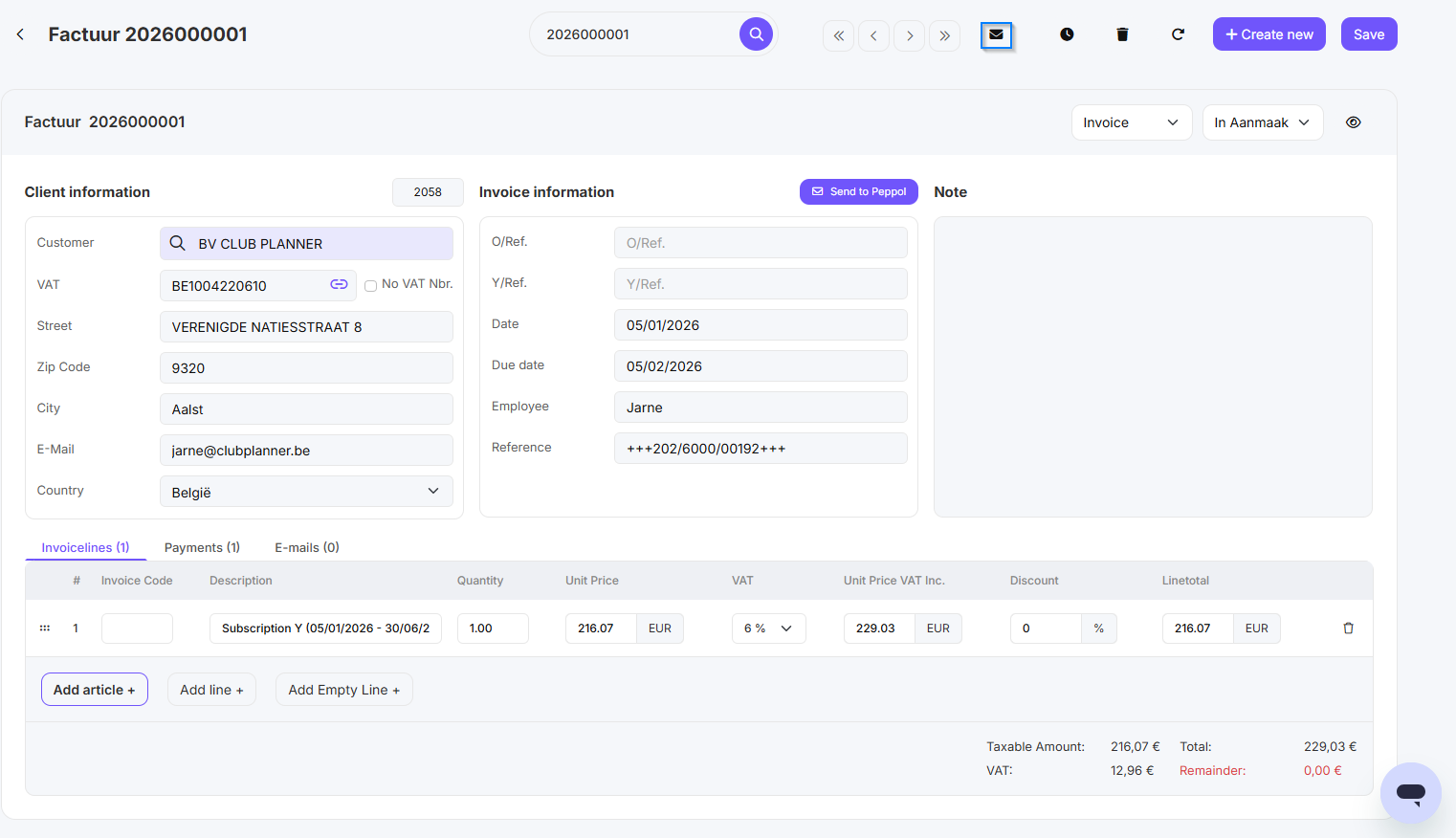
3. You can then choose an email template via 'Favorites', or compose your own email and click 'Send'.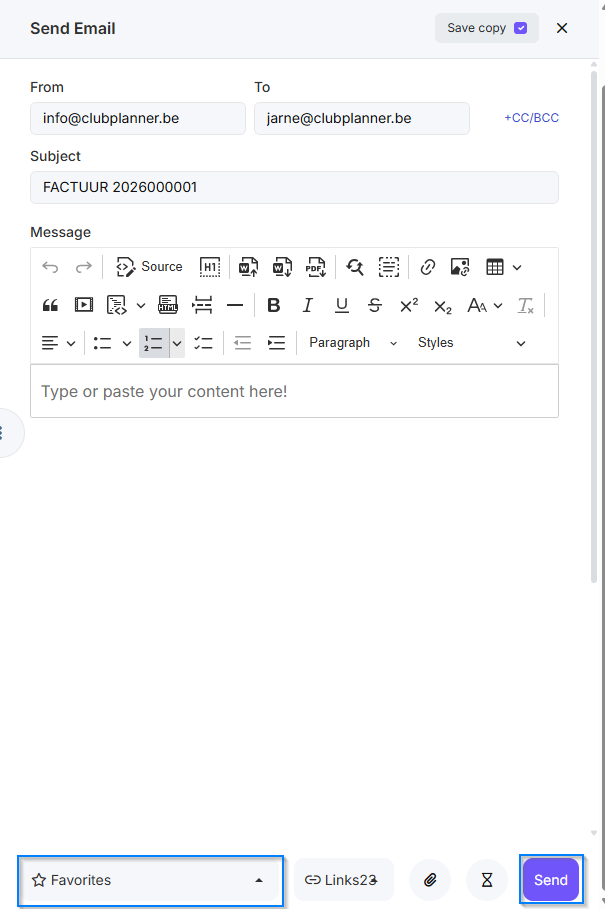
What are the different statuses in Peppol?
| Status | Omschrijving |
|---|---|
| Created | The document has been created in the system but has not yet been sent via the Peppol network. Awaiting sending or approval. |
|
Sent
|
The document has been transmitted via the Peppol network and delivered to the recipient’s access point. Technical transfer successful. |
| Received | The document has been received by the recipient’s access point and is pending processing. The recipient has successfully received the message. |
| Accepted (IMR) | The recipient has sent back an Invoice Message Response (IMR) confirming that the document will be processed. Positive confirmation per PEPPOL BIS Billing 3.0. |
| In Progress | The document is received but not yet fully processed. The recipient indicates it is still under approval or review. Temporary status — further action will follow. |
| Rejected | The recipient has rejected the document due to content errors, missing data, or validation rule violations. The sender must correct the document and resubmit. |
| Failed | A technical error occurred during sending or processing. The document was not delivered correctly. Could be a network, validation, or configuration error. |