
In dieser Anleitung lernst du, wie du in Club Planner:
- eine Rechnung für ein Mitglied erstellen kannst, basierend auf einer Abonnementslinie.
- und diese Rechnung/Gutschrift per E-Mail versenden kannst.
Schritt 1 – Mitgliederprofil öffnen
- Gehe zur Mitgliederliste und klicke auf das Mitglied, für das du eine Rechnung/Gutschrift erstellen möchtest.
Schritt 2 – Gehe zum Reiter "Memberships"
- Klicke im Mitgliederprofil auf den Reiter "Mitgliedschaften".
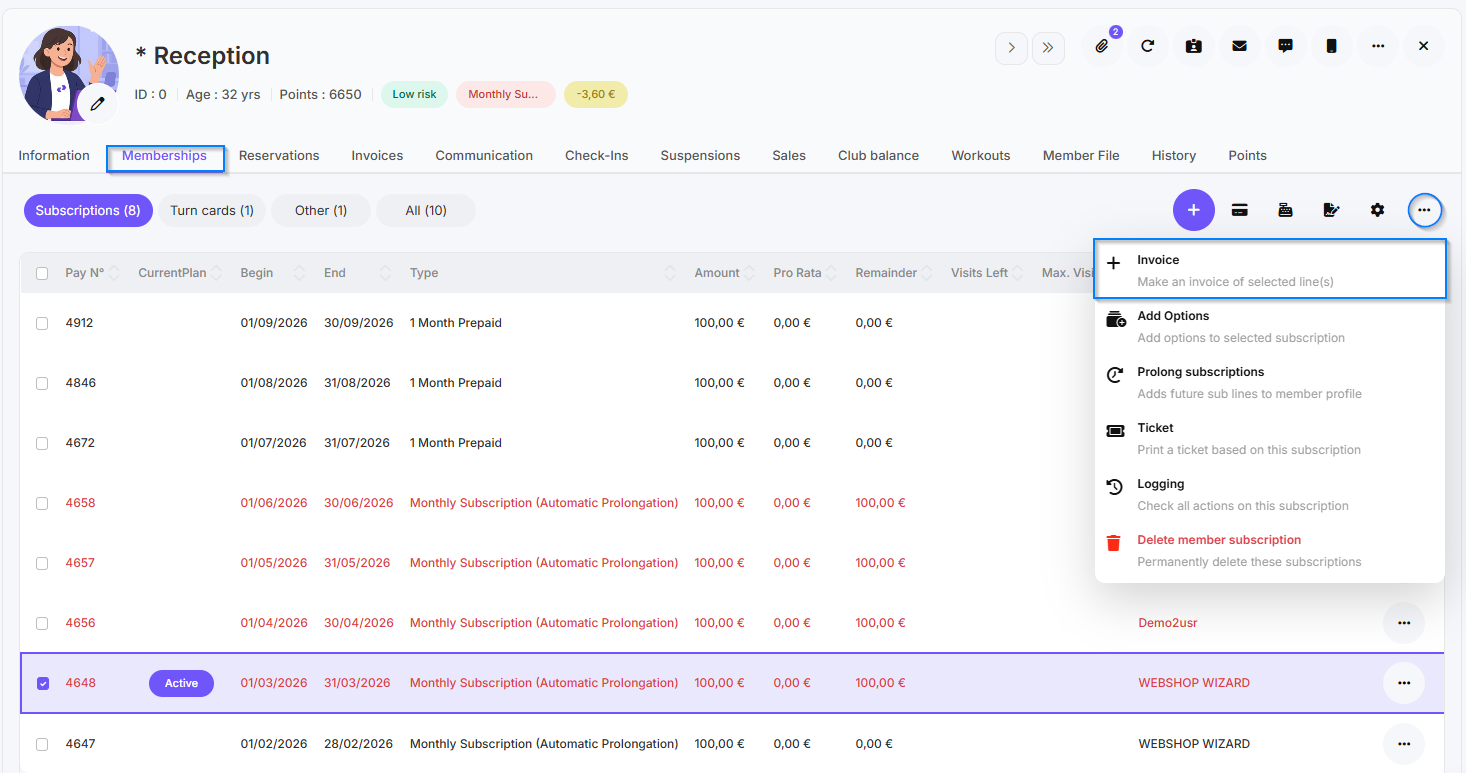
- Wähle das Abonnement (oder mehrere Abonnementlinien) aus, für das du eine Rechnung erstellen möchtest.
Schritt 3 – Klicke auf "Add Invoice"
- Klicke auf die drei Punkte oben rechts und klicke anschließend "Add Invoice", um eine neue Rechnung auf Basis des ausgewählten Abonnements zu erstellen.
Schritt 4 – Artikel hinzufügen
- Wähle die Artikel oder Dienstleistungen aus, die du eventuell zusätzlich berechnen möchtest.
- Fülle die Mengen und Preise bei Bedarf aus.
Schritt 5 – Speichern der Rechnung
- Überprüfe, ob alle Angaben korrekt sind.
- Klicke auf "Save", um die Rechnung zu erstellen. Daraufhin wird eine Rechnungsnummer generiert (basierend auf der vorherigen Rechnung).
Schritt 6 – Rechnung per E-Mail / Peppol versenden
-
Wie sendest du Rechnungen über Peppol (erforderlich für B2B ab 01.01.2026)
1. Öffne die Rechnung, die du über Peppol versenden möchtest.
2. Klicke auf 'Send to Peppol', um die Rechnung zu versenden.
Weitere Informationen zur Peppol-Registrierung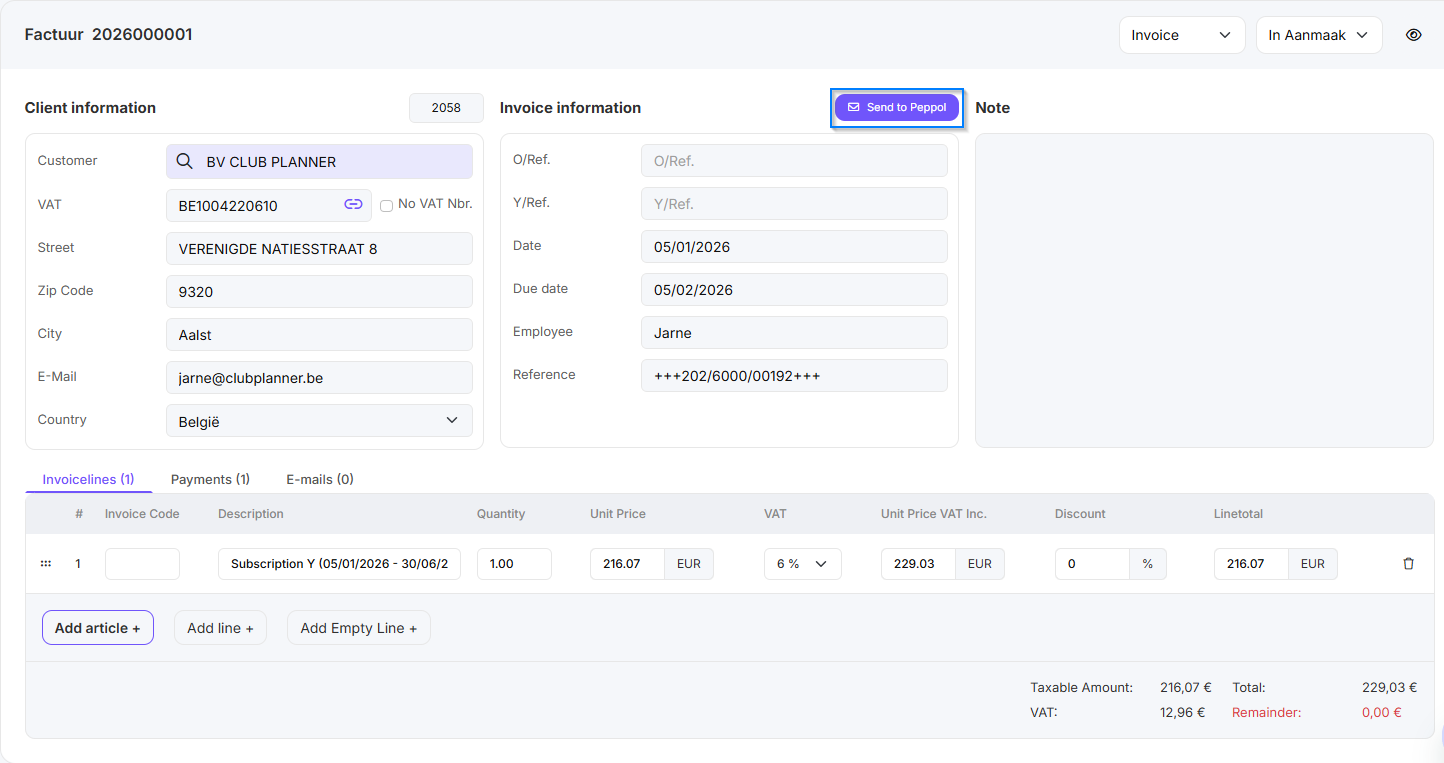
-
Wie kann ich überprüfen, ob Mitglieder bei Peppol registriert sind
1. Über diesen Link kannst du die Umsatzsteuer-ID des Mitglieds eingeben, um zu überprüfen, ob es tatsächlich im Peppol-Netzwerk registriert ist.
2. Die Website zeigt kein Ergebnis? Dann frage den Endkunden, ob die Umsatzsteuer-ID mit der Nummer übereinstimmt, unter der er sich bei Peppol registriert hat. -
Wie sendest du Rechnungen per E-Mail
1. Öffne die Rechnung, die du per E-Mail versenden möchtest.
2. Klicke oben auf das 'Email'-Symbol.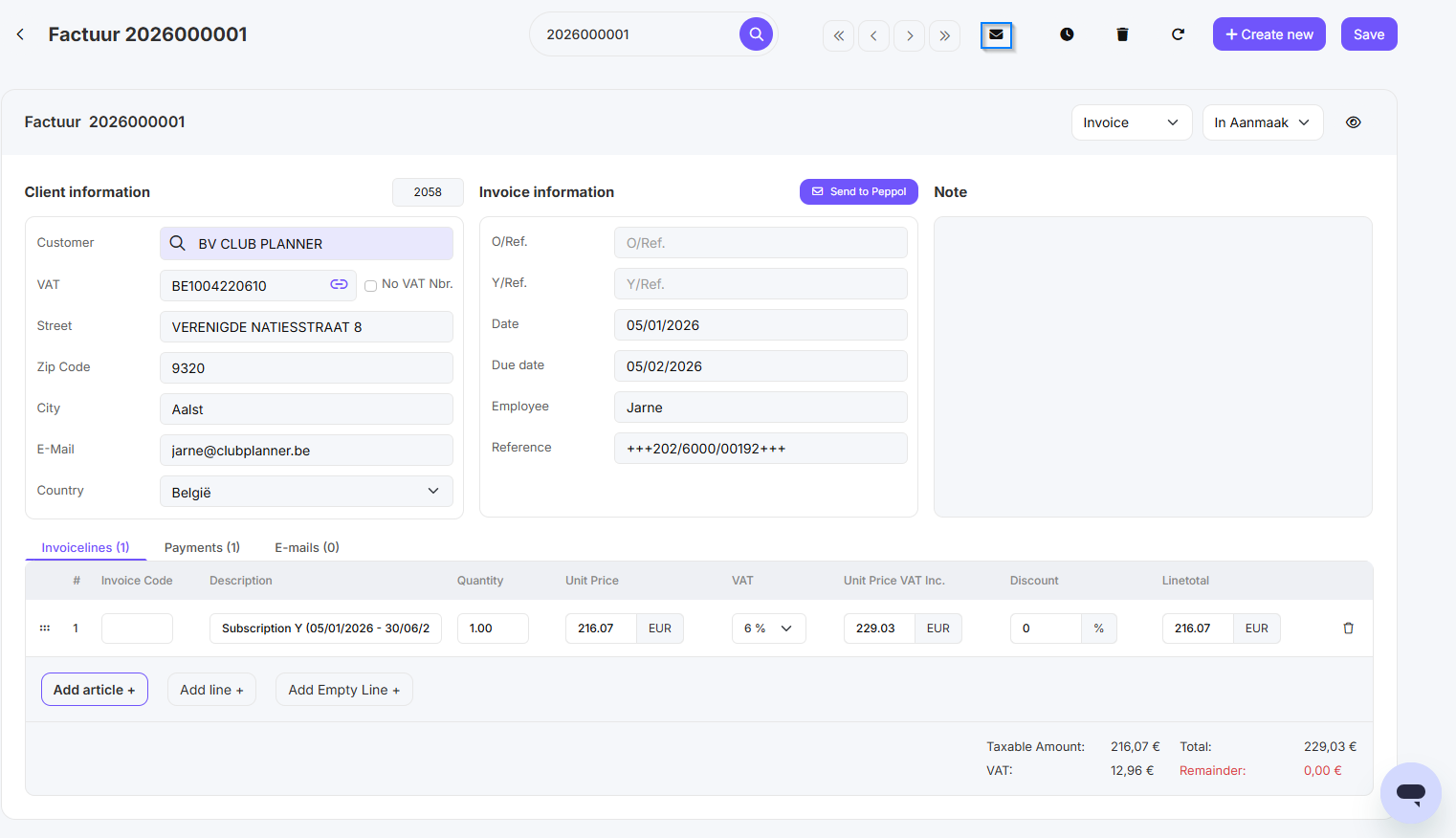
3. Anschließend kannst du eine E-Mail-Vorlage über 'Favoriten' auswählen oder selbst eine E-Mail verfassen und auf 'Send' klicken.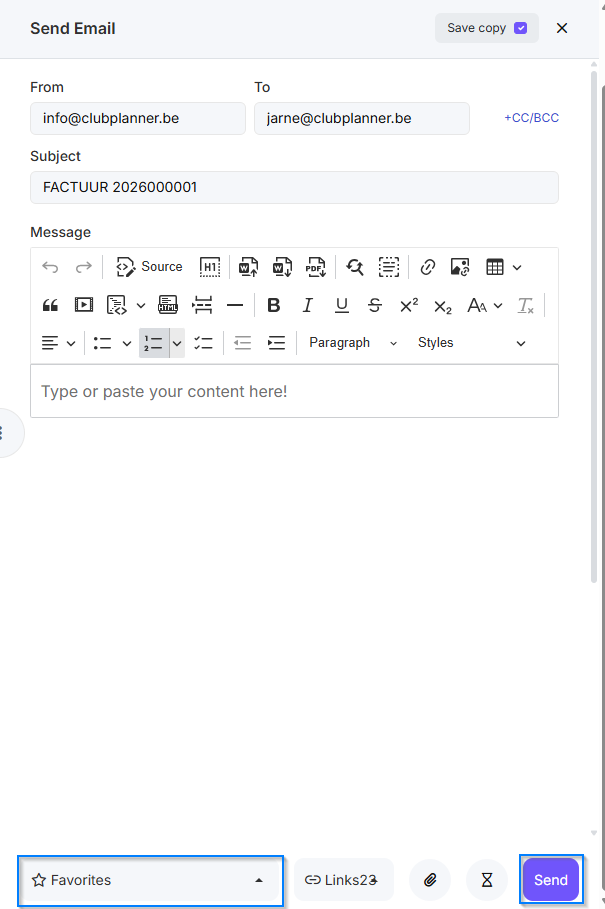
Was sind die verschiedenen Status in Peppol?
| Status | Beschreibung |
|---|---|
| Erstellt |
Das Dokument wurde im System erstellt, aber noch nicht über das Peppol-Netzwerk versendet. Wartend auf Versand oder Genehmigung.
|
|
Versendet
|
Das Dokument wurde an das Peppol-Netzwerk versendet und beim Access Point des Empfängers zugestellt. Technische Übertragung erfolgreich. |
| Empfangen |
Das Dokument wurde vom Access Point des Empfängers empfangen und zur Verarbeitung bereitgestellt. Die empfangende Partei hat die Nachricht erfolgreich empfangen.
|
| Akzeptiert (IMR) |
Der Empfänger hat eine Invoice Message Response (IMR) zurückgesendet, mit der Bestätigung, dass das Dokument verarbeitet wird. Positive Bestätigung gemäß PEPPOL BIS Billing 3.0.
|
| In Bearbeitung |
Das Dokument wurde empfangen, aber noch nicht vollständig verarbeitet. Der Empfänger gibt an, dass es noch genehmigt oder überprüft wird. Vorübergehender Status – weitere Maßnahme folgt.
|
| Abgelehnt |
Der Empfänger hat das Dokument abgelehnt, beispielsweise wegen inhaltlicher Fehler, fehlender Daten oder Nichterfüllung von Validierungsregeln. Der Absender muss das Dokument korrigieren und erneut einreichen.
|
| Fehlgeschlagen | Bei der Versendung oder Verarbeitung ist ein technischer Fehler aufgetreten. Das Dokument wurde nicht ordnungsgemäß zugestellt. Kann ein Netzwerk-, Validierungs- oder Konfigurationsfehler sein. |