
With Forms you build any form your club needs: a satisfaction survey, a trial lesson request, a contact form, an event registration or a document a member has to sign. Every form gets its own link and QR code that you share anywhere: by email, WhatsApp, social media, a poster at the front desk or your website. All answers and statistics land straight in Club Planner, with the right member or lead.
Why use forms?
- You hear what your members and guests think. A short NPS or survey shows where your club is strong and what can be better, per area and per period.
- New leads come in by themselves. A trial lesson request or contact form creates a lead in Club Planner straight away, with no retyping.
- The member profile stays correct. Answers can complete or update details on the profile, such as an address or a custom field.
- You follow up automatically. A submitted form can start an automation, for example a thank-you email or a message to the manager after a low score.
- Everything in one place. You see who filled in, through which channel and when, and you export everything to Excel.
The overview
In the left menu, click Forms. You see all your forms with their status (Draft or Published), the number of submissions, the last submission and when the form was edited.
Creating a form
1. Choose a template
Click New form at the top right. Choose an empty form or start from a template: Wellness guest feedback, Trial lesson request, Member satisfaction (NPS) or Contact form. A template contains the questions, the translations and the right settings. You can change everything afterwards.
2. Add blocks
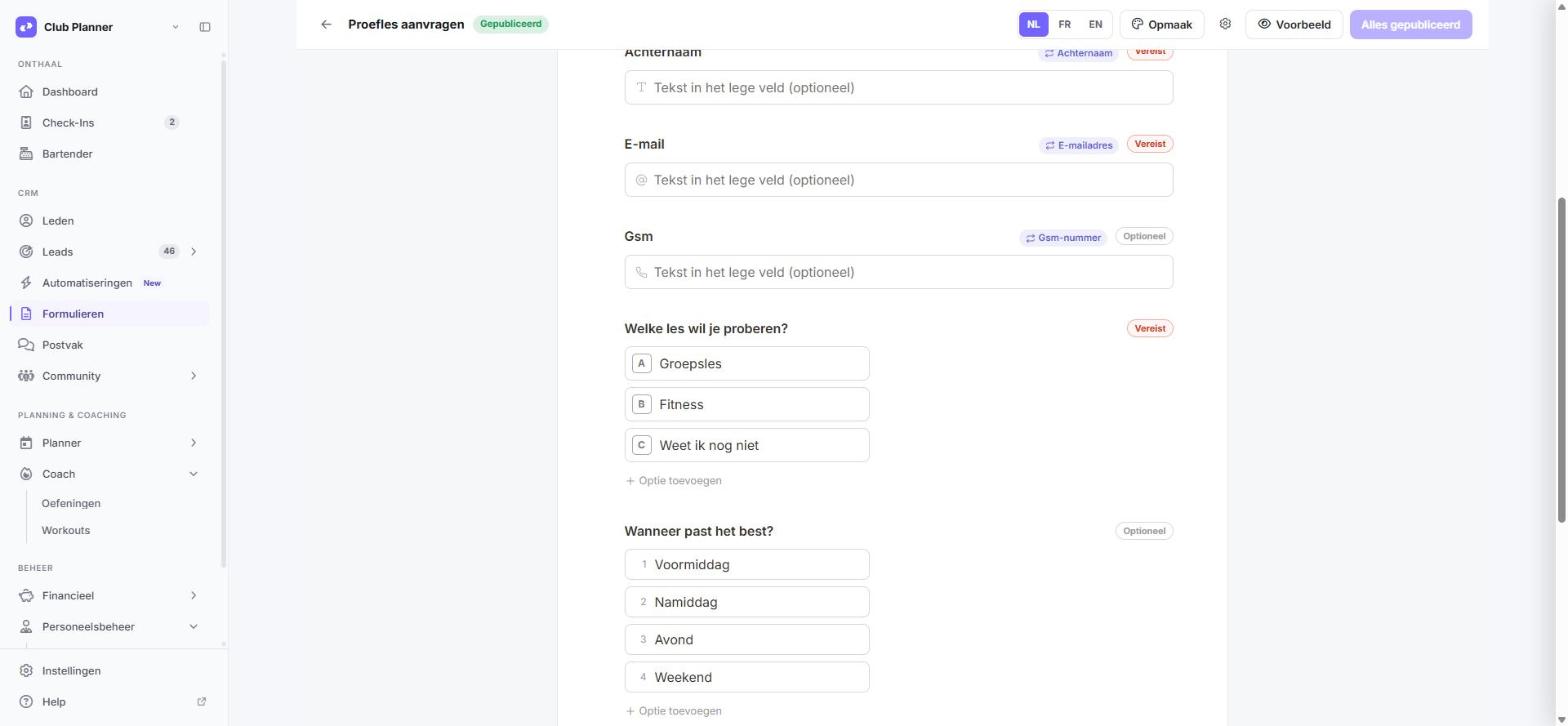
The editor works like a text document. Click an empty line and type /. Then choose a block:
- Questions: Short answer, Long answer, E-Mail, Telephone number, Number, Date, Multiple choice, Checkboxes, Dropdown, Linear scale, Rating, NPS, Matrix, Consent, Upload file and Signature.
- Layout: Heading 1 to 3, Text, Divider, Image, New page and Thank-you page.
- Advanced: Logic.
To move a block, drag the handle on its left. With New page you split a long form into several steps. With Consent the respondent agrees to your terms and conditions and privacy policy; the block links to your club's documents automatically.
3. Set up a question
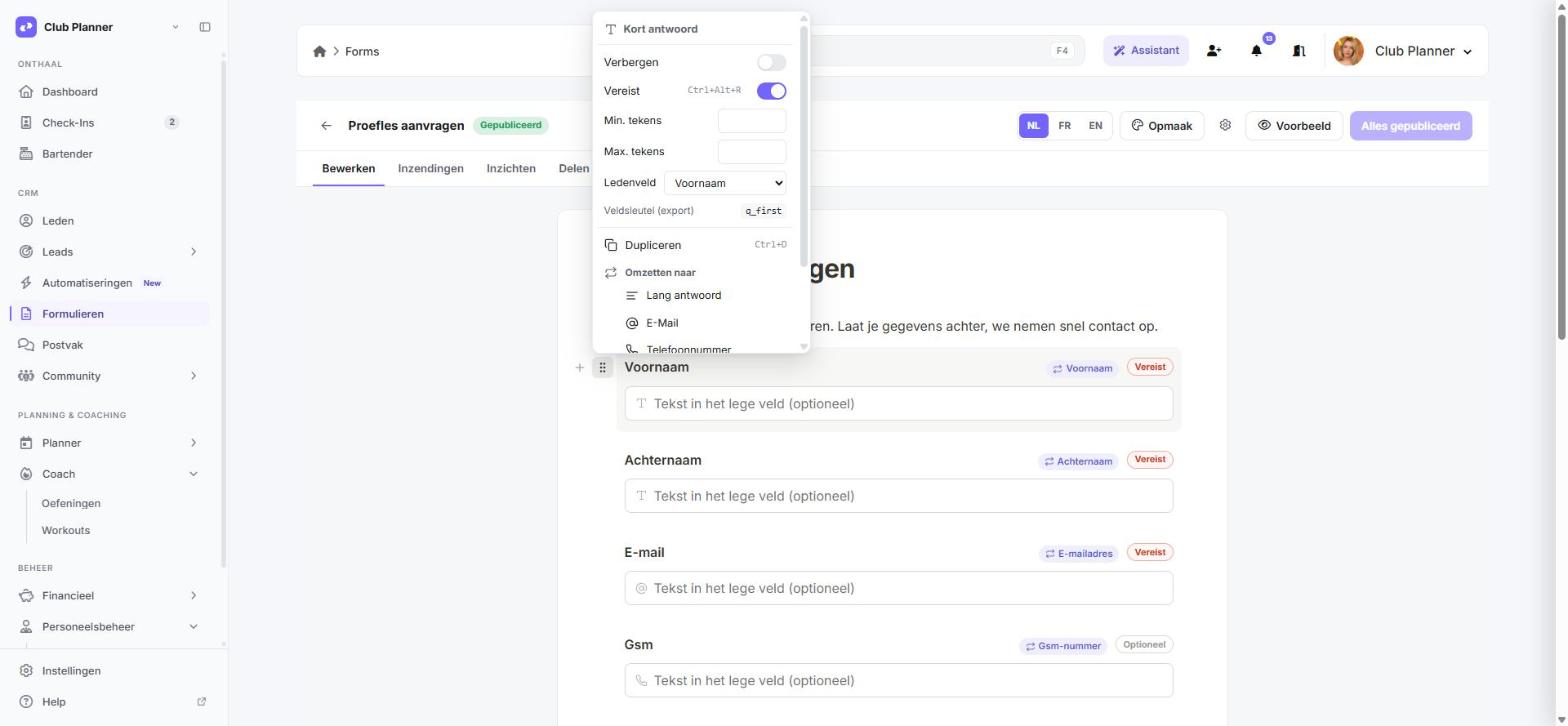
Click the handle on the left of a question to open the block menu. There you make a question Required (shortcut Ctrl+Alt+R), hide it, set the minimum and maximum number of characters for a text question, and choose the number of files and the maximum size for Upload file. Turn into changes the question type, Duplicate makes a copy.
With Member field you link the question to a field of the member profile, such as first name, email address, address, national ID number, company name, VAT number or a custom field. A choice question can be linked to Gender or Language. When a member comes through their personal link, those questions are already filled in. A linked question shows a label with the name of the field.
4. Make the form think along
With the Logic block you show or hide a question based on an answer, make a question required or jump to another page. For example: if someone gives a score of 6 or lower, the question "What can we do better?" becomes required.
Type [ in a text to insert a superlink, such as the name of the member or of your club.
5. Add languages
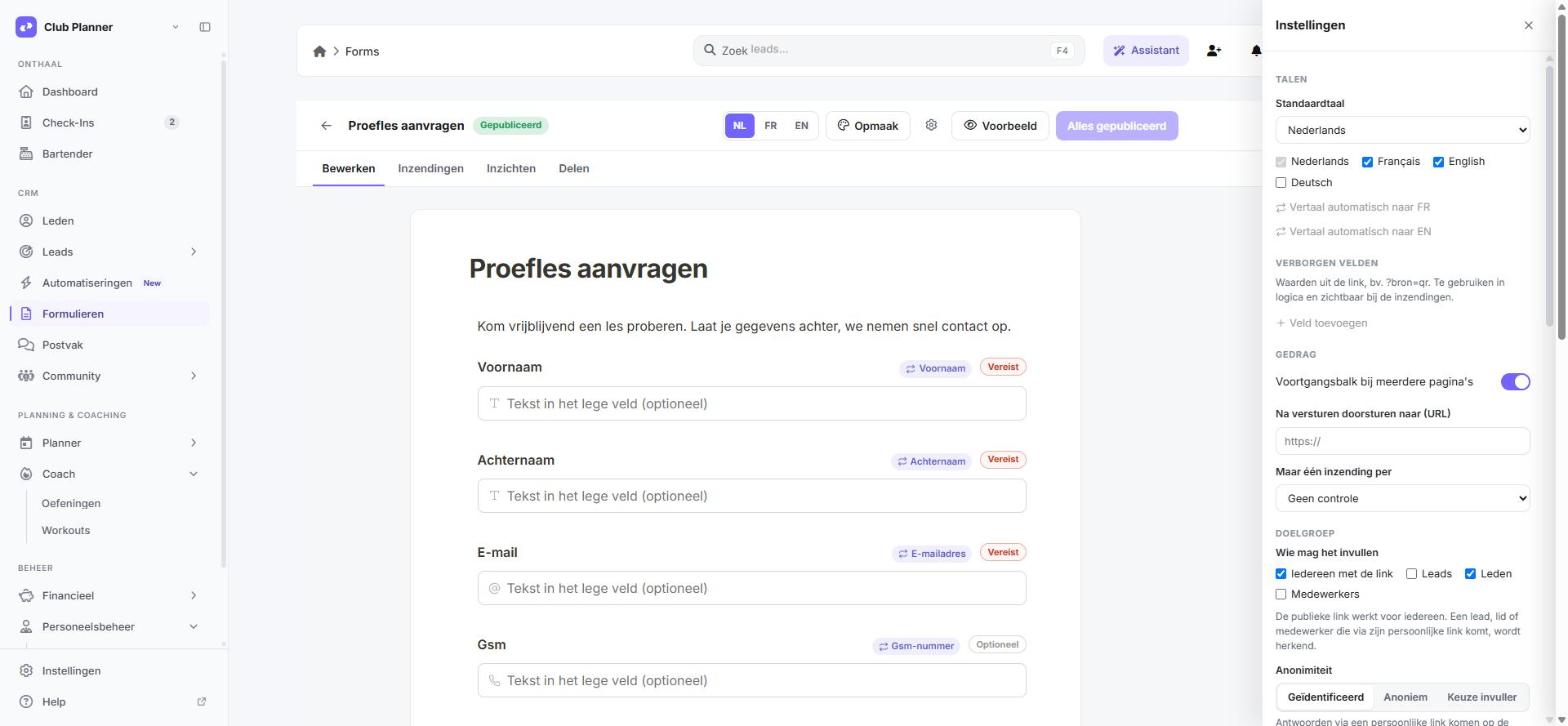
Open the settings with the gear icon next to Layout and, under Languages, choose the default language and the extra languages: Dutch, French, English and German. Then click a language at the top of the editor to translate the texts. You change the questions and the logic in the default language. The respondent chooses their language at the top of the form.
6. Give it your own style
Click Layout. Choose a light or dark theme, your accent colour (by default your club colour), the background, the font, the width, the corners, the position of the button and whether your logo is shown. Click Save as club default and all your new forms get the same style.
7. Choose the settings
In the settings (the gear icon) you decide what happens with the answers:
| Group | What you set |
|---|---|
| Hidden fields | Values from the link, for example ?bron=qr, which you see with the submissions and can use in logic |
| Behaviour | Progress bar, redirect to a web page after submitting, only one submission per email address or mobile number |
| Audience | Who may fill in the form (anyone with the link, leads, members, employees) and whether it is Identified, Anonymous or the respondent's choice |
| After submitting in Club Planner | Only store, create a lead (or complete an existing lead), or update the member profile with the linked fields |
| Notifications | An email on every submission to one or more addresses, a confirmation to the respondent in their own language, and extra notifications for a given answer |
| Access | A closing date, a maximum number of submissions, how long a personal link stays valid and your own text when the form is closed |
| Privacy | How long answers are kept; after that they are deleted automatically |
Separate several notification addresses with a comma.
8. Preview and publish
With Preview you test the form as a respondent sees it. All your changes are saved automatically as a draft. Click Publish to make them live. When it says All published, the live version matches what you see.
Sharing your form
Open the Share tab. Every form has a fixed link that stays the same, even if you close the form later and open it again.
- Link and QR code: copy the link or download the QR code for a poster, a flyer, the front desk or table cards.
- Share via: WhatsApp, Facebook, LinkedIn, E-Mail or another app on your phone. Every button shares its own link, so Insights shows through which channel people come.
- Place on your website: copy the code and paste it on a page of your website. The form adjusts to its height.
- Personal link: put the superlink from the Share tab (for example [FORMURL_zmxakwXqMs]) in an email, mailing, text message or automation. Every member and every lead then gets their own link. The form fills in the known details and the submission ends up on that person's profile.
- Personal link for one person: choose a lead, member or employee and click Create link, to test it yourself or send the link separately.
Add ?bron= with a name of your own after the link, for example ?bron=poster, and you see that name as the channel.
Invitations and reminders
When you send the form with the personal link, the bottom of the Share tab shows how many people were invited, opened the form and completed it. Click Who? for the list per person. Send reminder sends an email with a subject and text of your choice, only to those who have not filled in yet. The personal link is added automatically.
Closing a form
Click Close form. Visitors then see your closing message and no more answers come in. In the settings you can also close the form automatically on a date or after a maximum number of submissions.
Viewing the answers
Submissions
The Submissions tab shows one row per submission, with the date, every answer, the language, the channel and who filled in the form (member, lead or employee). Choose a period and export to Excel or CSV.
Insights
The Insights tab sums everything up over the last 7, 30, 90 or 365 days:
- how often the form was viewed, by how many unique visitors, how many people started and how many submitted, the completion rate and the median completion time;
- a daily chart and a table per channel;
- per question the spread of the answers, the average for scores and scales, the NPS with detractors, passives and promoters, the average per matrix row and the latest open answers.
On the profile
When a member fills in a form through their personal link or while logged in, the submission also appears on the member profile under ... > Forms. For employees it appears on the employee's profile, visible only to those allowed to manage staff. For a lead, the full submission is in the lead's notes.
Forms and the other modules
A form works together with the rest of Club Planner:
| Module | What the form does | How to set it up |
|---|---|---|
| Leads | Creates a new lead or completes an existing one. Club Planner looks up the email address first and then the mobile number, only fills in empty fields and puts the full submission in the notes | Settings > After submitting > Create a lead |
| Members | Fills in known details in advance and updates the member profile with the linked questions | Block menu > Member field, and Settings > After submitting > Update the member profile |
| Employees | Forms for your staff only, such as an internal survey or a document to sign. A logged-in employee is recognised | Settings > Audience > Employees |
| Automations | Starts a journey with the trigger "When a member fills in a form" or "When a lead fills in a form". With [FORMANSWER_fieldkey] you put an answer in an email, text message or push notification. The field key is in the question's block menu | Automations > New automation |
| Emails and mailings | The form's superlink gives every recipient a personal link and counts them as invited | Copy the superlink in the Share tab |
| Retention | A low NPS score counts as a signal in the member's retention score | Happens automatically |
| Club | The Consent block links to your terms and conditions and privacy policy; the layout uses your club colour and logo | Settings > Club |
| Your website | The form is embedded on your own page | Share > Place on your website |
Privacy and anonymity
- Identified: through a personal link the submission ends up on that person's profile. The top of the form says that the answers are linked.
- Anonymous: a submission is never linked to a person. If you send an anonymous form with personal links, you do see who filled it in, but not which answers belong to whom.
- Respondent's choice: the respondent decides whether their answers are linked.
- Retention period: in the settings under Privacy, choose how long answers are kept (from 3 to 60 months, or unlimited). After that they are deleted automatically. The number of submissions stays visible.
- Files and signatures are stored privately. Only those allowed to see the results of the form can open them.
- No IP addresses are stored, and spam is blocked automatically.
Examples for inspiration
Guest survey for your wellness centre. Let guests score each area (saunas, pool, restaurant, reception) with a Linear scale, and add an NPS and an open question. Put a QR code on the tables and send the manager an extra notification for a score of 2 or lower. Start from the Wellness guest feedback template.
Trial lesson request. Ask for name, email, mobile number, the class someone wants to try and the moment that suits them, with a tick box for your terms. Choose Create a lead and place the form on your website. With the trigger "When a lead fills in a form", an automation sends a confirmation straight away.
Member satisfaction (NPS). Send the form with the personal link in a mailing to all your members. With Logic, the question about the reason becomes required for a score of 6 or lower. After a week, use Send reminder to email those who have not answered yet.
Why are you leaving? A short survey after a cancellation: a Multiple choice with the reason, an open question and how likely someone is to come back. An extra notification for the reason "price" goes to your salesperson.
Medical certificate or health questionnaire. Checkboxes with the health questions, Upload file for the certificate and a Signature. Set the audience to Members and choose a retention period of 12 months.
Registration for an event or workshop. A Dropdown with the session and a Number for the number of people. Set the maximum number of submissions to the number of places and write a closing message such as "Fully booked, see you next time!".
Intake after the first week. Ask about the new member's goal and how the first week went. Link the questions to custom fields of the member profile and let the trigger "When a member fills in a form" send a follow-up email with the chosen goal.
Class feedback. A Rating, the coach in a Dropdown and an open question. Put a QR code with its own ?bron= in each studio, so you compare studios in Insights.
Internal survey or document for your staff. Set the audience to Employees. Choose Anonymous for a satisfaction survey, or Identified with a Signature for a document everyone has to sign.
Registration for a camp or swimming lessons. Split the form into a few steps with New page: the child, the parent, consent for photos. Turn on the progress bar and send the parent a confirmation in their own language.
Corporate fitness. A request form for companies with the company name, the VAT number and the number of employees. Choose Create a lead and send the notification to your account manager.
Frequently asked questions
I don't see my change on the form.
Changes stay a draft until you click Publish. When it says All published, refresh the form's page.
I don't get an email for a new submission.
In the settings under Notifications, check that your address is under Mail on every submission to. Separate several addresses with a comma. Also have a look in your spam folder.
No new lead came in.
Check that After submitting is set to Create a lead. If the person already existed as a lead, with the same email address or mobile number, that lead is completed and the submission is in its notes.
My member's details were not filled in.
Details are filled in when the member comes through their personal link or is logged in to the member portal, and when the questions are linked to a member field.
The personal link no longer works.
A personal link stays valid for 90 days by default. You change that in the settings under Access. The member can log in, or you send a reminder with a new link.
How do I see through which channel people come?
Open Insights and look at the table per channel. Use the share buttons in the Share tab, or add ?bron= with a name of your own after the link.
Still stuck? Contact support and mention the name of the form.