
With automations, the web platform sends a message by itself at the right moment: a welcome email when someone signs up, a reminder when a member has not trained for two weeks, a birthday message. You set it up once and it runs from then on. You need the Settings right for this. Without it, the menu does not appear.
The overview
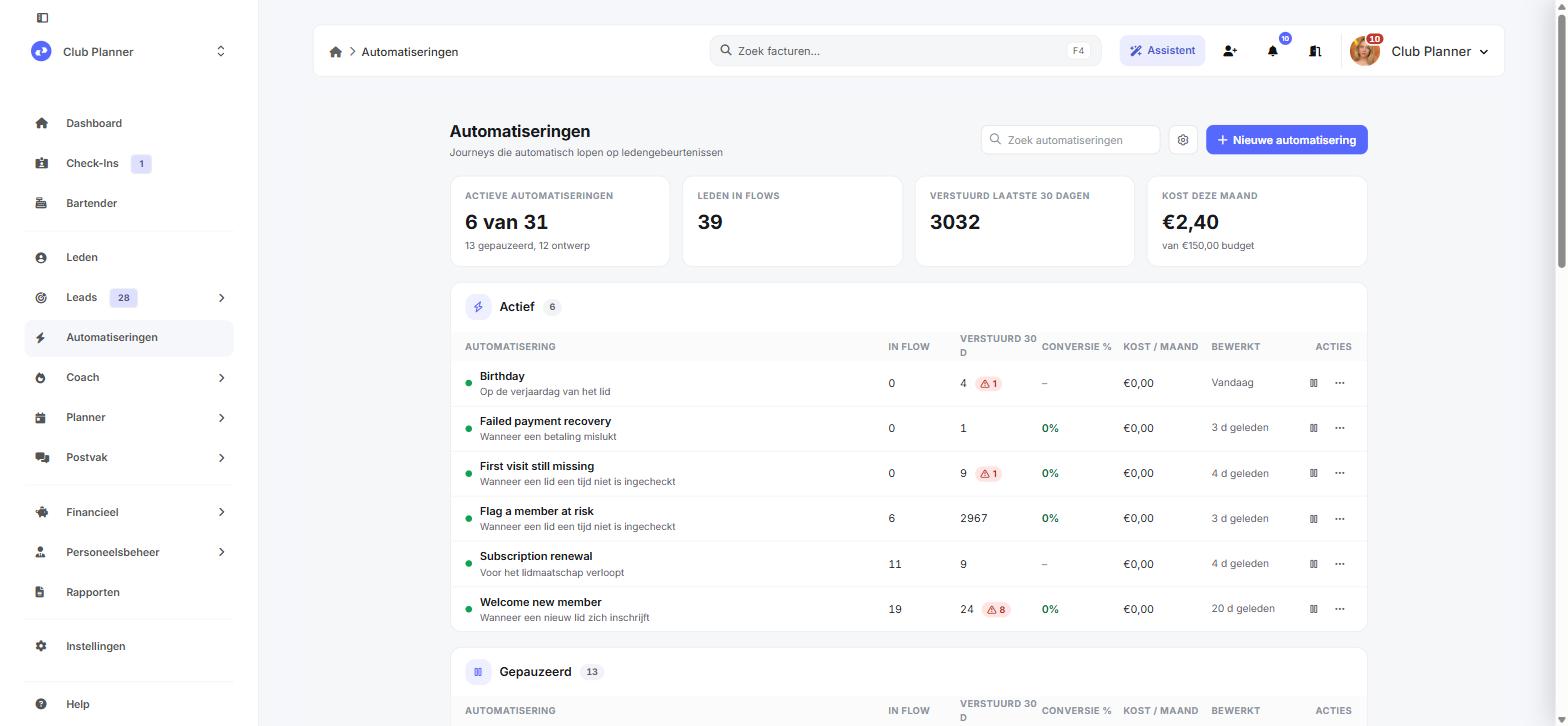
In the left menu, click Automations. At the top you see how many automations are active, how many members are in a journey right now, how many messages went out in the last 30 days and what you spent this month. Below that are your automations, split into Active and Paused.
Creating an automation
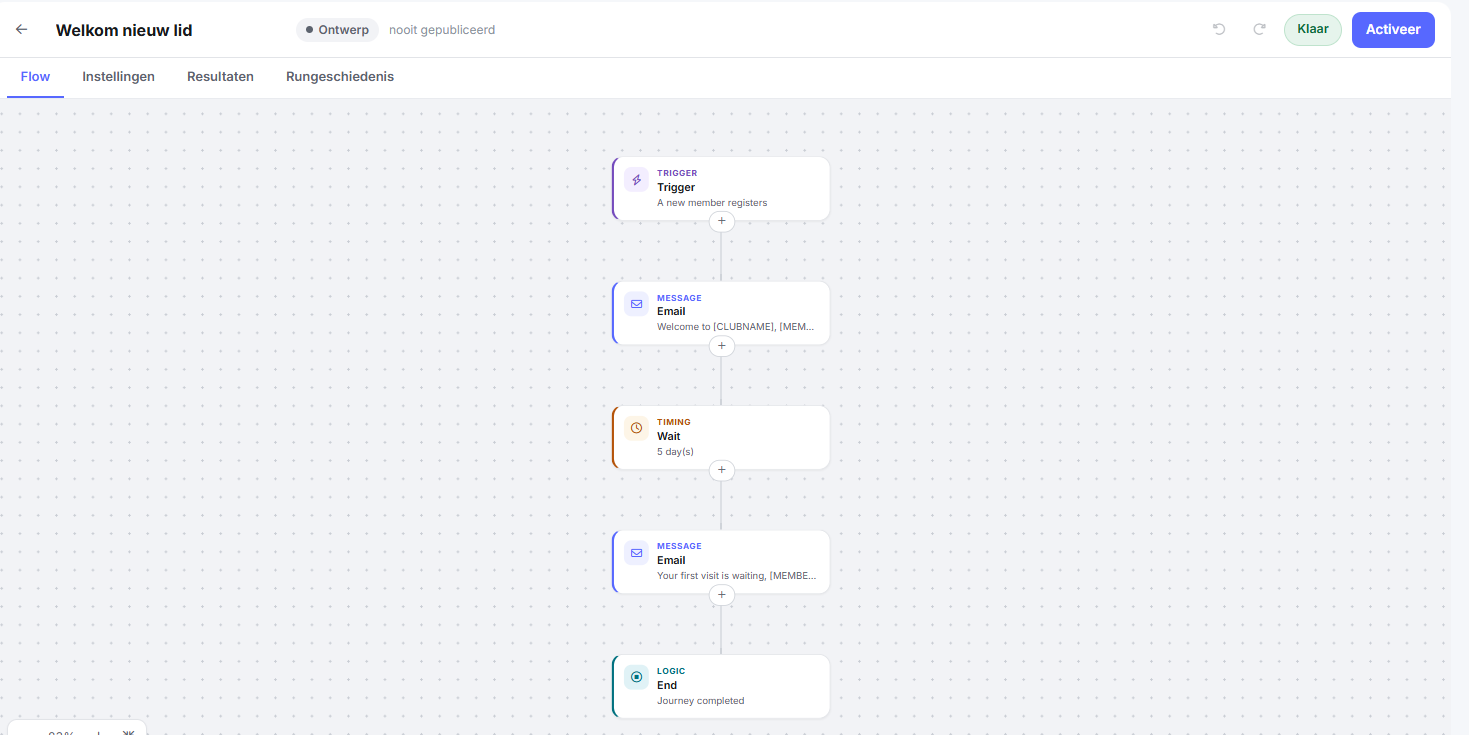
An automation starts with an event, the trigger. A series of steps follows, for example an email, a five-day wait and a second email.
1. Choose a template
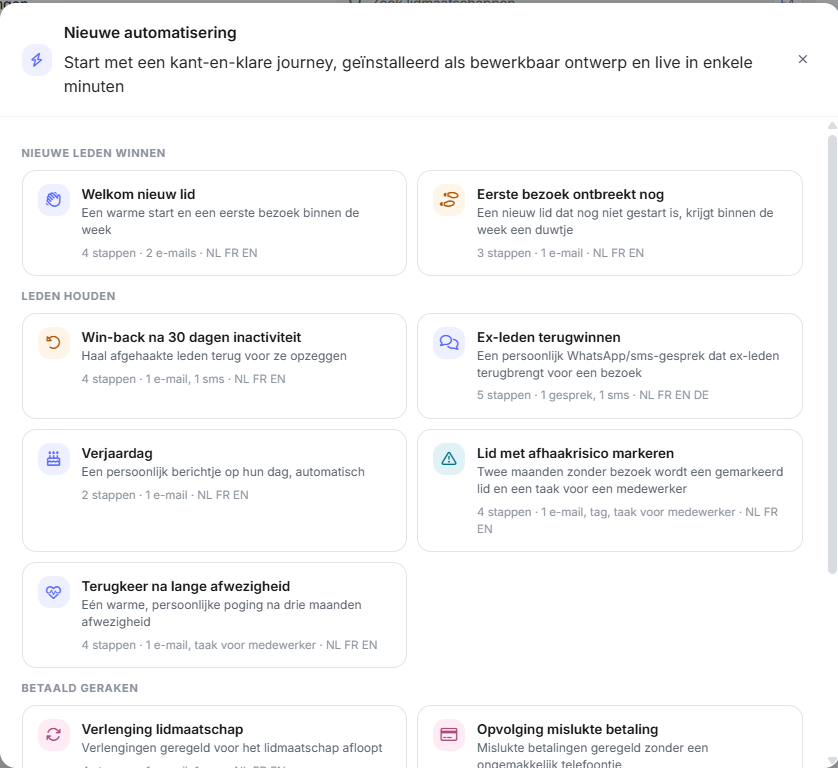
Click New automation at the top right and pick a template close to what you have in mind, such as a welcome for new members or a birthday message. You can change everything afterwards.
2. Look at the flow
The editor opens on the Flow tab. You read the journey from top to bottom. The plus sign between two blocks adds a step, and clicking a block opens it. To copy a step, use Duplicate at the bottom of its panel, and to move a block, simply drag it. When you open an automation that is already active, you see the live version and cannot change anything. Click Edit draft first.
3. Set the trigger
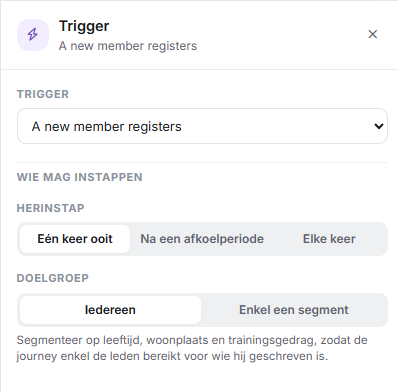
Click the top block and choose the event that starts the journey. Some triggers ask for a number, such as the number of days without a check-in. With When a membership is bought or renewed you can limit the trigger to certain products. If you tick nothing, every purchase counts.
When the journey starts from a booking, you choose in the same place which calendars, activity types or activities it applies to. If you tick nothing, every booking of the club counts.
Under Who may enter you choose all members or a selection, for example by age, place of residence or membership type.
Under Re-entry you choose whether a member goes through the journey Once ever, again After a cooldown, or Every time. When someone thinks an automation is not working, this setting is often the reason.
4. Write the messages
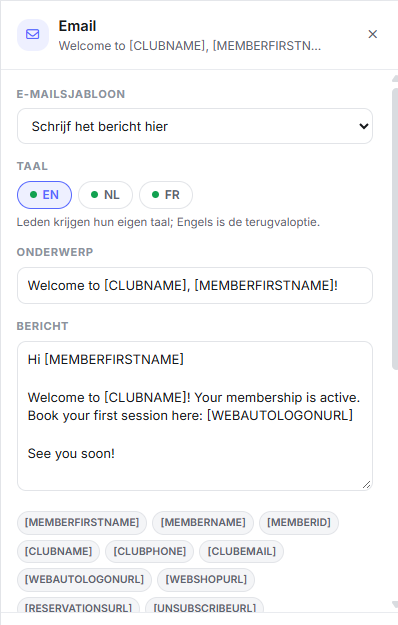
Click a message block. At the top you choose the channel: Email, SMS or Push. If you switch channels, your text stays. Fields such as [MEMBERNAME] and [CLUBNAME] fill in the name of the member and the club automatically.
At the bottom you choose the Message category. Choose Transactional for confirmations and invoices: these always go out. Service · operational is for birthdays, reminders and expiry dates. A Commercial message, such as a promotion, only reaches members who signed up for the newsletter. That is a legal requirement.
If you choose SMS or WhatsApp while your club has no connection for it yet, the screen warns you. That step is then skipped for every member until the connection is in place.
5. Set the goal and the exit
Open the Settings tab and give your automation a name. Under Goal you choose what you want to achieve, for example that the member checks in. That way you can see later whether the automation works. Under Exit conditions you choose when the journey stops. If a member already checks in after the first email, the second one no longer needs to go out.
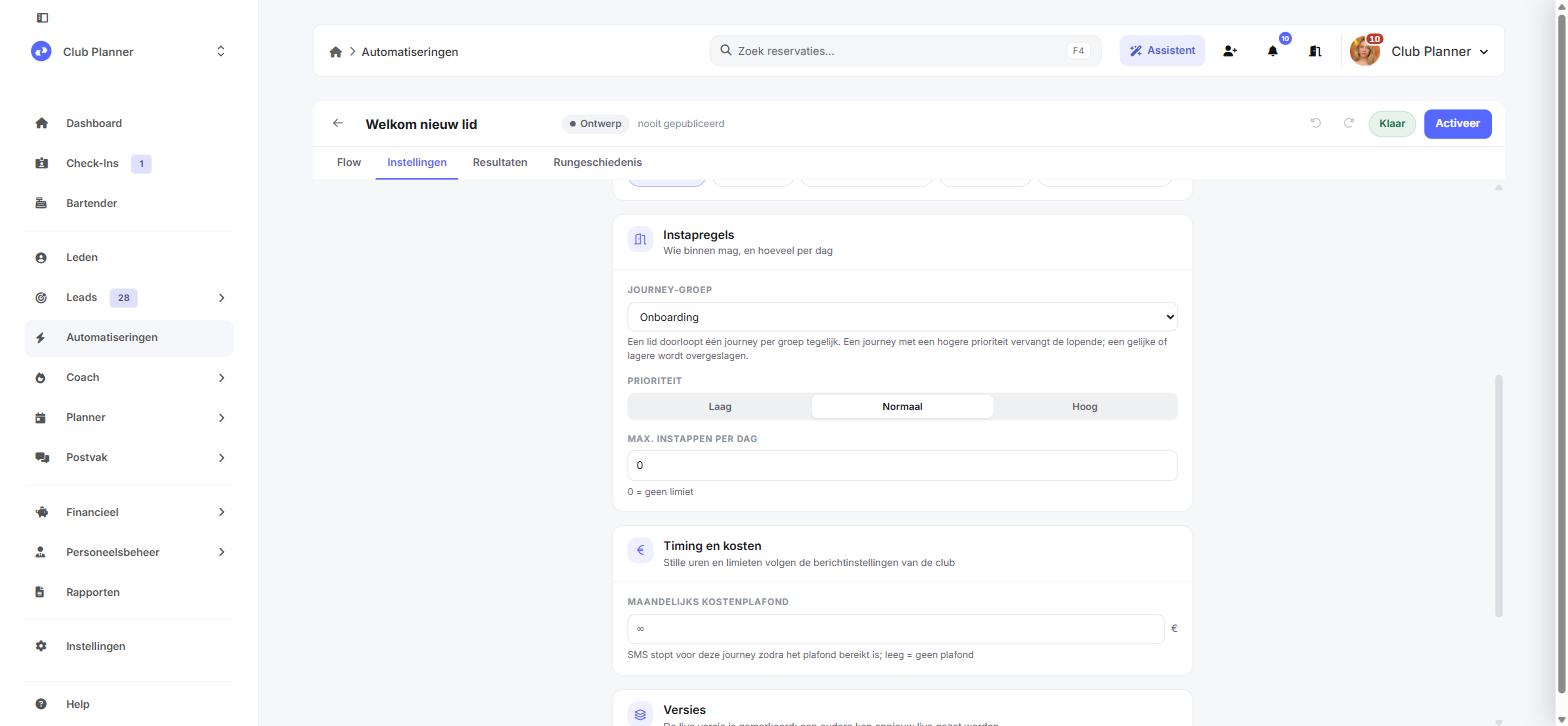
Under Entry rules you put the automation in a Journey group. A member is in only one journey per group at a time, so they do not get a welcome email and a promotion on the same day. Under Priority you choose Low, Normal or High. If a journey with a higher priority starts for a member, it replaces the running journey from the same group. With an equal or lower priority, the member does not enter.
6. Activate
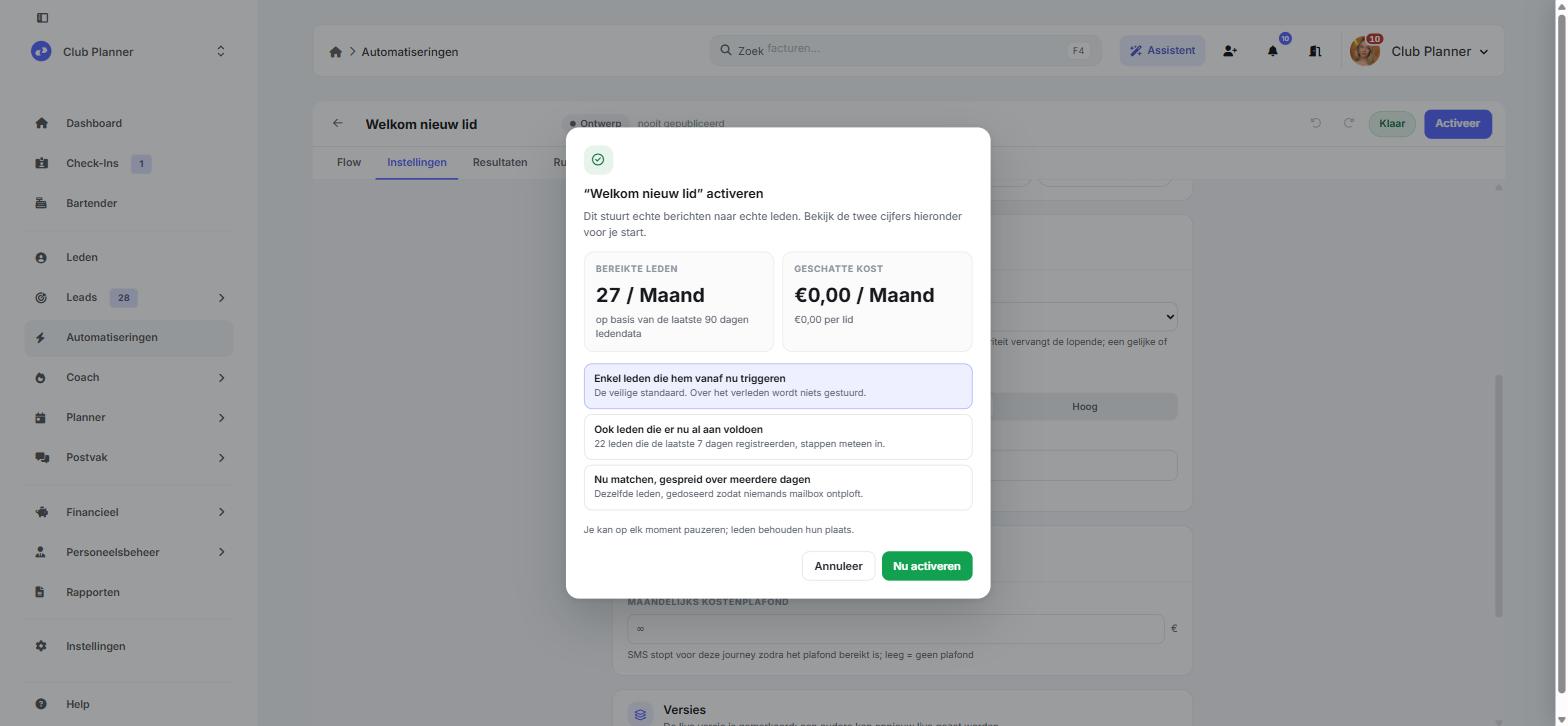
Click Activate at the top right. You see how many members you reach and roughly what it costs per month. Then you choose what happens to members who already meet the condition.
With Only members who trigger it from now on, nobody gets a message about the past. Start with this one. With Also members who match right now, all those members enter at once, so with a large group many messages go out in one go. Match now, spread over several days does the same, spread over a few days.
If you want to see the journey yourself first, create a test member with your own email address and mobile number. After a few days, check the Run history to see if everything runs as expected. Pause stops new members from entering. Anyone already in the journey carries on.
Messages around a booking
Club Planner already sends a confirmation, a reminder and a cancellation message for a booking on its own. You decide per calendar who does that: the planner or an automation.
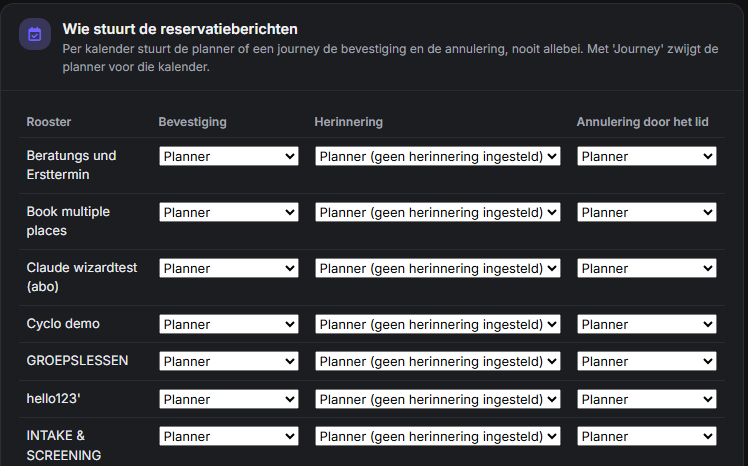
Go to Automations and click the gear at the top right. At the bottom you will find Who sends the booking messages, with a choice per calendar for the confirmation, the reminder and the cancellation by the member. Set a calendar to Journey and the planner stays silent for that calendar, so only your own journey goes out. That way a member gets exactly one message per moment.
If all you want is a different text or an SMS instead of an e-mail, you do not need an automation. In the calendar settings you choose the channel, the template and how many hours ahead the reminder goes out, per calendar.
Waiting until just before the class
In a journey that starts from a booking, the Wait until step can count from the start or the end of the booking, with an offset in hours. Set it to three hours before the start and the message goes out that morning instead of a fixed day ahead.
If the booking was only made after that moment has passed, the journey skips that step. The member has just had the confirmation and no longer needs a reminder.
Fields about the booking
In a message of such a journey you can use these field codes:
[RESERVATIONACTIVITY]: the activity[RESERVATIONDATE]+[RESERVATIONTIME]: the day and the start time[RESERVATIONENDTIME]: the end time[RESERVATIONLOCATION],[RESERVATIONROOM],[RESERVATIONCALENDAR]: the location, the room and the calendar[RESERVATIONSTAFF]: the instructor[RESERVATIONCANCELDEADLINE]: until when the member can cancel free of charge[RESERVATIONPRICE]: the price
Giving something away
Under Action in the step picker you find steps that give the member something: Give an action code, Give a gift voucher, Add a membership, turn card or cost and Assign a workout.
For a product, Free for the member is on by default. If you turn it off, it is added as an open amount on the member's record. If you give away a membership with recurring payment, only the first period is free and the membership then simply continues.
Add a message step after the grant, so the member knows what they received. The panel of the grant step shows which fields you can use in that message, such as [AUTOMATIONCODE] or [AUTOMATIONVOUCHERCODE]. If you forget that message, the screen warns you with "Nobody tells the member".
When you activate, you see what the journey gives away per member. If you also let in members who already match, look carefully at the total. A gift voucher of 10 euros for 1,000 members adds up to 10,000 euros.
Your club's messaging settings
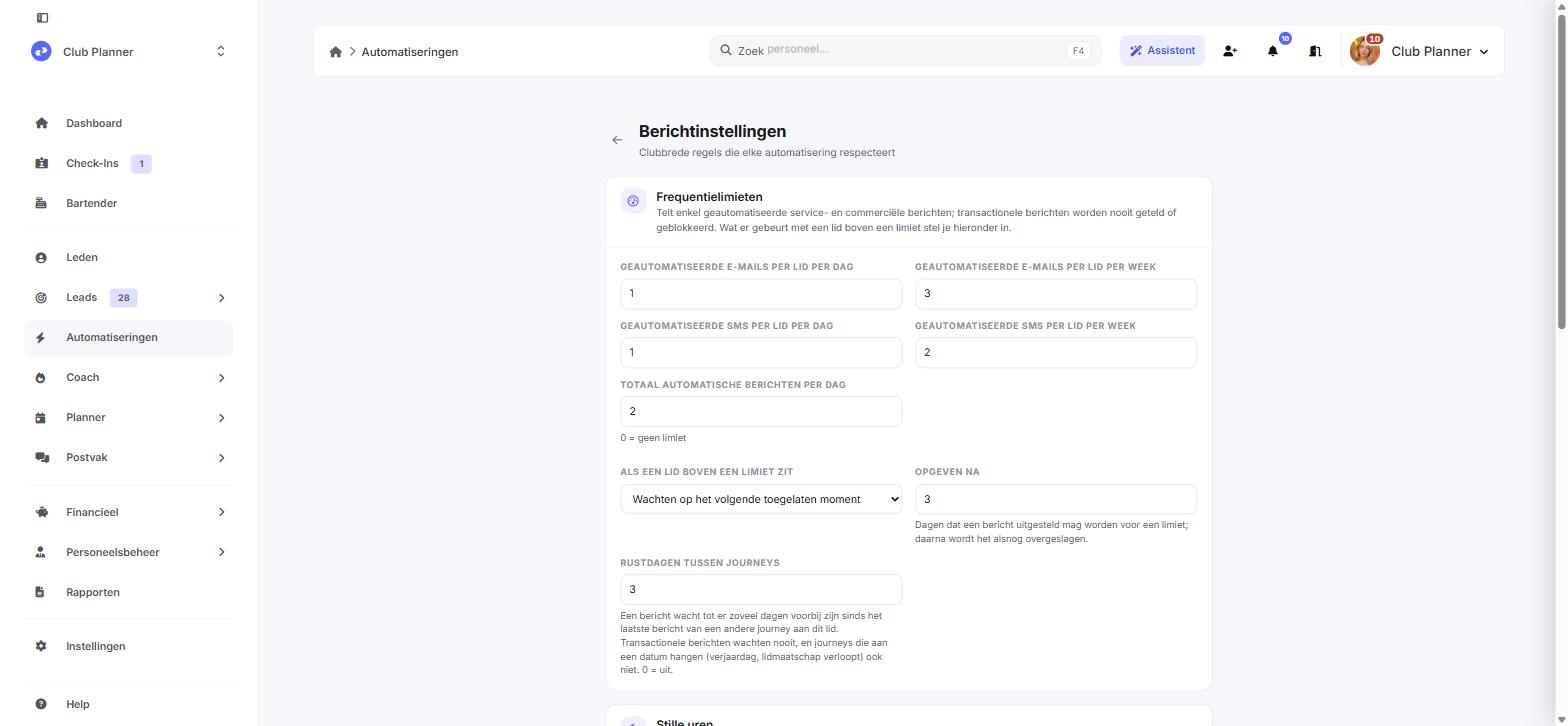
On the overview page, click the gear icon at the top right to open the Messaging settings. They apply to all your automations together.
Under Frequency caps you set how many automated emails and text messages a member may receive per day and per week. Transactional messages do not count. Under When a member is over a cap you choose whether the message waits or is skipped. Days of rest between journeys is the minimum number of days between messages from different automations. During the Quiet hours, 21:00 to 08:00 by default, nothing goes out.
SMS and WhatsApp are charged per message, email and push are not. The Monthly messaging budget puts a ceiling on that. Turn on Stop paid messages when the limit is reached if the ceiling must be a hard limit. The Mail template sets the house style your automated emails go out in.
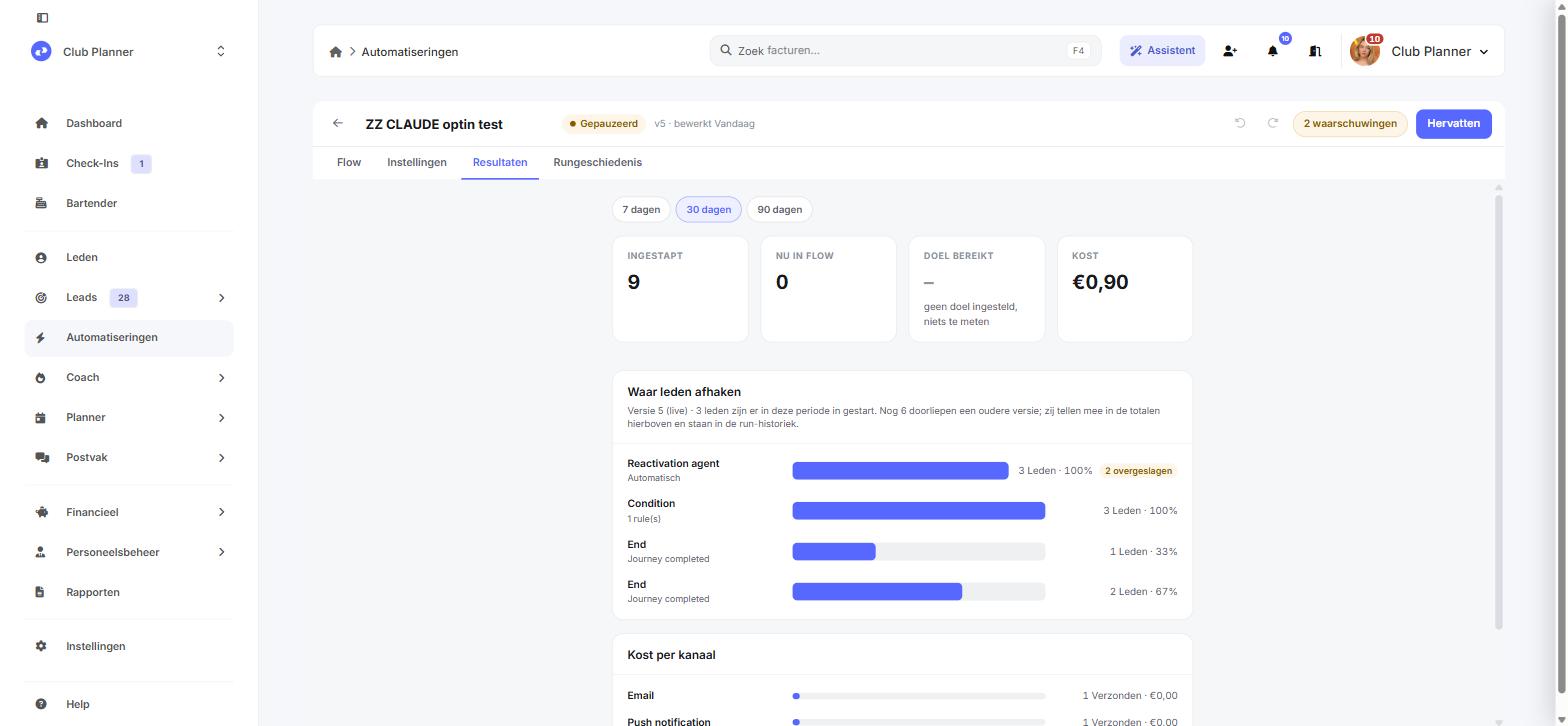
Did it work?
The Results tab shows how many members entered, how many are still in the journey, how many reached the goal and what it cost. For each step you see where members drop off.
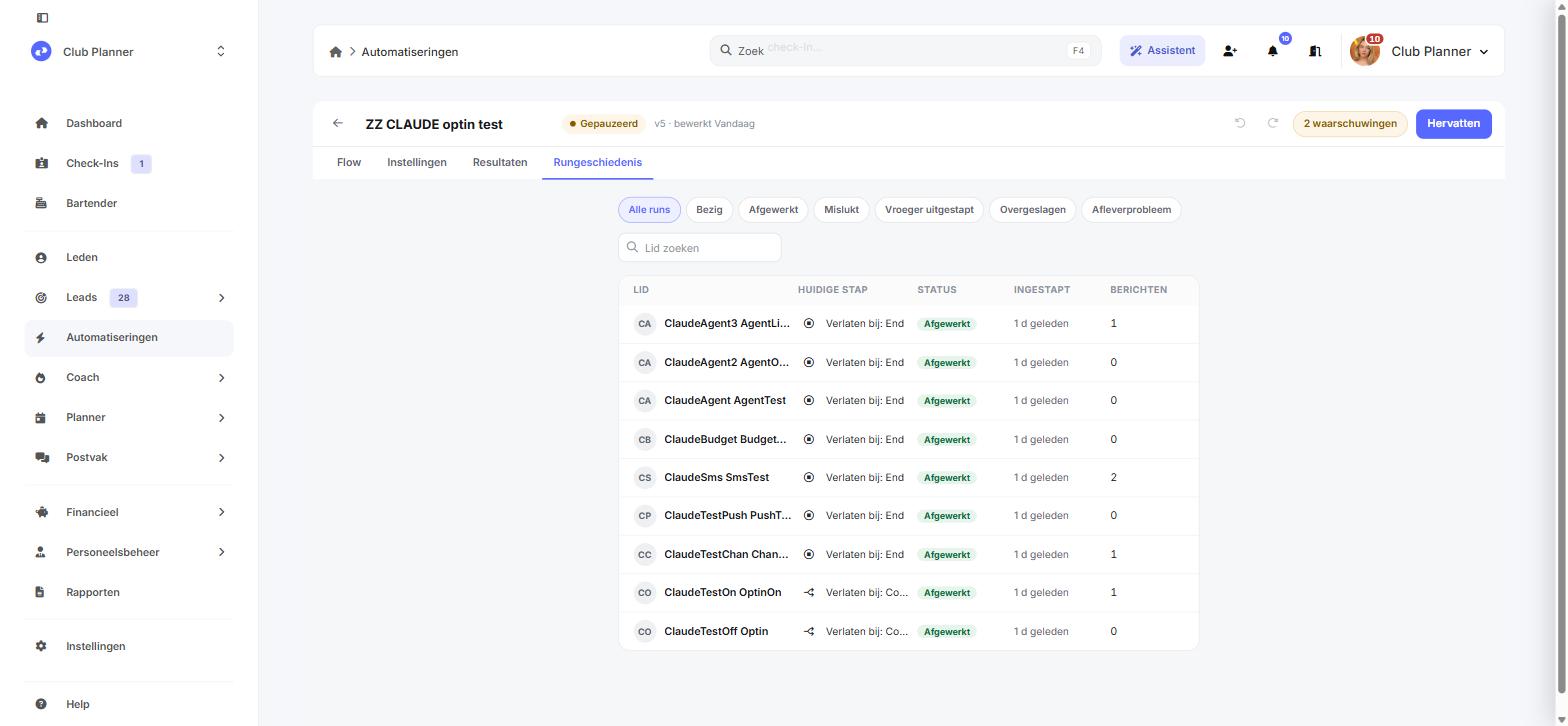
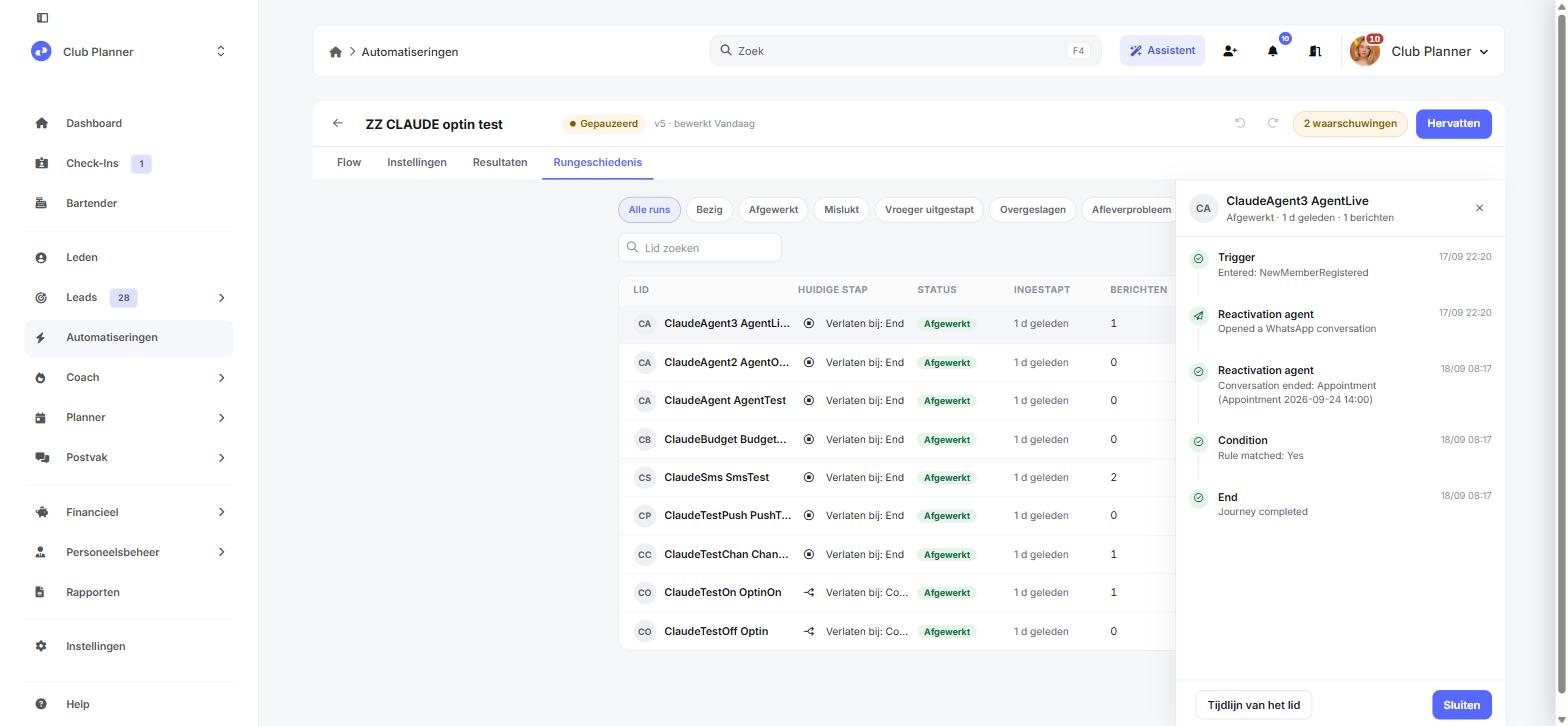
The Run history tab shows one line per member. You can search by name and filter, for example on Completed or Skipped. Click a member to see the timeline: which step happened when, and what the result was.
Looking for ideas? 30 automations for inspiration describes thirty ready-made journeys, each with the trigger and the steps.
Trying it out before you activate
Click Test in the editor. The dry run replays the last thirty days through your journey and shows who would have entered and who would not, with the reason. That way you know the reach before a single message goes out.
Frequently asked questions
A member did not receive anything. What now?
Look up the member in the Run history. If they are not there, they never entered. Check whether the automation is active, whether the member falls under Who may enter and whether Re-entry allows it. If the member is there, the timeline shows what happened at each step.
Why does a step say "Skipped"?
Usually the message was commercial and the member has not signed up for the newsletter, the monthly budget was used up, or the member was over a frequency cap. The timeline gives the reason.
I just sold something and nothing happens.
It can take up to a minute before the member appears in the run history. Refresh the screen.
A member received two messages about the same booking.
The planner is still sending its own message for that calendar, next to your journey. Set that calendar to Journey under Who sends the booking messages and one of the two disappears. The editor also warns you as soon as a journey and the planner would cover the same moment.
Still stuck? Contact support and mention the name of the automation and the member number.