
Racketsport Mode turns a calendar into a booking system for racket sports such as tennis, padel, squash and pickleball. Members reserve a court and add their fellow players themselves. Each player pays through their own subscription or through a price per person, and the courts appear as tabs above the calendar. This mode lives inside regular booking, on web and in the app.
What is Racketsport Mode?
A normal calendar lets a member book a single spot. Racketsport Mode extends this for sports you play with several players: the member who reserves picks the court and the time slot, and then adds the other players. Everyone is enrolled in one action. The activity decides how many players are needed: a singles match has two spots, a doubles match four.
Important: Racketsport Mode is part of regular booking, meaning ordinary booking on the online platform and in the app. In this setup the booking wizard is set to "available via link only" and is not used here for day-to-day member booking.
How the member experiences it (web and app)
The flow is the same on the web platform and in the MyClubPlanner app:
- Choose the calendar (for example Tennis Indoor) and pick the court at the top (T1 through T5 Indoor). Each court is its own tab.
- Pick a day and open a time slot. The activity shows the type and the free spots, for example "Tennis court Singles" with 2/2 free spots, or "Tennis court Doubles".
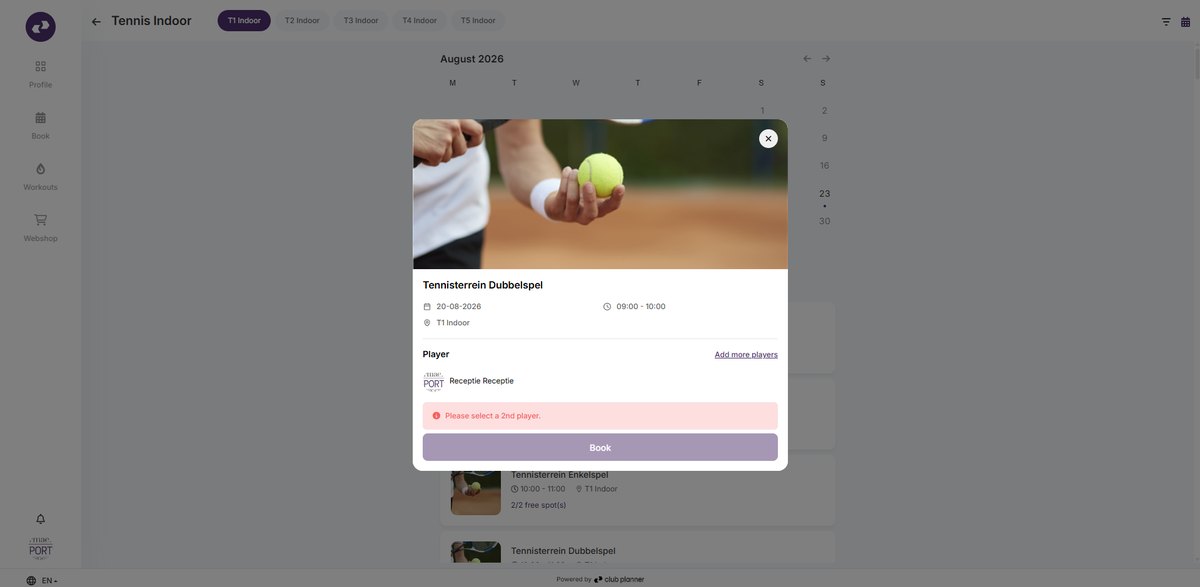
- The person booking is automatically the first player in the reservation. Through "Add more players" they look up their fellow players and select them. As long as the minimum number of players is not reached, the Book button stays disabled with a message, for example "Select a second player".
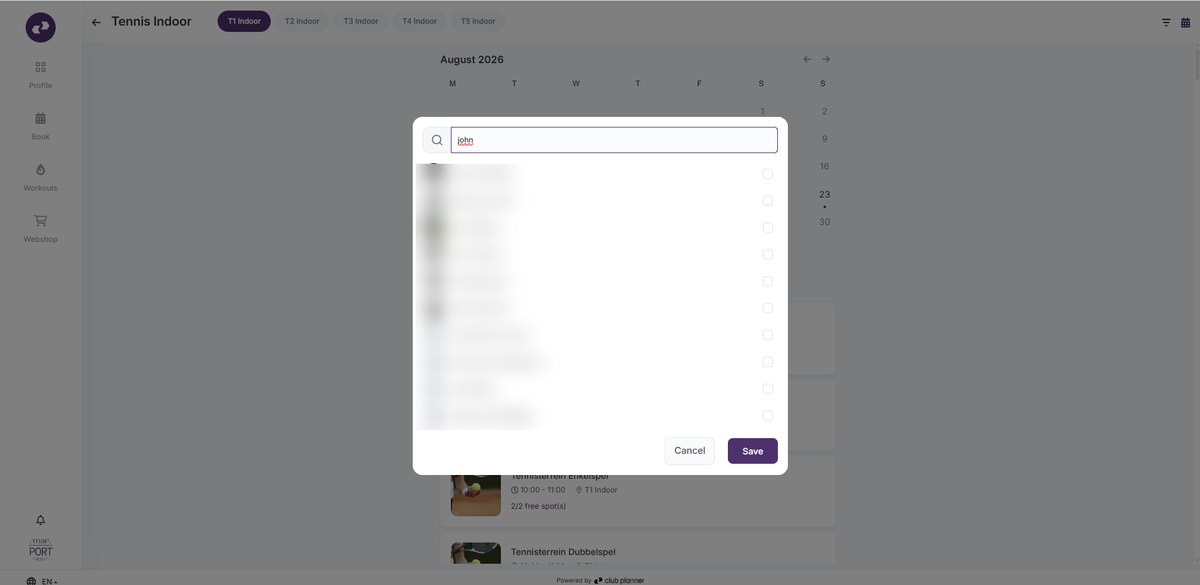
- During the search a member list appears in which the person booking ticks the correct players and confirms with Save.
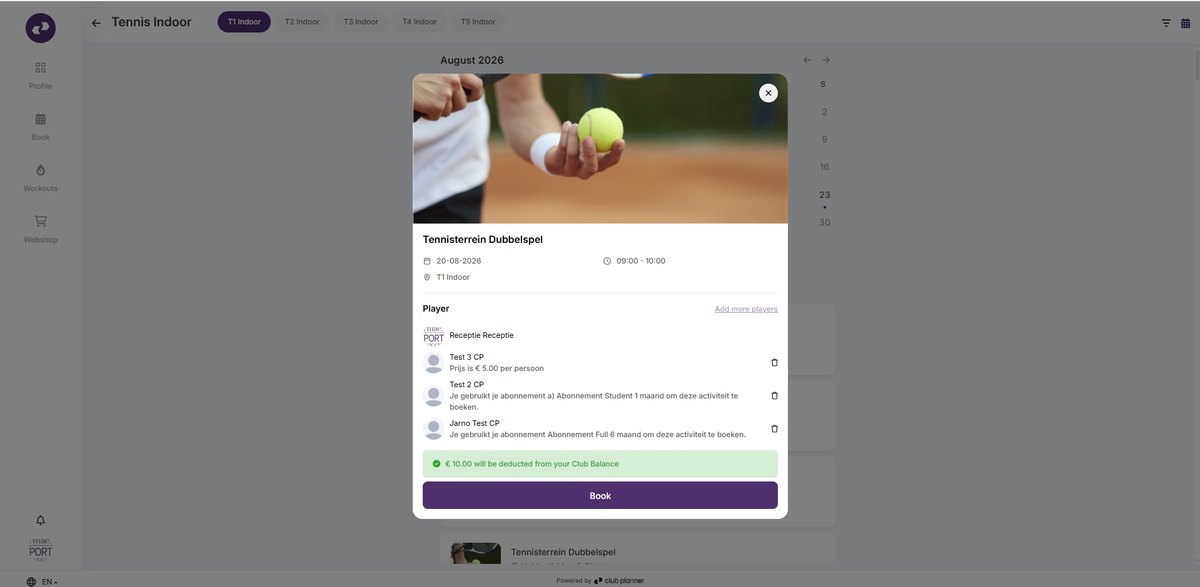
- For each player the reservation immediately shows how they pay. That can be through their own subscription ("You are using your subscription ... to book this activity") or through a price per person ("Price is € 5.00 per person"). The total is shown and deducted from the Club Balance, for example "€ 10.00 will be deducted from your Club Balance". The person booking confirms with Book.
After booking, every player is enrolled and each player sees their own reservation. Check-in happens per player.
How to configure a Racketsport Mode calendar
In the backoffice go to Settings > Planner > Calendars and edit (or create) the calendar. The most important settings:
1. Layout: courts as tabs and switching the mode on
At the bottom of the Layout tab:
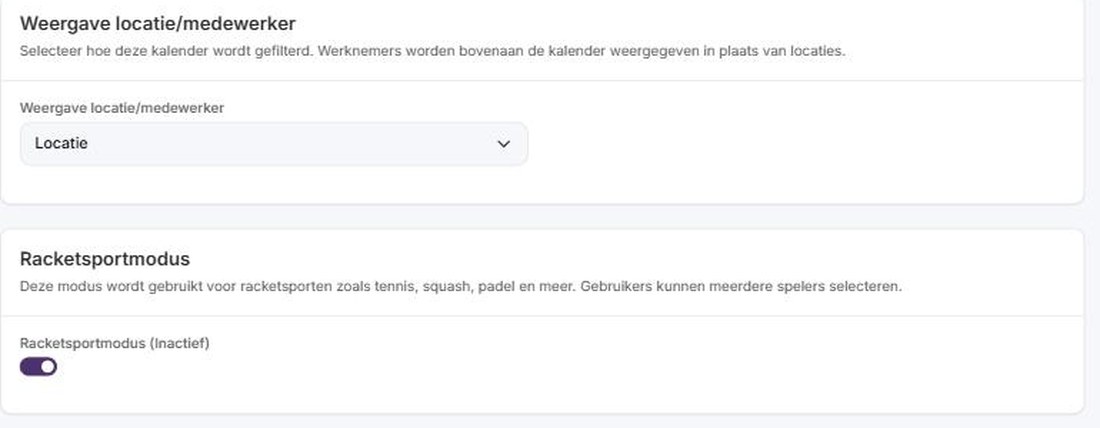
- Display location/staff member: Location. The courts (locations) then appear as tabs above the calendar. Set this to Staff member and you filter by coach instead of by court.
- Racketsportmodus (Racketsport Mode): on. This mode lets members select multiple players when making a reservation.
2. Locations: the courts
On the Location tab you add the courts, for example T1 through T5 Indoor. Each court becomes a tab in the calendar.
3. Activities: the number of players per format
On the Activities tab you create the bookable activities and set the capacity equal to the number of players: a Singles at 2 spots, a Doubles at 4 spots. The capacity determines how many players can be added at minimum and maximum.
4. Reservation settings (General tab)
- Calendar available on the online platform and on the mobile app: on.
- Number of days visible ahead: for example 7 days.
- Reservations possible up to X minutes before the start: for example 0.
- How many times members can reserve the same activity: set this high enough for your largest format. For a doubles with four players this is set to 4, for example.
- Deduct a visit or credits on reservation or on check-in.
5. Cancellation
Set how long before the start a member may cancel, for example up to 120 minutes before the start.
6. Payment per player
The payment method follows per player from their membership or from a price per person. The total is settled through the Club Balance. This way one player can play with their subscription and another against payment, within the same reservation.
The advantages
- One reservation for the whole match: the member who books adds all fellow players, and everyone is enrolled at once.
- Courts as tabs: at a glance you see per court what is free, ideal for clubs with several courts.
- Flexible payment per player: each player pays through their own subscription or at a price per person, all settled through the Club Balance.
- Minimum players is enforced: a doubles can only be booked once all players are selected, so no half-filled bookings.
- The same experience on web and app.
- Works for any racket sport: tennis, padel, squash, pickleball, badminton and more.
Good to know
Mind the reservation limit. The setting "How many times members can reserve the same activity" must be at least equal to the maximum number of players. If it is too low, a doubles booking runs into the limit.
- Racketsport Mode is part of regular booking. The booking wizard is set separately here to "available via link only" and serves external, one-off bookings.
- "Availability display" determines how the free spots are shown to members.
Questions about Racketsport Mode? Our support team is happy to help you via the usual channels.