
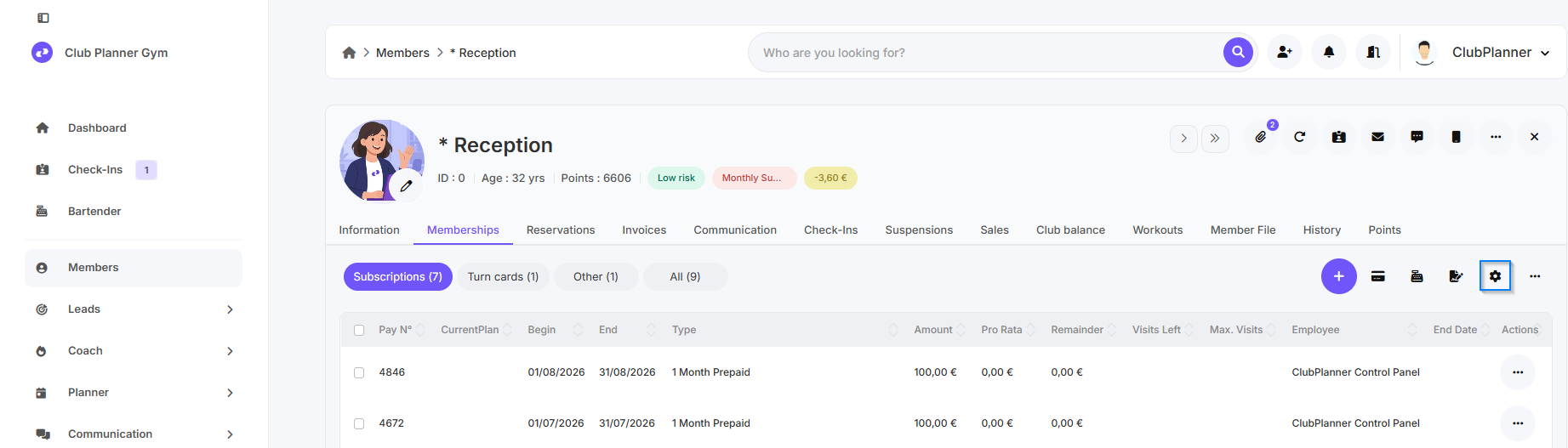
In this guide, you’ll learn how to view and manage the columns in Club Planner’s tables so you can quickly see the most important information. In this article, we’ll use the members’ subscription table.
Abonnementslijntabel openen
Go to Members
- Open the Member's profile.
- Select the Memberships tab.
- Click the gear icon in the upper-right corner to manage the available columns.
💡: You can check or uncheck columns to keep the table organized and display only the relevant information.
Available columns and their meanings
| Column | Meaning |
|---|---|
| Pay N° | Payment number associated with the subscription. |
| CurrentPlan | The current subscription plan that is currently active. |
| Begin | Start date of the subscription line |
| End | End date of the subscription line |
| Type | Type of membership |
| Amount | The cost of membership. |
| Options | Additional costs are included in the subscription. |
| Pro Rata | Adjusted amount if the subscription does not cover a full period. |
| Discount | Any discounts applied to the subscription. |
| Remainder | Current outstanding balance on the membership. |
| Payment Method | Payment method. |
| Date of Creation | The date the subscription was created. |
| Ref. | Reference code |
| Visits Left | Number of remaining turns or sessions on a turn card |
| Max. Visits | Maximum number of turns with a turn card |
| Last Modified On | Date of the last change to membership. |
| Note | Notes or comments regarding membership. |
| Employee | The staff member who created or modified the membership. |
| End Date | Membership end date |
| Status | Current subscription status. |
| Contract | Signed contract in PDF format. |