
In dieser Anleitung erfahren Sie, wie Sie die Spalten der Tabellen in Club Planner anzeigen und verwalten können, um schnell die wichtigsten Informationen zu sehen. In diesem Artikel verwenden wir die Abonnementtabelle der Mitglieder.
Abonnementzeilentabelle öffnen
Gehen Sie zu Mitglieder.
Öffnen Sie das Mitgliedsblatt des Mitglieds.
Wählen Sie den Reiter Mitgliedschaften aus.
Klicken Sie auf das Zahnrad oben rechts, um die verfügbaren Spalten zu verwalten.
💡: Sie können Spalten an- oder abwählen, um die Tabelle übersichtlich zu halten und nur die relevanten Informationen anzuzeigen.
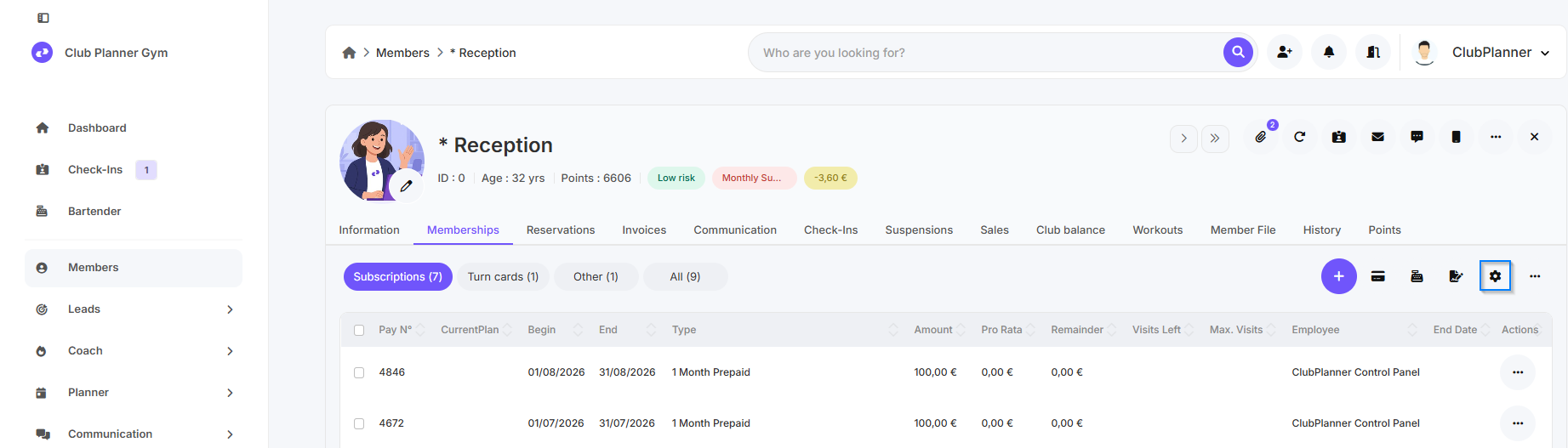
Verfügbare Spalten und ihre Bedeutung
| Spalte | Bedeutung |
|---|---|
| Zahlungs-Nr. | Nummer der Zahlung, die mit dem Abonnement verknüpft ist. |
| CurrentPlan | Die aktuelle Abonnementslinie, die derzeit aktiv ist. |
| Beginn | Startdatum der Abonnementslinie |
| Ende | Enddatum der Abonnementslinie |
| Typ | Art der Mitgliedschaft |
| Betrag | Die Kosten der Mitgliedschaft. |
| Optionen | Zusatzkosten, die im Abonnement enthalten sind. |
| Pro Rata | Angepasster Betrag, wenn das Abonnement nicht für einen vollständigen Zeitraum gilt. |
| Rabatt | Eventuell auf das Abonnement angewendete Rabatte. |
| Saldo | Aktueller ausstehender Saldo auf der Mitgliedschaft. |
| Zahlungsweise | Zahlungsmethode. |
| Erstellungsdatum | Datum, an dem das Abonnement erstellt wurde. |
| Referenznummer | Referenzcode |
| verbleibende Besuche | Anzahl der verbleibenden Besuche oder Sitzungen bei einer Wertkarte |
| Max. Besuche | Maximale Anzahl der Besuche bei einer Wertkarte |
| Zuletzt geändert am | Datum der letzten Änderung an der Mitgliedschaft. |
| Memo | Notizen oder Bemerkungen zur Mitgliedschaft. |
| Mitarbeiter | Mitarbeiter, der die Mitgliedschaft erstellt oder angepasst hat. |
| Enddatum | Enddatum der Mitgliedschaft |
| Status | Aktueller Status des Abonnements. |
| Vertrag | Unterzeichneter Vertrag in PDF-Form. |