In this guide, you'll learn how to create a new email template and how to edit an existing email template in the settings.
Create a new email
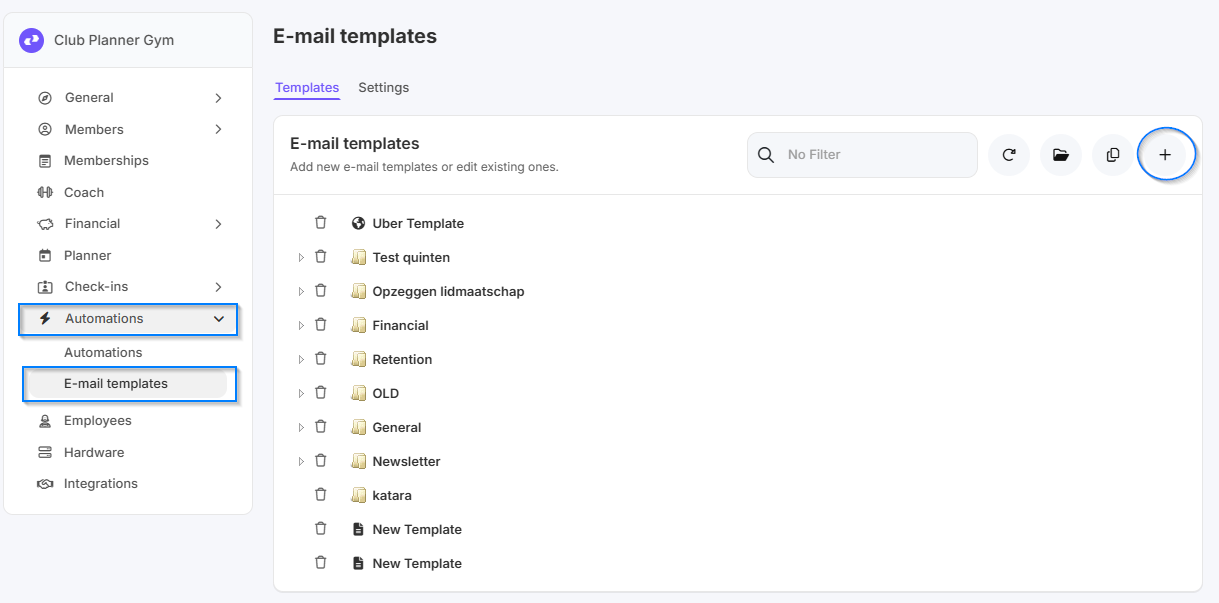
- Go to Settings.
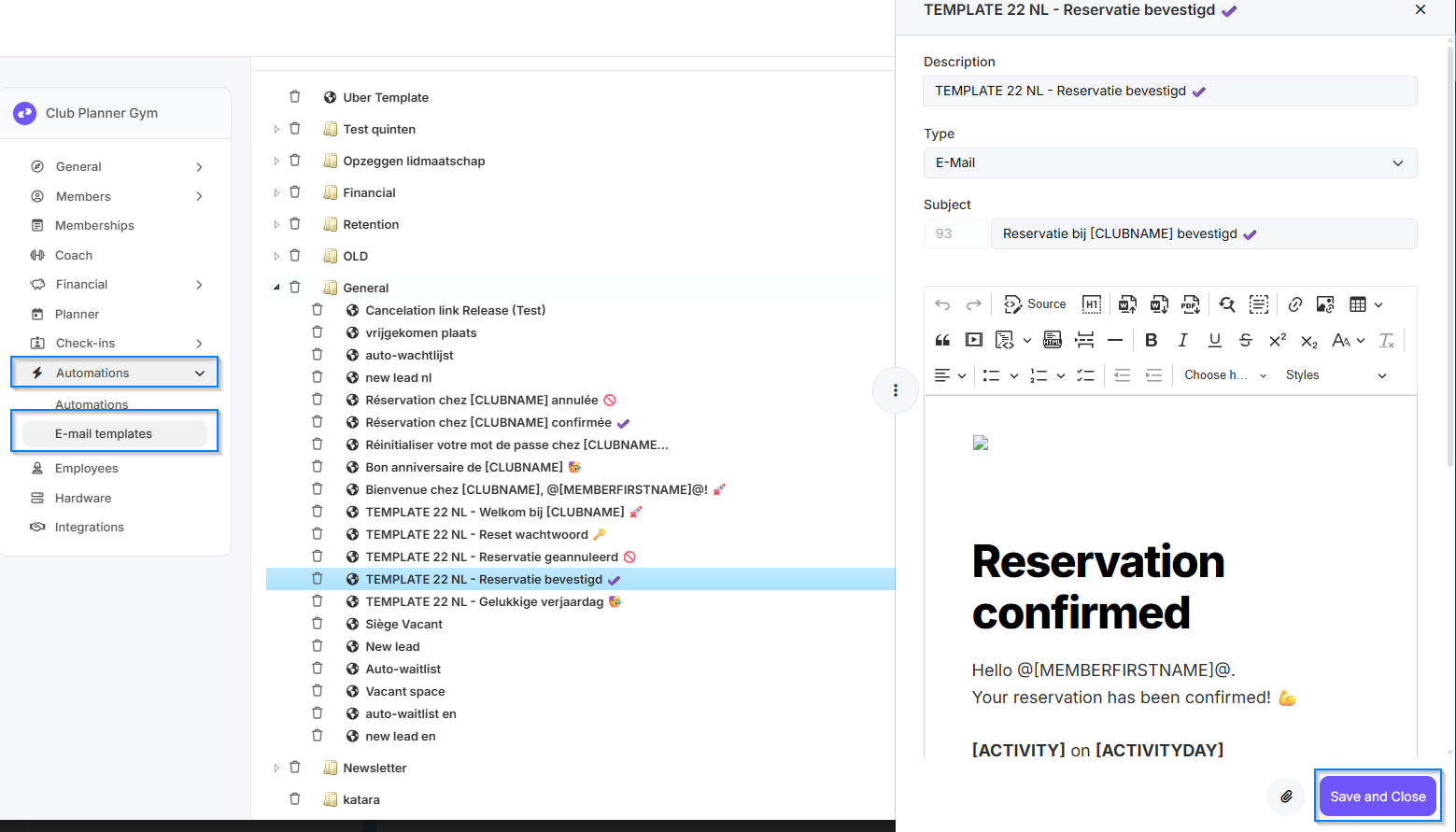
- Next, click on Automations.
- Go to E-mail templates.
- Click the “+” icon in the upper-right corner to add a new template.
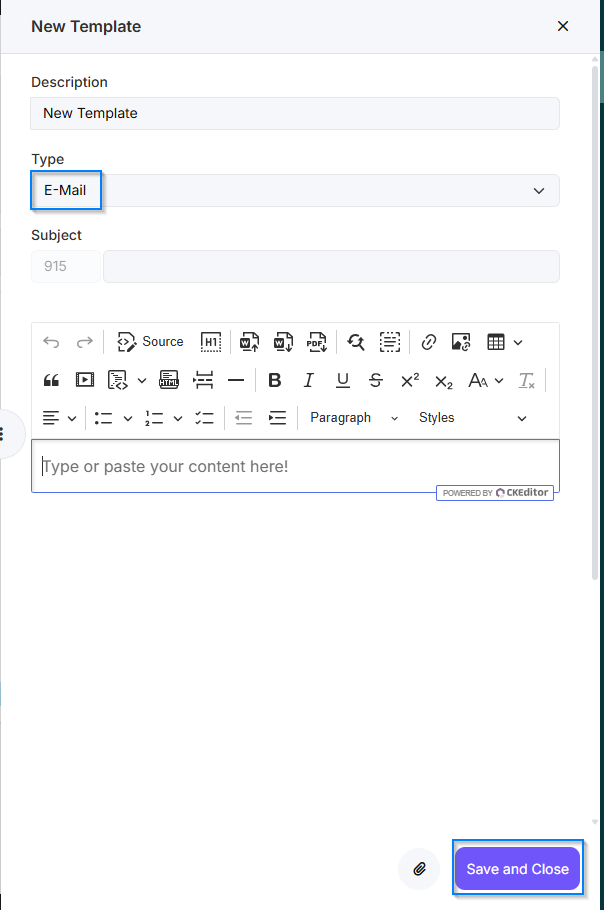
- Change the type from TEXT to Email.
- Compose the email as desired.
- Click “Save and Close” to save your email.
Edit an existing email
- Go to Settings.
- Next, click on Automations.
- Go to E-mail templates.
- Double-click the email template you want to edit.
- Customize the email template as needed.
- Click “Save and Close” to save your changes.
Copy an existing email
- Go to Settings.
- Next, click on Automations.
- Go to E-mail templates.
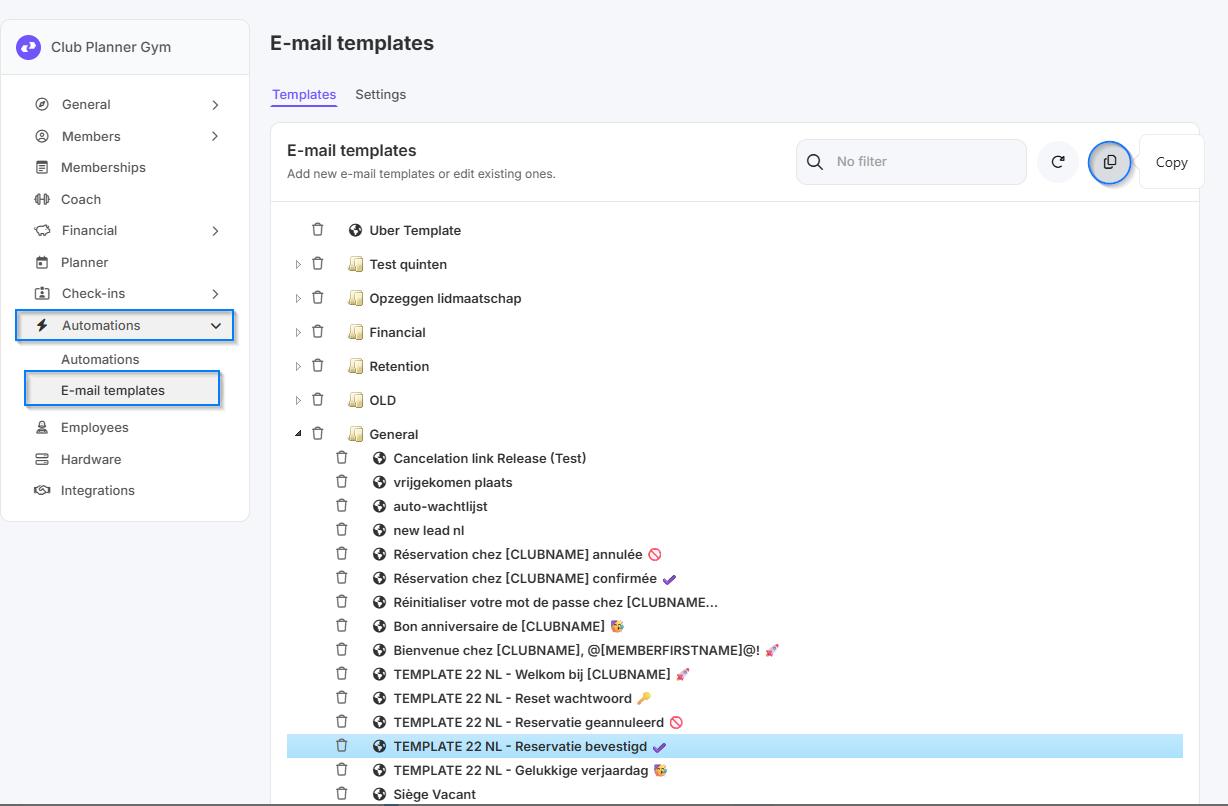
- Select the template you want to copy.
- Click Copy at the top.
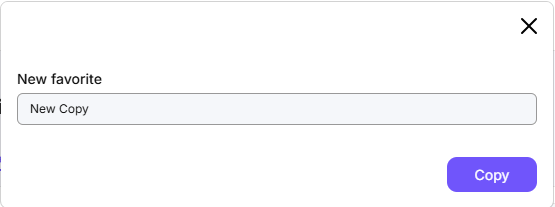
- Rename the template and click Copy again.
- Open the copied template and customize it as desired.