In dieser Anleitung erfahren Sie, wie Sie eine neue E-Mail-Vorlage erstellen und wie Sie eine vorhandene E-Mail-Vorlage anpassen können.
Neue E-Mail erstellen
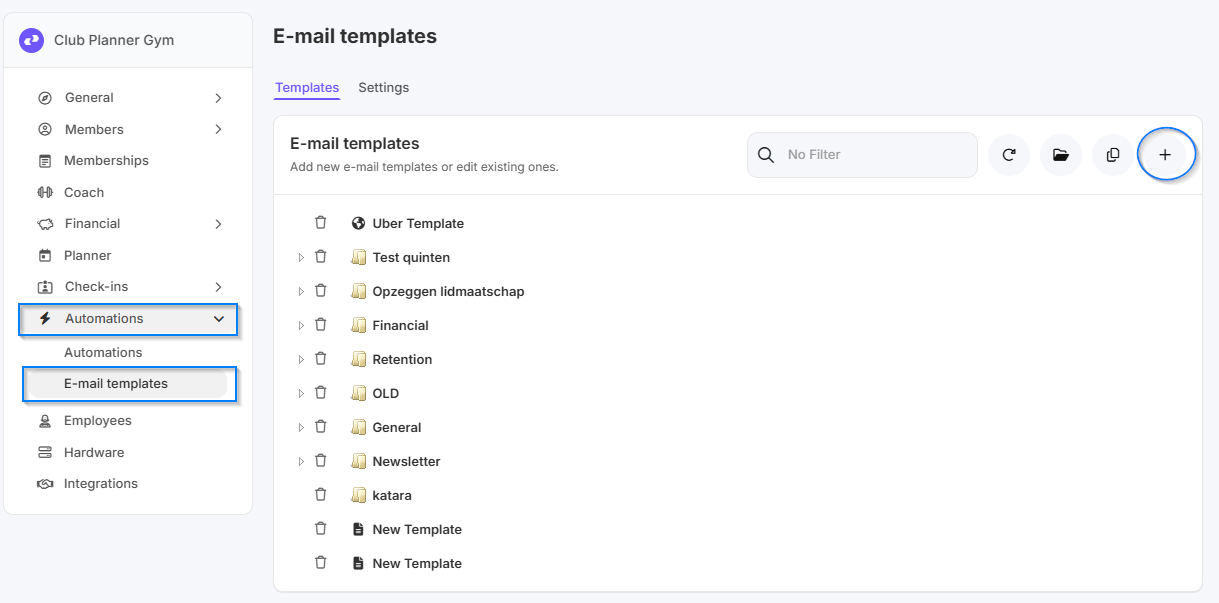
- Gehen Sie zu Einstellungen.
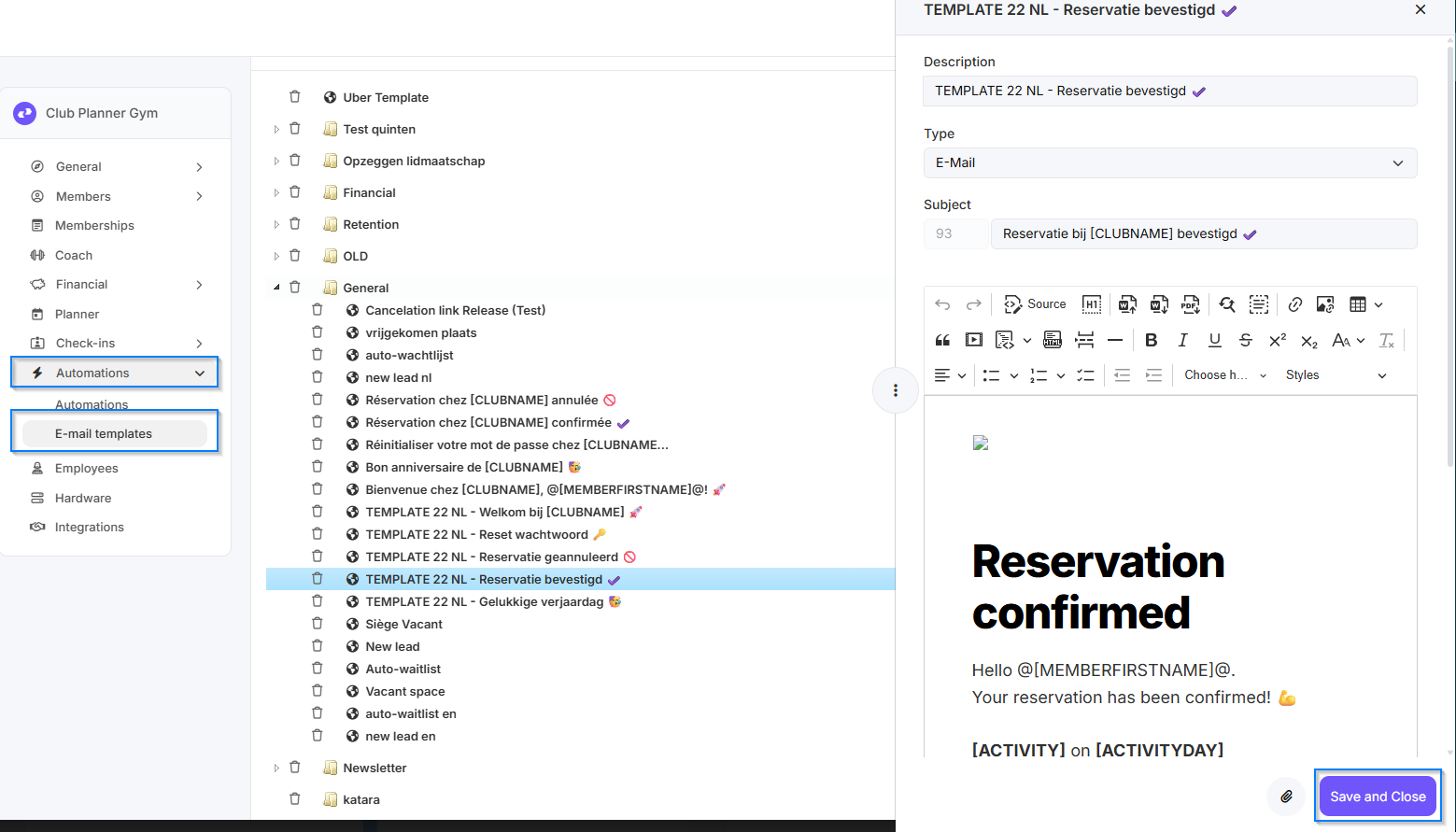
- Klicken Sie anschließend auf Automatisierungen.
- Gehen Sie zu E-Mail-Vorlagen.
- Klicken Sie oben rechts auf das „+"-Zeichen, um eine neue Vorlage hinzuzufügen.
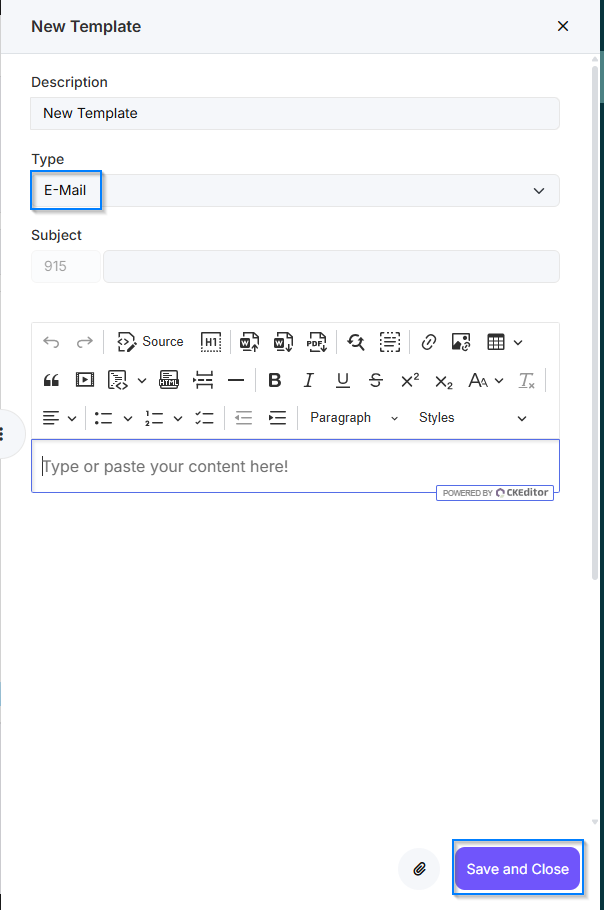
- Ändern Sie den Typ von TEXT zu E-mail.
- Stellen Sie die E-Mail wie gewünscht ein.
- Klicken Sie auf „Speichern und schließen", um Ihre E-Mail zu speichern.
Vorhandene E-Mail anpassen
- Gehen Sie zu Einstellungen.
- Klicken Sie anschließend auf Automatisierungen.
- Gehen Sie zu E-Mail-Vorlagen.
- Doppelklicken Sie auf die E-Mail-Vorlage, die Sie anpassen möchten.
- Passen Sie die E-Mail-Vorlage nach Bedarf an.
- Klicken Sie auf „Speichern und schließen", um Ihre Änderungen zu speichern.
Eine Kopie einer vorhandenen E-Mail erstellen
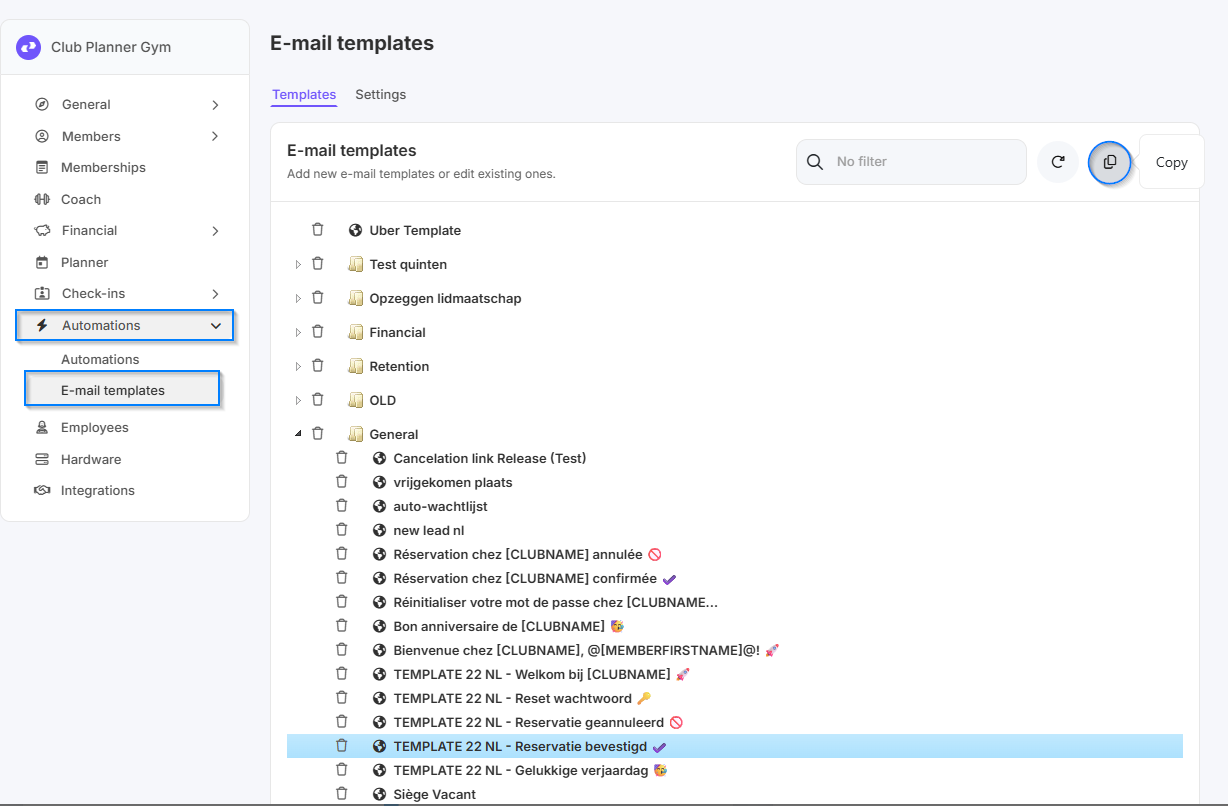
- Gehen Sie zu Einstellungen.
- Klicken Sie anschließend auf Automatisierungen.
- Gehen Sie zu E-Mail-Vorlagen.
- Wählen Sie die Vorlage aus, die Sie kopieren möchten.
- Klicken Sie oben auf Copy.
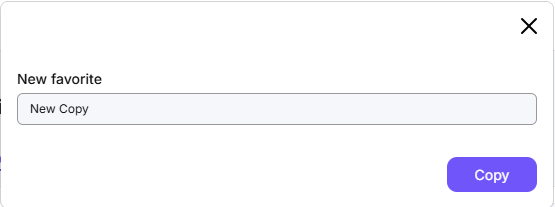
- Geben Sie der Vorlage einen neuen Namen und klicken Sie erneut auf Copy.
- Öffnen Sie die kopierte Vorlage und passen Sie sie nach Wunsch an.