
In this guide, you’ll learn how to check a member in for an activity. There are several ways to do this: through the planner, through the member profile, or through the Myclubplanner app.
Option 1 - Through the reservation list for an activity
Steps
- Go to Planner.
- Click on the calendar where the activity is scheduled.
- Double-click on the activity for which you want to check in a member.
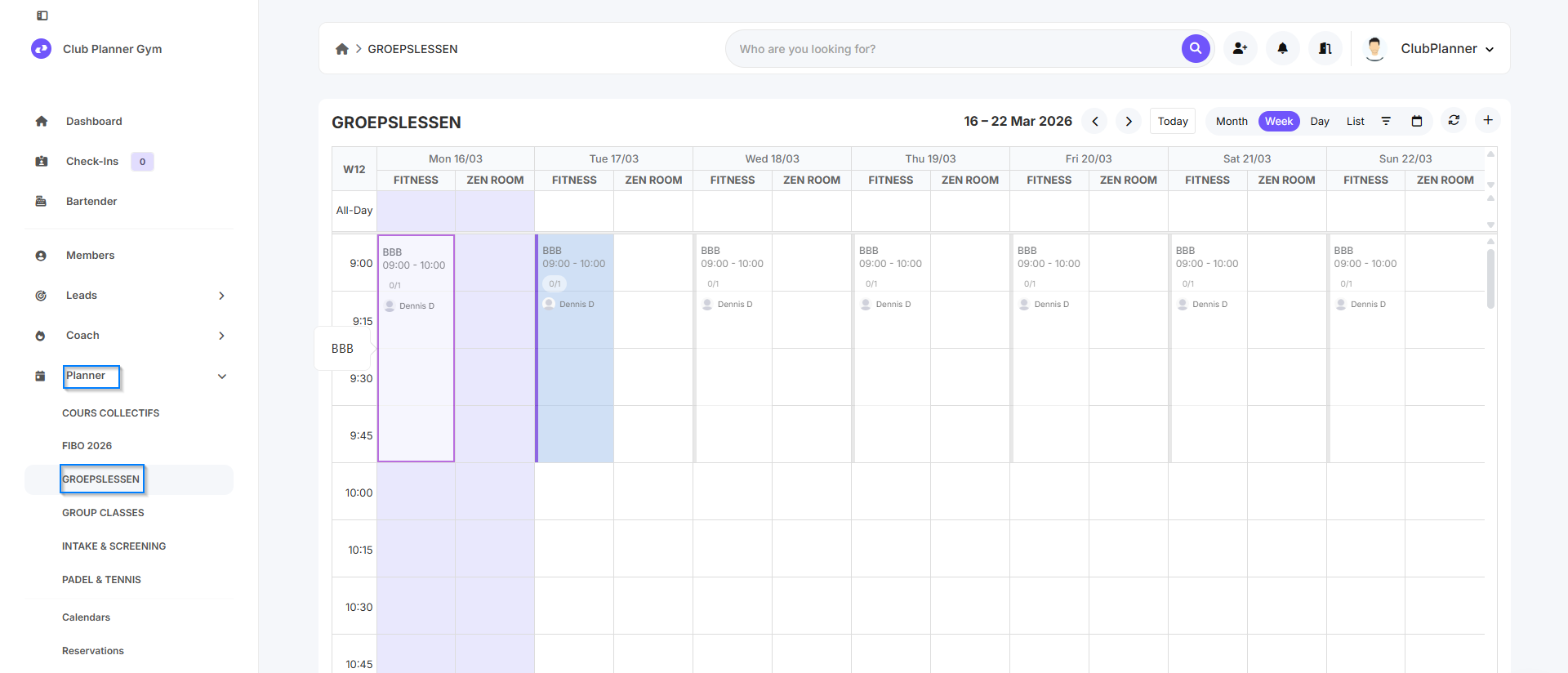
Check in member
- Once the event has started, click the Check-in button next to the member.
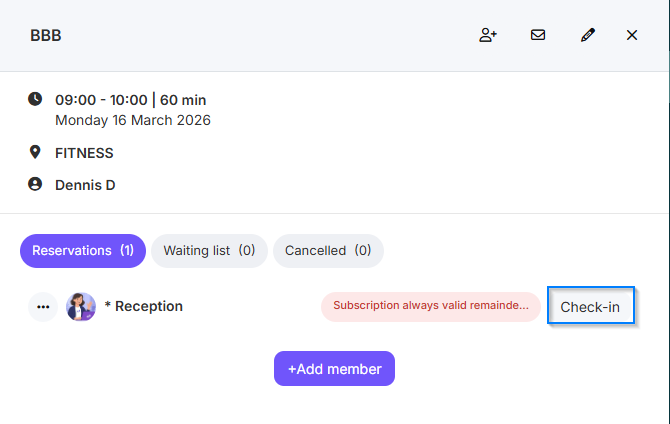
Result
The member has now been successfully checked in for the activity.
Option 2 - Via a member profile
Steps
- Go to Members.
- Find the member you want to check in.
- Open the member's profile.
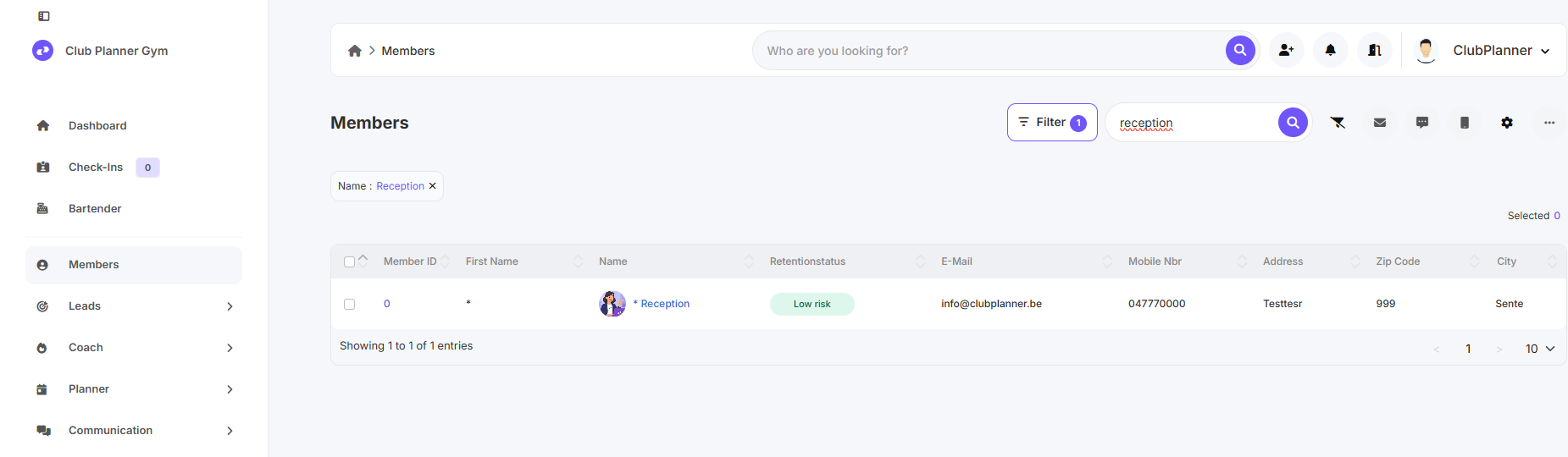
Check in member
- Once the member profile is open, click Check-in in the top-right corner.
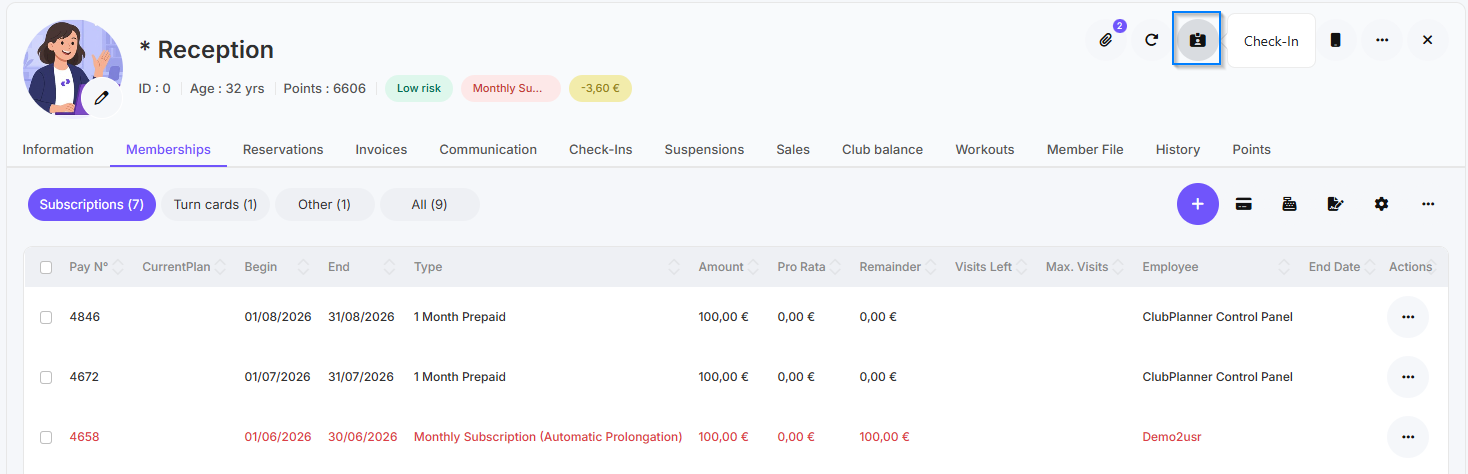
Result
The member has now been successfully checked in for the activity.
Optie 3 - Through the reservation list in the Myclubplanner app
Steps
- Click Book.
- Go to the activity for which you want to check in the member.
- Open the activity
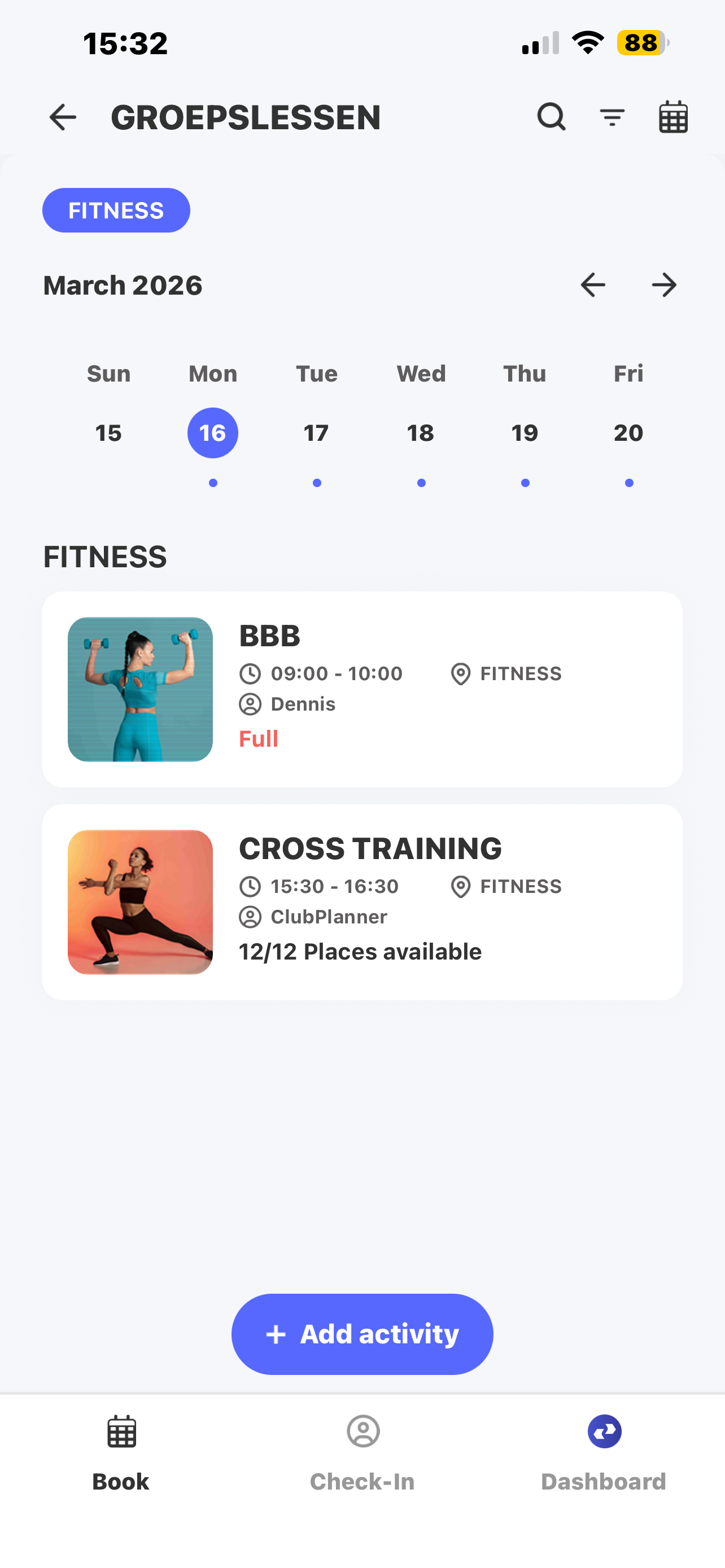
Check in member
- Once the activity is open, click Check-in next to the member.
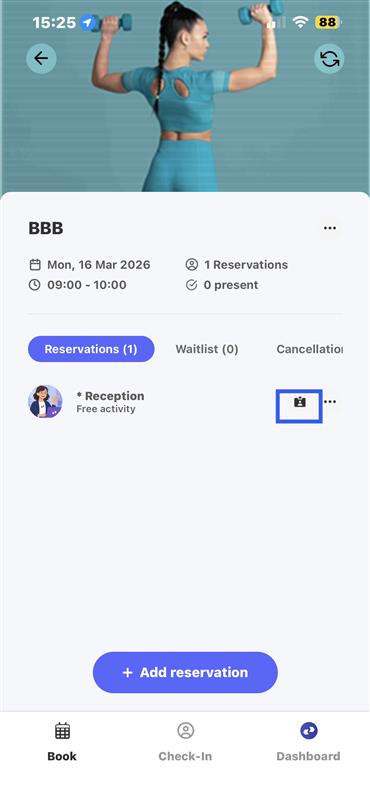
Result
The member has now been successfully checked in for the activity.
Optie 4 - Through the member profile in the Myclubplanner app
Steps
- Go to Find Member
- Search for the member you want to check in.
- Open the member's profile.
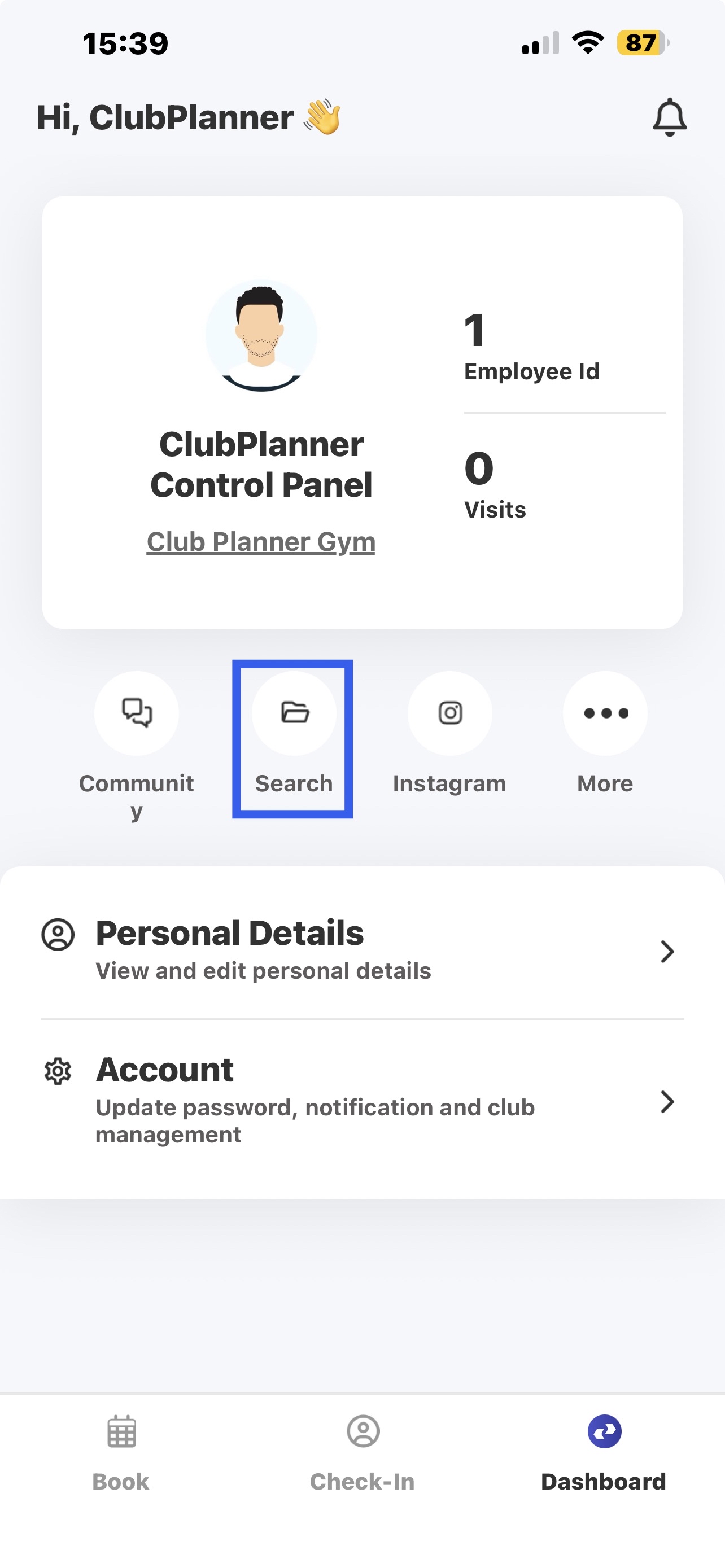
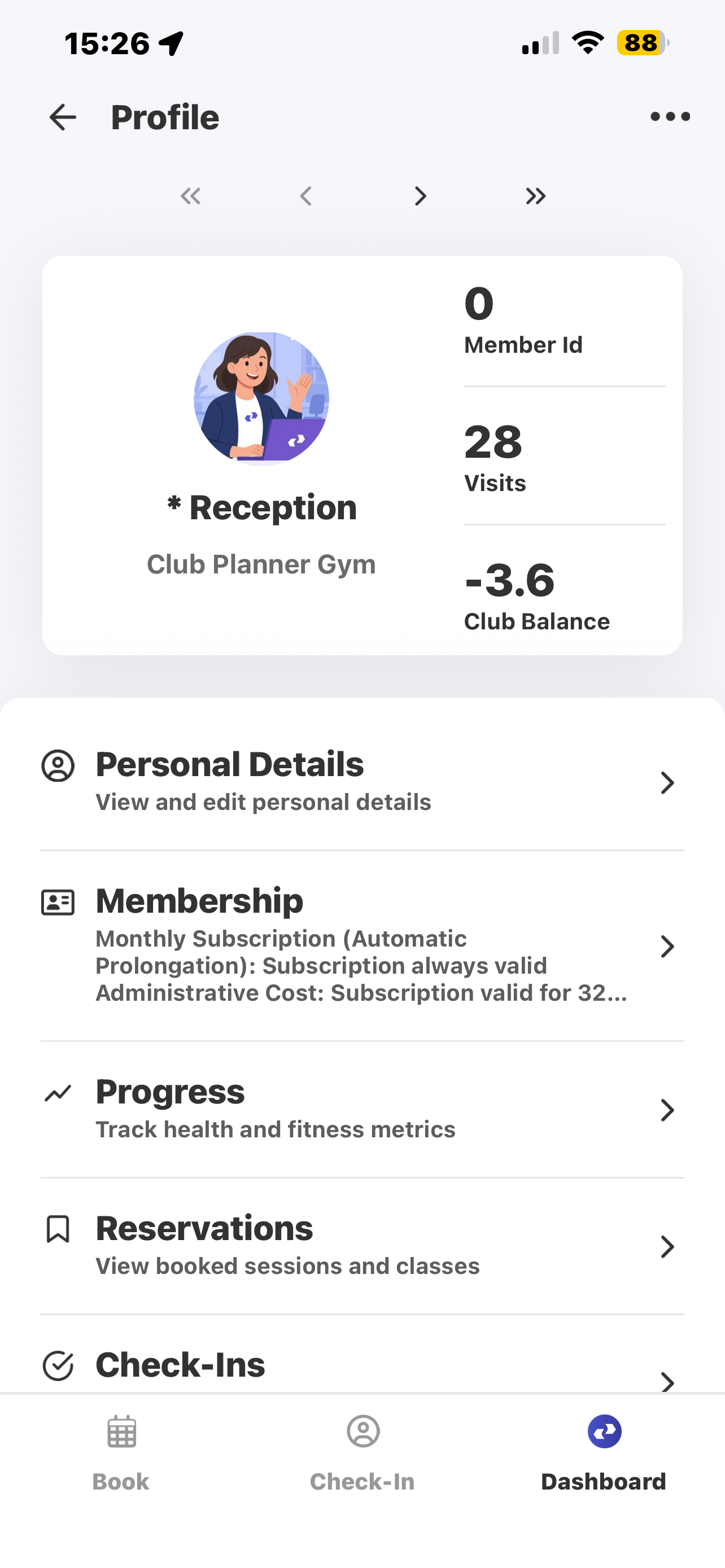
Check in member
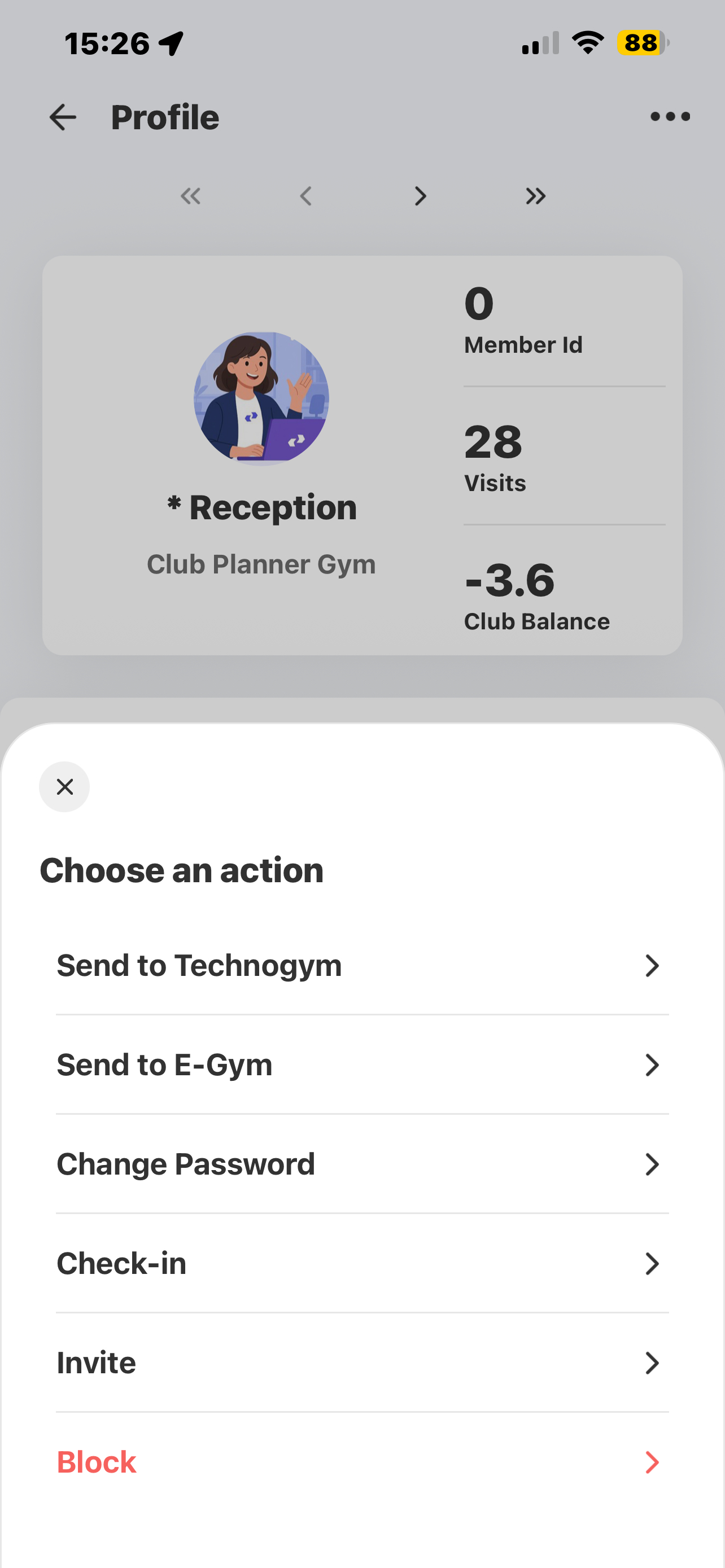
- Click the three dots in the top-right corner.
- Then click Check-in.
Result
The member has now been successfully checked in for the activity.