
In dieser Anleitung lernst du, wie du ein Mitglied für eine Aktivität einchecken kannst. Dies ist auf verschiedene Arten möglich: über den Planner, über die Mitgliedskarte oder über die MyClubPlanner-App.
Option 1 - Über die Reservierungsliste einer Aktivität
Schritte
- Gehe zu Planner.
- Klicke auf den Kalender, in dem die Aktivität geplant ist.
- Doppelklicke auf die Aktivität, für die du ein Mitglied einchecken möchtest.
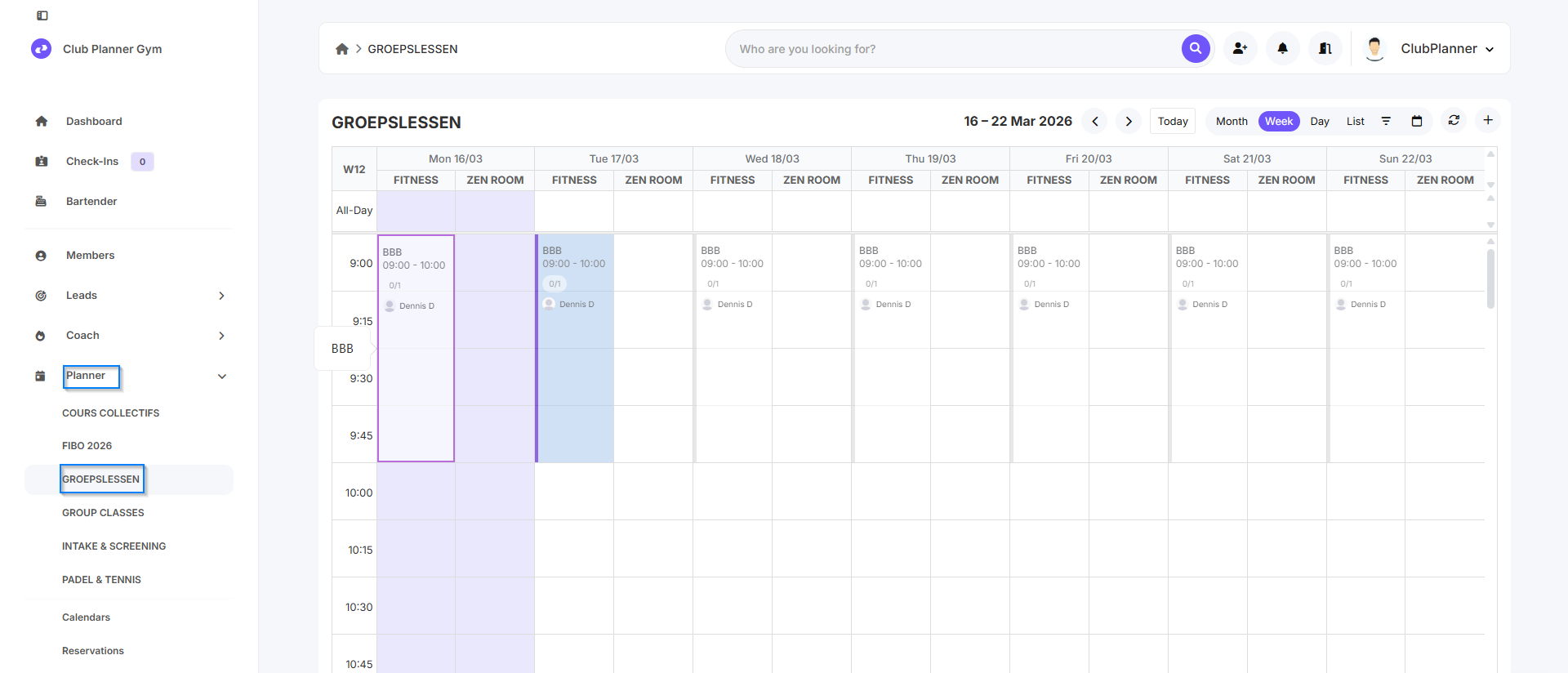
Mitglied einchecken
- Nachdem die Aktivität geöffnet wurde, klickst du auf die Schaltfläche Check-in neben dem Mitglied.
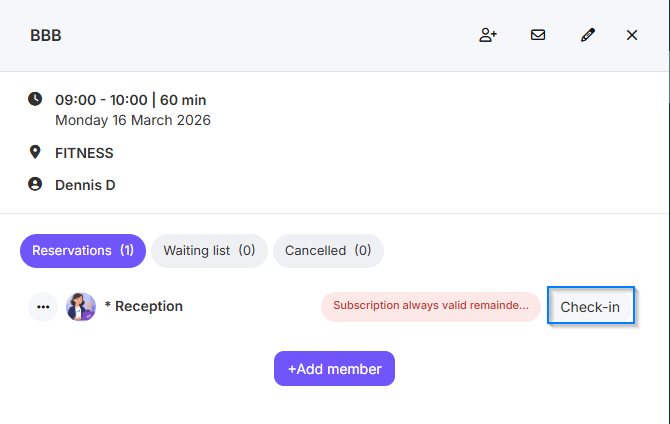
Ergebnis
Das Mitglied ist nun korrekt für die Aktivität eingecheckt.
Option 2 - Über eine Mitgliedskarte
Schritte
- Gehe zu Members.
- Suche das Mitglied auf, das du einchecken möchtest.
- Öffne die Mitgliedskarte des Mitglieds.
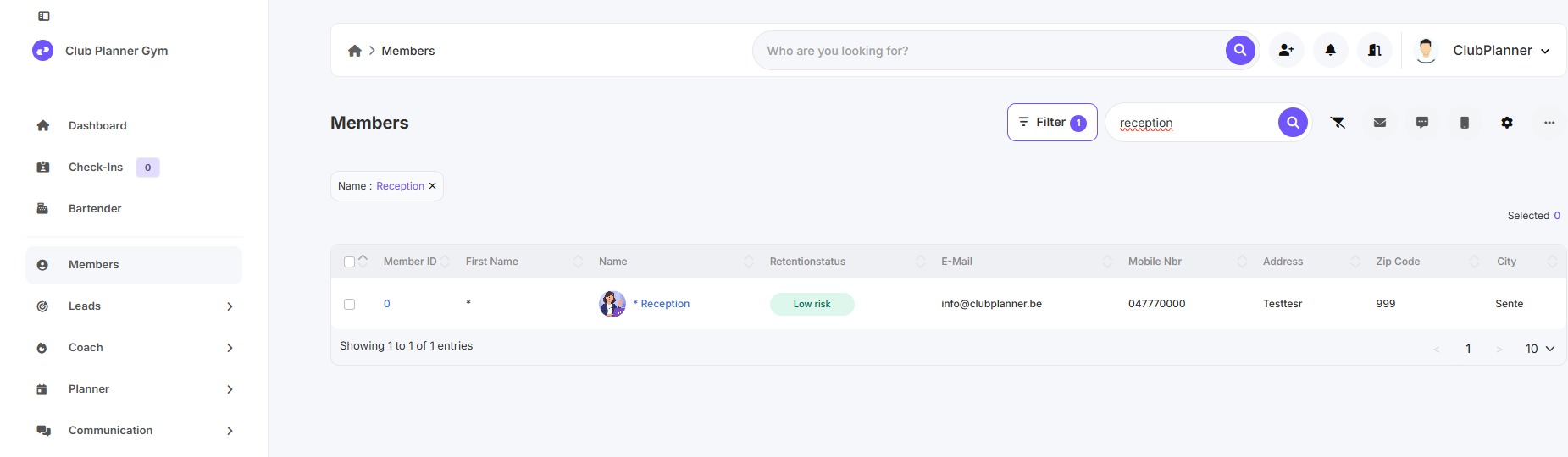
Mitglied einchecken
- Nachdem die Mitgliedskarte geöffnet wurde, klickst du oben rechts auf Check-in.
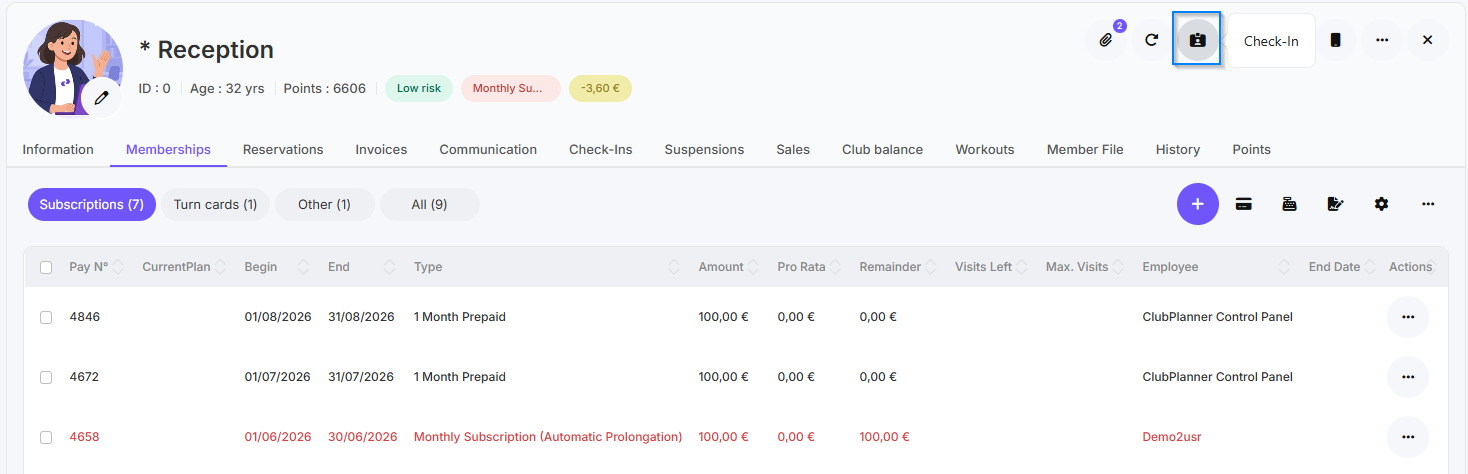
Ergebnis
Das Mitglied ist nun korrekt eingecheckt.
Option 3 - Über die Reservierungsliste in der MyClubPlanner-App
Schritte
- Klicke auf Reservieren.
- Gehe zur Aktivität, für die du das Mitglied einchecken möchtest.
- Öffne die Aktivität
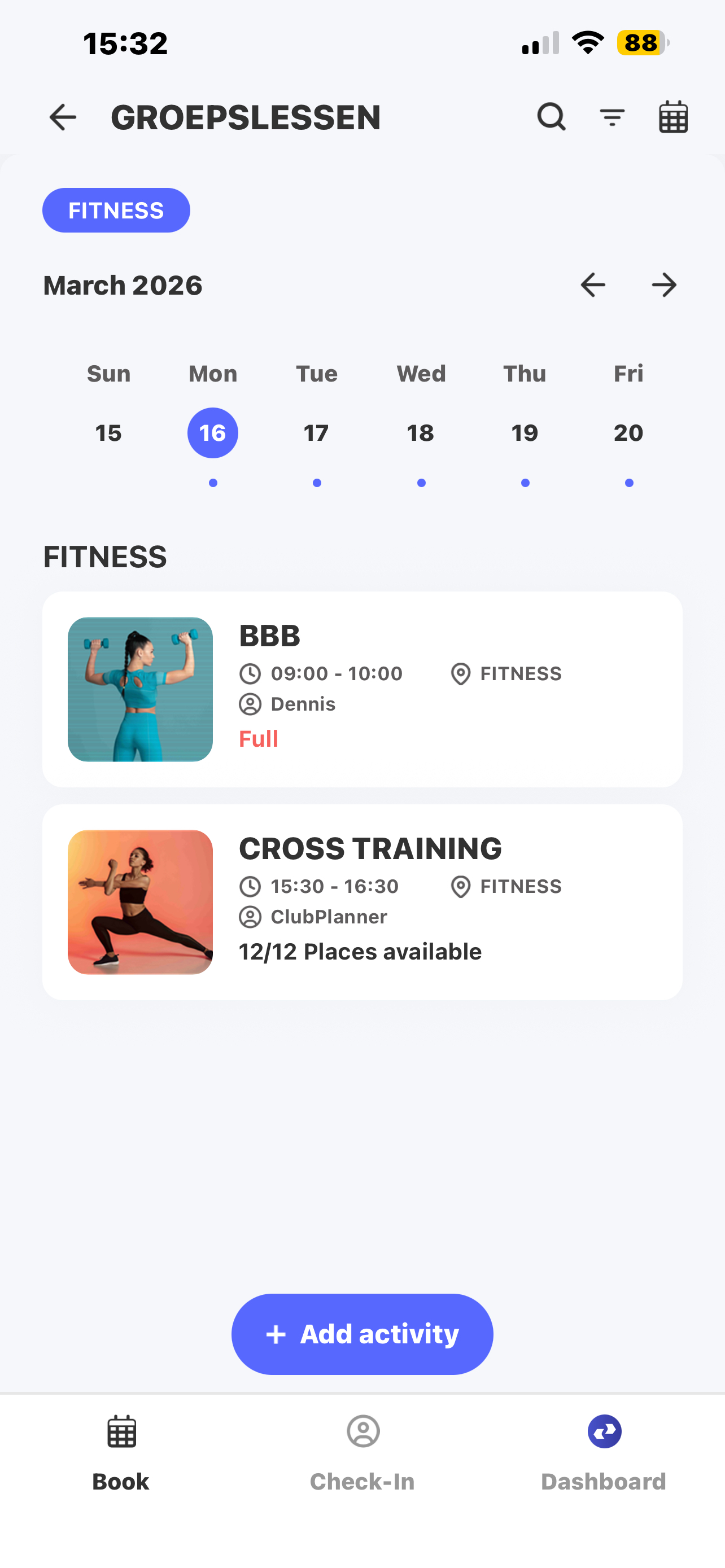
Mitglied einchecken
- Nachdem die Aktivität geöffnet wurde, klickst du auf Check-in neben dem Mitglied.
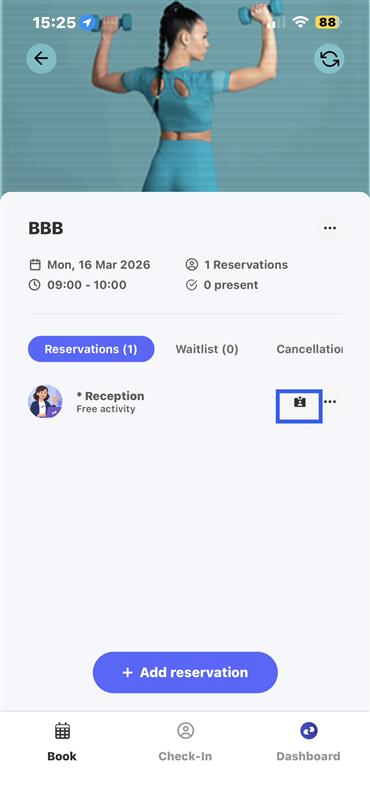
Ergebnis
Das Mitglied ist nun korrekt eingecheckt.
Option 4 - Über die Mitgliedskarte in der MyClubPlanner-App
Schritte
- Gehe zu Mitglied suchen
- Suche das Mitglied auf, das du einchecken möchtest.
- Öffne die Mitgliedskarte des Mitglieds.
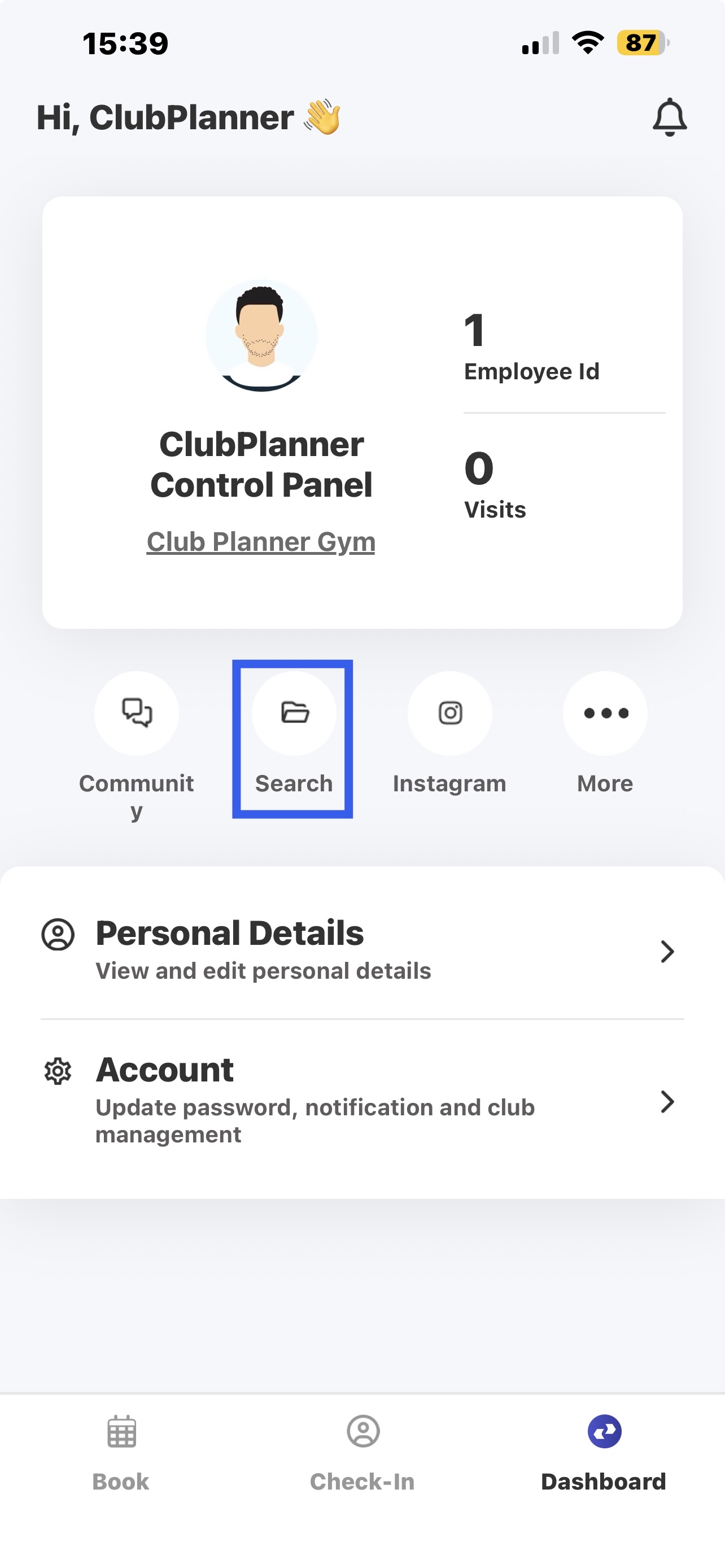
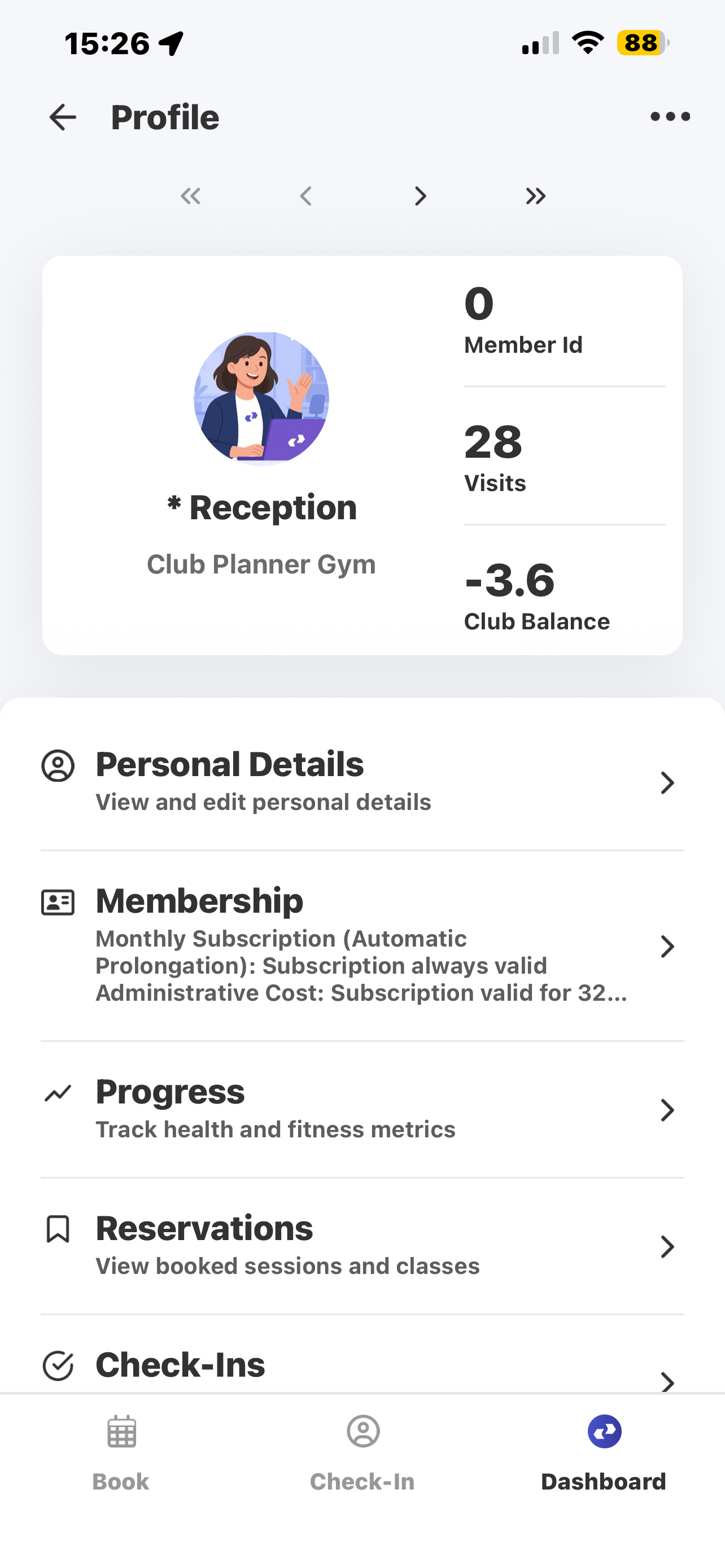
Mitglied einchecken
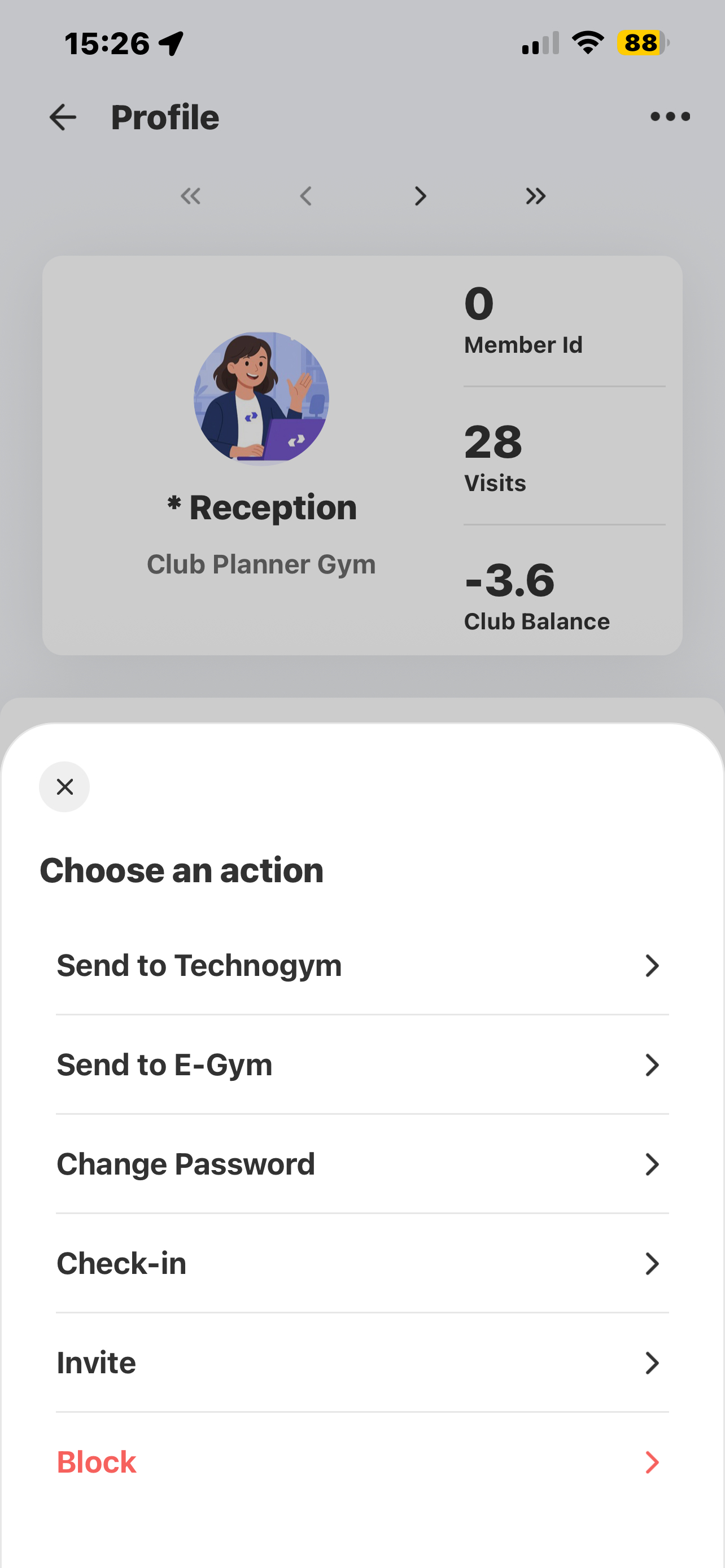
- Klicke oben rechts auf die drei Punkte.
- Klicke anschließend auf Check-in.
Ergebnis
Das Mitglied ist nun korrekt eingecheckt.