
In this guide, you'll learn how to troubleshoot why a member can't view a calendar or calendars.
Step 1 - Verify the member's membership
- Find the member under “Members”.
- Go to the “Memberships” tab.
- Check the following:
- Has the membership already started? Check the start date.
- Has the membership expired? Check the end date.
- Has the membership been paid for? Check the balance.
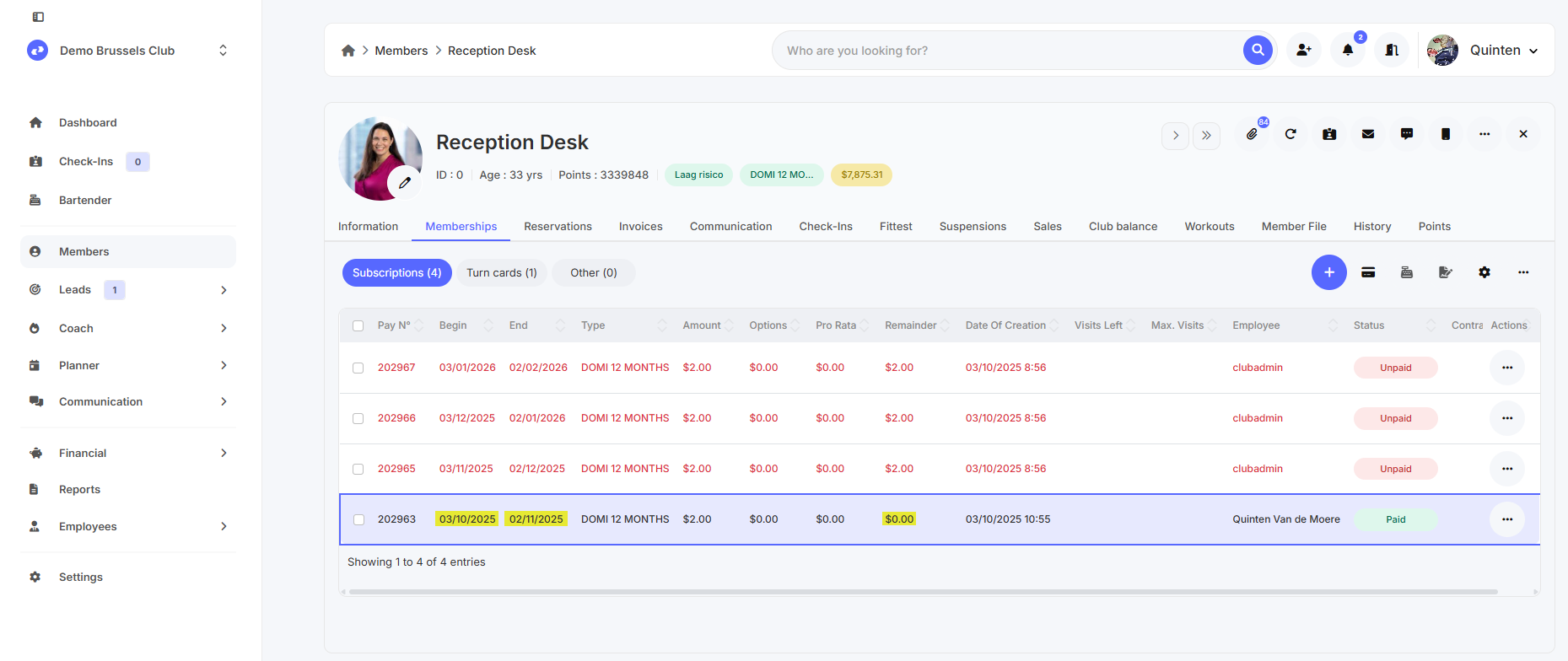
Step 2 - Check the calendar settings
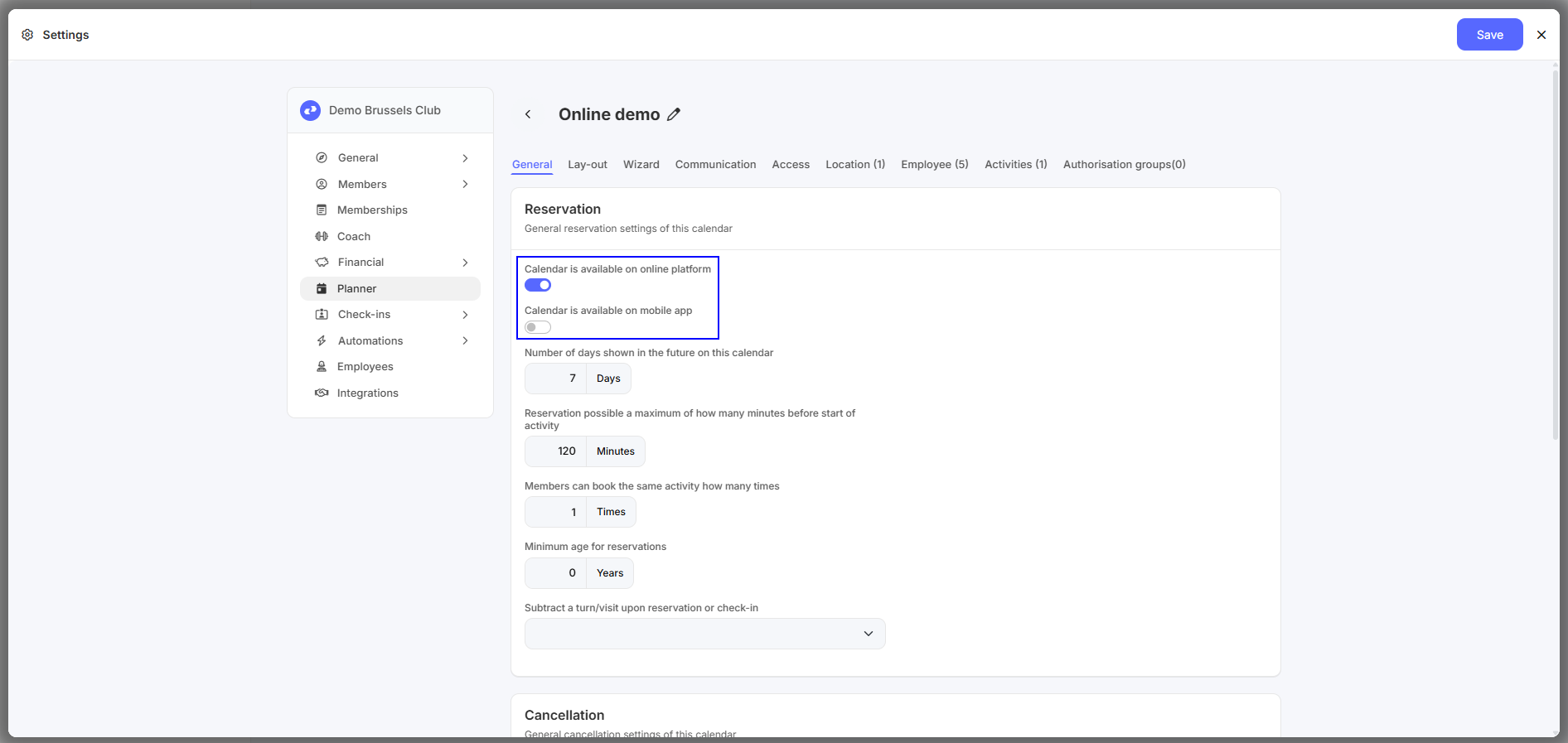
- Go to “Settings - Planner” and open the relevant calendar.
- On the “General” tab, check the following settings:
- The calendar is available on the online platform.
- Calendar is available on mobile app.
- On the “Access” tab, check to see if the member's membership is selected.
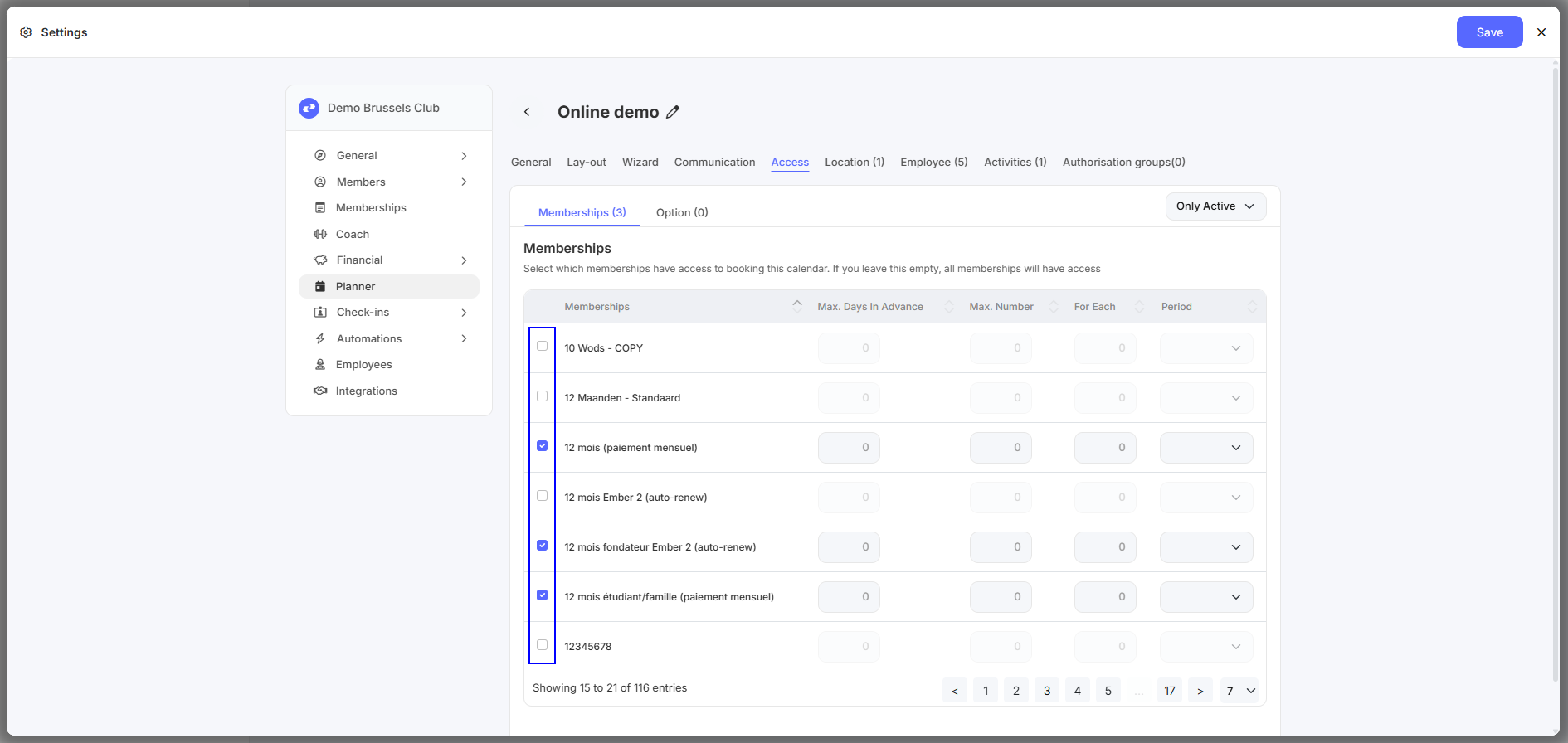
Please note: If you do not select anything here, all memberships will have access to the calendar. Once you select a specific membership, only members with that membership will have access to the calendar.
Step 3 - Check the visibility of the calendars.
- Go to “Settings - Visibility”.
- Check the following settings:
- Show calendars to members (based on membership).
- Show calendars to members (based on multi-club access).
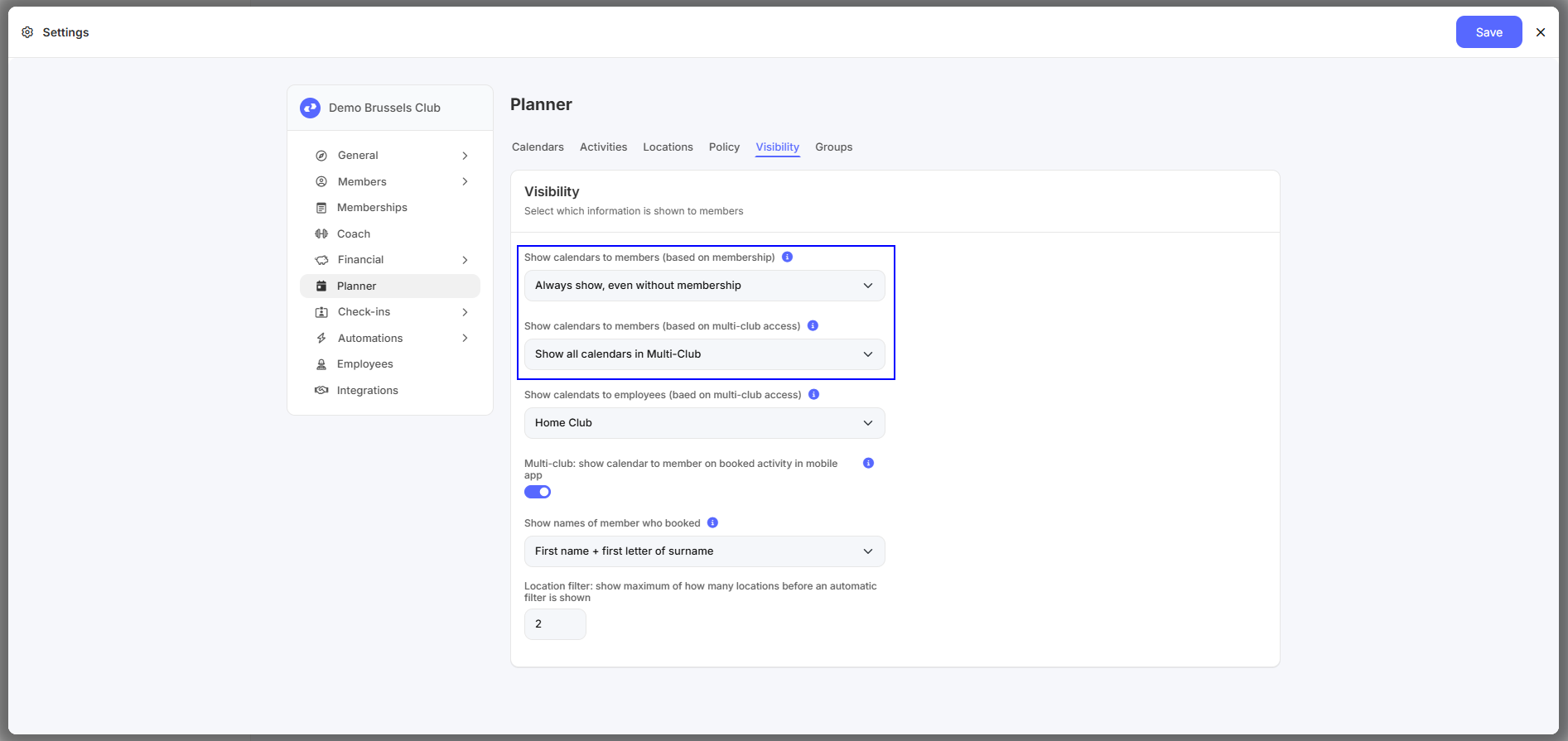
Please note: These visibility settings apply to all calendars, not to a single calendar.
What can I do now?
- You can adjust the start and/or end date of the membership.
- You can notify the customer that their membership is currently inactive.
- You can make the calendar available online and/or in the app in the calendar settings.
- You can grant the customer access to the membership in the calendar settings.
- You can adjust the visibility of the calendars.
- You can refresh the website or restart the app.