
In dieser Anleitung erfahren Sie, wie Sie untersuchen, warum ein Mitglied keine Kalender sieht.
Schritt 1 – Prüfen Sie die Mitgliedschaft des Mitglieds
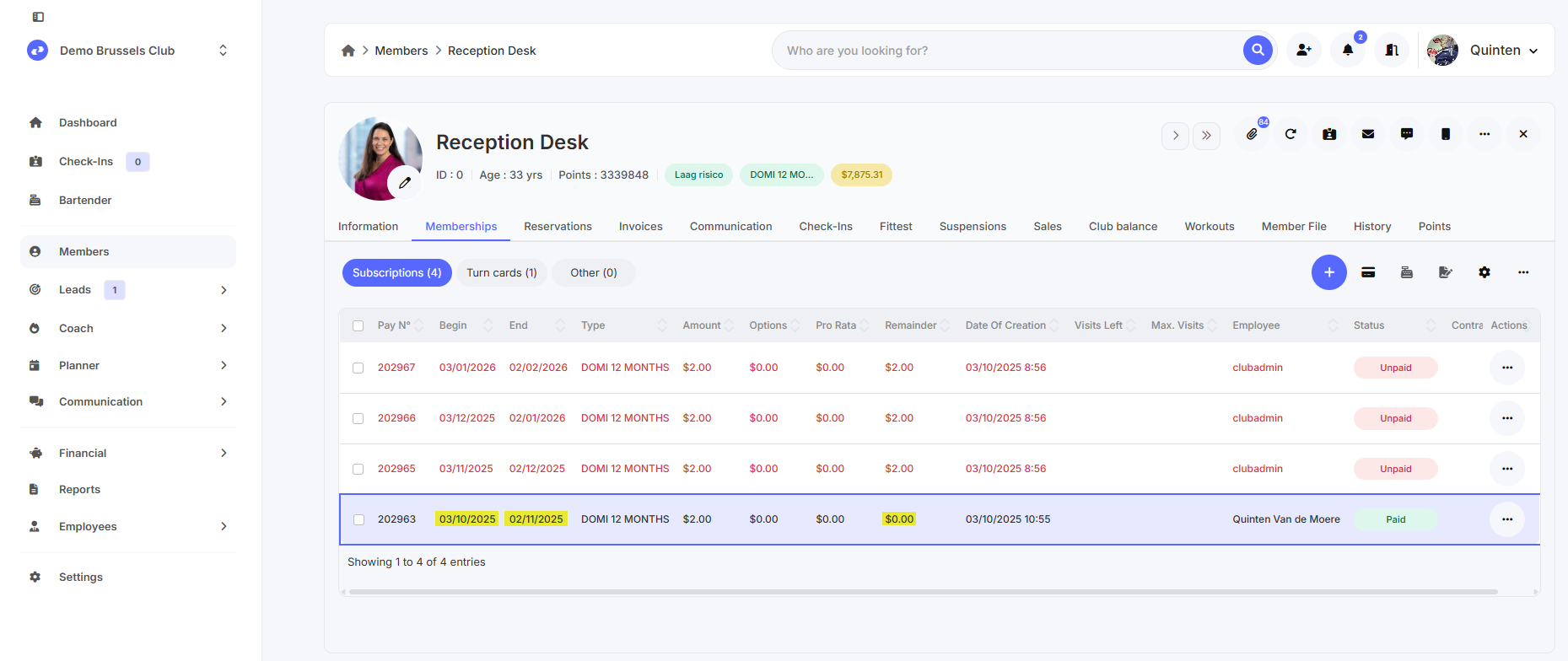
- Suchen Sie das Mitglied unter „Members“.
- Gehen Sie zum Reiter „Memberships“.
- Prüfen Sie Folgendes:
- Hat die Mitgliedschaft bereits begonnen? Prüfen Sie dazu das Startdatum.
- Ist die Mitgliedschaft abgelaufen? Prüfen Sie dazu das Enddatum.
- Ist die Mitgliedschaft bereits bezahlt? Prüfen Sie dazu den Saldo.
Schritt 2 – Prüfen Sie die Kalendereinstellungen
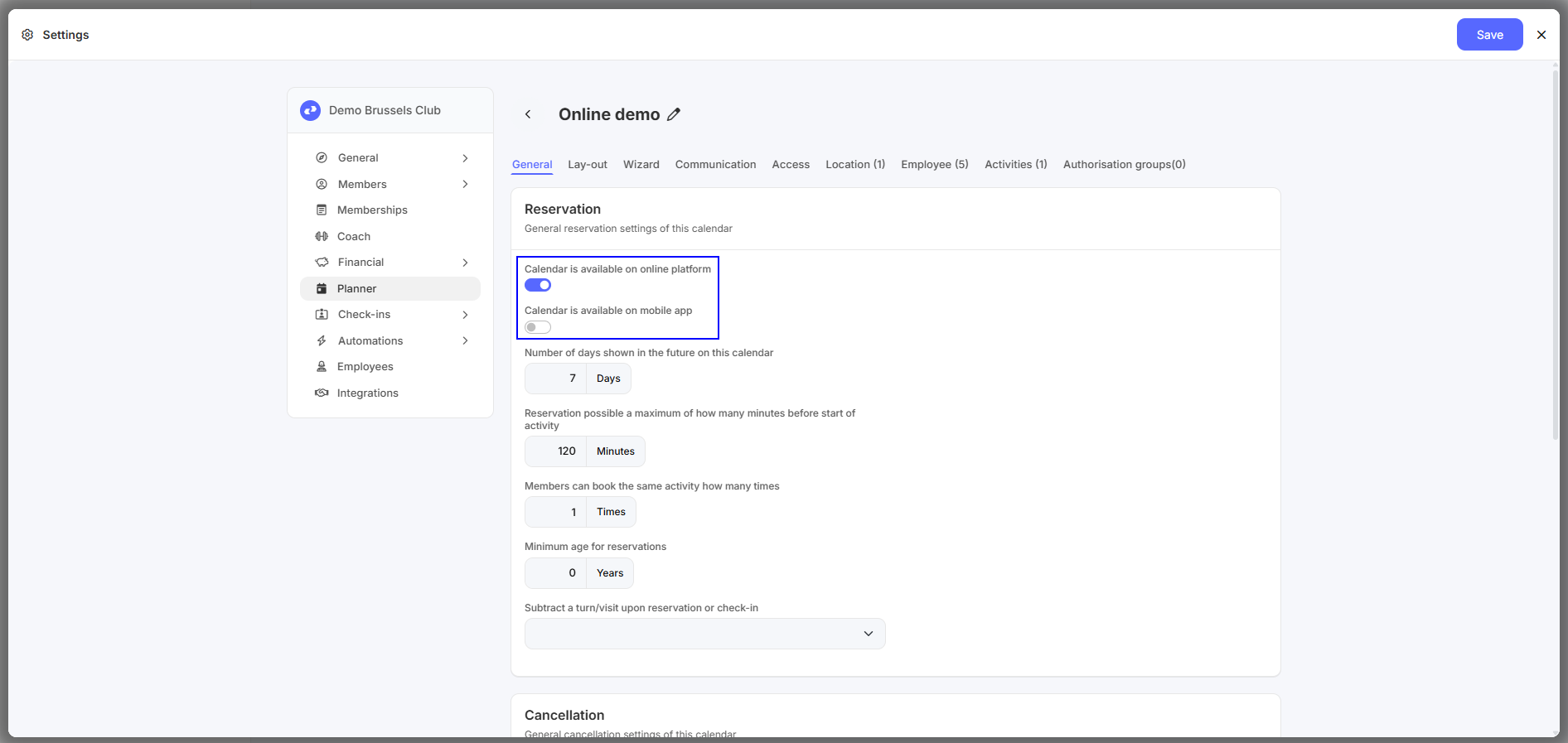
- Navigieren Sie zu „Einstellungen – Planner“ und öffnen Sie den betreffenden Kalender.
- Prüfen Sie im Reiter „General“ die folgenden Einstellungen:
- Calendar is available on online platform.
- Calendar is available on mobile app.
- Prüfen Sie im Reiter „Access“, ob die Mitgliedschaft des Mitglieds ausgewählt ist.
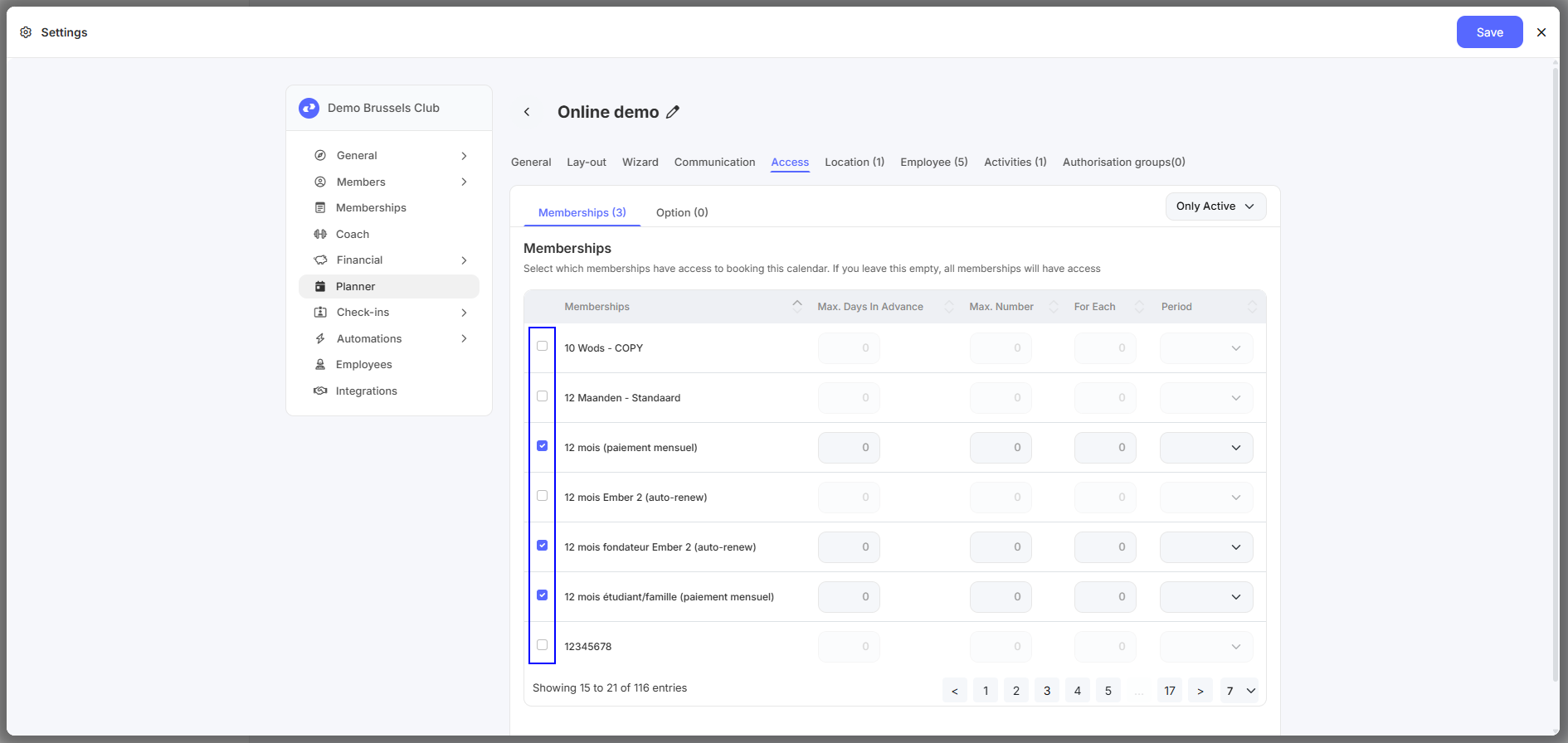
Achtung: Wenn Sie hier nichts auswählen, haben alle Mitgliedschaften Zugang zum Kalender. Sobald Sie eine Mitgliedschaft auswählen, haben nur Mitglieder mit dieser Mitgliedschaft Zugang zum Kalender.
Schritt 3 – Prüfen Sie die Sichtbarkeit der Kalender
- Navigieren Sie zu „Einstellungen – Visibility“.
- Prüfen Sie die folgenden Einstellungen:
- Show calendars to members (based on membership).
- Show calendars to members (based on multi-club access).
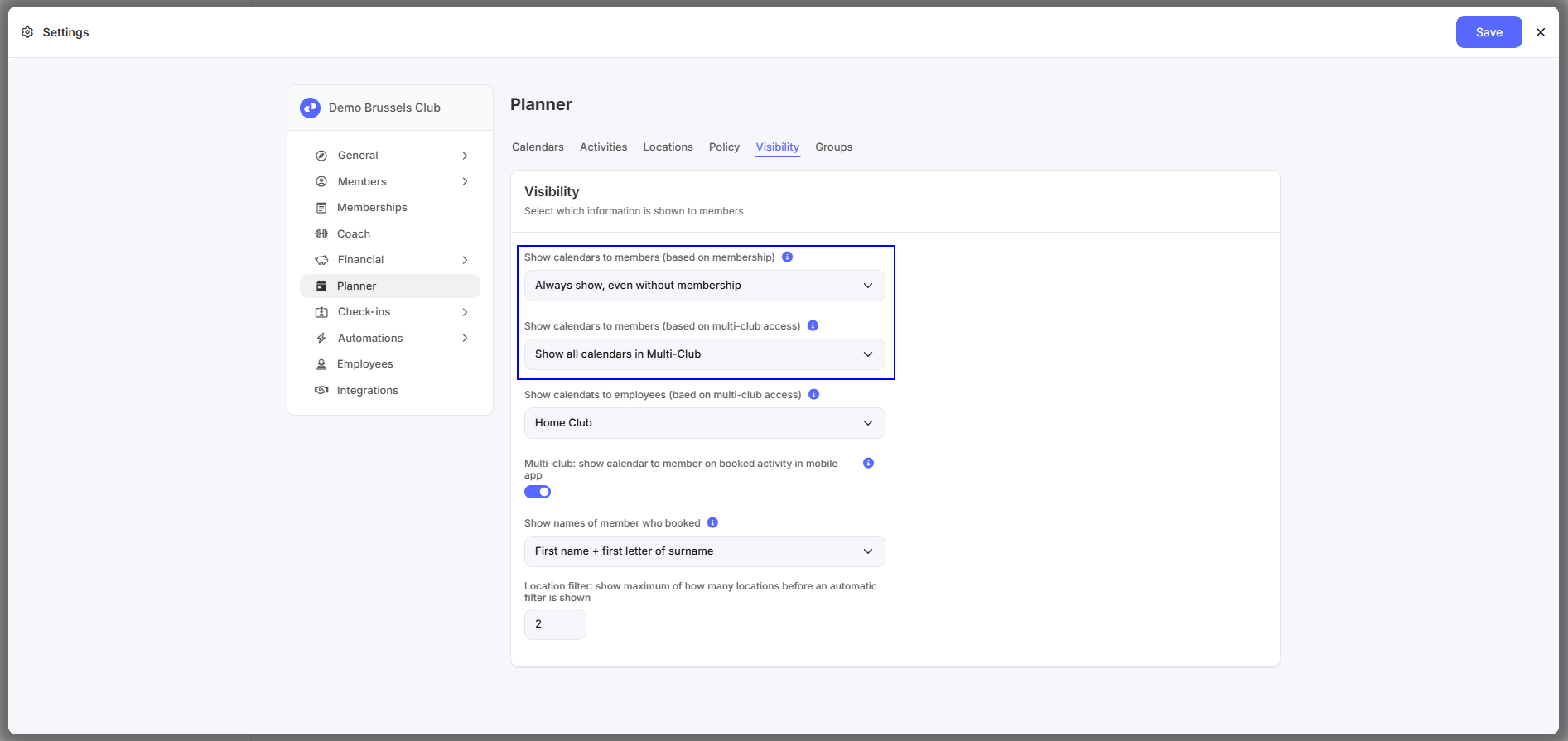
Achtung: Diese Sichtbarkeitseinstellungen gelten für alle Kalender, nicht für einen einzelnen Kalender.
Was kann ich jetzt tun?
- Sie können das Start- und/oder Enddatum der Mitgliedschaft anpassen.
- Sie können dem Kunden mitteilen, dass seine Mitgliedschaft derzeit nicht aktiv ist.
- Sie können den Kalender online und/oder in der App in den Kalendereinstellungen verfügbar machen.
- Sie können der Mitgliedschaft des Kunden in den Kalendereinstellungen Zugang geben.
- Sie können die Sichtbarkeit der Kalender anpassen.
- Sie können die Website neu laden oder die App neu starten.