
This manual explains how you can have your members sign their contract and SEPA mandate digitally.
Signing contracts digitally
This feature allows you to create contracts for each membership with customizable terms and conditions, so that these contracts can be signed online. These contracts are legally valid in Europe.
How do you set up this feature?
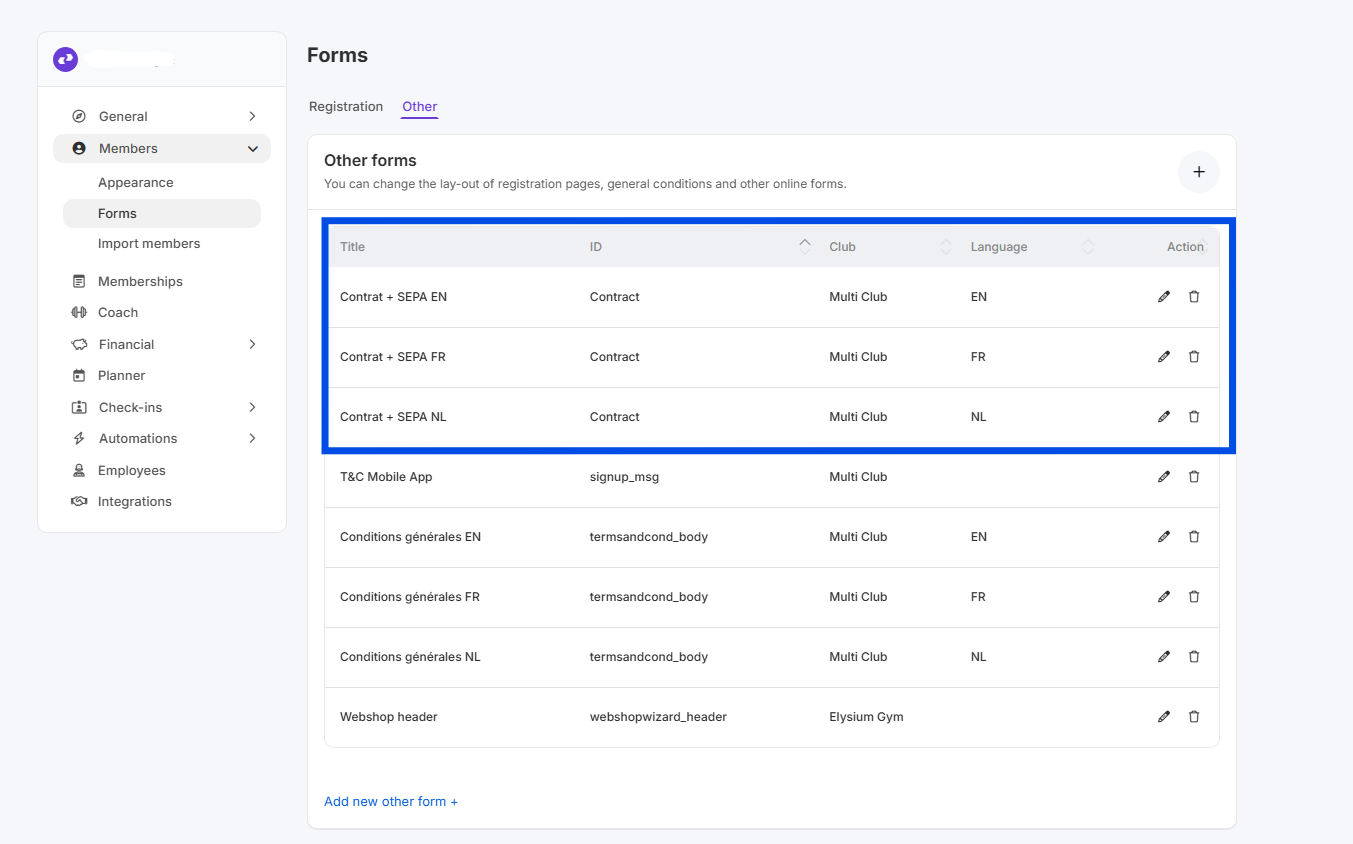
Start by setting up your contracts via Settings > Members > Forms and scroll to 'Other'. You can add as many contract templates as you want here. You will also find other online forms here, such as the terms and conditions.
How do you use this feature?
This feature does not need to be enabled or disabled, but when creating a new membership, you must select a contract template ID. If you use the ID “Contract” and it has been translated into multiple languages, the contract will automatically adopt the customer's language.
As a staff member
Immediately after granting membership to a member, you will be redirected to the contract overview page where you have 5 options:
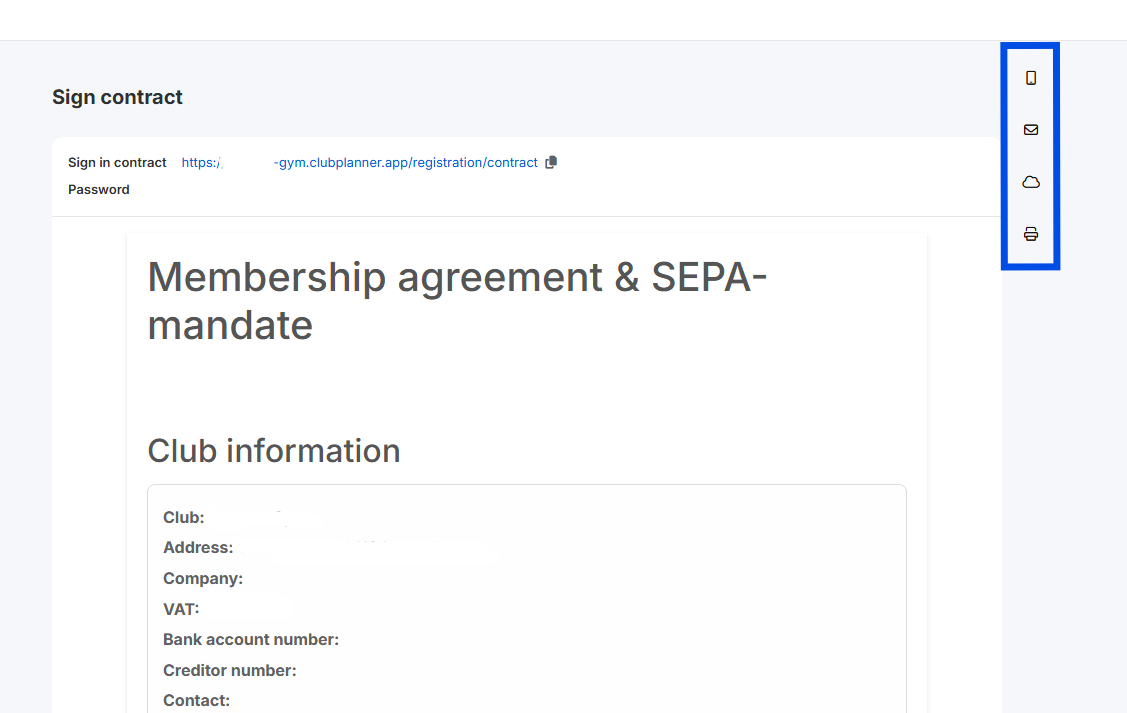
- Sign digitally now
Scroll down and have the customer sign digitally on your screen. Then save. You can find the signed contract in the customer file under the subscription line.
- Request customer to sign via SMS
With this option, an email is sent to the member asking them to sign the contract online. The member can now click on a link in the SMS and then sign the contract online. The contract is sent to the customer as an email attachment and a copy is saved in the customer file.
⚠️ SMS function only available if SMS messaging is activated with Proximus. More info.
- Request customer to sign via email
With this option, an email is sent to the member asking them to sign the contract online. The member can now click on a button in the email and then sign the contract online. The contract is sent to the customer as an attachment in a new email and a copy is saved in the customer file.
- Cloud signature (via tablet or other device)
This option allows you to have the automatically completed contract signed via a separate tablet or computer. When you click on the cloud icon, the contract is loaded onto an external URL (web page). The URL where the contract is loaded can be found under 'Sign in contract'. You can copy this URL and open it on the tablet. Example: https://portal.clubplanner.app/registration/contract.
⚠️The first time you open this URL, you will need to enter a password. You can find the password under the link.
- Print PDF and have customer sign physical paper
If you choose this option, you will see the contract as a PDF file that you can print. It is up to the club itself to ensure that the customer actually signs the contract.
As a customer (via webshop)
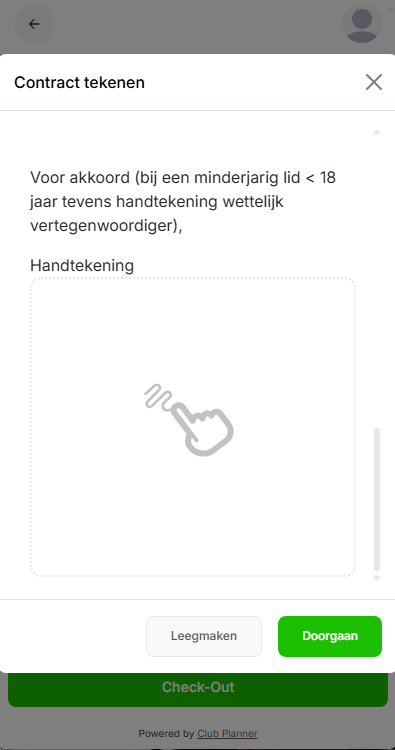
When the customer purchases a subscription in the webshop for which a contract has been set up, the customer must sign this contract in order to proceed to payment. The contract template is automatically filled in with the details that the customer has just entered in the registration form.
FAQ
Where can an employee find the signed contract?
Staff members can view contracts via the relevant Customer File > 'Memberships'. Click on the PDF icon in the first subscription line of the membership.