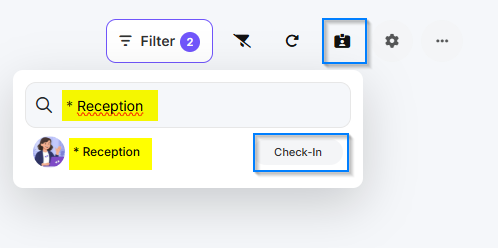
In dieser Anleitung erfährst du, wie du in Club Planner ein Mitglied beim Eintreffen im Club eincheckt.
Dies ist wichtig, um Anwesenheiten zu erfassen und den Zugang zu den Einrichtungen zu registrieren.
Schritt 1 – Gehe zu „Check-Ins"
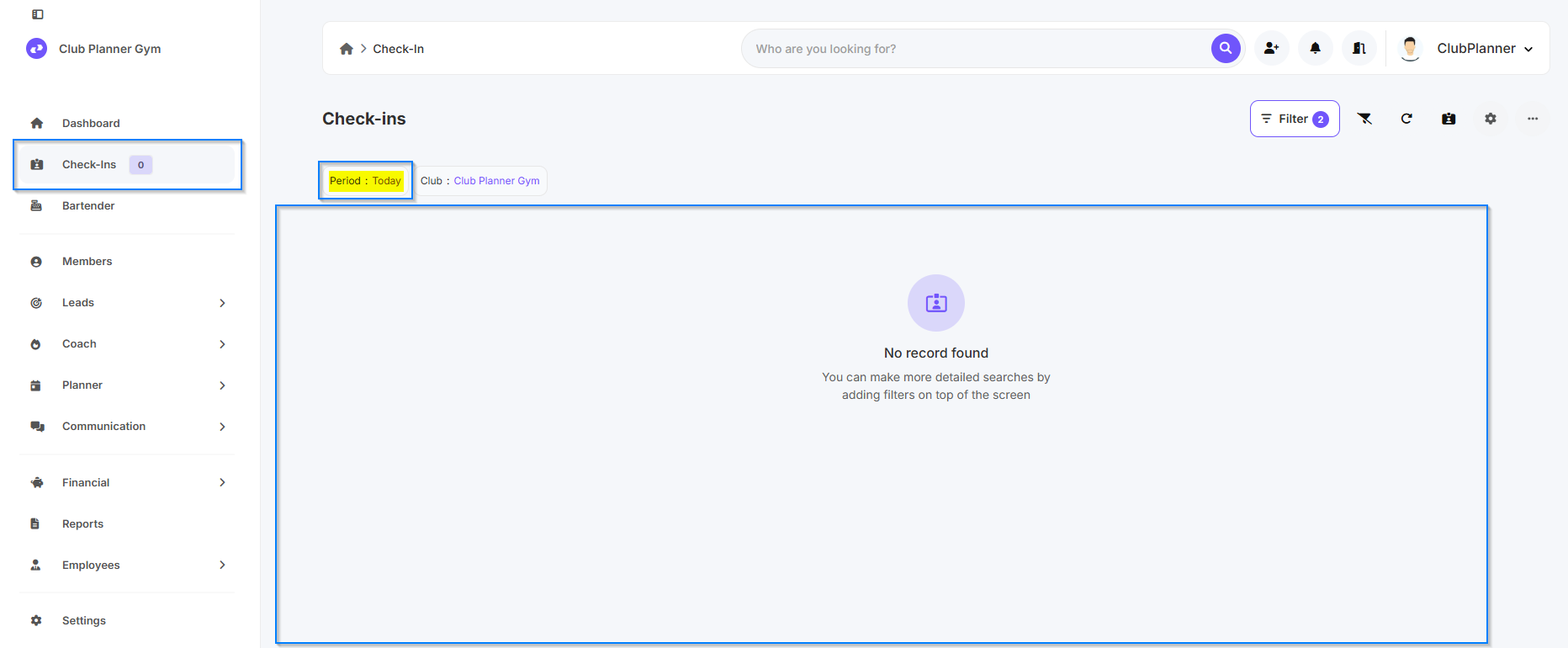
- Navigiere im Hauptmenü zu „Check-Ins".
- Hier findest du einen Überblick über die Mitglieder, die heute bereits eingecheckt sind.
Schritt 2 – Filter
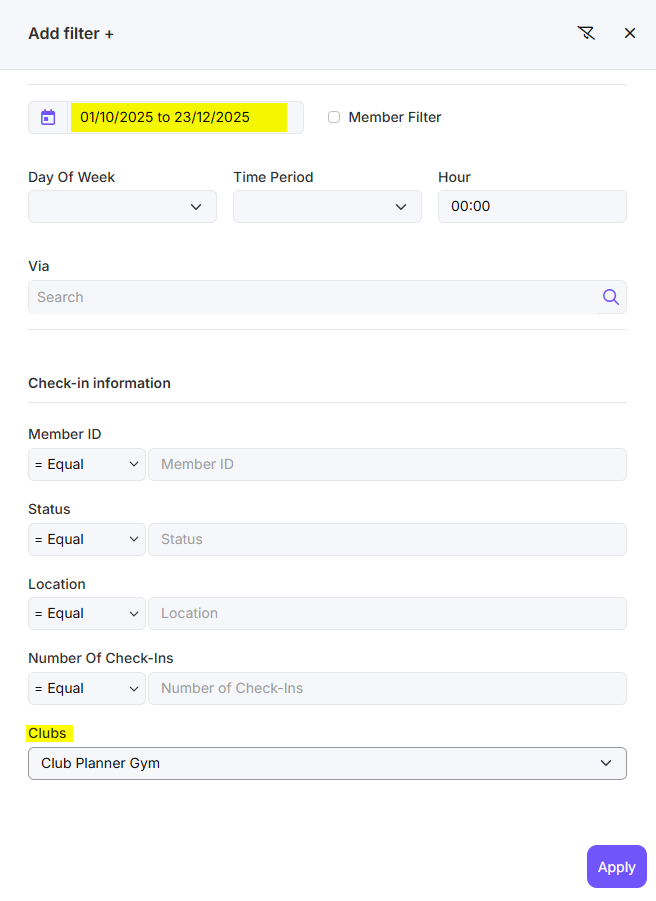
- Du kannst über den Filter detailliertere Suchvorgänge durchführen. Speichere den Filter. Du siehst jetzt alle Check-Ins innerhalb deines Filters.
- Mögliche Filter sind: Zeitraum, Club, ...
Schritt 3 – Ein Mitglied manuell einchecken
- Suche den Namen des Mitglieds oben rechts und klicke auf „Check-in".
- Dies generiert eine Anwesenheit für dieses Mitglied und zieht (je nach den Einstellungen des Clubs) auch einen Besuch ab.
-
Achtung: Dies öffnet nicht die Tür oder das Tor