
With a partner club you agree that their members can check in at your club with the QR code or card of their own club, and yours at theirs. You can also let their staff in. If you have no partner club, you will not notice any of this.
Good to know first
A partner club only works once you have each other as a partner and both have switched it on.
Only Club Planner support can add a partner club, remove it or point it to another address. Ask us and send the customer number of your club and of the partner. You can find the customer number of your club at Customer number of this club. You change the settings of an existing partner yourself.
How a visit works
A member of the partner club scans the QR code (or card) of their own club at your check-in point. Your web platform asks the member's own club whether they may enter. That club decides with its own rules. If the member may enter, you see the check-in as for one of your own members and the visit is recorded at your club. If the member is refused, you see the refusal with the reason given by the member's club.
If the partner club cannot be reached at that moment, you get a message that the partner cannot be reached and you try again shortly.
Changing the settings of a partner club
- Go to Settings > Access and check-in > Partner clubs.
- Click the partner club.
- Under Who may enter you choose who may check in:
- Switch on Let their members in here if members of the partner may check in at your club.
- Switch on Let our members in there if your members may check in at the partner. Below it, at Check-in point for our members, choose which of your check-in points decides with which subscriptions your members may enter at the partner. At Subscriptions with access at this partner, click Add a membership to choose which of your subscriptions may enter there. Leave the list empty and any valid subscription is accepted. With a list, a member only gets in with a subscription from that list, and the check-in runs on that subscription. The list does not apply to staff.
- Switch on Let their staff in here if staff of the partner may check in at your club for free with their own QR code or badge. This is off by default.
- At Amount per visit you enter what you charge the partner for each visit of one of their members. Leave it at 0 and it is free.
- With the Active switch you pause the partner in both directions. The settings are kept.
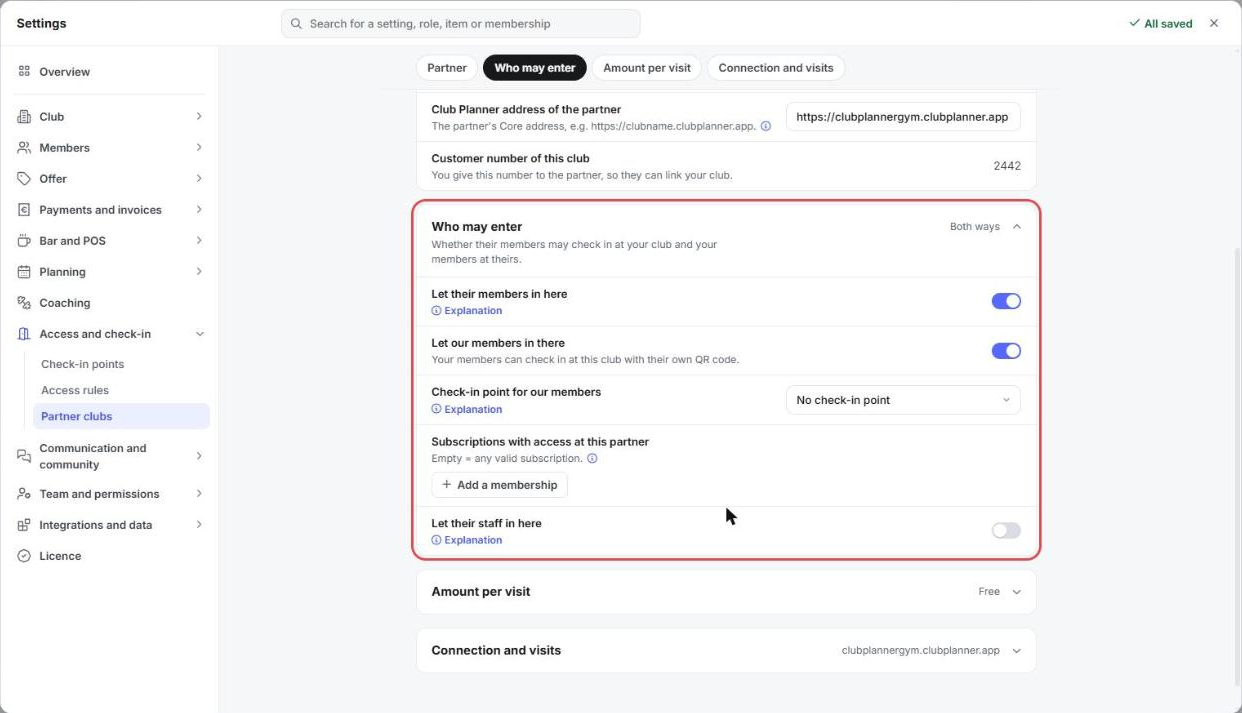
Every change is saved straight away. A new partner club lets members in both ways, for free, by default.
Testing the connection
- Open the partner club as above.
- At Connection and visits, next to Test the connection and view visits, click Open.
- At the partner club, click Test connection. You see whether the partner can be reached and how the partner has set you up. That tells you at once whether the partner lets your members in.
Viewing the visits
On the same screen, in the Partner visits tab, choose a Month. You see per partner how many of Their members here and Our members there were Let in or Refused, and the amounts. With Export to Excel you get all visits of that month.