
With the slot wizard, members see in a calendar which time slots are still free. They choose an activity, click a free time slot and complete their booking. They do not need a subscription or class pass.
How the time slots are created
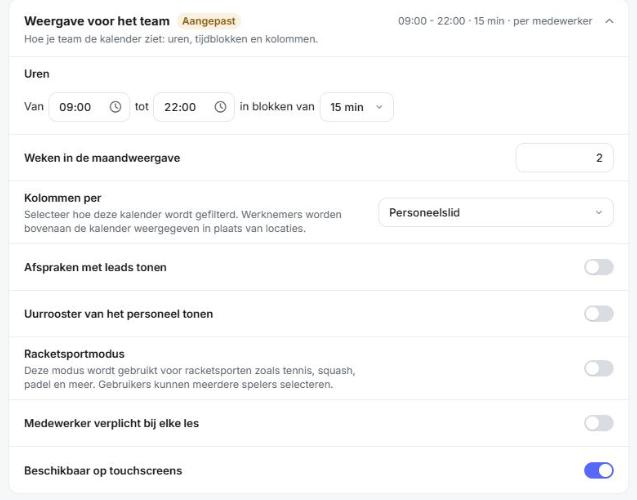
The slot wizard takes the time slots from the calendar you use for it. Under View for the team > Hours, From and to set when the first time slot starts and the last one ends. In blocks of sets every how many minutes a new time slot starts. A time slot lasts as long as the activity the member chooses.
An example: your calendar runs from 9:00 to 21:00, in blocks of 30 minutes. A member who chooses a 60-minute activity then sees time slots from 9:00 to 10:00, from 9:30 to 10:30, and so on. Time slots that are already over, or that overlap with something already in the calendar, are not shown.
Setting up the slot wizard
First create a separate calendar for the slot wizard and link the activities members can book. Give each activity a price so the member can pay. See 'Creating a new calendar' and 'Adding a new activity type'.
- Go to Settings > Planning > Calendars.
- Click the calendar.
- Open View for the team.
- Under Hours, enter the start and end time of the day, and under in blocks of choose every how many minutes a time slot starts.
- Open Book online with a wizard.
- Under Wizard, choose SlotWizard.
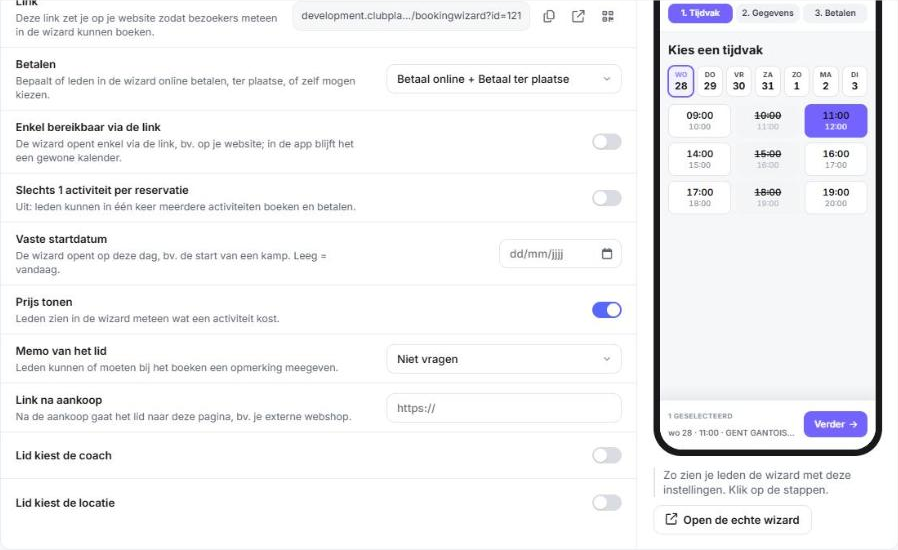
- Under Payment, choose whether the member pays online, pays at the club or can choose.
Every change is saved straight away. At the top right you see All saved.
Under Link you find the link to your slot wizard. You can put it on your website or in an email. If members should only find the slot wizard via that link, turn on Only reachable via the link. On the right, Preview for your members shows what the time slots look like.
Let the member choose a coach or location
At the bottom of Book online with a wizard you decide whether the member chooses a coach or location. Turn on Member chooses the coach or Member chooses the location. If the option is off, the member is assigned the first available coach or location.
Blocking a time slot
Is booking not possible at a certain moment, for example because the trainer is not there? Then put an activity in the calendar at that moment yourself. Create an activity once with a clear name, such as "Not available". Make sure members cannot choose that activity themselves:
- Go to Settings > Planning > Activities.
- Click "Not available".
- Open Webshop and turn off Active in webshop.
To put the activity in the calendar:
- Click Planner in the menu and choose the calendar of your slot wizard.
- Click Add new activity.
- Under Activity type, choose "Not available".
- Enter the date and the start and end time.
- Under Staff member, choose who is not available at that moment.
- Click Save changes.
The time slots that overlap with this activity disappear from the slot wizard.
How the member books
The member opens the link and chooses an activity. Then they choose a day, click a free time slot and then Next. Finally the member fills in their details and completes the booking.