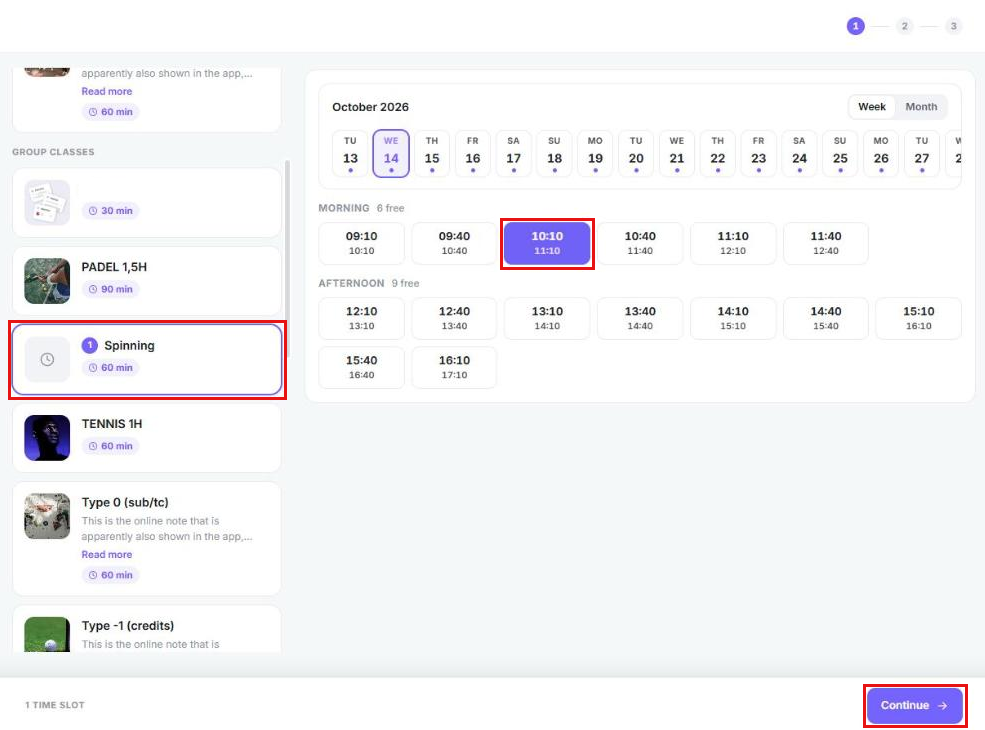
With the slot wizard, members see in a calendar which time slots are still free. They pick an activity, click a free time slot and complete their booking. They don't need a membership or a class pass for it.
Where the time slots come from
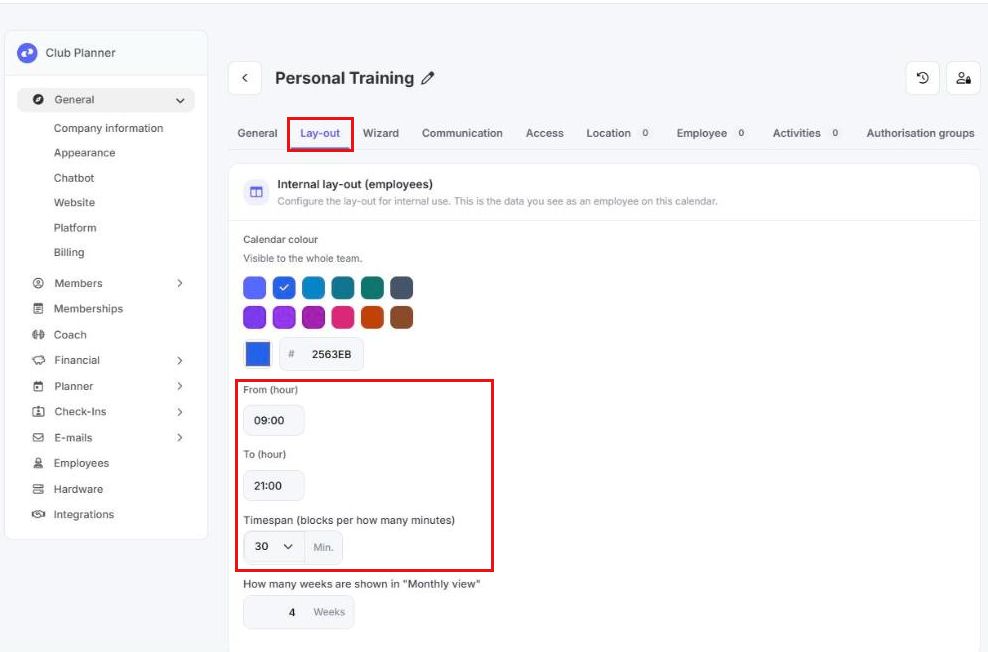
The slot wizard takes its time slots from the calendar you use for it. With From (hour) and To (hour) you set when the first time slot starts and the last one ends. With Timespan (blocks per how many minutes) you set how often a new time slot starts. A time slot lasts as long as the activity the member picks.
An example: your calendar runs from 9:00 to 21:00 in blocks of 30 minutes. A member who picks a 60-minute activity then sees time slots from 9:00 to 10:00, from 9:30 to 10:30, and so on. Time slots that have already passed, or that overlap with something already in the calendar, are not shown.
Setting up the slot wizard
First create a separate calendar for the slot wizard and link the activities members can book. Give every activity a price so the member can pay. See Create new calendar and Add a new activity type.
- Go to Settings > Planner > General.
- On the Calendars tab, click the pencil next to your calendar.
- Open the Lay-out tab.
- Enter the start and end of the day in From (hour) and To (hour).
- In Timespan (blocks per how many minutes), choose how often a time slot starts.
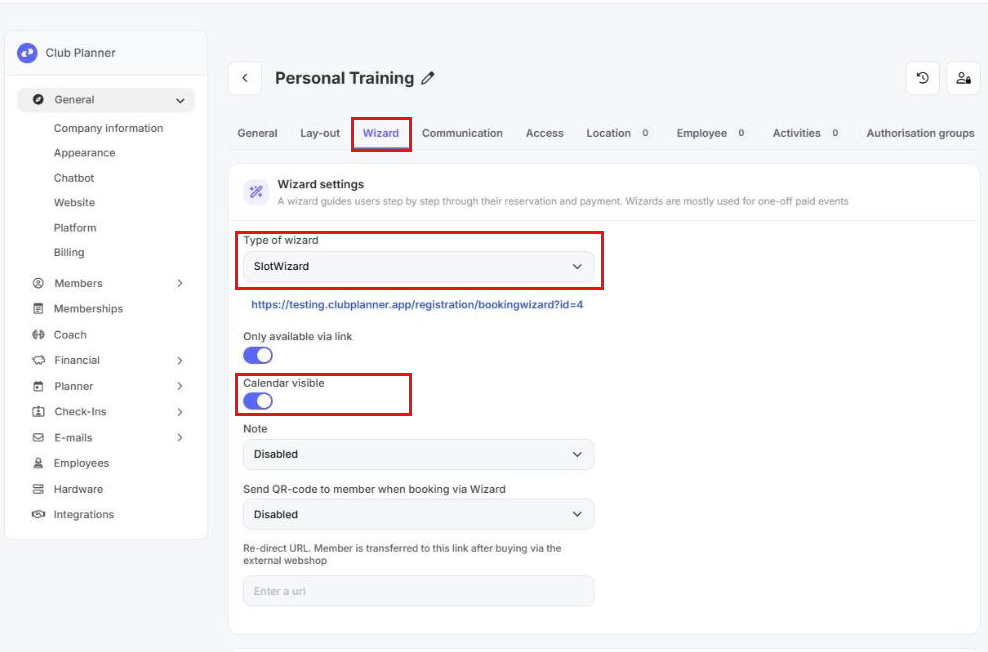
- Open the Wizard tab.
- In Type of wizard, choose SlotWizard.
- Switch on Calendar visible.
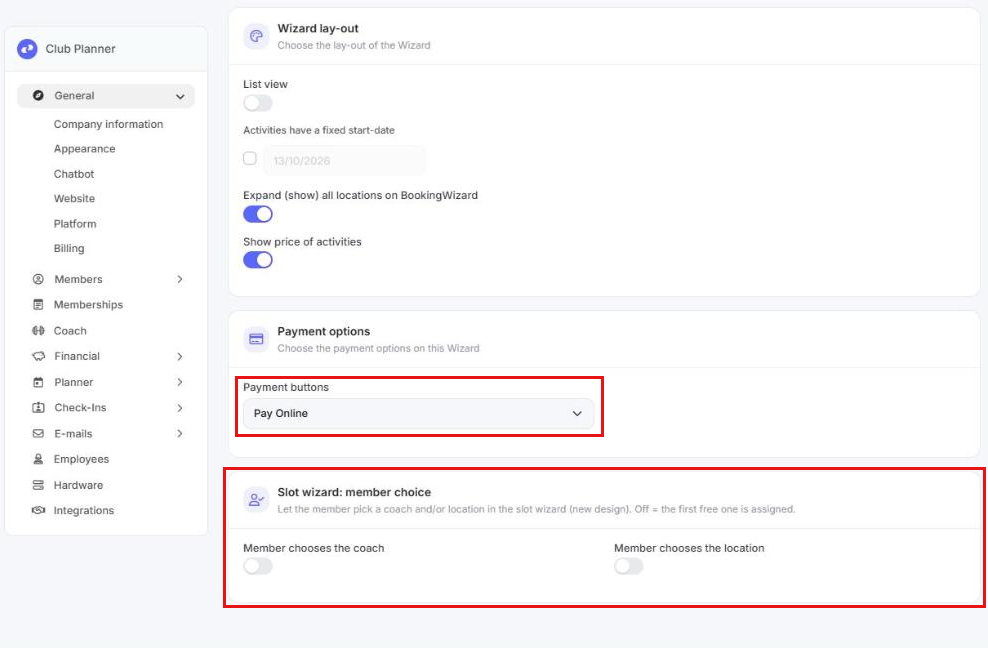
- At the bottom, under Payment buttons, choose whether the member pays online, pays at the club or can choose.
- Click Save.
The link to your slot wizard is shown under Type of wizard. You can put it on your website or in an email. If members should only find the slot wizard through that link, switch on Only available via link.
Letting the member choose a coach or location
At the bottom of the Wizard tab, under Slot wizard: member choice, you decide whether the member picks a coach or a location. Switch on Member chooses the coach or Member chooses the location. When the option is off, the member gets the first free coach or location.
Blocking a time slot
Can members not book at a certain time, for example because the trainer is away? Then put an activity in the calendar at that time yourself. Create an activity with a clear name once, such as "Not available". Make sure members can't pick that activity themselves:
- Go to Settings > Planner > General.
- On the Activities tab, click the pencil next to "Not available".
- Open the Webshop tab and switch off Active.
- Click Save.
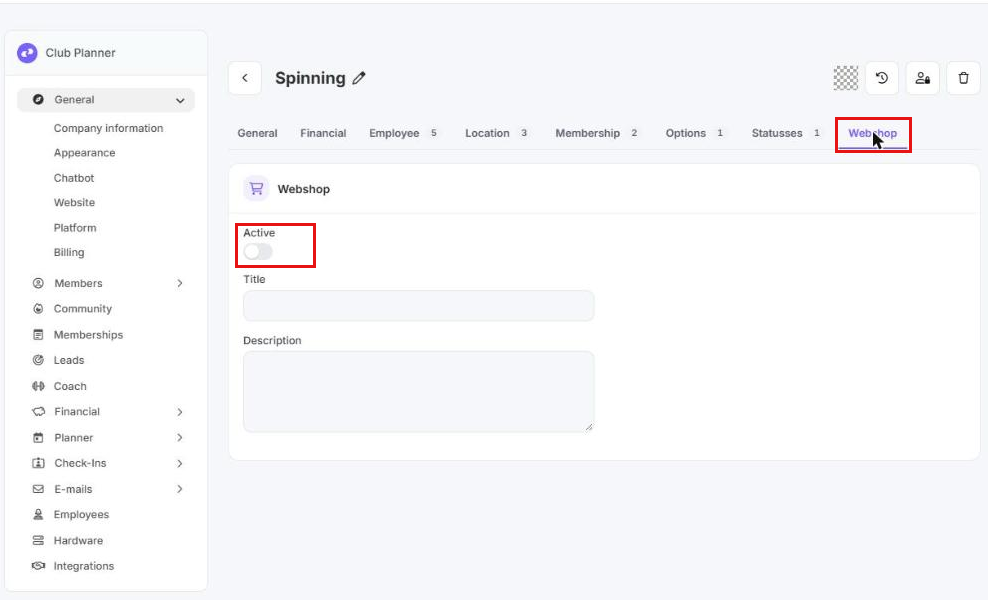
To put the activity in the calendar:
- In the menu, click Planner and pick the calendar of your slot wizard.
- Click Add new activity.
- In Activity Type, choose "Not available".
- Enter the date and the start and end time.
- In Employee, choose who is away at that time.
- Click Save Changes.
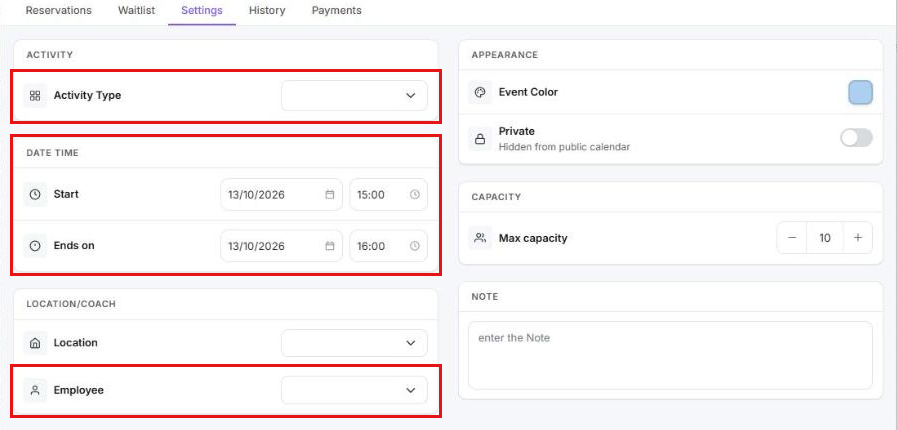
Time slots that overlap with this activity disappear from the slot wizard.
How the member books
The member opens the link and picks an activity. Then they pick a day, click a free time slot and click Continue. Finally the member logs in or registers and completes the booking.