
In dieser Anleitung zeigen wir Ihnen, wie Sie das persönliche Dashboard der MyClubPlanner App einfach ändern und optimieren können.
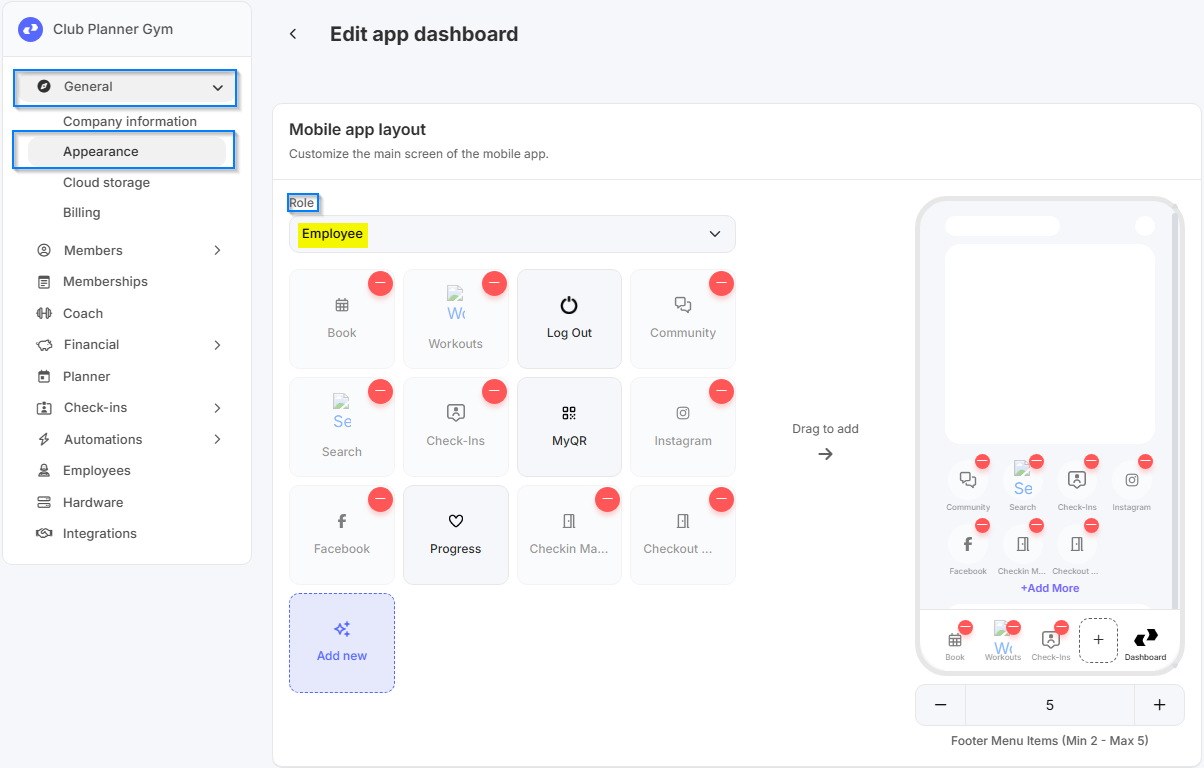
1. Wie ändern Sie das Dashboard für Mitarbeiter?
Gehen Sie zunächst zu 'Einstellungen' → 'Allgemein' → 'Erscheinungsbild'.
Anschließend gehen Sie zu 'Mobile app' → 'Edit app dashboard'.
Wählen Sie anschließend unter 'Role' die Option 'Employee'.
Hier können Sie festlegen, welche Schaltflächen auf dem Dashboard für Mitarbeiter sichtbar sind.
2. Wie ändern Sie das Dashboard für Mitglieder?
Gehen Sie zunächst zu 'Einstellungen' → 'Allgemein' → 'Erscheinungsbild'.
Anschließend wählen Sie unter 'Role' die Option 'Member'.
Hier können Sie festlegen, welche Schaltflächen auf dem Dashboard für die Mitglieder sichtbar sind.
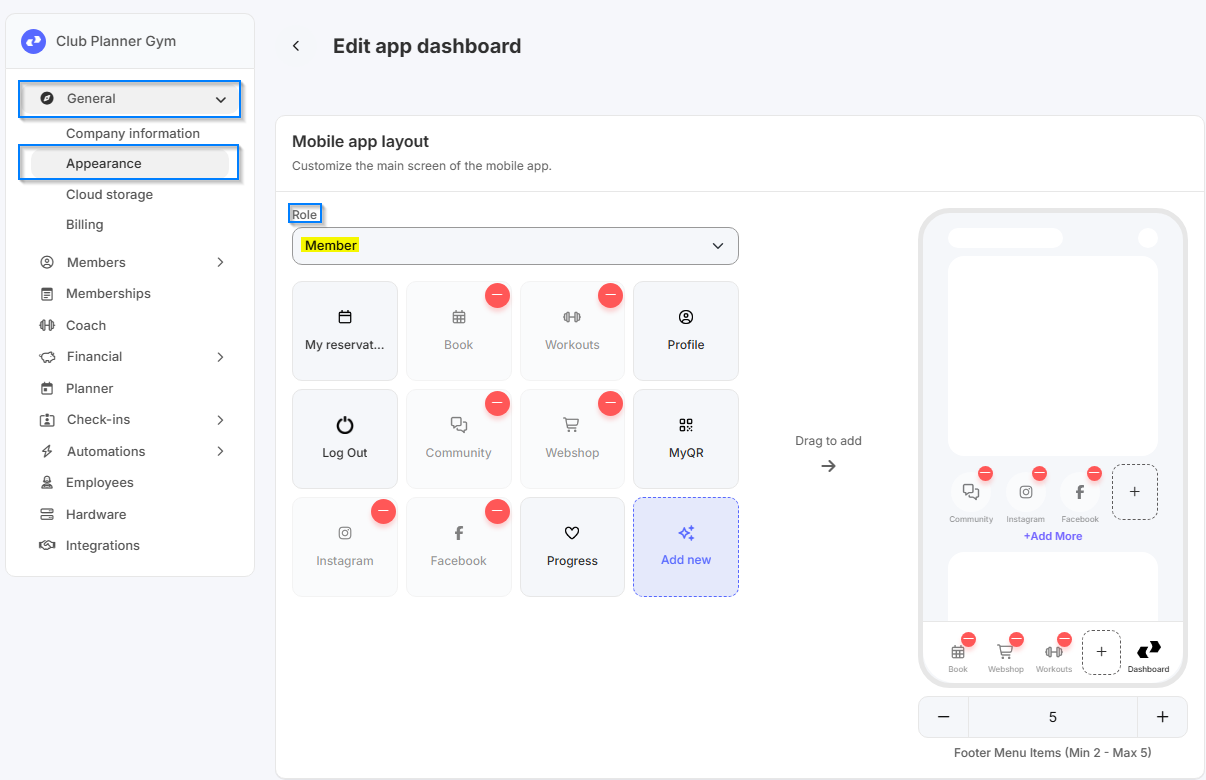
Hier erklären wir, welche Schaltflächen in der App verfügbar sind, was ihre Funktionen sind und wie Sie ganz einfach neue Schaltflächen hinzufügen.
Sie können eine neue Schaltfläche über die Schaltfläche 'Add New' hinzufügen. Sobald die Schaltfläche erstellt wurde, können Sie diese einfach auf das Dashboard ziehen, damit sie sichtbar und aktiv wird.
| Typ | Beschreibung |
|---|---|
| AppHTML | Mit der Schaltfläche AppHTML können Sie HTML-Inhalte hinzufügen, die in der App angezeigt werden. Dies kann beispielsweise eine benutzerdefinierte Seite, Anleitung oder ein Formular sein. Ideal, wenn Sie eigene Inhalte anzeigen möchten, die nicht standardmäßig in der App enthalten sind. |
| OpenOtherApp | Die Schaltfläche OpenOtherApp öffnet eine andere App auf dem Gerät. Dies kann nützlich sein, wenn Sie Benutzer zu einer bestimmten App weiterleiten möchten, z. B. eine Trainings- oder Bezahl-App. Stellen Sie sicher, dass Sie den Paketnamen oder die richtige Kennung der App eingeben, damit diese korrekt geöffnet wird. |
| OpenInBrowser | Mit der Schaltfläche Open in Browser können Sie eine externe Website aus der App öffnen. Beispielsweise: Wenn Sie möchten, dass eine Schaltfläche auf Ihre Facebook-Seite verlinkt, geben Sie hier die URL Ihrer Facebook-Seite ein. |
| Timer | Mit der Schaltfläche Timer können Sie einen Timer in der App starten. Dies kann beispielsweise für Workouts, Trainingseinheiten oder Pausen verwendet werden. Sie können einstellen, wie lange der Timer läuft und welche Aktionen ausgeführt werden sollen, wenn der Timer abläuft. |
| BMICalculator | Die Schaltfläche BMICalculator öffnet einen BMI-Rechner in der App. Benutzer können ihre Gewicht und Größe eingeben, um ihren Body-Mass-Index zu berechnen. Dies ist hilfreich für Sportclubs zur Unterstützung von Gesundheit und Trainingsempfehlungen. |
| MainMenu | Die Schaltfläche MainMenu bringt den Benutzer zurück zum Hauptmenü der App. Dies ist hilfreich, um die Navigation übersichtlich zu halten, besonders wenn viele Schaltflächen oder Module zum Dashboard hinzugefügt wurden. |
| MyReservations | Die Schaltfläche MyReservations gibt Benutzern direkten Zugriff auf ihre Buchungen oder Reservierungen in der App. Beispielsweise: Sporthallenbuchungen, Kursanmeldungen oder persönliche Trainings. So kann jeder schnell sehen, was er reserviert hat und dies gegebenenfalls ändern oder stornieren. |
| Booking | Die Schaltfläche Booking gibt Benutzern Zugriff auf das Reservierungssystem des Clubs. Hier können sie beispielsweise einen Kurs, einen Standort oder eine Aktivität buchen und ihre Reservierungen verwalten. |
| Workouts | Mit der Schaltfläche Workouts können Benutzer Trainingsprogramme anzeigen und verfolgen. Dies kann einzelne Übungen oder vollständige Trainingsschema enthalten. |
| Exercises | Die Schaltfläche Exercises öffnet einen Überblick über einzelne Übungen, oft mit Erklärungen und Videos. Nützlich für Benutzer, die gezielt an bestimmten Muskelgruppen oder Zielen arbeiten möchten. |
| MyProfile | Mit MyProfile erhält der Benutzer Zugriff auf sein persönliches Profil in der App. Hier können sie Daten anzeigen und ändern, wie z. B. Kontaktinformationen, Mitgliedschaft oder Voreinstellungen. |
| Logout | Die Schaltfläche Logout sorgt dafür, dass sich der Benutzer sicher aus der App abmeldet. Nützlich zur Wahrung der Kontosicherheit, besonders auf gemeinsam genutzten Geräten. |
| QrCode | Mit der Schaltfläche QrCode kann der Benutzer einen QR-Code öffnen, der dem Zugang zum Club dient. |
| Barcode | Die Schaltfläche Barcode zeigt einen Strichcode, der beispielsweise für den Zugang, Zahlungen oder die Überprüfung der Mitgliedschaft verwendet werden kann. |
| Member | Die Schaltfläche Member bietet Zugriff auf Mitgliedschaftsinformationen, wie Status, Mitgliedsnummer und eventuelle Privilegien im Club. |
| CheckIn | Mit der Schaltfläche CheckIn können Mitglieder sich im Club oder bei bestimmten Aktivitäten einchecken. Nützlich zur Registrierung und zum Überblick über die Anwesenheit. |
| Progress | Die Schaltfläche Progress zeigt den Fortschritt von Trainings-, Ziel- oder Leistungsergebnissen des Benutzers. Dies kann Statistiken und Grafiken enthalten. |
| Webshop | Mit der Schaltfläche Webshop können Benutzer Mitgliedschaften oder Artikel des Clubs kaufen, wie Kleidung, Abonnements oder Wertkarten. |
| ExecuteApi | Mit der Schaltfläche ExecuteApi führen Sie eine Aktion über einen API-Aufruf aus. Ein praktisches Beispiel: Damit können Sie die Tür Ihres Sportclubs oder Gebäudes über das angeschlossene Zugangsystem öffnen. Achten Sie darauf, dass Sie die richtige API-URL, Header und Parameter eingeben. |
| Notifications | Die Schaltfläche Notifications bietet Zugriff auf Benachrichtigungen und Nachrichten vom Club, wie Nachrichten, Ankündigungen oder Updates zu Reservierungen. |
| Subscriptions | Mit der Schaltfläche Subscriptions können Benutzer ihre Abonnements und Mitgliedschaftsoptionen anzeigen und verwalten, z. B. verlängern oder upgraden. |
Welche Optionen werden am häufigsten verwendet?
- OpenInBrowser: Eine einfache Weiterleitung zu Facebook, Instagram, Website, ...
- MyReservations: Um die erstellten Reservierungen zu verwalten.
- Booking: Um neue Reservierungen zu erstellen / anzuzeigen.
- Workouts / Exercises: Um das Workout-Modul zu öffnen.
- QrCode: Um einzuchecken.
- Webshop: Um neue Mitgliedschaften zu kaufen oder ausstehende Salden auszugleichen.