
Let your members sign their contract and SEPA mandate digitally. They can sign at the front desk, on a tablet, by email or text message, or when they buy a membership in the webshop.
Set up a contract
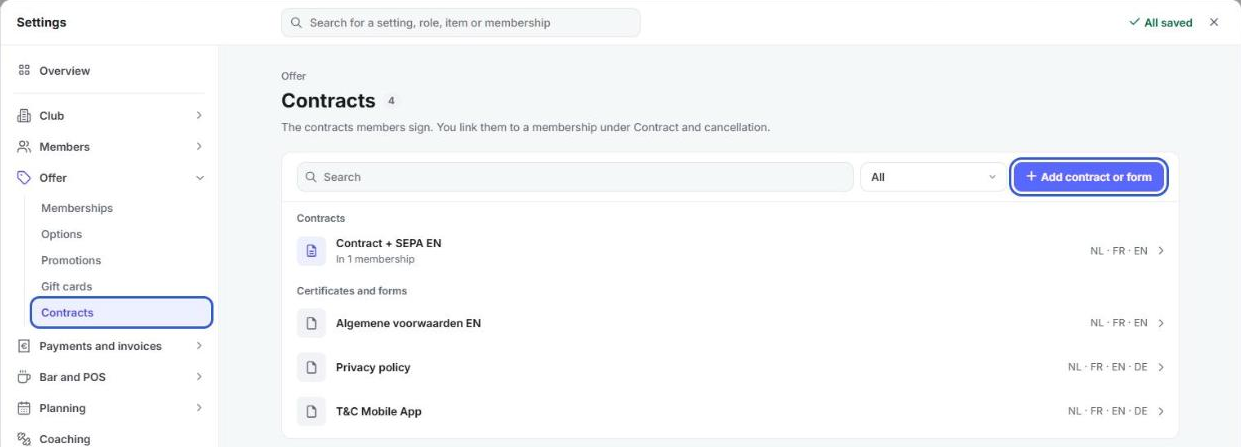
- Go to Settings > Offer > Contracts.
- Click Add contract or form, or open an existing contract.
- For each language, click Open in the editor and adjust the text.
Add a version in every language your members speak. Each member then gets the contract in their own language.
Link the contract to a membership
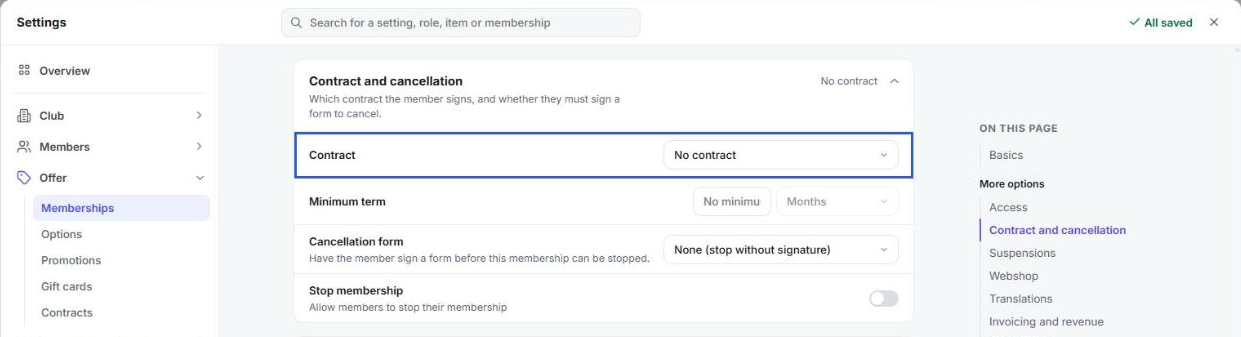
- Go to Settings > Offer > Memberships and open the membership.
- Open Contract and cancellation.
- Under Contract, choose the contract members have to sign for this membership.
Your change is saved right away.
Have the member sign
As long as the contract hasn't been signed, the member file shows the message Contract not signed.
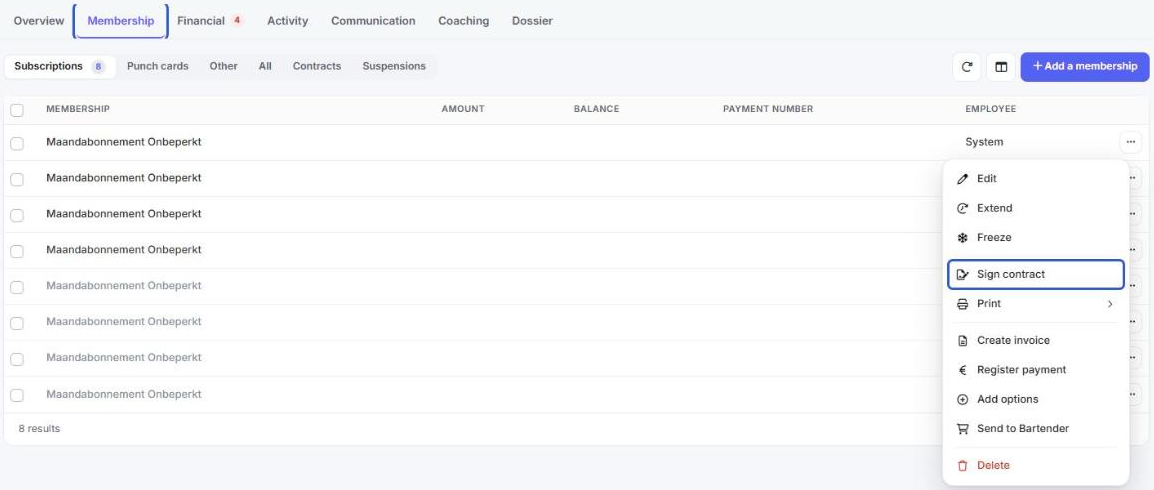
- Open the member file and go to the Membership tab.
- Click the three dots next to the membership and choose Sign contract.
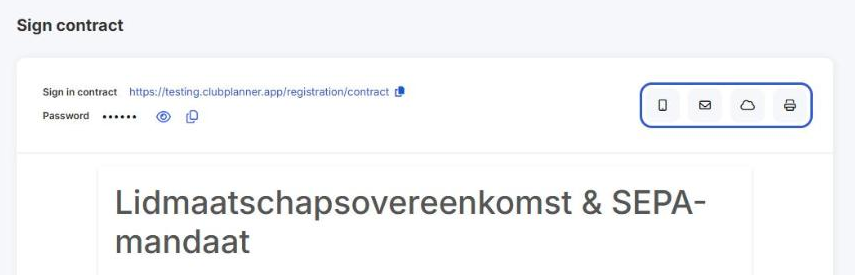
- The contract opens, already filled in with the member's details. In the top right, choose how the member will sign.
At the front desk
Scroll down and let the member sign in the box. Then click Sign contract. To start over, click Clear.
By text message or email
Click the phone icon or the envelope. The member gets a link to sign the contract online. Text messages only work if they are activated for your club.
On a tablet
Click the cloud. On the tablet, open the link next to Sign in contract. The first time, the tablet asks for a password: you'll find it next to Password.
On paper
Click the printer icon. You get the contract as a PDF to print. It's up to you to make sure the member signs it.
In the webshop
When a member buys a membership with a contract in the webshop, they have to sign that contract before they can pay. The contract is already filled in with the details from the registration form.
Find a signed contract
Open the member file and go to Dossier > Documents.