In this guide, you'll learn how to send a push notification to a member via the member profile and how to set the visibility in the MyClubPlanner app.
Steps for sending a push notification
- Go to "Members"
- Find the member you want to contact.
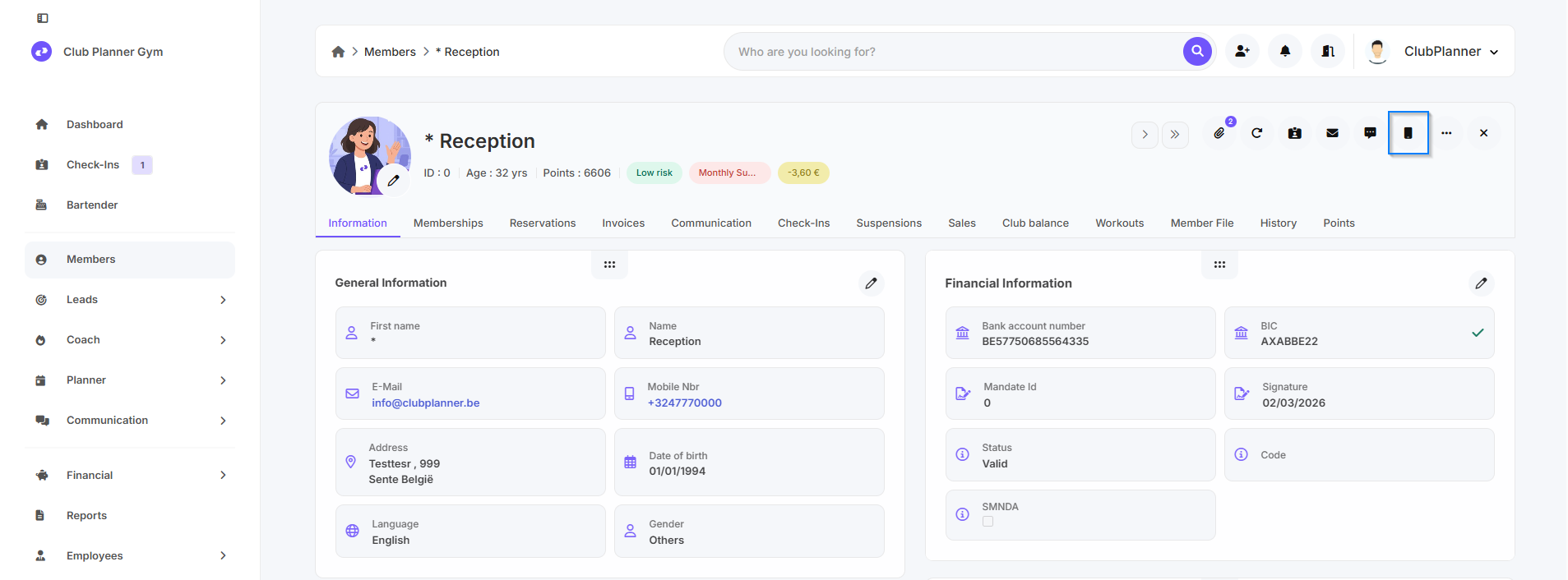
- Open the member profile
- Click “Send notification” in the top-right corner.
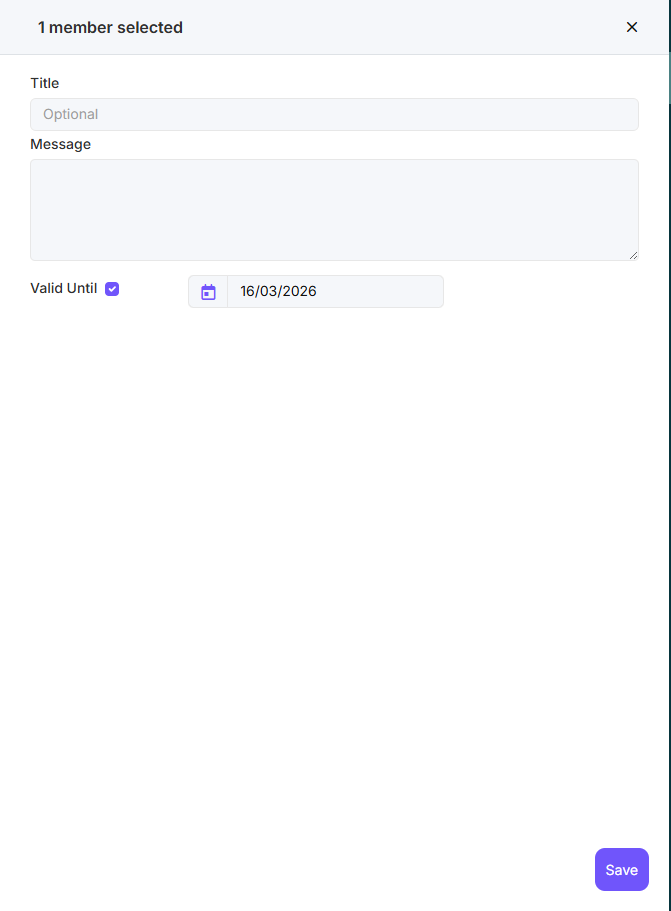
- Enter the title of the notification.
- Typ the content of the notification.
- Set the date until which the notification may remain visible in the MyClubPlanner app.
- Leave the “Valid until” checkbox unchecked if you want the notification to remain available. - Click on Save.
The push notification is now being sent to the member and will appear in the app according to the scheduled date.
How do I send bulk push notifications?
- Go to Members
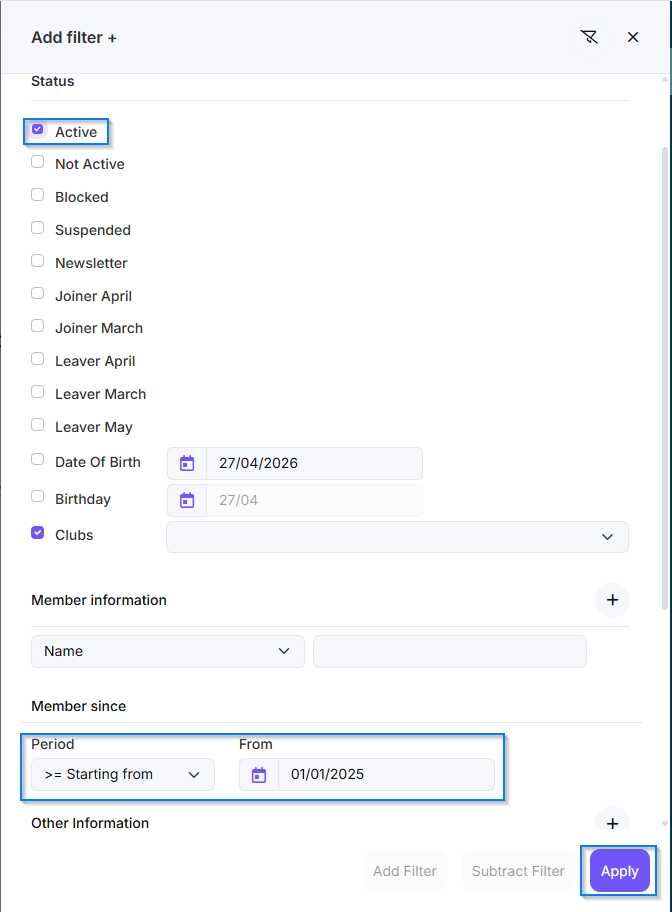
- Click on Filter
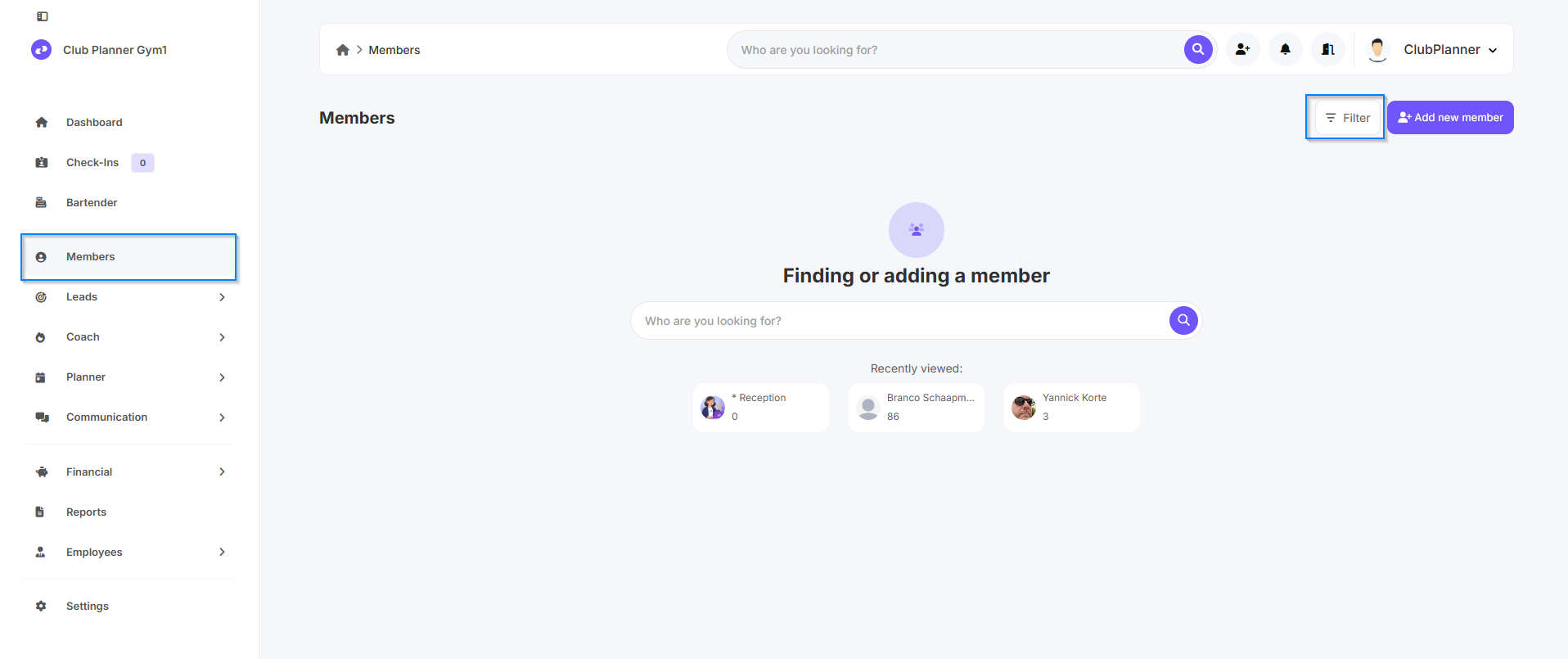
- Set the desired filters (e.g., active members since January 1, 2025)
- Click on Apply
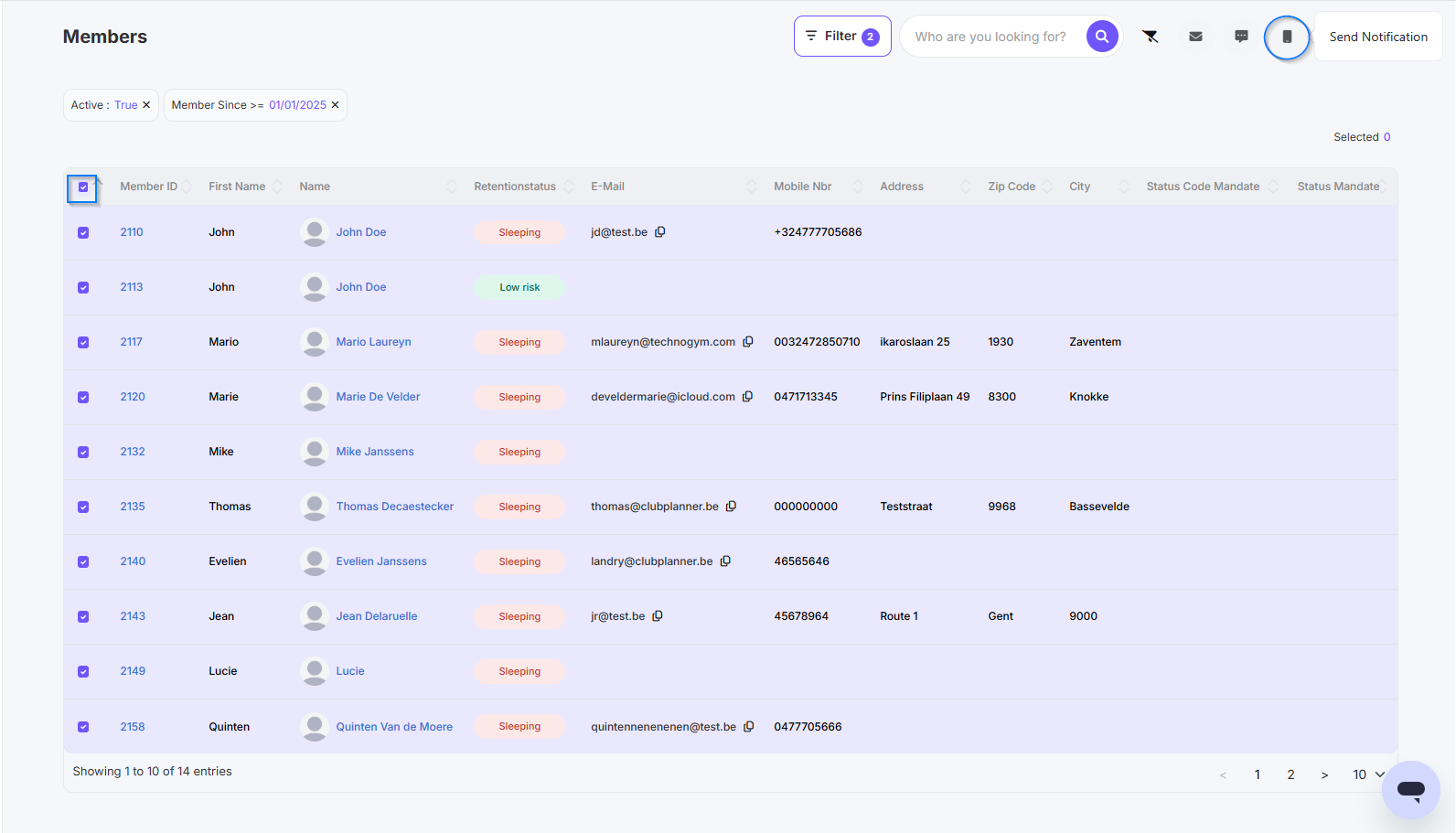
- Select all the members you want to reach
- Click Send Notification in the upper-right corner
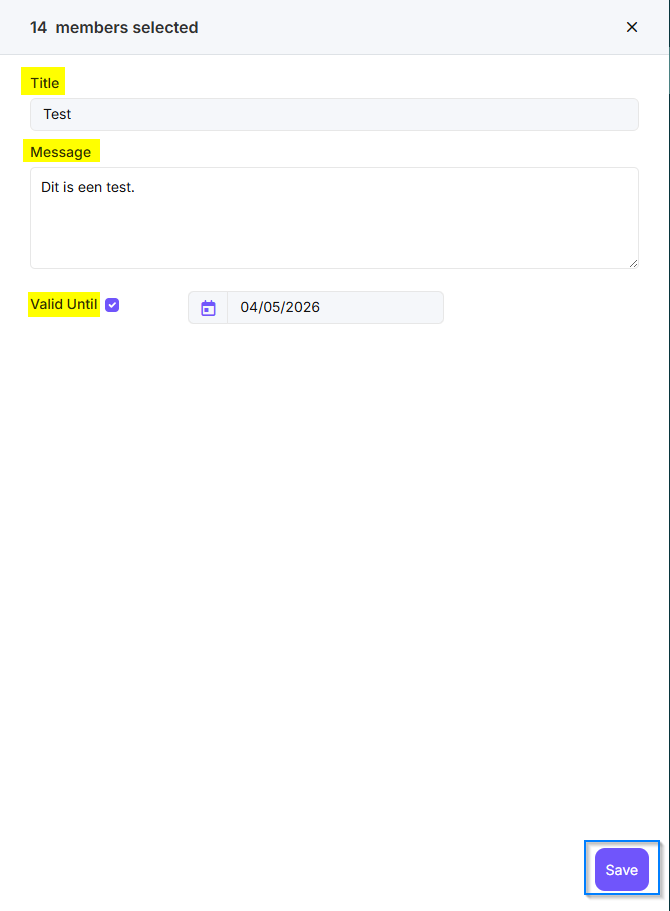
- Enter the title of the notification.
- Typ the content of the notification.
- Set the date until which the notification may remain visible in the MyClubPlanner app.
- Leave the “Valid until” checkbox unchecked if you want the notification to remain available. - Click Save to send the push notification