
In this manual, you will learn how to use Club Planner:
- filters a member list based on specific criteria,
- and how to then perform actions on the filtered list.
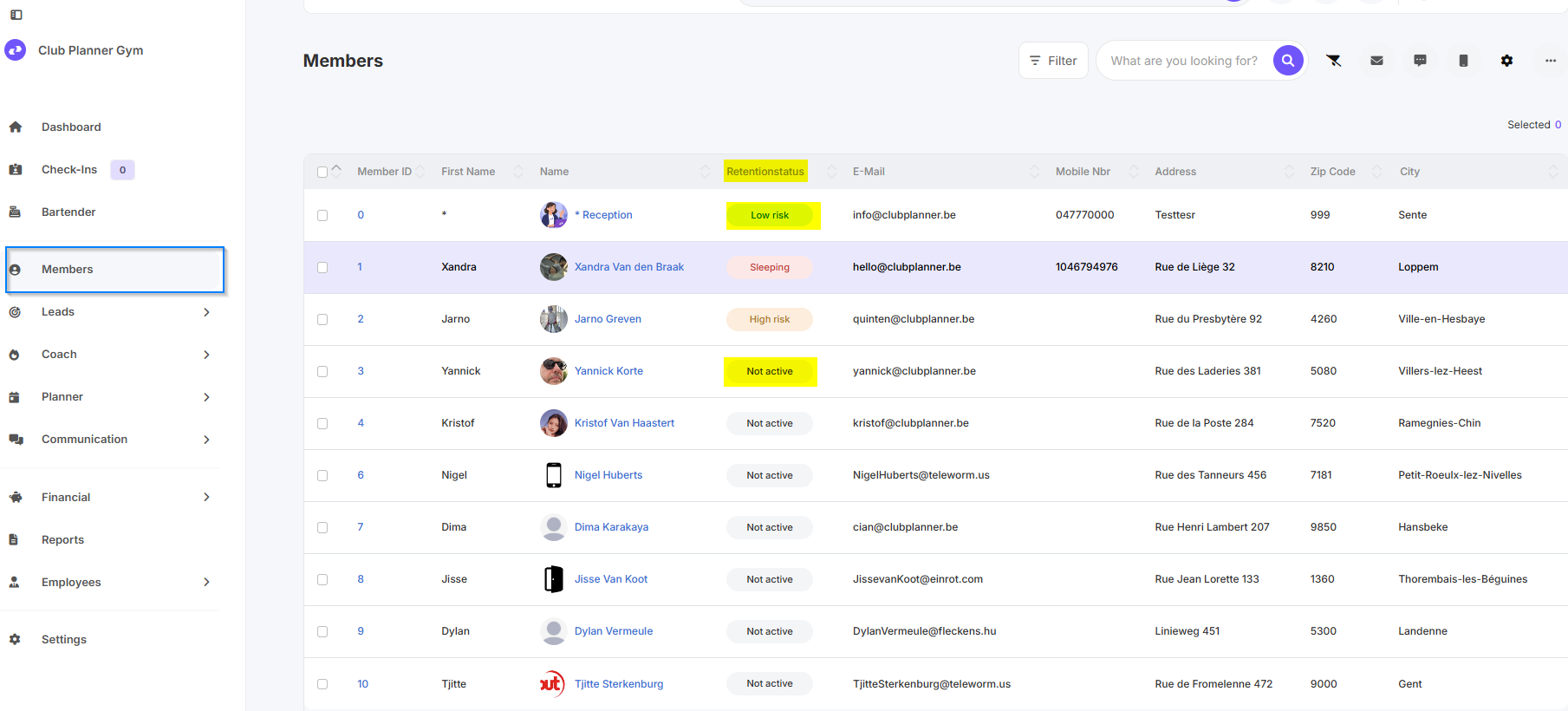
Step 1 – Open the member list
- Go to the “Members” section in Clubplanner.
- Here you can see all active and inactive members.
Step 2 – Open filter menu
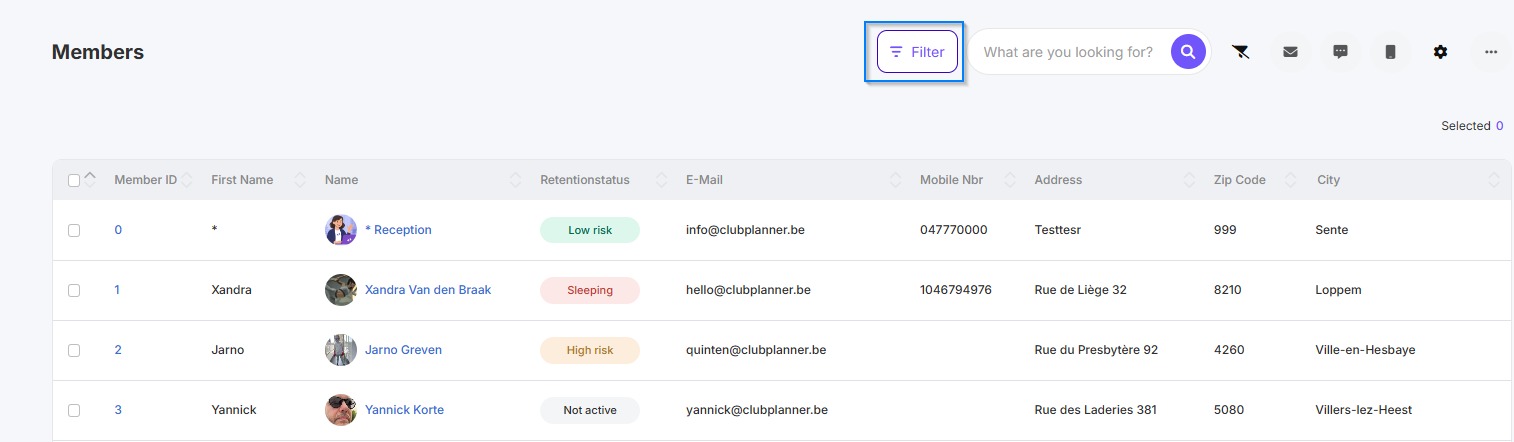
- Click the “Filter” button to open the filter options.
Step 3 – Set filters
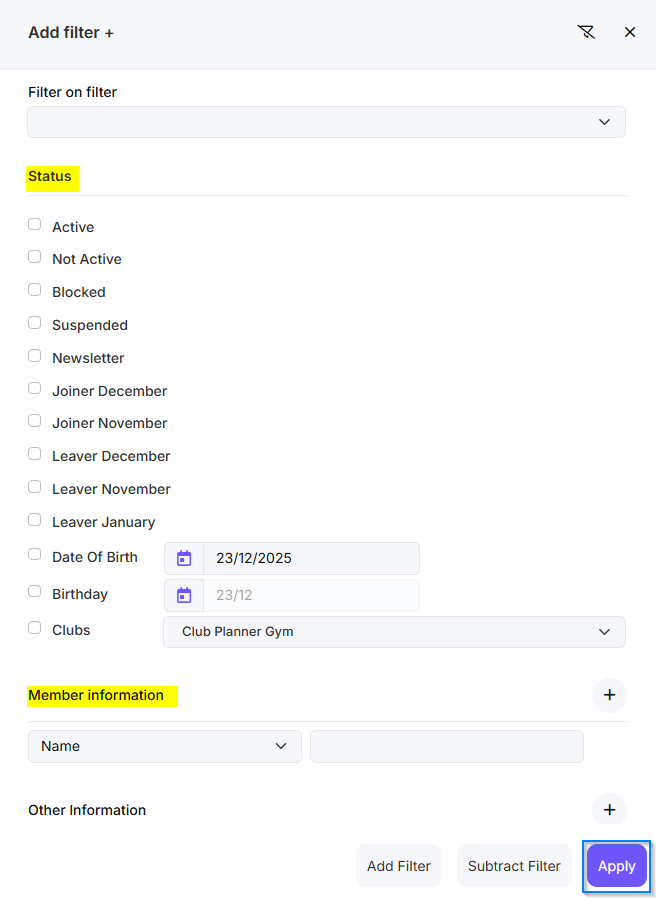
- Select the desired filter criteria, such as:
- Active / Inactive
- Membership type
- Start or end date
- Confirm your selection to see the filtered member list.
Step 4 – Perform actions on the list
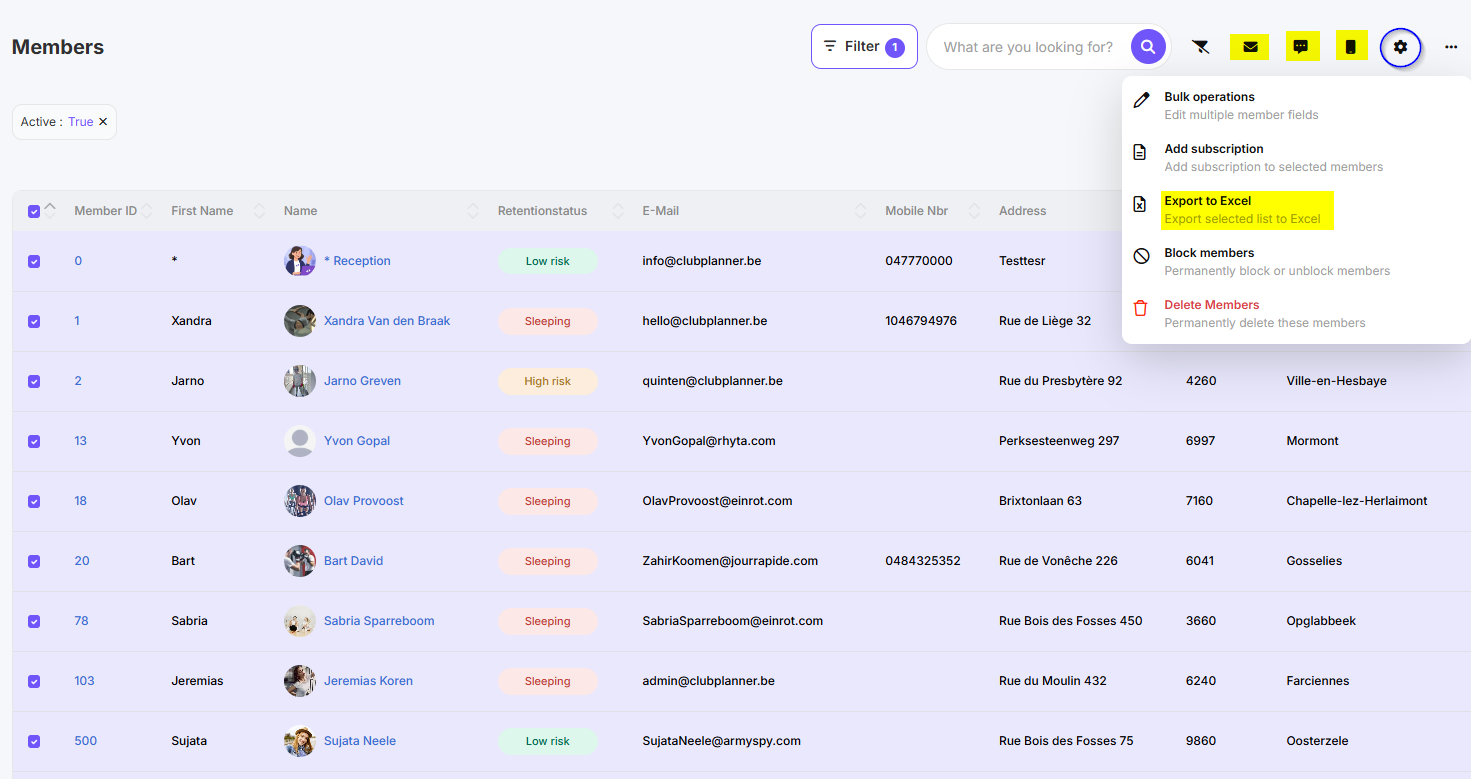
- Once the list has been filtered, you can perform actions such as:
- Export (for example, to Excel)
- Bulk modifications
- Sending emails
- Change membership status
Step 5 – View results
- After performing an action (e.g., email), this is confirmed.
- You can see the changes immediately in the member list or in the communication history.