
In this guide you learn what the booking wizard is, what you use it for and how to set it up for events in Club Planner.
What is a booking wizard?
With the booking wizard, people book an activity without needing a subscription or class pass. They choose an activity, fill in their details and pay straight away per reservation.
What do you use a booking wizard for?
For events the club plans itself and that are separate from subscriptions:
- The event is completely separate from subscriptions.
- The entry fee is paid online straight away.
- Ideal for workshops, special classes or one-off activities.
How to set up a booking wizard
Step 1: Create a calendar for your events.
💡 See the guide 'Creating a new calendar'.
Step 2: Create an activity with a price.
- Go to Settings > Planning > Activities.
- Click Add activity, or click an existing activity.
- Enter the price under Price.
💡 See the guide 'Adding a new activity type'.
Step 3: Link the activity to the calendar.
- Go to Settings > Planning > Calendars.
- Click the calendar.
- Under Activities, click Add activity and choose your event. Only link the events to this calendar.
Step 4: Turn on the booking wizard.
- On the same calendar, go to Book online with a wizard.
- Under Wizard, choose BookingWizard.
- Under Payment, choose how the member pays.
- Under Link, copy the link to your wizard and put it on your website or in an email.
- Optional: go to Communication and choose a QR code under Send QR code that the member receives after booking.
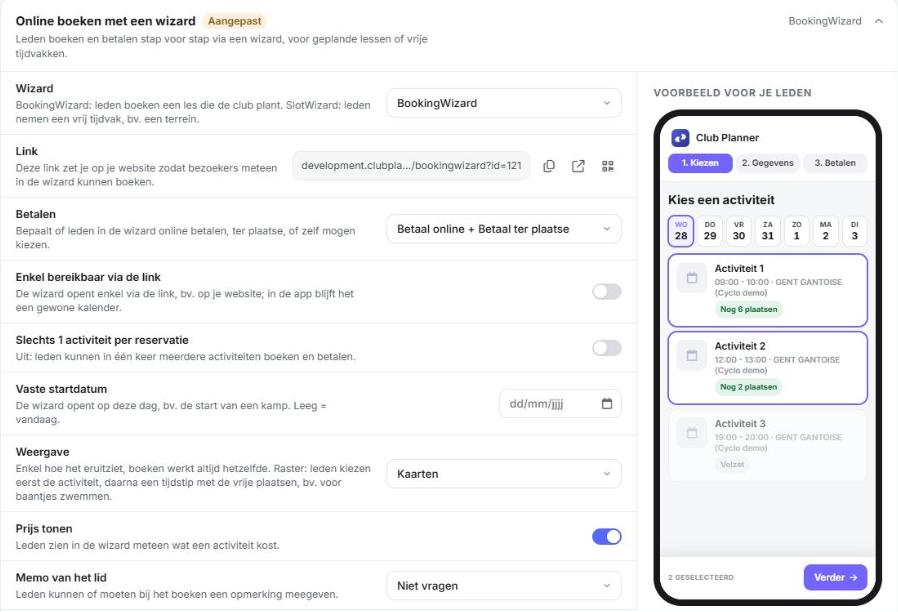
Every change is saved straight away. At the top right you see All saved.
On the right of the page, Preview for your members shows straight away what the wizard looks like. Use Open the real wizard to test it yourself.
Booking wizard settings
| Setting | Meaning |
|---|---|
| Wizard | Off, BookingWizard or SlotWizard. With the BookingWizard, members book a class the club plans. The wizard does not take subscriptions or class passes into account. |
| Link | The link to your wizard. Put it on your website so visitors can book straight away. You can copy the link, open it or show it as a QR code. |
| Payment | Pay online: the member only pays online. Pay online + Pay on site: the member chooses. Pay on site: the member pays afterwards at the club. |
| Only reachable via the link | On: the wizard only opens via the link, for example on your website. In the app it stays a regular calendar. |
| Only 1 activity per reservation | Off: members can book and pay for several activities at once. On: one activity at a time. |
| Fixed start date | The wizard opens on this day, for example the start of a camp. Leave it empty and the wizard opens on today. |
| Display | Cards, List or Grid. This only changes how the wizard looks, booking always works the same way. With Grid, members first choose the activity and then a time with the free places, for example for lane swimming. |
| Show price | Members see straight away in the wizard what an activity costs. |
| Member memo | Do not ask, Optional or Required. Lets members add a note when booking. |
| Link after purchase | After the purchase the member goes to this page, for example your external webshop or a thank-you page. |
| Send QR code (under Communication) | None, Reservation QR code or Check-in QR code. The member receives the QR code by email and uses it on arrival. |