
This article explains step-by-step how to create and sell options in Club Planner.
What is an option?
A subscription option is essentially an extra or additional service that you can add to your subscription, often for a small additional fee. The idea is that as a member, you can choose which extras are useful or interesting, without everyone having to pay for them in the basic subscription.
👉 Concrete example:
- Basic subscription: access to the gym, group classes, and showers.
- Option: Sports water (Tankk) – for a few euros extra per month, you can tap unlimited sports water from a Tankk dispenser during your workout.
Other possible options include:
- Access to the sauna/wellness center
- Access to premium group classes (e.g., spinning or yoga)
- Towel service
- Lockers with a personal code
- Drink or snack packages
- Personal guidance or coaching
Such an option system has advantages:
- For the customer: you only pay for what you actually use.
- For the fitness center: a flexible pricing structure is created that generates additional revenue without increasing the basic subscription price.
How do I create options in Club Planner?
- Make sure you have access to your Club Planner environment: https://[CLUBNAME].clubplanner.app.
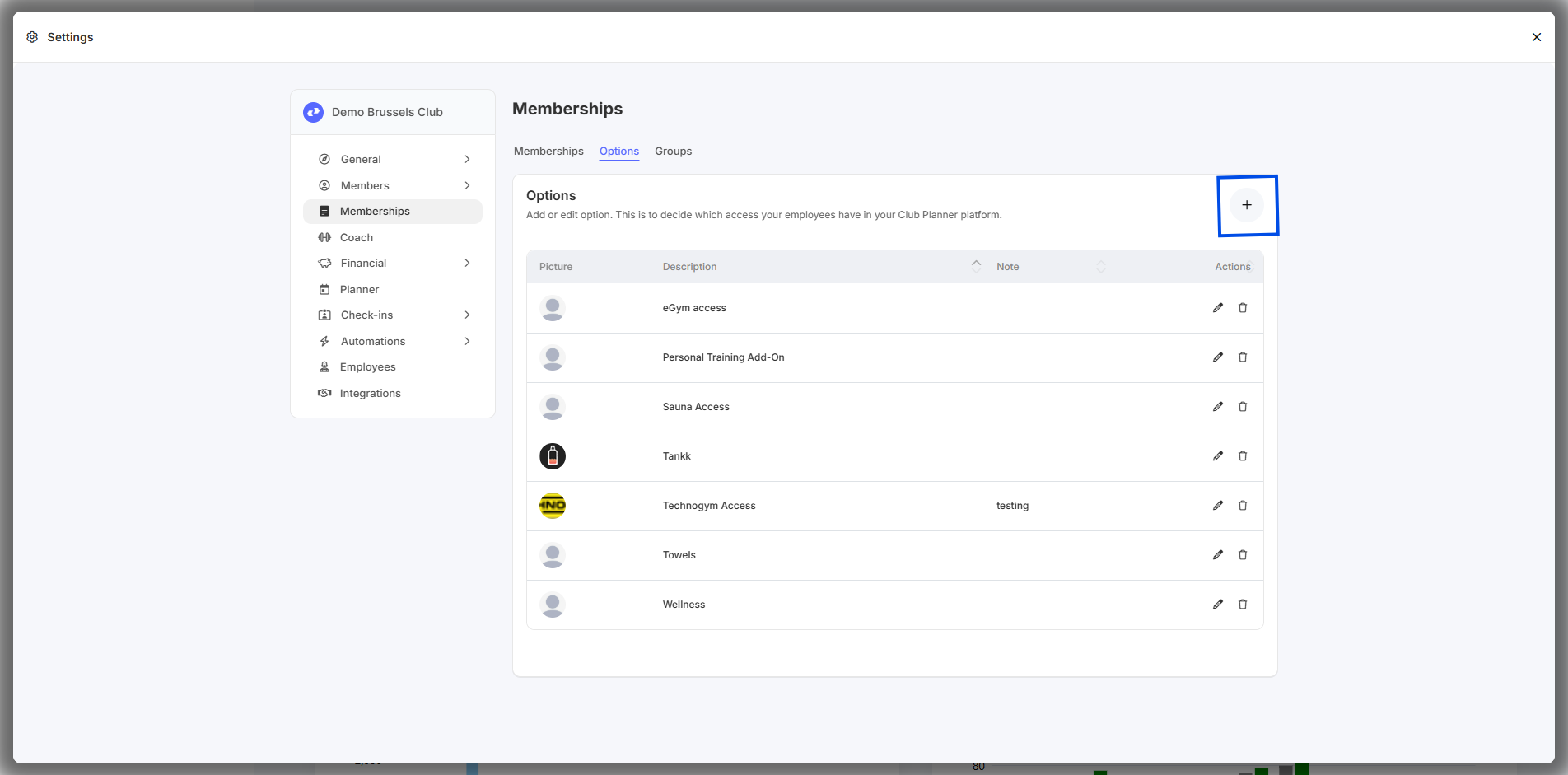
- Go to Settings - Memberships - Options
- Click the 'plus' icon to create an option or the 'edit' icon to edit an option.
- Give the option a name, an image, and any additional information. Save.
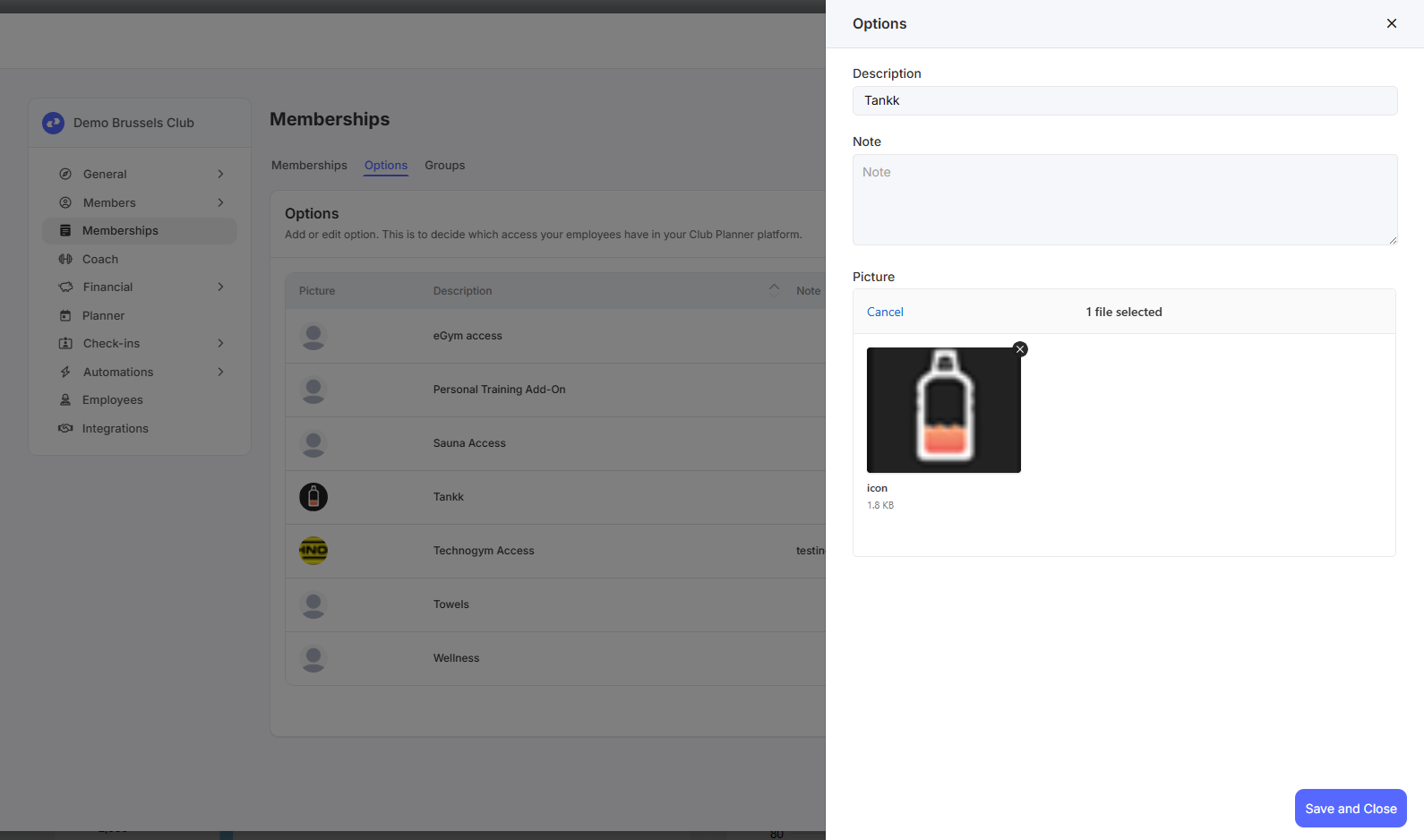
- You have created an option. Now you'll need to determine which membership this option can be purchased with and what it provides access to. How do I create options in Club Planner?
How do I add an option to a membership?
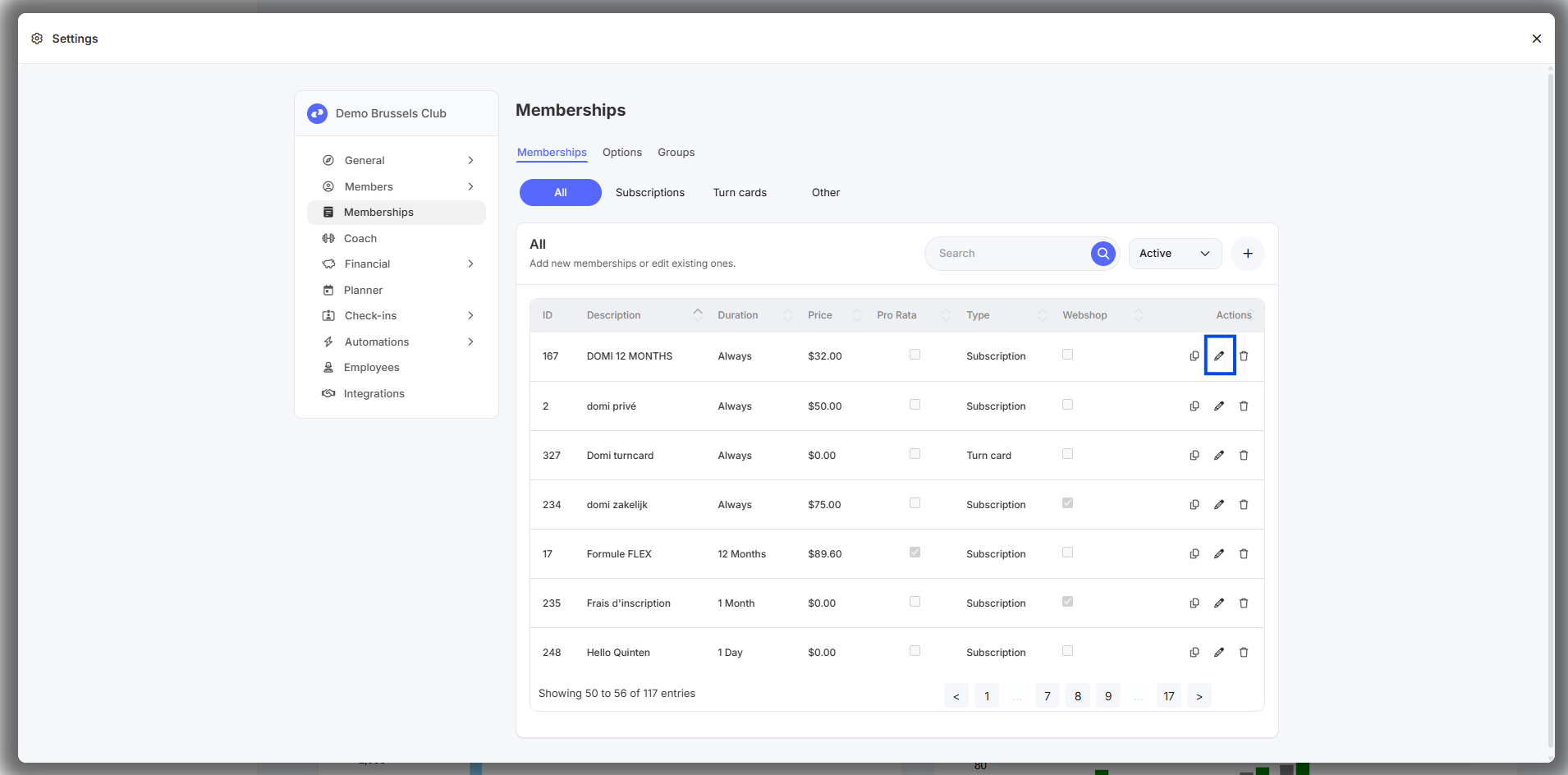
- Go to Settings - Memberships
- Click the 'edit icon' to edit a membership.
- Go to the Options tab.
- Add the desired option to the membership here.
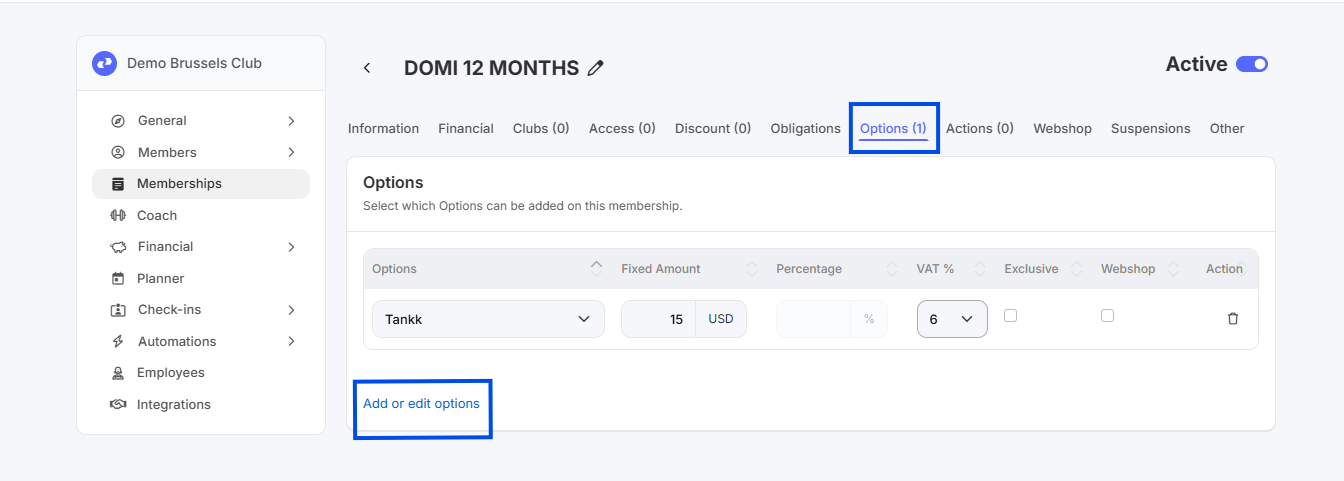
- Determine the price (fixed amount or a percentage above the membership price).
- Determine the VAT rate.
- Select whether this option is exclusive (if there are multiple options on this membership and you make this option 'exclusive,' only this option can be selected).
- Determine whether this option can be purchased online in the webshop. If you don't check this box, the option can only be purchased on-site (at the club).
- Save
How do I ensure that an option can be booked for a specific class?
- Go to Settings - Planner - Activities
- Click the edit icon to edit an activity.
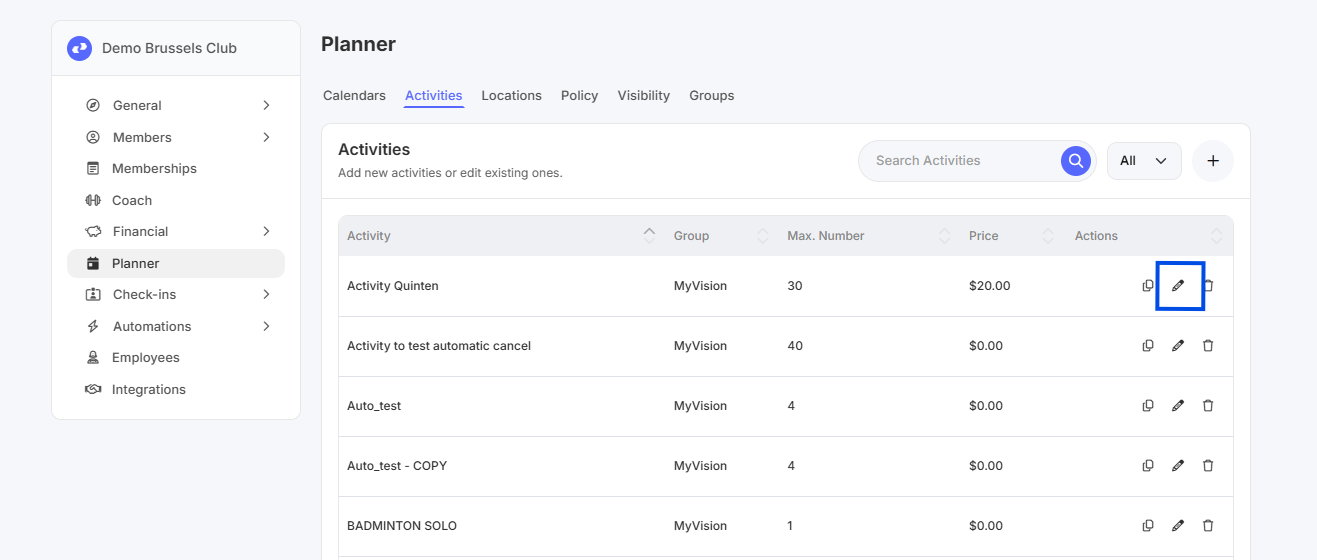
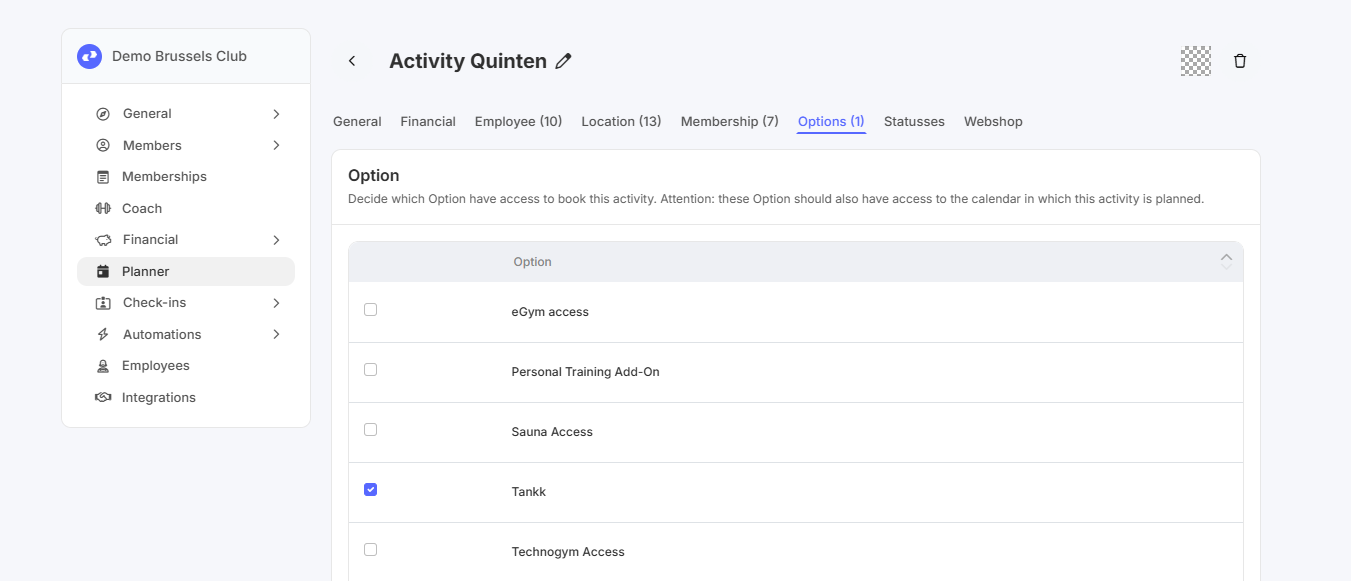
- Go to the "Options" tab.
- Select which options are available for this activity.
Note: This activity must be bookable through a membership. If only "Direct Payment" is selected under the "Financial" tab, the member will have to pay directly for this activity, even if this option is selected.
How can I add/remove an option from my current membership?
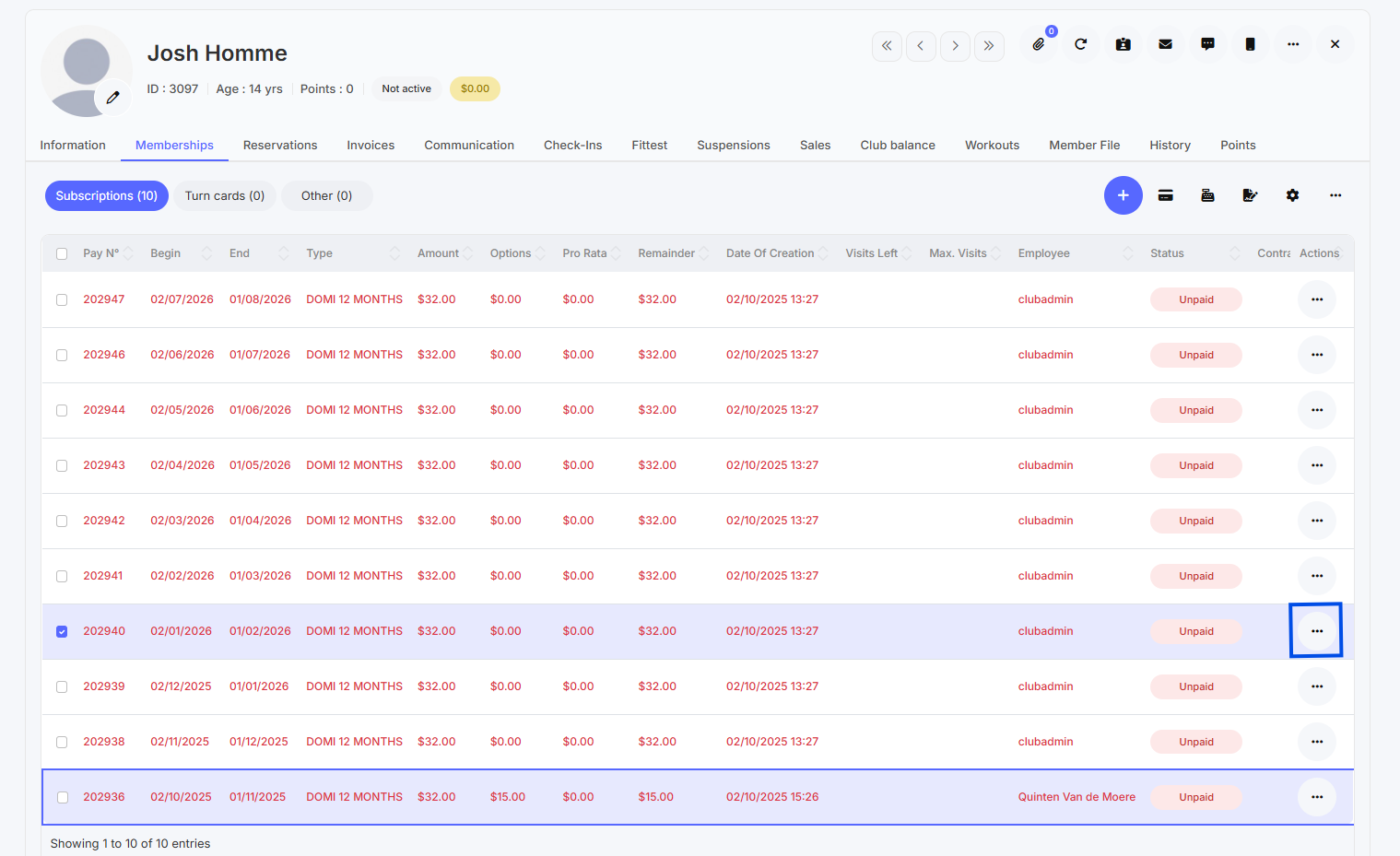
- Go to the member's profile and click on the "Memberships" tab.
- Double-click the subscription plan to which you want to add an option or click the "More Actions" button.
- You will now have the details of the subscription plan. In the bottom left corner, you can add or remove options from this subscription plan.
- Choose which option you want to add to this subscription.
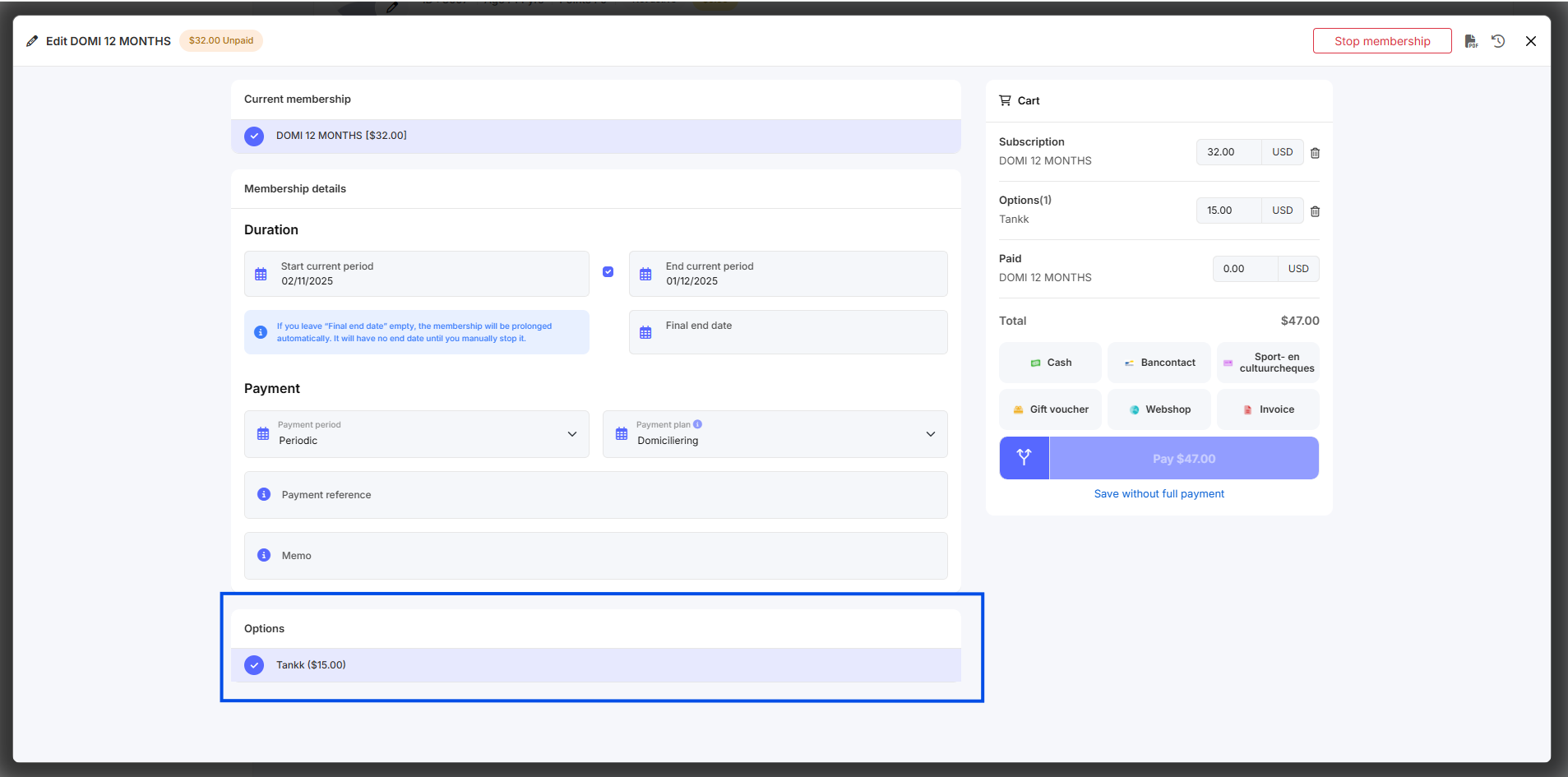
- If you add an option to a recurring subscription payment plan, Club Planner will ask if you also want to add this option to future subscription plans. Click "Yes" to add the option to all subscription plans; click "No" to remove the option. Add this option to the current subscription line only.
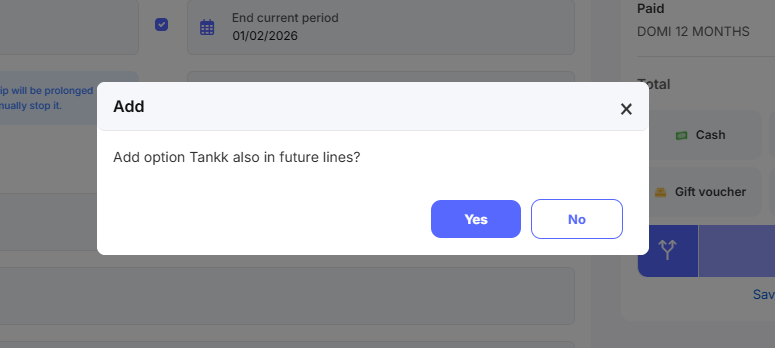
- Pay off the option (and any other outstanding balances on this subscription line).
- You have now added an option to the customer's current subscription.
- Want to remove an option? Follow the same steps and deselect the option. Club Planner will ask if you also want to remove this option from future subscription lines. Click 'Yes' to remove the option from all subscription lines; click 'No' to remove the option from the current subscription line only.
Troubleshooting
- Is the "Options" tab not visible? Go to the "Financial" tab and select the "Membership" payment method.
- No access to settings? Ask an administrator to grant you the correct permissions.
- Still stuck? Submit a ticket to Support and include your club name and company name.