
In this article, we explain step by step how to correctly adjust and index subscription prices. We make an important distinction between:
✅ The general subscription price (for new sales)
✅ Already sold, automatically renewing subscriptions (active subscription lines)
⚠️ Important: These two systems are separate. Changing the general price does not affect existing subscriptions.
1. Adjusting the general subscription price (new sales)
The general subscription price is only used for new sales from the moment of the change.
1.1 What changes when adjusting this price?
✅ New sales will automatically use the new price
❌ Existing subscriptions will not be changed
1.2 When should you change the price for indexation?
For example, if you want to index as from 01/01/2026: ➡️ You should only adjust the general price on or after 01/01/2026.
If you do it earlier, all new sales from today onward will already be sold at the new price.
1.3 Steps to adjust the general price
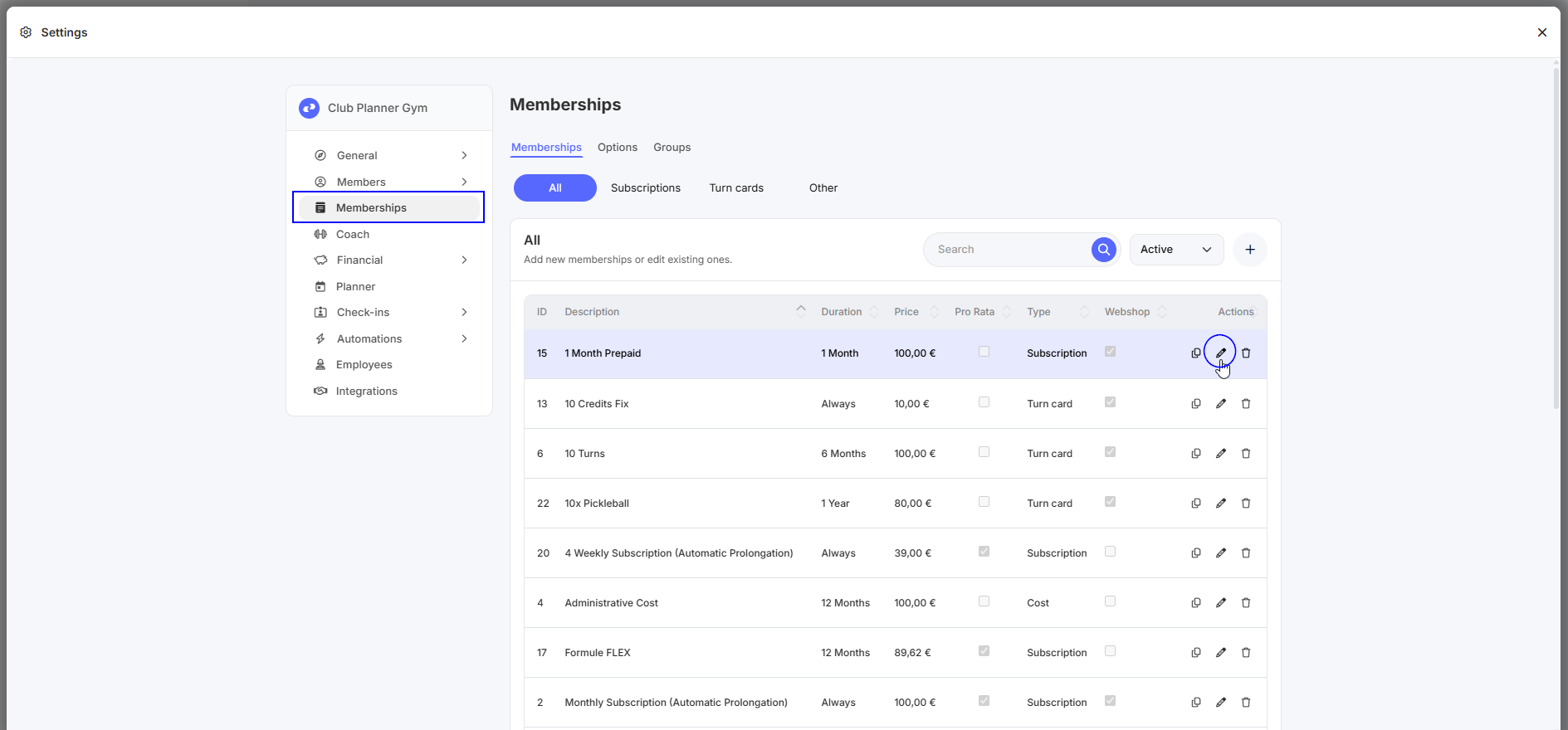
- Go to Settings
- Click on Subscriptions
- Edit a subscription
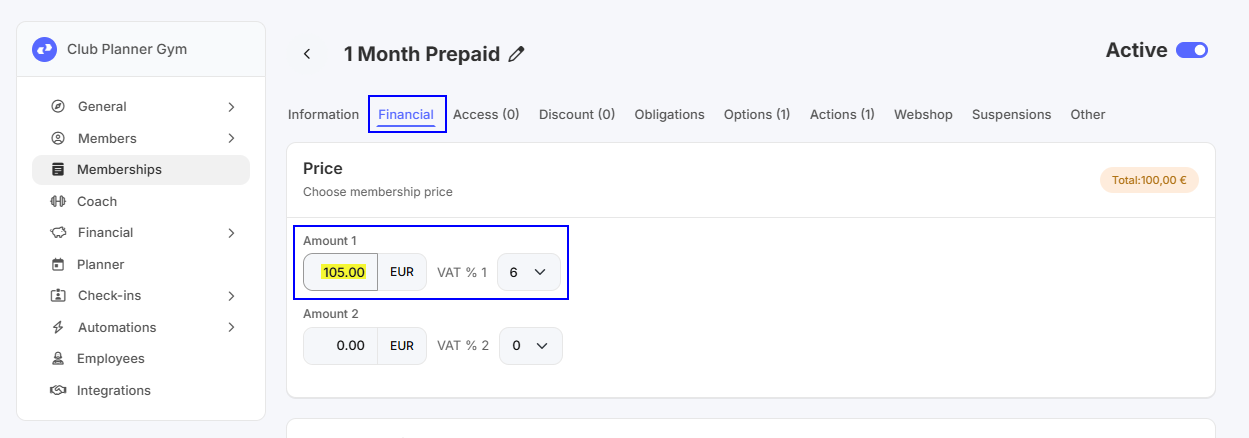
4. Open the Financial tab
5. Adjust the price
2. Indexing already sold subscriptions (subscription lines)
Sold subscriptions consist of subscription lines that are automatically generated for future months (on average 6 months in advance).
These prices are not automatically adjusted when you change the general price.
2.1 Finding subscription lines using filters
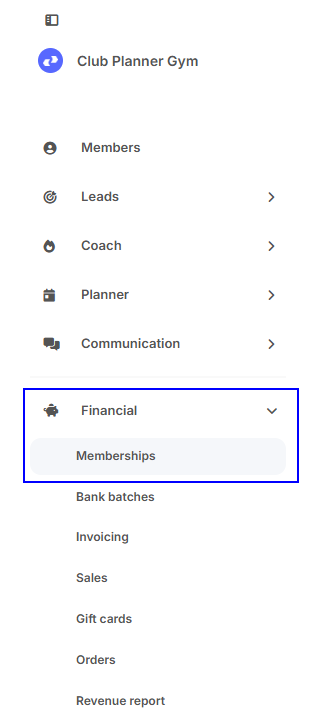
Go to: Financial → Subscriptions
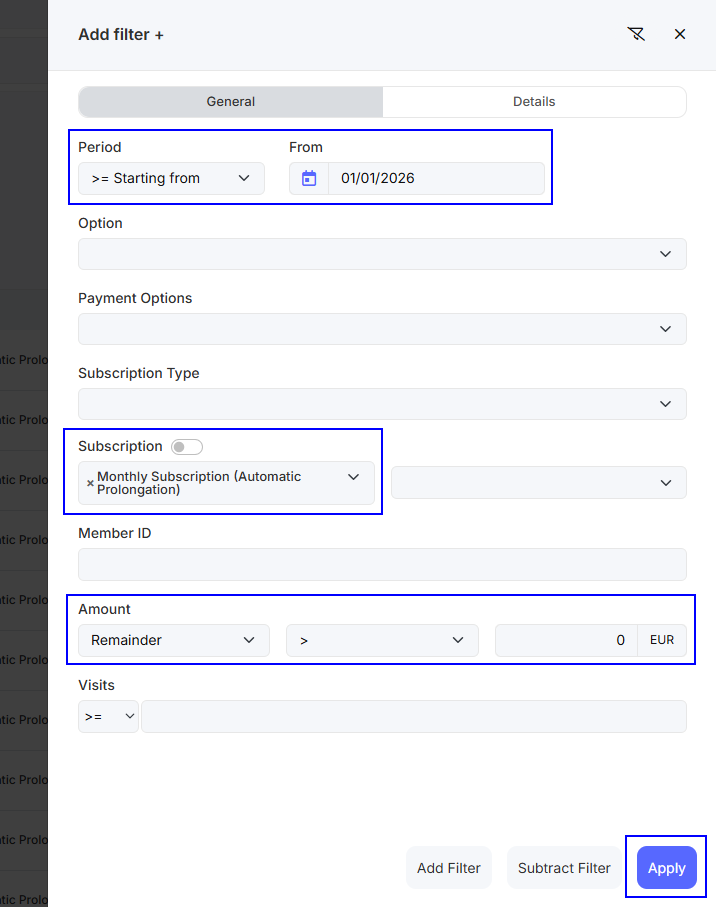
You can use filters such as:
- Date from: 01/01/2026
- Payment method: direct debit
- Type: Monthly subscription
- Amount: for example €100
-
Balance > 0
⚠️ Why use balance > 0? This avoids increasing subscriptions that are already fully paid, which would otherwise create a new outstanding balance (for example €2).
✅ You are free to leave out this filter, depending on how you wish to handle indexation.
After applying the filters, you will get a list of future subscription lines. Please note:
- The same member may appear multiple times (for different months).
3. Indexation methods
3.1 Option 1: Adjust everything at once (same amount or same type)
If you filter, for example, by:
- Amount = €100
- Or type = "All-in subscription"
Then you will only see these subscriptions.
➡️ You can then:
- Select the entire list
- Adjust the price in one single action
3.2 Option 2: Different indexation per amount
Example of indexation:
- €100 → €105
- €80 → €90
- €55 → €57
⚠️ In this case, you must not select everything at once and apply +€5. Otherwise you would get:
- €100 → €105 ✅
- €80 → €85 ❌
- €55 → €60 ❌
✅ Correct approach:
- Select all €100 lines → +€5
- Then select all €80 lines → +€10
- Then select all €55 lines → +€2
3.3 Option 3: Indexing by percentage per subscription type
You can also work per subscription type, for example:
- All-in subscription → +2%
- Group classes subscription → +3%
➡️ Filter by type, select the lines and apply the percentage.
4. Adjusting prices via bulk actions
Once you have selected the correct subscription lines:
- Click the 3 dots in the top right corner
- Select Bulk actions
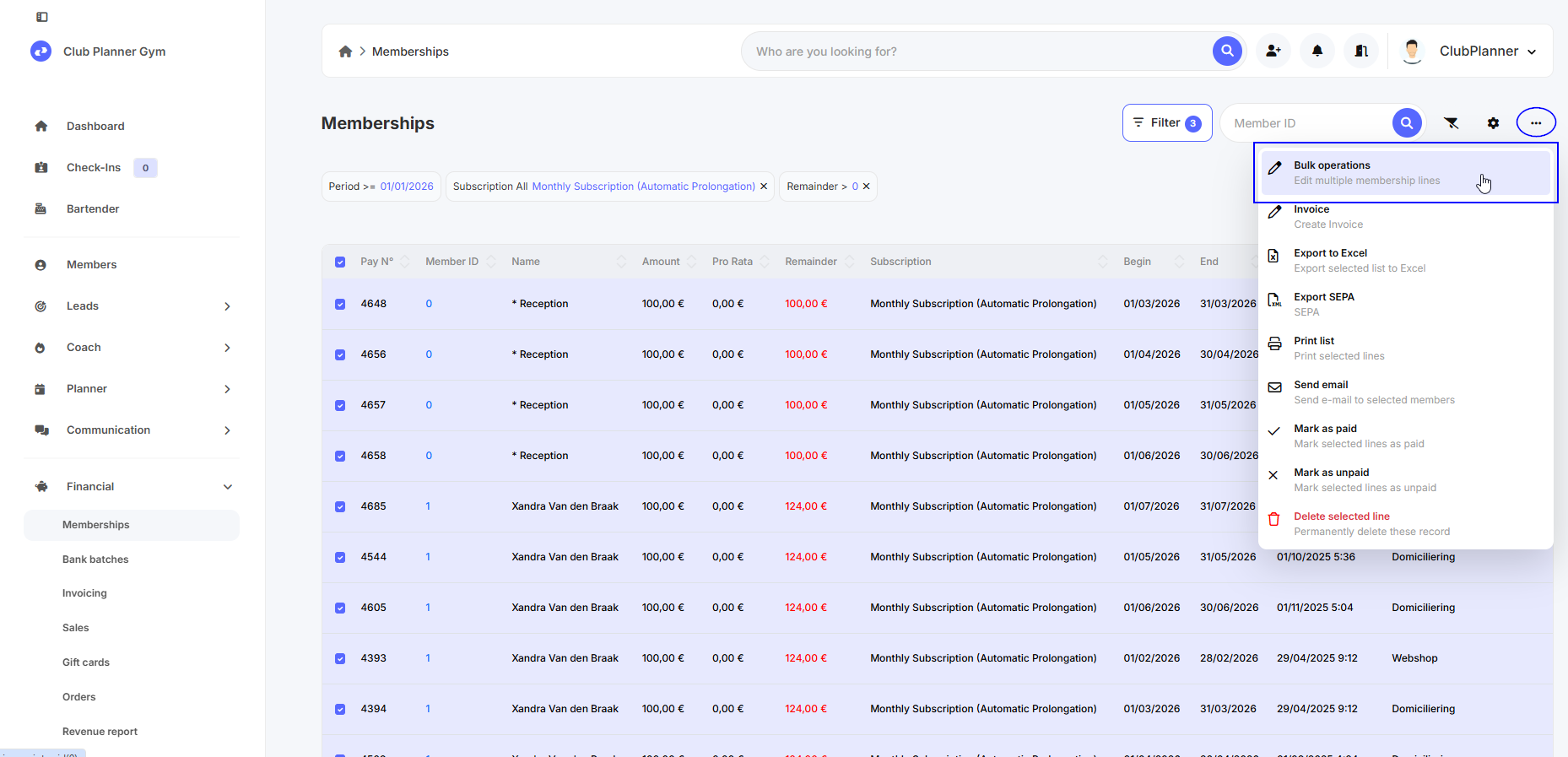
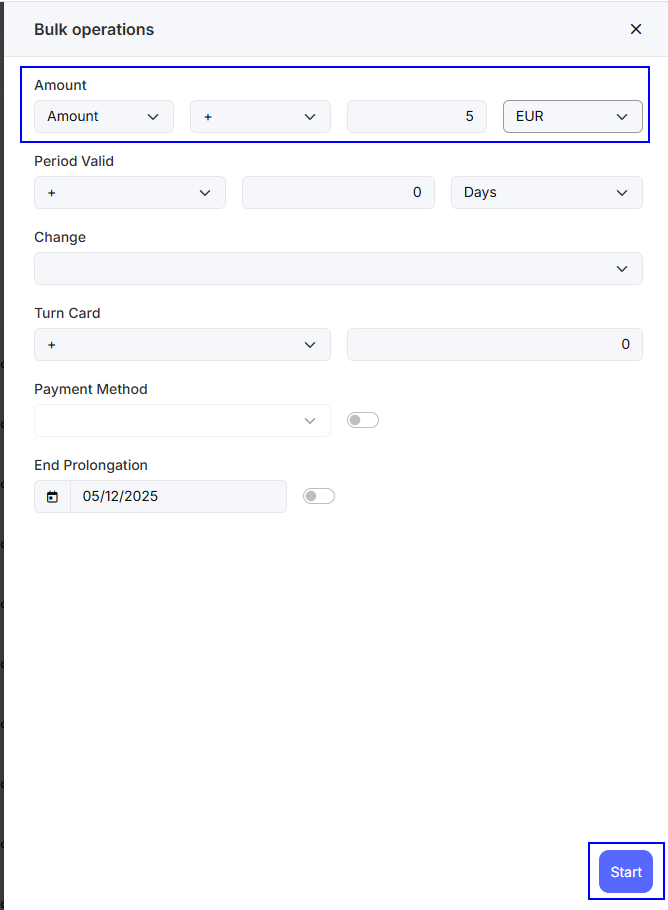
3. Choose Adjust amount
4. Select:
- + or -
- A number
- € or %
5. Confirm the change
5. Summary
- ✅ Adjusting the general price = only affects new sales
- ✅ Indexing existing subscriptions = done via subscription lines
- ✅ Use filters to select the correct lines
- ✅ Work per amount or per subscription type
-
✅ Adjust prices via bulk actions
⚠️ Always think carefully about your indexation strategy before making bulk changes.