
In this manual, you will learn how to repeat or extend your calendar/schedule in Club Planner.
Step 1 - Go to ‘Planner’ and select the calendar you want to repeat.
- In the main menu, navigate to ‘Planner’.
- Then go to the calendar you want to repeat.
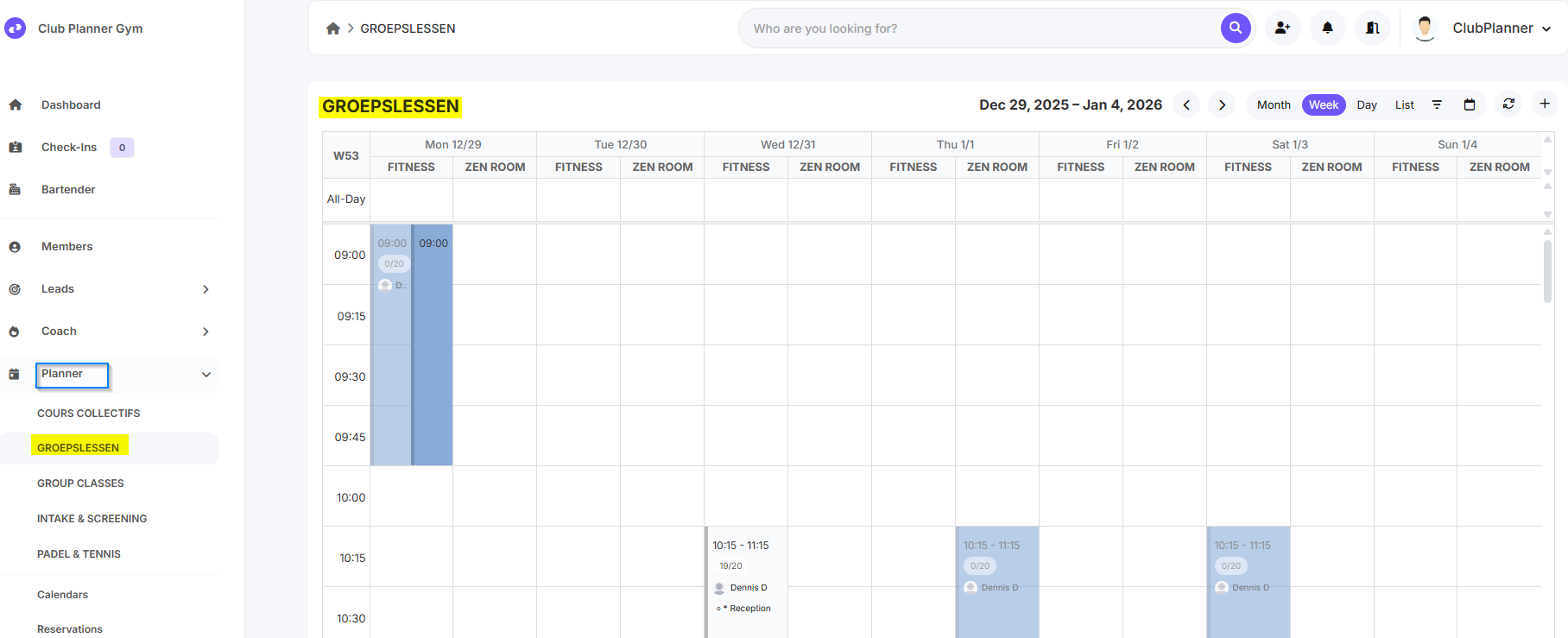
Step 2 - Schedule all activities for a full week in this calendar.
- Now manually schedule all activities for a full week.
- On this page, you will find information about scheduling your lessons.
Step 3 - Select all activities you want to repeat.
- If you want to repeat the entire week, click on an 'activity' and then right-click on the same 'activity' → 'Select All'.
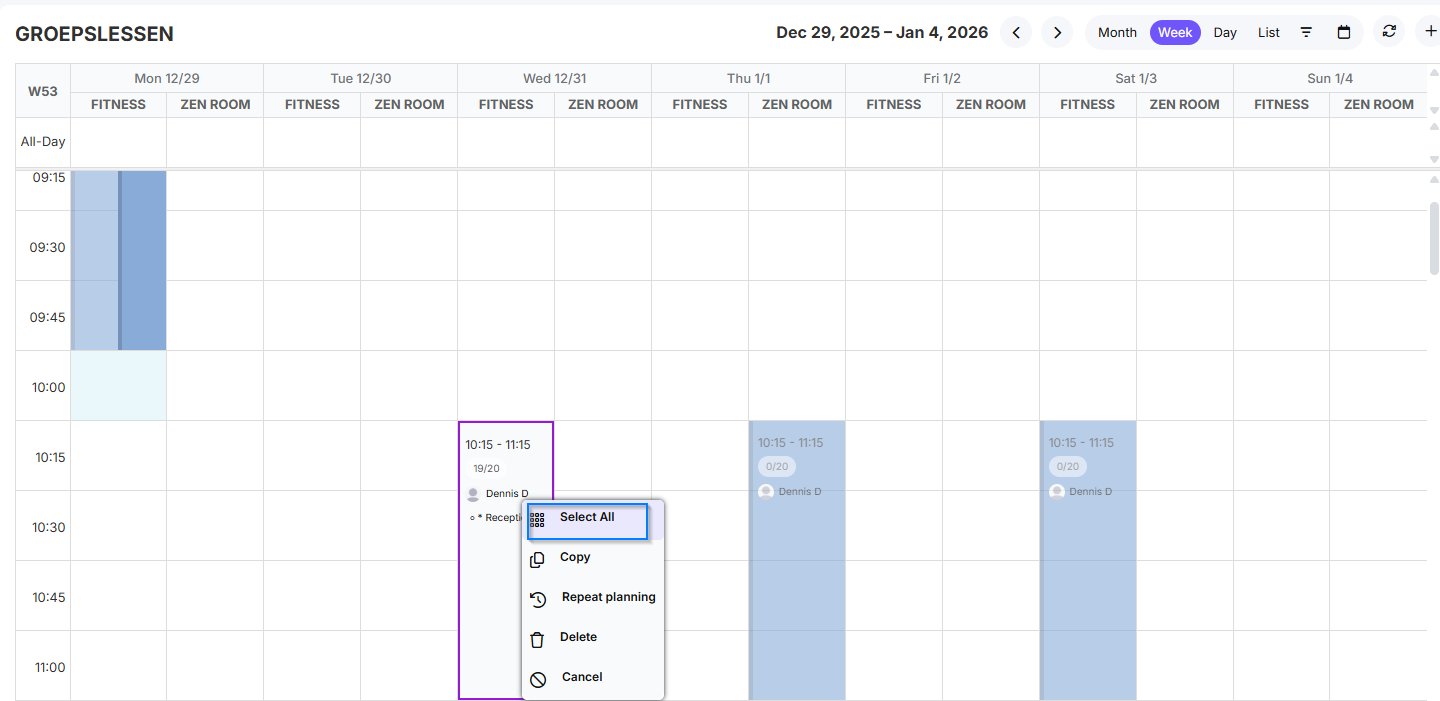
- If you don’t want to repeat all activities on a weekly basis but only some, click on each 'activity' while holding CTRL + left-click to select them individually.
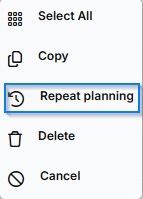
Step 4 - Repeat planning.
- Now that you have selected the activities you want to repeat, you can right-click on an 'activity' → 'Repeat planning'.
Step 5 - Set filters to repeat the schedule.
- Now, enter the date in 'Repeat until' up to which Clubplanner is allowed to repeat the schedule.
- In 'incidence', set the period during which Clubplanner should repeat the schedule.
- Once everything is set, click 'Repeat planning' at the bottom right.
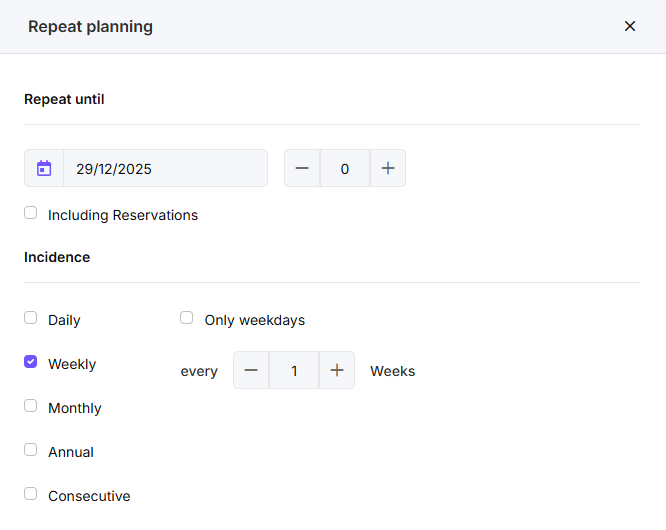
| Daily | The selected activities are repeated daily. Note: if you have selected a full week schedule, Clubplanner will place it on one day each day. For a weekly schedule, use the “Weekly” option. |
| Weekly | The selected activities are repeated on an x-week basis, where x is the number you specify. |
| Monthly | The selected activities are repeated on a monthly basis. |
| Annual | The selected activities are repeated on a yearly basis. |
| Consecutive | The selected activities are repeated consecutively from the day they are scheduled until the time specified by the user. |
| Including Reservations | If checked, reservations for the selected activities are also repeated. |
| Only weekdays | If checked, the activities are repeated only on weekdays. |