
In this guide, you’ll learn what the bookingwizard is, what it’s used for, and how to set up a bookingwizard for events in ClubPlanner.
What is a bookingwizard?
Bookingwizard was developed to allow people to make reservations without needing a subscription or a turn card.
With bookingwizard, visitors can make a one-time payment online for each reservation. This allows them to participate in an activity or event, even if they don’t have an active membership.
What can I use a booking wizard for?
Bookingwizard is used to allow people to make reservations for specific events organized by the club.
Advantages:
- The event is completely separate from subscriptions.
- The admission fee is paid directly online.
- Perfect for workshops, special classes, or one-time activities.
How do you set up bookingwizard?
Step 1: Create a new calendar for special events.
💡See the guide 'Create a new calendar'.
Step 2: Create a new activity.
- Go to the Financial tab.
- Next, set a price.
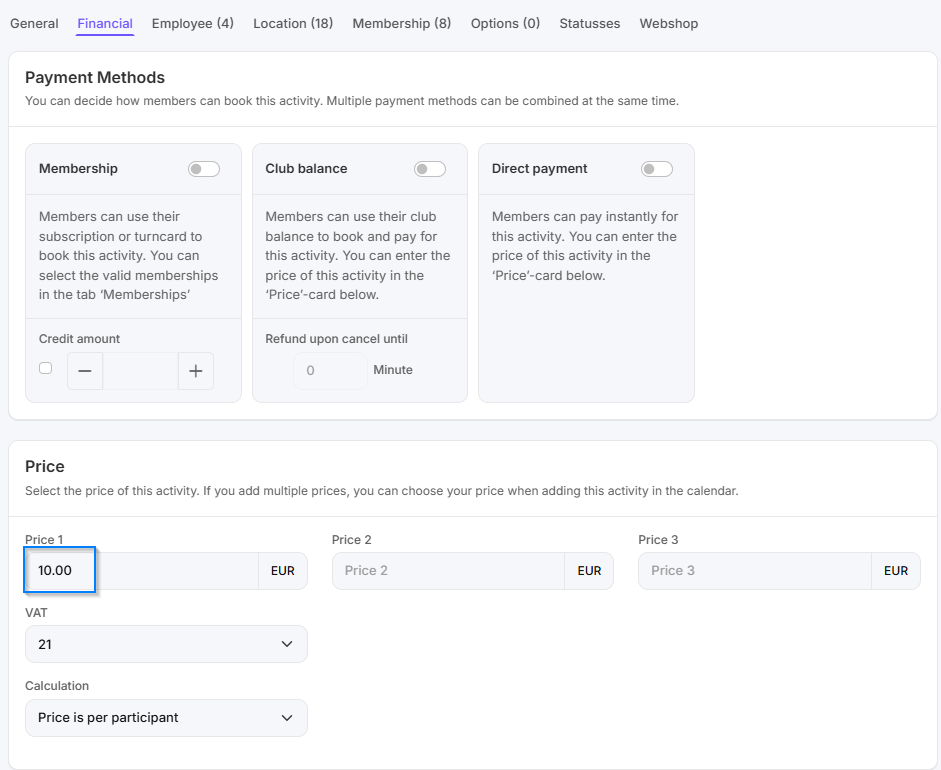
- Link the activity to the one-time events calendar via Calendar Settings > Activities.
- Grant access to this calendar only to one-time events.
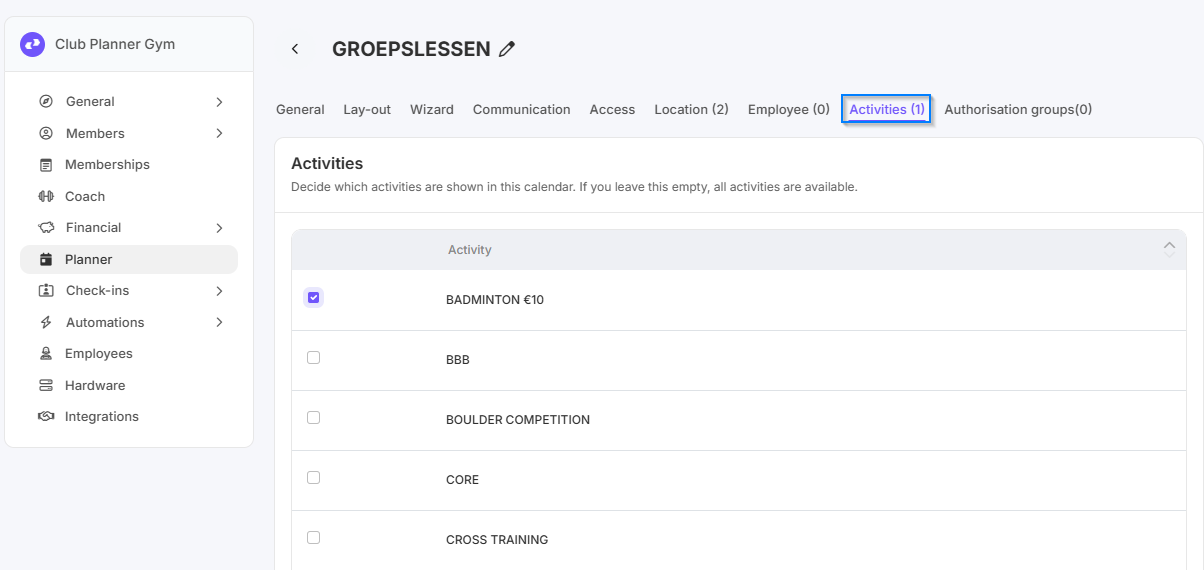
💡See the guide 'Add a new activity type'.
Step 3: Enable the booking wizard on the events calendar
Go to Settings.
- Double-click the calendar where you want to schedule the events.
- Go to the Wizard tab.
- Under Type of wizard, select: bookingwizard.
Set Wizard is active on: Online/App.
- Check the Calendar visible box.
- Optional: Send a QR code to the member when booking via Reservation QR.
After completing these steps, you can use bookingwizard to process online reservations and payments for your events.
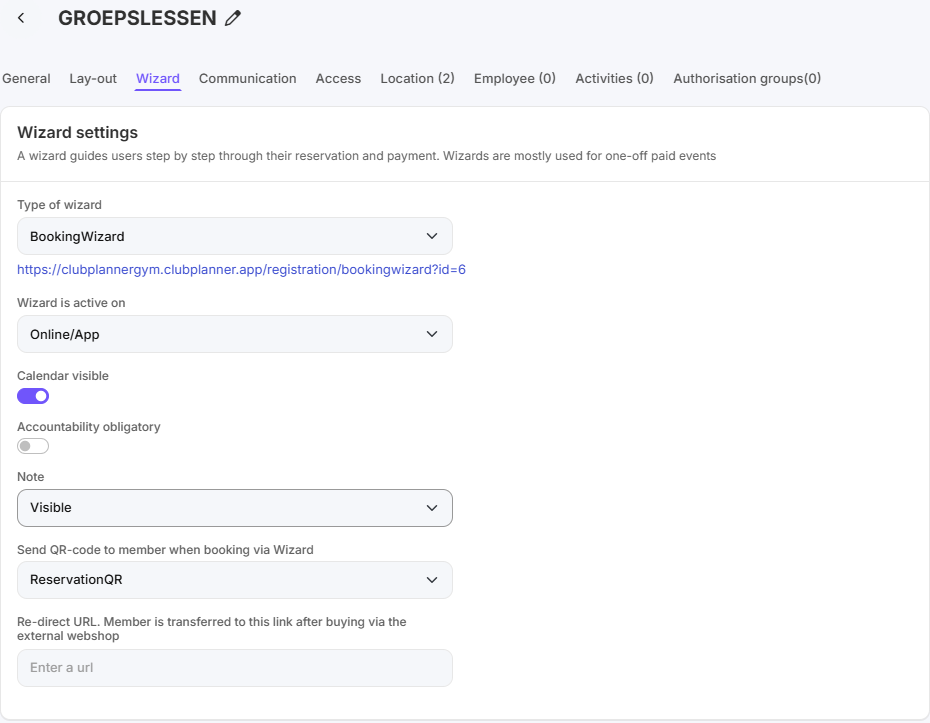
Bookingwizard Settings
| Description | Meaning |
|---|---|
| Type of wizard | Select the type of Wizard you want to set up on this calendar.Wizards can be used to make reservations and process payments immediately. This does not take into account any memberships or turn cards held by the member in question. |
| Wizard is active on |
Only via link avaiblable: The booking wizard will only be available via a direct link Online/App: the calendar is now displayed as a standard schedule on the online booking platform and in the app. This allows users to make reservations both through the Wizard and using the traditional booking method. |
| Calendar visible | Check this box to make the calendar visible in bookingwizard. This allows members to freely navigate between different dates. |
| Note | Set whether the note should be visible or not. |
| Send a QR code to member when booking via Wizard |
Disabled: is disabled ReservationQR: a QR code will be sent via email so you can check in upon arrival on the day of the event CheckinQR: a QR code will be sent via email so you can check in using it on the day of the event. |
| Redirect URL. Member is transferred to this link after buying via the external webshop | After making a purchase, members are redirected via the Wizard to this link (e.g., an external online store or a thank-you page). |
| Activities have a fixed start-date | Set the date from which the bookingwizard will be visible for this activity. |
| Expand (show) all locations on bookingwizard | All configured locations are displayed in the bookingwizard. |
| Show price of activitites | Determine whether the price of the activity should be visible to members. |
| Payment buttons |
Pay online: only allows online payments. Pay Online/Pay at reception: give members the option to choose between paying online or paying later at the club. Pay at reception: only allows you to pay at the club itself after the fact. |