In this guide, you'll learn how to send large attachments via email without having to upload them over and over again.
Step 1 - Upload the attachment in Club Planner
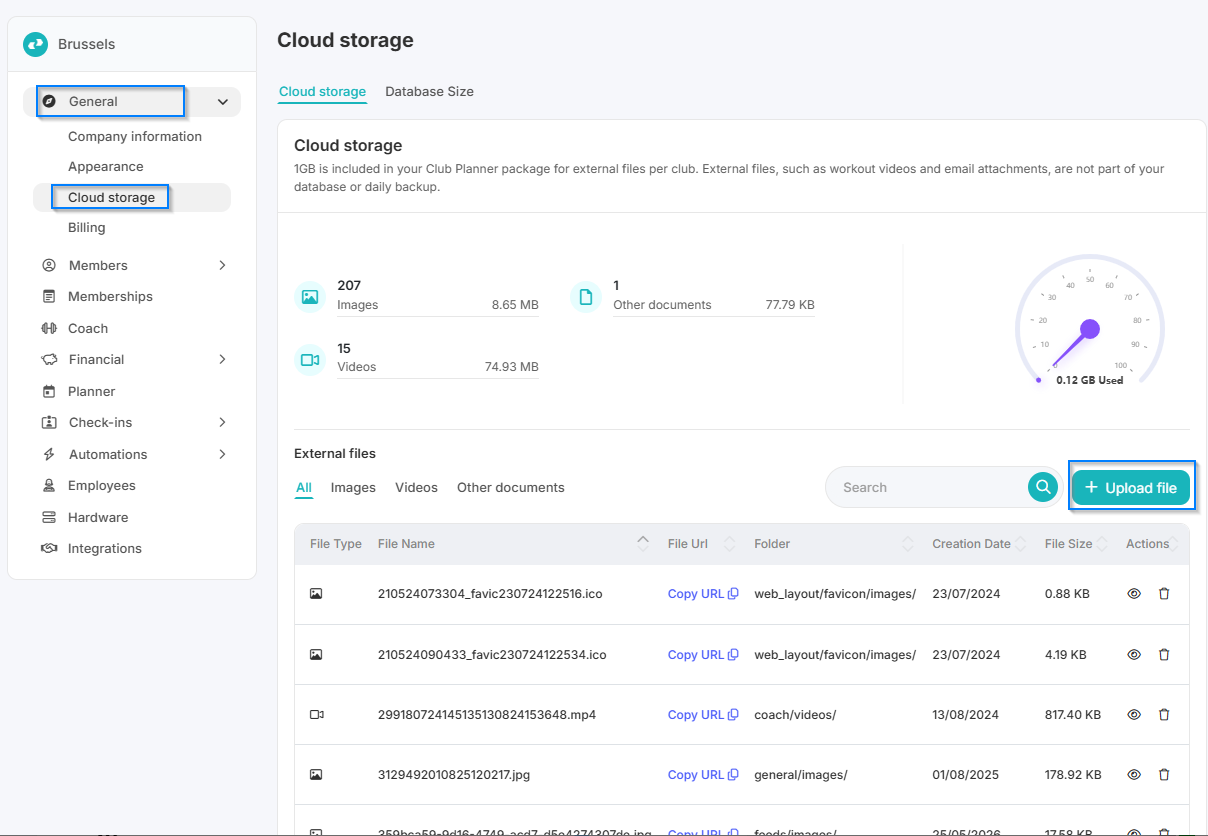
- Go to Settings
- Click General
- Open Cloud Storage
- Click Upload File and select the file you want to add
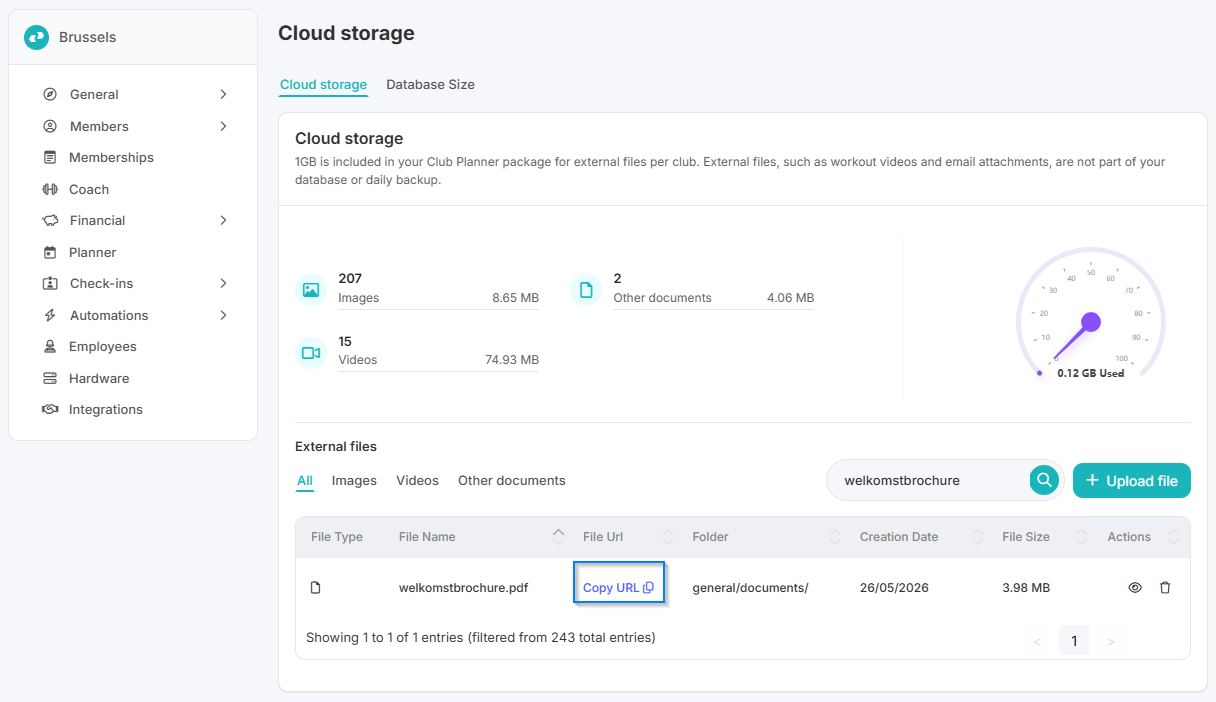
- After uploading, click Copy URL to copy the link
Step 2 - Add the attachment as a link in an email
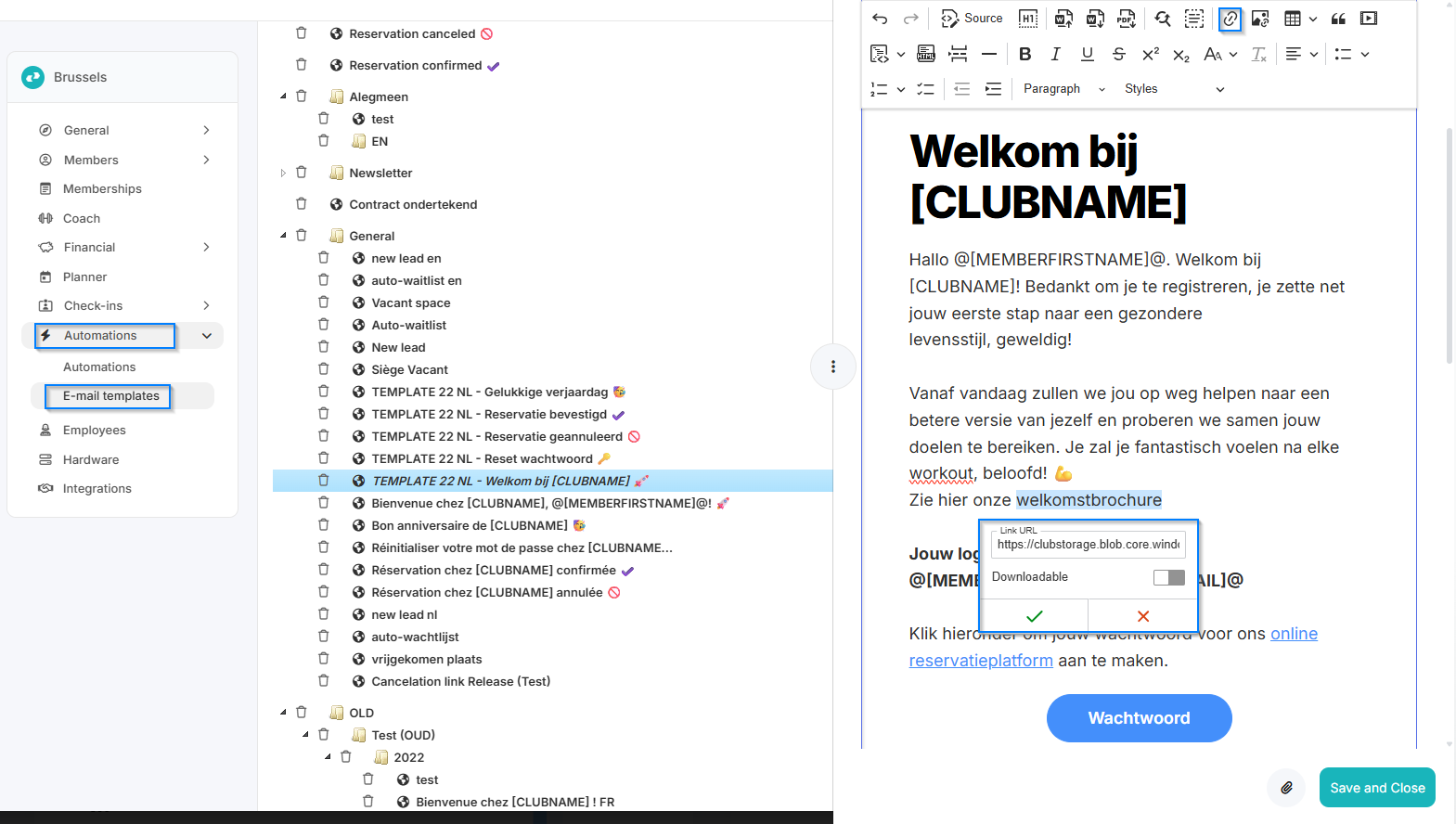
- Go to Automations
- Click on Email Templates
- Open the email to which you want to add the attachment
- Select the text where you want to place the link
- Click the icon to add a link
- Paste the copied URL and click the green checkmark to confirm
By attaching the file via a link, it won't be saved to the database over and over again. Members can easily open the attachment using the link in the email.