In dieser Anleitung erfahren Sie, wie Sie in Club Planner eine Suspension (Ruhezeit) zum Profil eines Mitglieds hinzufügen. Das ist praktisch, wenn ein Mitglied seine Mitgliedschaft vorübergehend pausieren möchte.
📝 Schritt-für-Schritt-Anleitung
Schritt 1 – Profil des Mitglieds öffnen
- Gehen Sie zur Mitgliederliste.
- Klicken Sie auf das Mitglied, das vorübergehend pausiert werden soll.
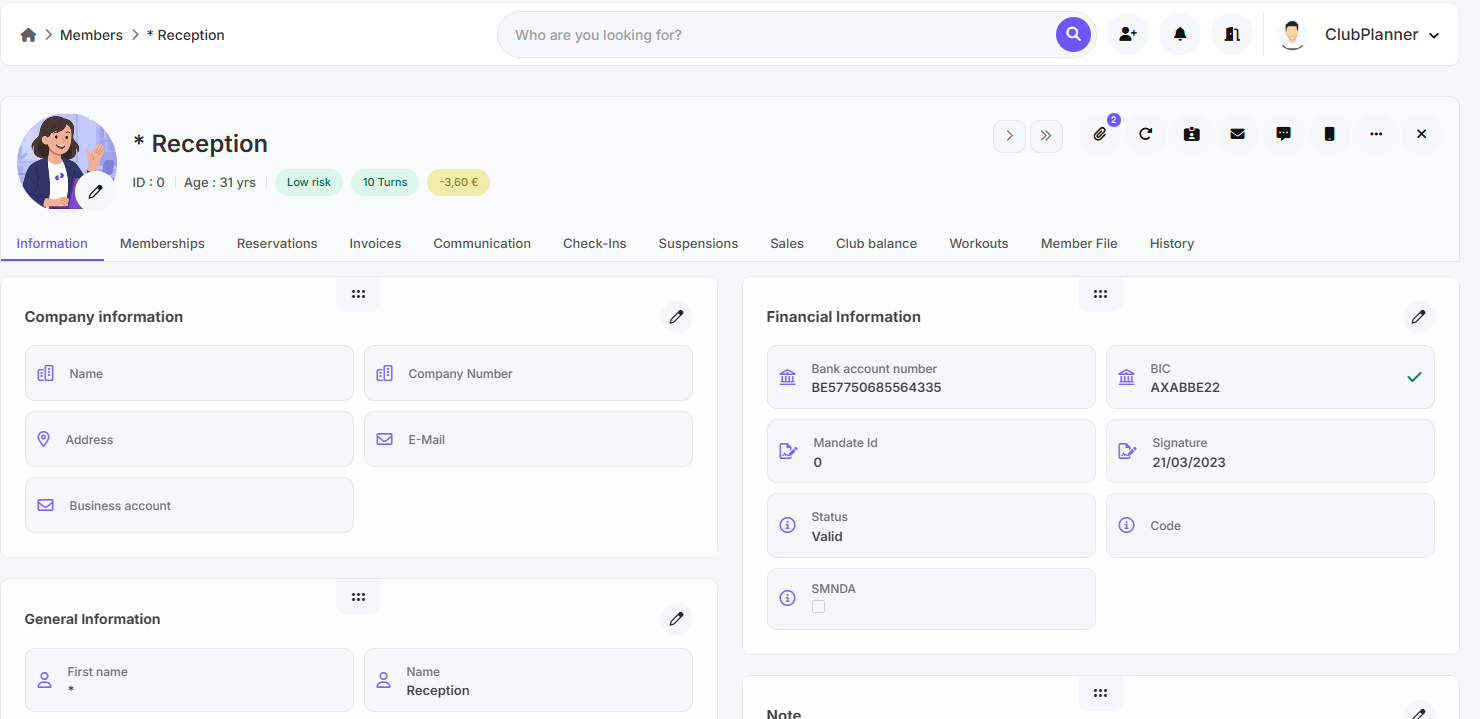
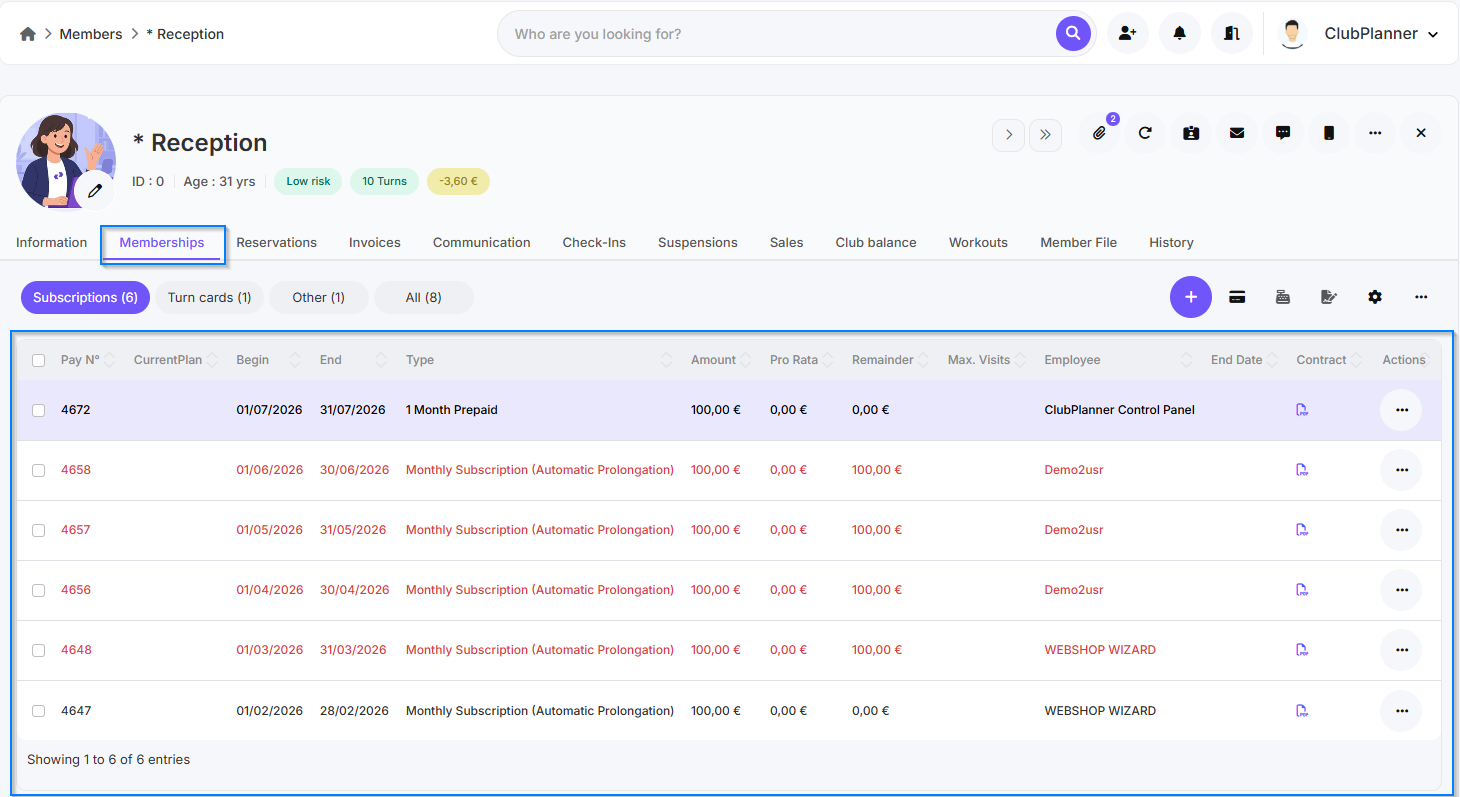
Schritt 2 – Zum Reiter „Memberships“ gehen
- Klicken Sie im Mitgliederprofil auf den Reiter „Memberships“.
- Hier sehen Sie die aktiven Mitgliedschaften des Mitglieds.
Schritt 3 – Zum Reiter „Suspensions“ gehen
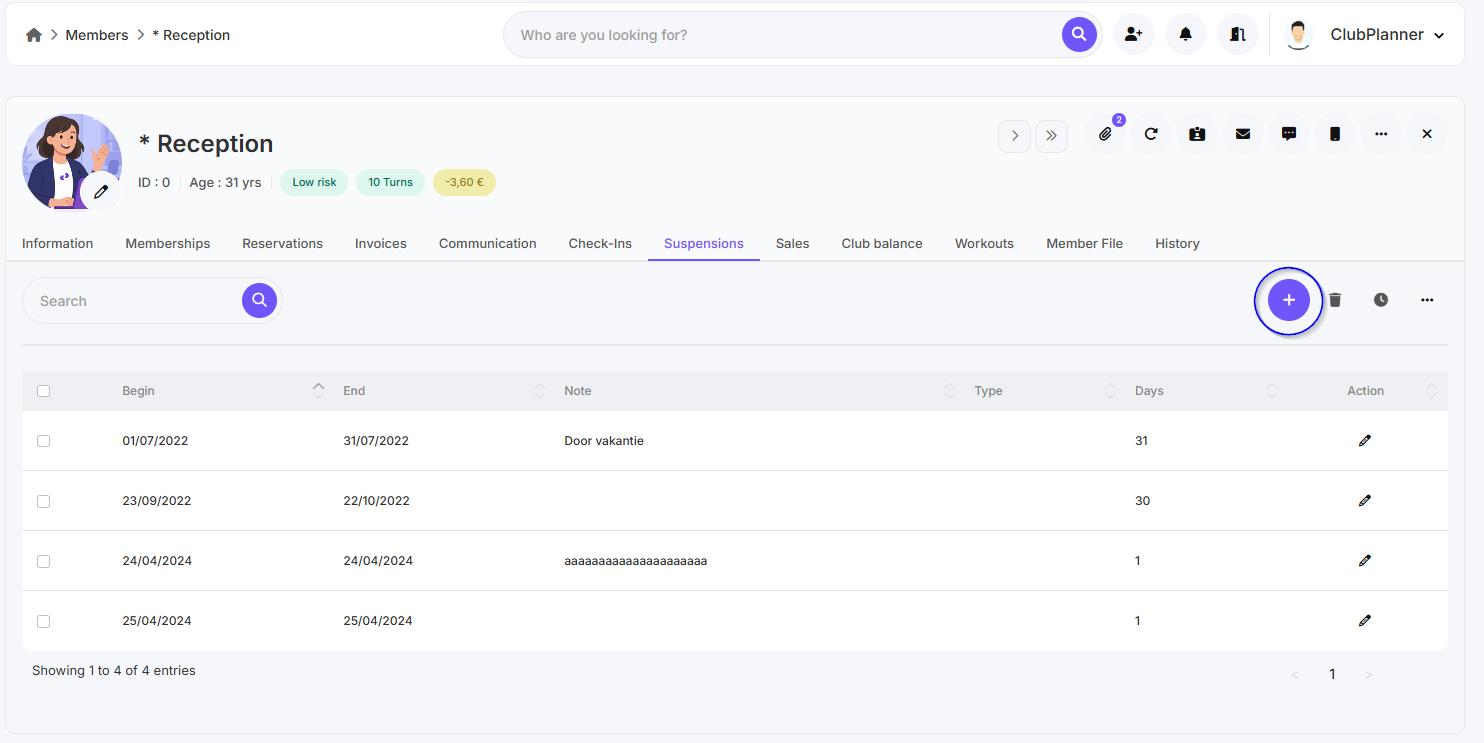
- Klicken Sie im Mitgliederprofil auf den Reiter „Suspensions“.
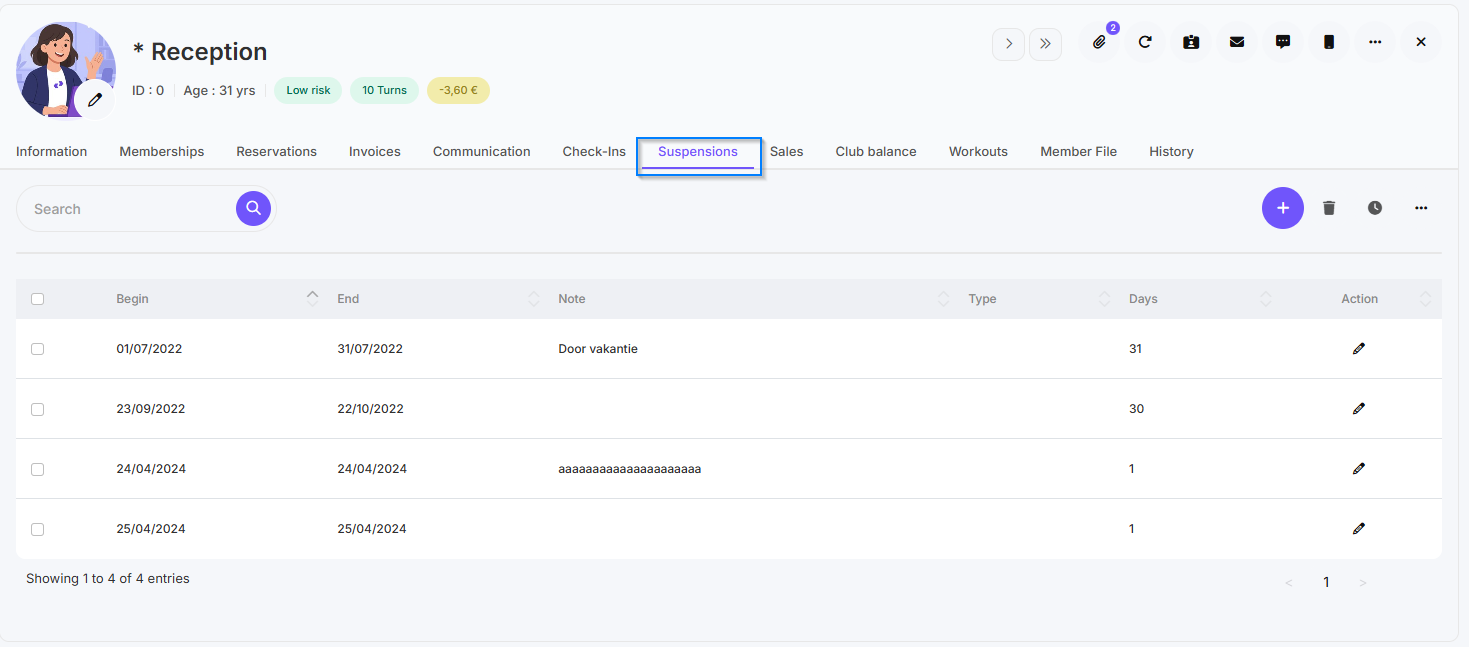
Schritt 4 – „Add Suspension“ wählen
- Wählen Sie die Option „Add Suspension“, um eine vorübergehende Pause hinzuzufügen.
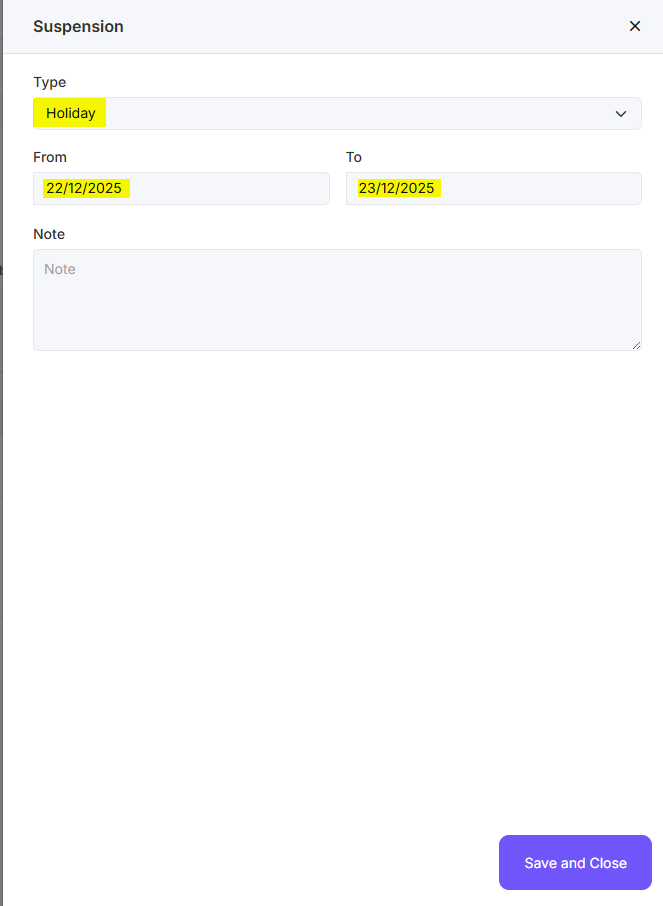
Schritt 5 – Zeitraum festlegen
- Geben Sie das Start- und Enddatum der Ruhezeit ein.
- Prüfen Sie, ob der Zeitraum korrekt eingestellt ist.
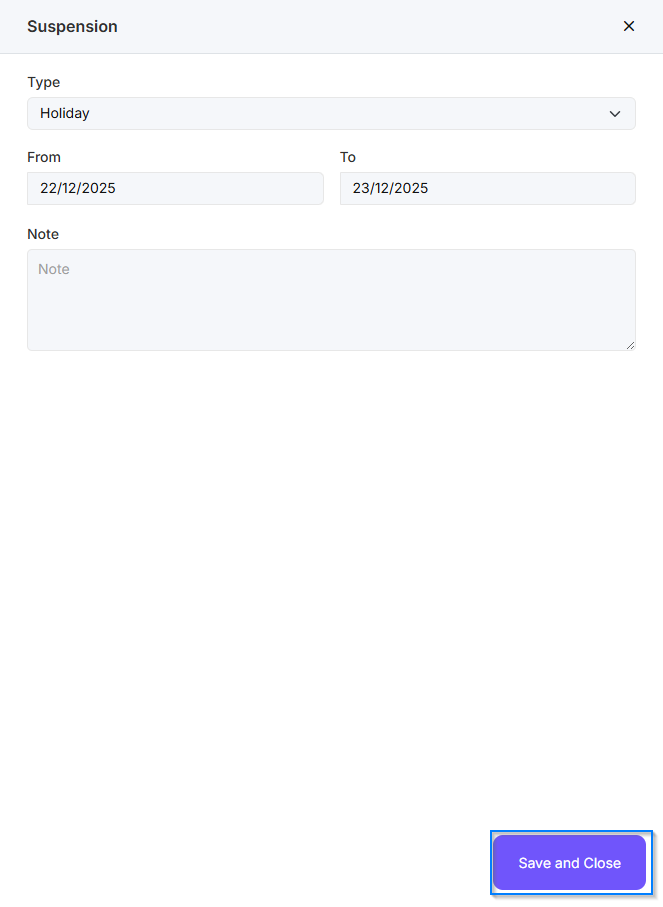
Schritt 6 – Bestätigen
- Klicken Sie auf „Save“, um die Ruhezeit hinzuzufügen.
- Die Mitgliedschaft wird während des gewählten Zeitraums automatisch pausiert.
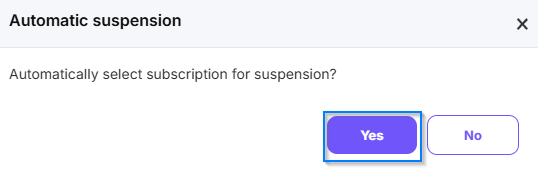
- Klicken Sie anschließend auf „Yes“, dann wird automatisch das richtige Abonnement ausgewählt.
Welche Arten von Ruhezeiten gibt es?
- Gehen Sie zu Einstellungen – Mitgliedschaften
- Wählen Sie die gewünschte Mitgliedschaft aus und klicken Sie auf „Bearbeiten“
- Gehen Sie zum Reiter „Ruhezeiten“
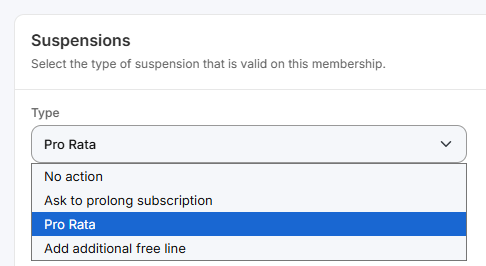
- Unter dem Dropdown „Typ“ finden Sie vier Möglichkeiten:
- Keine Aktion: Kunden werden pausiert, aber mit der Mitgliedschaft geschieht nichts (sie wird weder verlängert noch anteilig berechnet)
- Um Verlängerung bitten: Dieser Typ wird vor allem bei Prepaid-Abonnements und Punktekarten verwendet. Die genaue Anzahl der Ruhetage wird zum Enddatum der Mitgliedschaft hinzugerechnet.
- Pro rata: Dieser Typ wird vor allem bei wiederkehrenden Mitgliedschaften verwendet. Auf der oder den nächsten unbezahlten Abonnementzeilen wird die Anzahl der Ruhetage als Nachlass (in Geld) gutgeschrieben.
- Neue kostenlose Abonnementzeile hinzufügen: Nach dem Enddatum des Abonnements wird eine kostenlose Abonnementzeile (derselben Mitgliedschaftsart) hinzugefügt. Dieser Typ wird vor allem bei wiederkehrenden Abonnements mit festem Enddatum (also ohne stillschweigende Verlängerung) und bei Prepaid-Mitgliedschaften verwendet