
With the AI connection, your staff can ask Claude or ChatGPT questions about your members, classes and revenue in plain language. This article explains how to switch the connection on and how an employee connects Claude or ChatGPT.
Club Planner is available as an app in Claude and in ChatGPT. Every employee signs in with their own Club Planner account and only sees in Claude or ChatGPT what they are allowed to see on the web platform. By default the app can only look up data. It can only make changes once you allow that for a specific employee.
Switch the connection on
The connection is off by default. An administrator with access to the settings switches it on once for the whole platform.
- Go to Settings > Integrations and data > AI connections.
- Switch on Allow AI connections. The change is saved straight away.
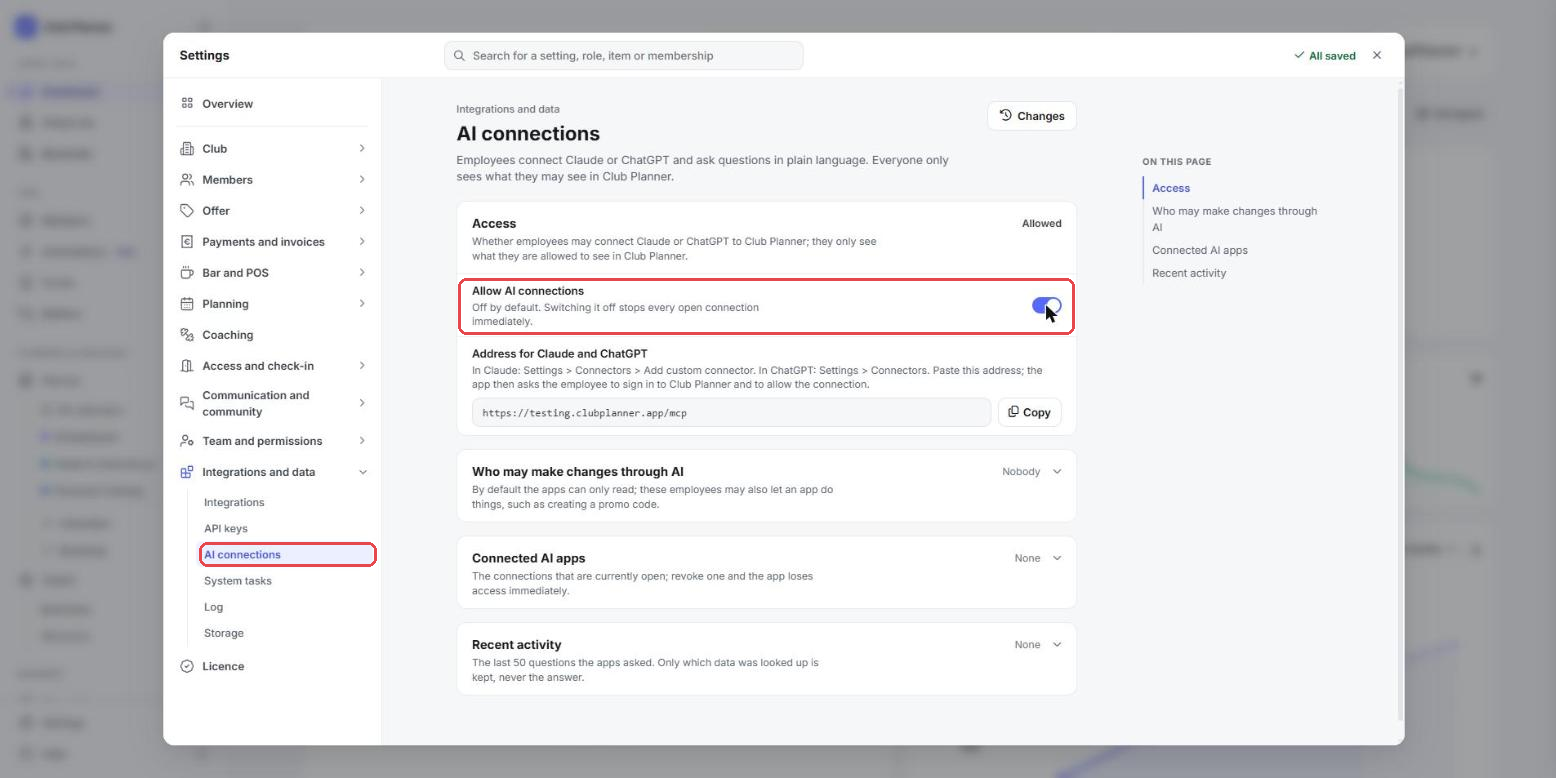
If you switch it off again later, every connected app loses access immediately.
Let employees make changes through AI
Without any extra setting, Claude or ChatGPT can only read. If you want an employee to let the app do something, such as create a promo code, pause a membership or send a mail template to a member, add that employee under Who may make changes through AI on the same page.
The employee also needs the right for that action in Club Planner itself. The app asks for confirmation before every change. If the employee had already connected Claude or ChatGPT before you added them, they have to connect it again.
Connect Claude
Each employee does this themselves, in their own Claude account.
- Open Claude and go to Customize in the menu on the left, then to Connectors.
- Search for Club Planner. You will see the Club Planner app by Club Planner BV.
- Click Connect. A Club Planner page opens.
- Enter the address of your platform, for example yourclub.clubplanner.app. This is the address you also use to sign in to the web platform. Then click the button to continue.
- Sign in with your own Club Planner account if you are not signed in yet.
- You now see which account and which clubs you are connecting. Click Allow. You are then taken back to Claude automatically.
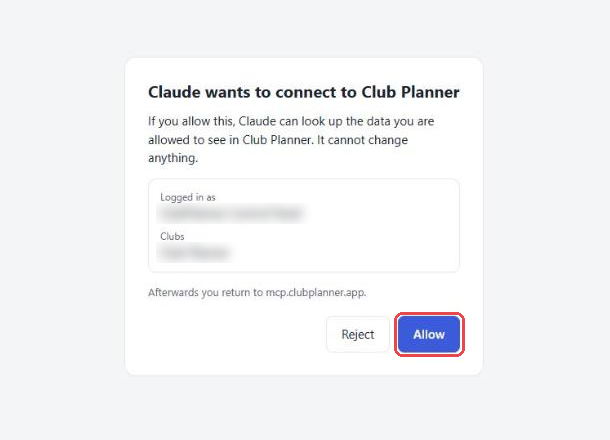
If you get a message that AI connections are not switched on when you enter the address, ask an administrator to switch them on as described above.
Connect ChatGPT
- Open ChatGPT and click Plugins in the menu on the left.
- Search for Club Planner and click the plus sign next to Club Planner.
- Confirm that you want to connect Club Planner. A new tab opens with a Club Planner page.
- Enter the address of your platform, sign in with your own Club Planner account and click Allow, just like for Claude.
ChatGPT then shows that the Club Planner plugin is installed.
Ask questions
Just ask your question in a chat. In ChatGPT, mention Club Planner in your question so ChatGPT knows it should use the app. A few examples:
- How many active members do we have, and how many new members joined this month?
- Which members still have an open payment?
- How busy were the group classes last week?
- Who is inside right now?
The first time, Claude asks for permission to use a part of Club Planner. You then choose whether to allow it once or always.
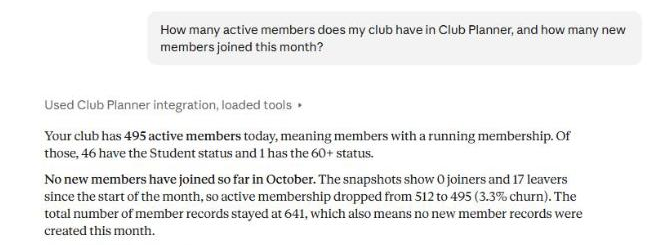
Check important figures on the web platform before you base decisions on them. Claude and ChatGPT can misunderstand a question.
Follow up and stop
On the AI connections page, Connected AI apps shows which employee connected which app. Revoke stops a single connection immediately. The employee can connect again later.
Recent activity shows the last 50 questions the apps asked Club Planner. Club Planner only keeps which data was looked up, never the answer.
To stop all connections at once, switch off Allow AI connections.