
The schedule is where you plan the working hours of your employees. You find it on the web platform under Employees > Schedule. If an employee works the same hours every week, create a fixed roster: you enter the hours once and they come back automatically. For hours that change, you add separate shifts.
Who appears on the schedule?
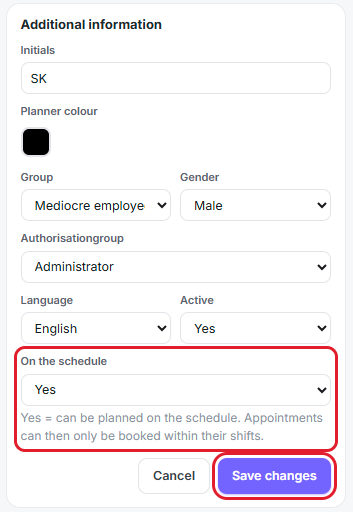
If On the schedule is not set to Yes for any employee, all your employees appear on the schedule. If you only want to see some of them, set On the schedule to Yes for those employees. From then on, only they appear.
- Go to Employees > Employees and open the employee.
- Click the pencil next to Additional information.
- Set On the schedule to Yes.
- Click Save changes.
The overview
At the top you choose between Day, Week and Month. Use the arrows to move to another period, and Today to jump back to the current week. Each employee has their own row, with the number of planned hours on the right. With List and Print you get the schedule as a list or on paper.
Creating a fixed roster
- Go to Employees > Schedule.
- Click Fixed rosters and then New fixed roster.
- Choose the employee under Employee.
- Give the roster a name, for example "Front desk".
- Leave Repeats every on 1 week. If the hours alternate every other week, choose 2 weeks. A roster can be up to 8 weeks long.
- Under Week 1 starts on, enter the date from which the roster applies. You can leave End Date empty.
- Under Day plan 1, click the days the employee works and enter the start and end time.
- If the employee works different hours on some days, click + Add another day plan and do the same for those days.
- Click Save.
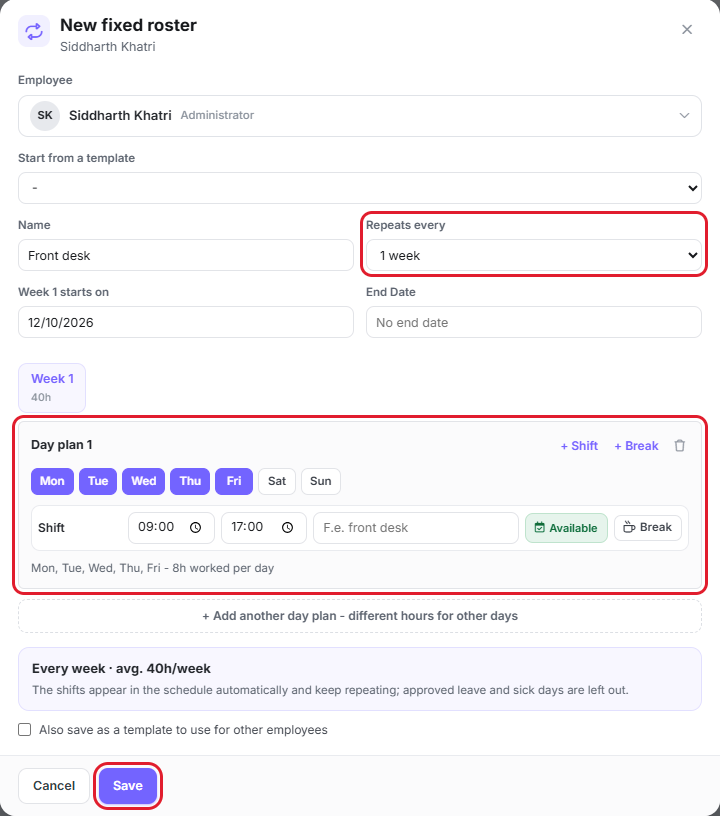
The shifts then appear on the schedule week after week.
If several employees work the same hours, tick Also save as a template to use for other employees. For the next employee, pick that template under Start from a template and the hours are already filled in. You change an existing fixed roster via Fixed rosters > Edit.
Adding separate shifts
For hours that do not come back every week, such as a replacement or a busy period:
- Go to Employees > Schedule.
- Click Add shift.
- Choose the employee under Employee and, under Week starting, the week of the shift.
- Click the days and enter the start and end time.
- Under Repeat, choose This week only or the number of weeks the shift should come back.
- Click Add.
Copying a week
Once a week is fully planned, click Copy week. You copy the week to the next week or to several weeks. With Copy from previous week you bring in the planning of the previous week. Shifts that are already on the schedule are never overwritten.
Changing shifts
Click a shift to change or delete it, or drag it to another day or employee. If the shift comes from a fixed roster, only that day changes and the rest of the roster stays as it is.
To change or delete many shifts of one employee at once, for example because their hours change from next month, click Bulk edit. Choose the employee, the period and the days, and then what should happen to the shifts.
You can add a break to a shift with + Break. It is deducted from the hours worked.
Appointments
If On the schedule is set to Yes for an employee, appointments with that employee can only be booked within their planned shifts. So plan the shifts first, before appointments are booked.
For each shift, Available determines whether appointments can be booked during those hours. If you switch it off, the employee is still working, but no appointments are booked during those hours.
Leave and sickness
Approved leave and sick days are skipped automatically. No shifts are created on those days, not from a fixed roster and not when copying a week.