
This article explains step-by-step how to grant discounts to members.
Discounts based on status
You can give your members a discount based on their status. You can assign this status to the member via the member profile. Below is an explanation of how to create and assign statuses.
- Go to Settings - Members - Appearance - Statuses
- Click 'Add' to add a status.
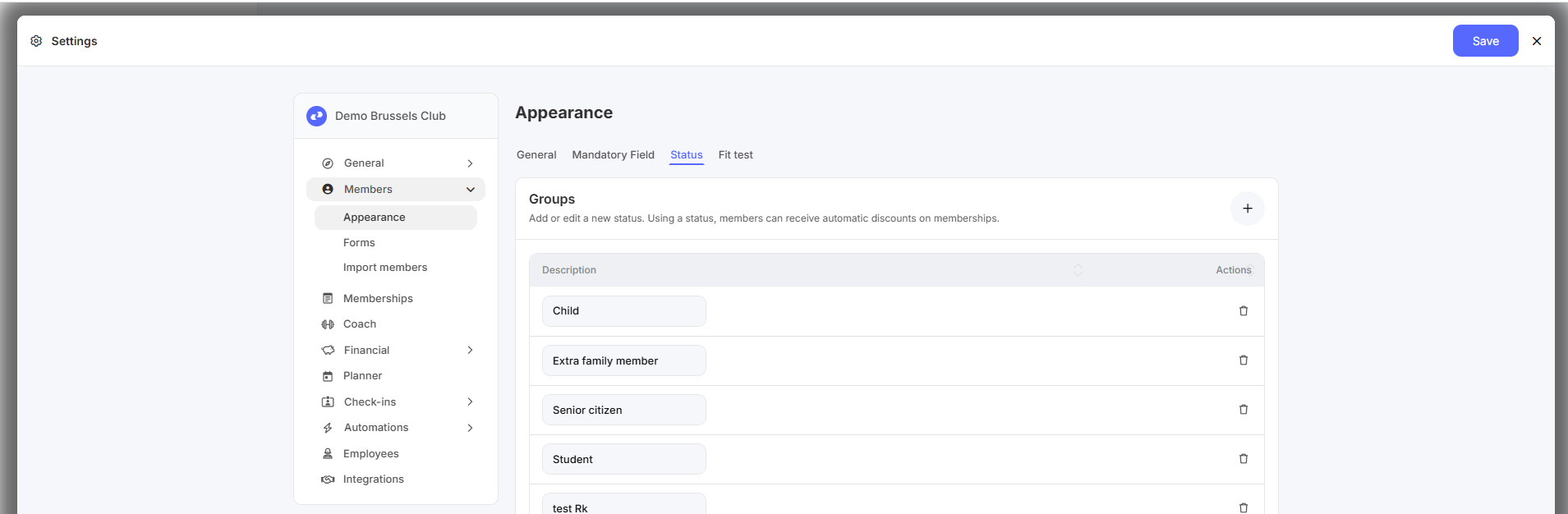
- Then link this status to a membership.
- Go to Settings - Memberships
- Edit a membership
- Go to the Discounts tab
- Add a status - select the discount amount that will be given when a member with this status purchases this type of membership. You can choose between a 'Fixed Amount' (customer receives this amount as a discount) or a 'Percentage' (customer receives a percentage discount on the total amount of the purchased membership).
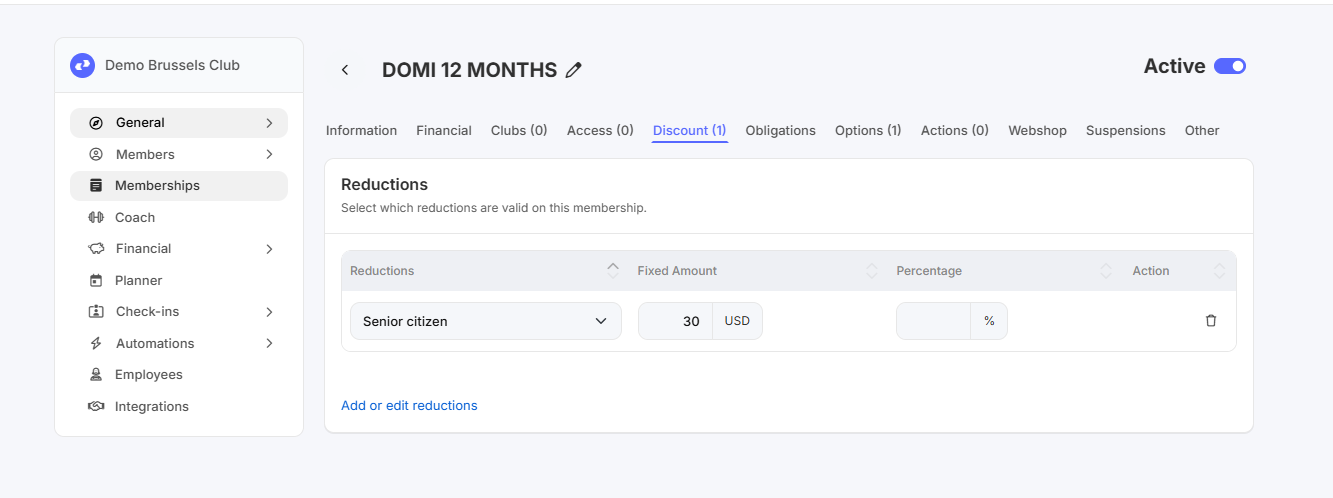
It's important to note that you must manually assign a status to a member. Members cannot assign themselves a status. This way, a staff member always retains control over who receives a status discount.
Only if the member has the chosen status will they automatically receive a discount when purchasing the item (subscription) to which this status is linked. The discount is automatically applied, both for purchases through the webshop and in-person sales.
Discounts based on promotions (promo codes)
You can give your members a discount through a 'promotion' or 'promo code'. You can create promotions containing a 'code'. You can then communicate this code to members and potential prospects. The member can then enter this code at the webshop checkout, or a staff member can enter the code during a physical sale. How to create a 'promotion' is explained below. To create a promotion:
- Go to Settings - Financial - General - Promotions
- Click 'Add' to add a promotion.
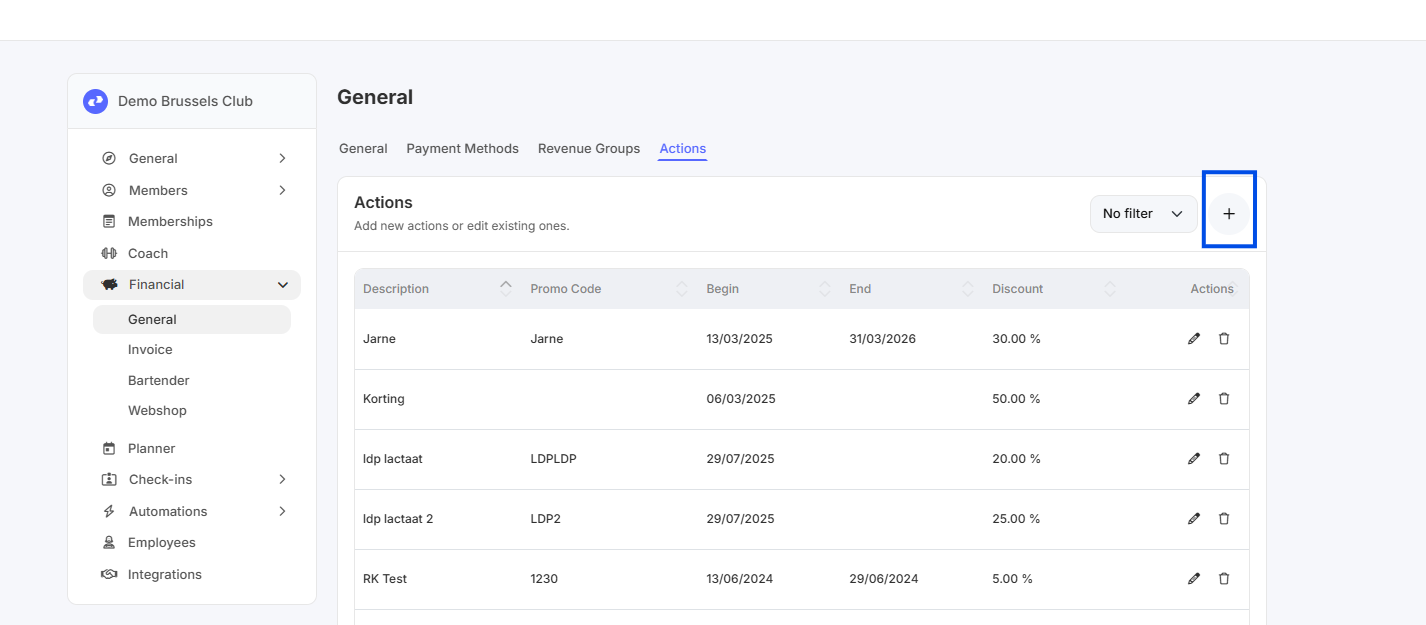
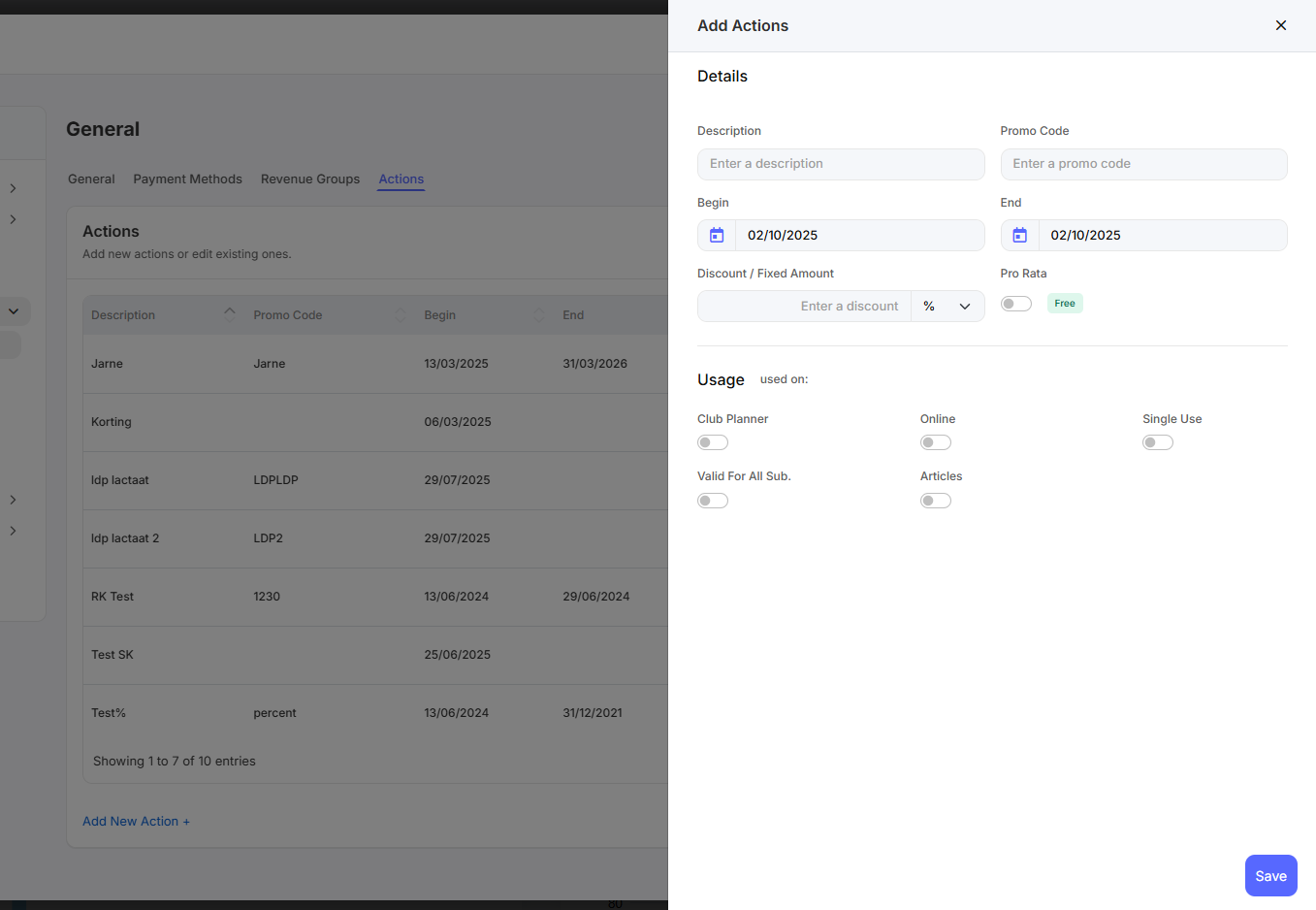
- Give the promotion a description and enter the promo code. The promo code is the code the member must use.
- Optionally choose a start and end date.
- Choose whether the promo code provides a percentage discount (%) (based on the total price of the purchased subscription) or a fixed amount (€).
- You can also choose to give the 'Pro rata' discount for free. This only works for recurring subscriptions with a pro rata setting.
- Choose where and how this promo code can be used.
- Club Planner: in the software by a staff member for in-person sales.
- Online: in the webshop.
- Single use: this promotion code can be used only once per customer.
- Valid for all subscriptions: this ensures that this promo code is valid on all subscriptions.
- Items: this ensures that this promo code can be used on items. (such as t-shirts, drinks, etc.)
- Save. You can now copy the promo code and send it via email/push message or manually write it on a physical receipt.
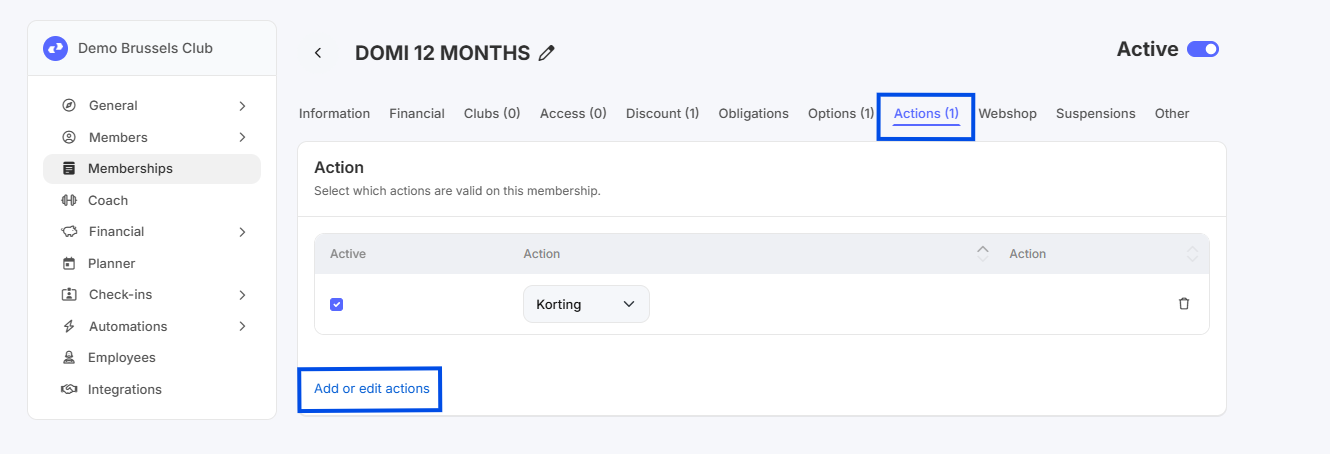
- The final step is to activate the offer on a subscription.
- Go to Settings - Memberships
- Click 'Edit' to edit a membership.
- Go to the 'Actions' tab to add an offer.
- Save
Discounts based on negative options
A subscription option is essentially an extra or additional service that you can add on top of your subscription, often for a small additional fee. However, if you set an option with a negative amount, the customer will receive that amount as a discount. This is essentially a workaround, but it allows your members to choose their own discount when purchasing in the webshop.