
In this manual, you will learn how to view and edit reservations for a class.
How do I view reservations for a specific class?
- Go to ‘Planner’ and select the calendar in which the lesson is scheduled.
- Double-click on the lesson for which you want to view the reservations.
-
Click 'Edit' at the top.
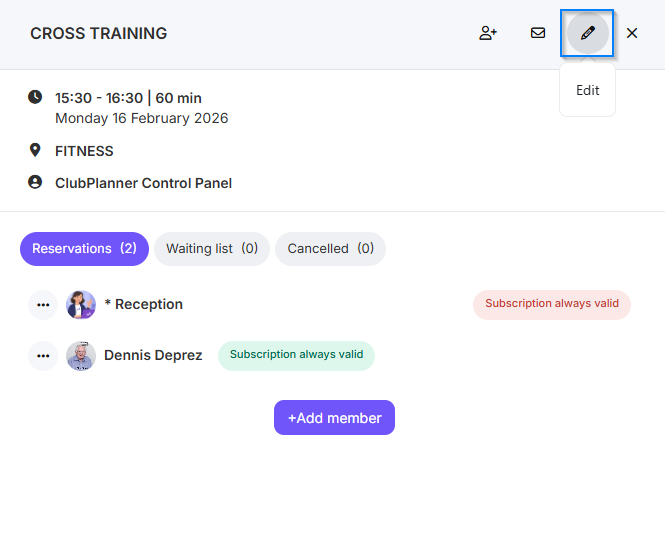
You will now see all the reservation details, such as:
- Member's name
- Used subscription
- Time of reservation
- Any additional information
How do I adjust the reservations for a specific class?
- First, follow the three steps above.
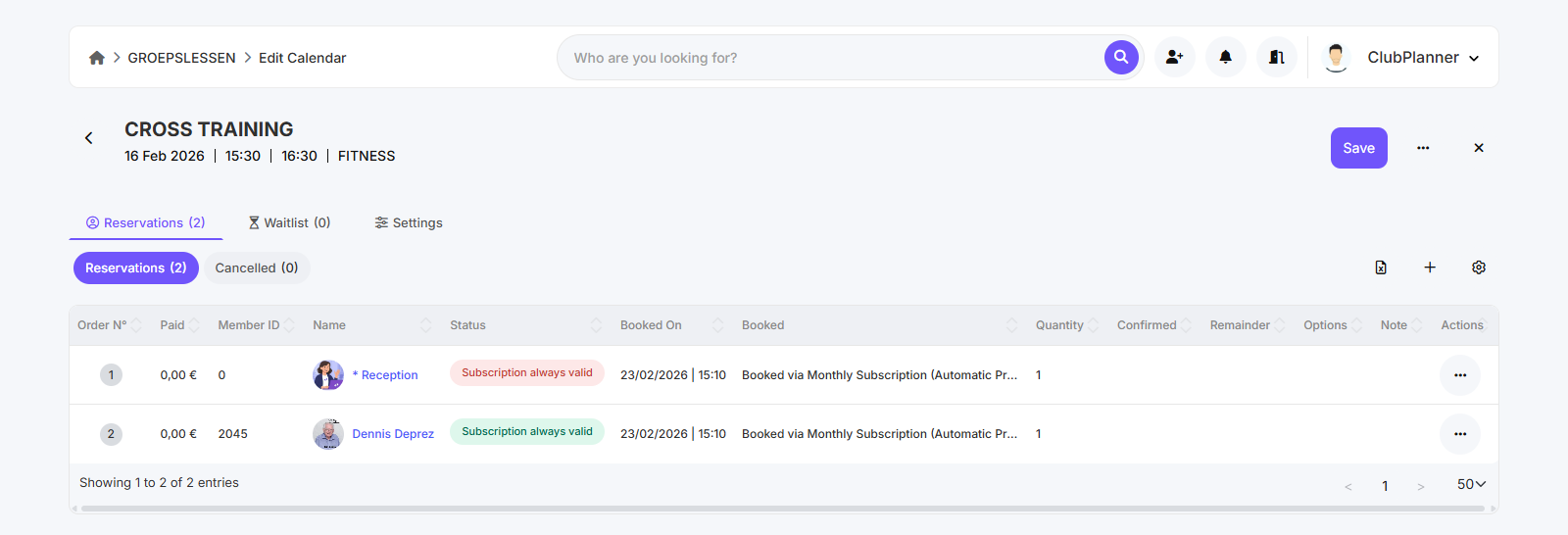
- Then click on the three dots next to the reservation you want to edit.
-
Select the desired action.
Below you will find an explanation of what each button does.
| Omschrijving | Informatie |
|---|---|
| Mark as present | Indicates that the member was not present at the activity. |
| Repeat/delete reservation | This allows you to copy a reservation to another date or delete the existing reservation. |
| Move to waitlist | Convert the reservation to a place on the waiting list. |
| Adjust number of places | Adjust the number of reserved seats for a member. For example, when a member is not coming alone, but with 2 people instead of 1. |
| Move to other activity | Move the member's reservation to another scheduled activity. |
| Cancel reservation | Cancels the reservation but keeps the registration in the system. |
| Delete reservation | Completely removes the reservation from the system. |