In this guide, you'll learn how to set the number of reservations a member can make per period (for example, per week) with a specific membership.
Set a reservation limit for the entire calendar
Go to Settings.
Click on Planner.
- Double-click on the calendar where the reservations are made.
- Go to the General tab.
- Then go to Limitation.
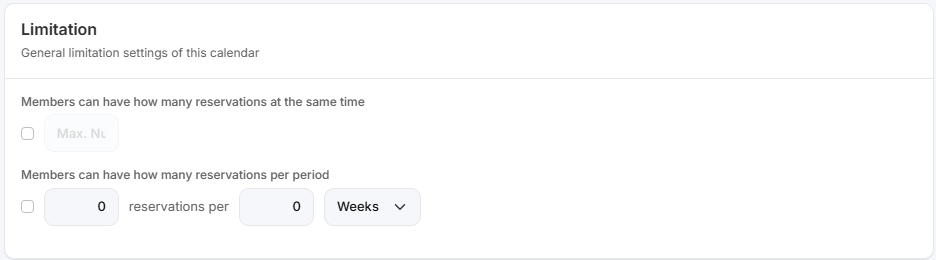
On this page, you can set the maximum number of reservations members are allowed to have at the same time.
You can also specify the maximum number of reservations members are allowed to make within a selected period. Once you configure these settings here, they will apply to all memberships.
Set a reservation limit per membership
Go to Settings.
Click on Planner.
- Double-click on the calendar where the reservations are made.
- Go to the Access tab.
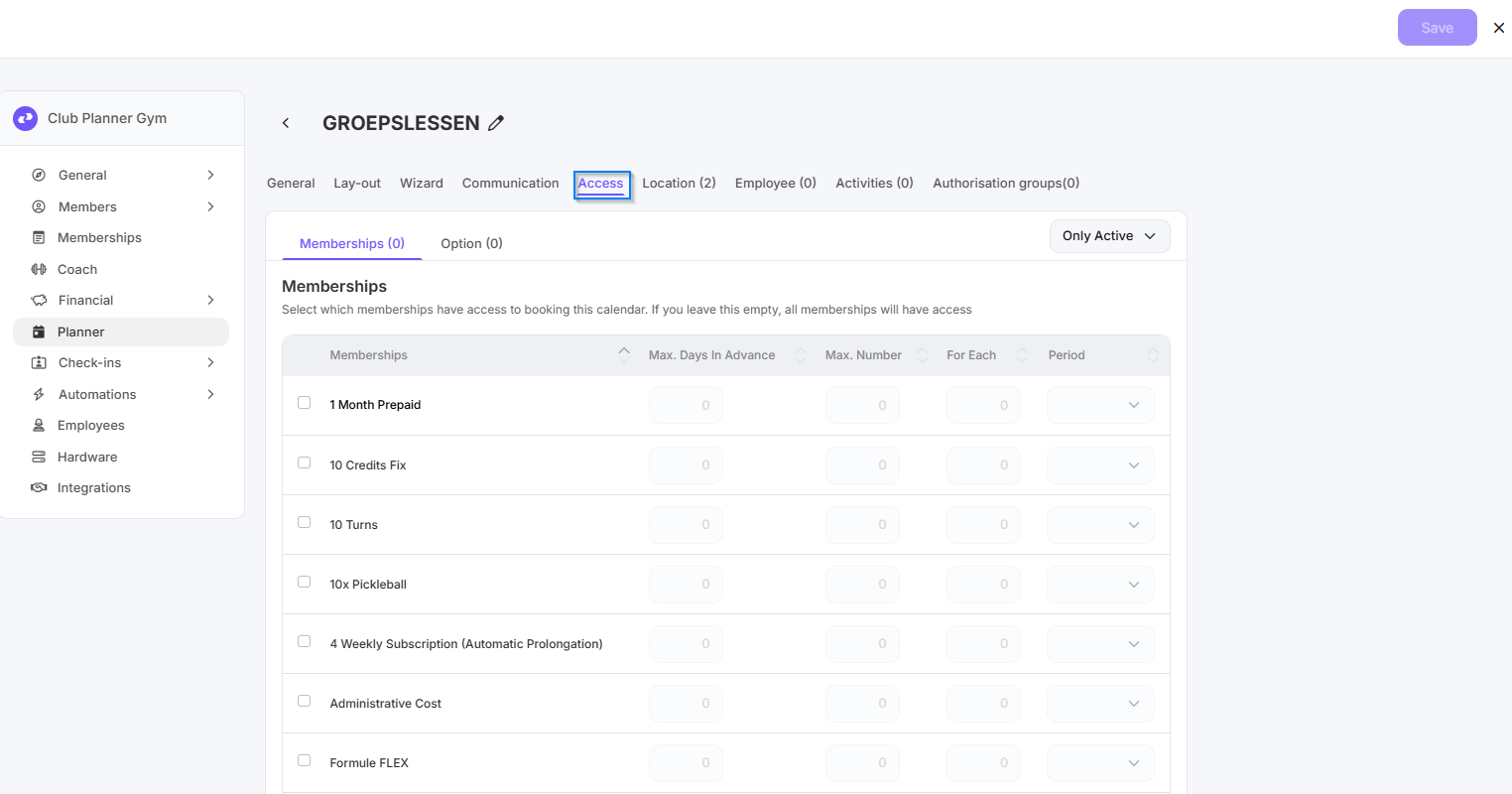
If you do not select any memberships here, you will be able to make as many reservations as you like on this calendar using any subscription that grants access to the activities.
Set up memberships and reservation limits
- Select the membership that should have access to this calendar.
- Set the number of days in advance for which a reservation can be made.
- Next, set the number of reservations that can be made per period (e.g., per week) with this membership.
Click on Save
🔔These settings can be configured differently for each membership.
📣Please note: if you do not select any memberships, Club Planner will use the memberships that have access to the activity when making the reservation.
Example
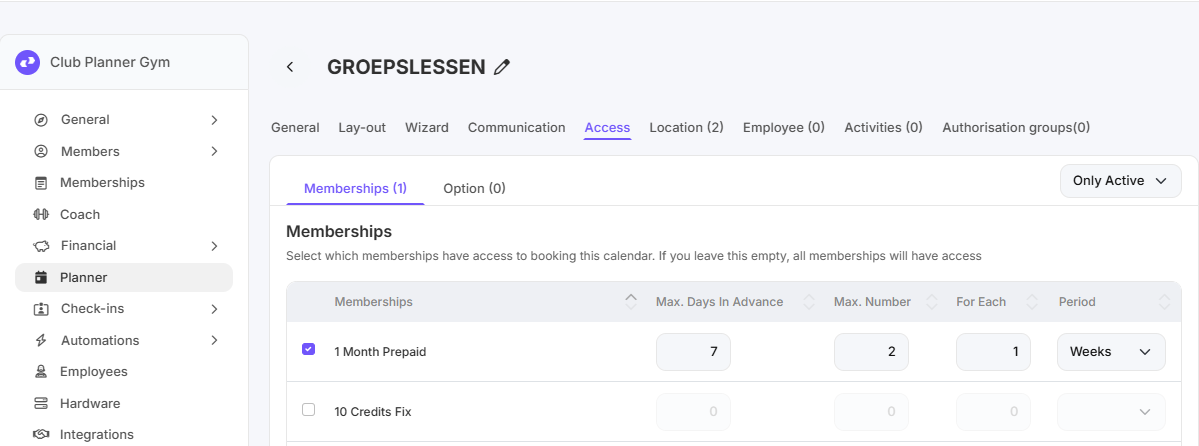
In the example below:
- You can only book the “1 Month Prepaid” membership on this calendar.
- Members with this membership can make reservations up to 7 days in advance.
- They may make a maximum of two reservations per week.